
PowerShell finds an IP address from a MAC address by searching the neighbor cache, which is the ARP table for IPv4. Pass the MAC to Get-NetNeighbor:
Get-NetNeighbor -LinkLayerAddress '00-00-5E-00-53-0A' -AddressFamily IPv4In this tutorial, I’ll show you how to find an IP from a MAC address in PowerShell with Get-NetNeighbor and arp -a, which MAC formats work, what to do when the device isn’t in the cache, and how to ask a DHCP server instead.
I tested everything on a Windows 11 PC in PowerShell 7.6 and Windows PowerShell 5.1, as a standard user. My router’s real IP and MAC are masked with documentation values, and every other address is a sample.
How to find an IP address from a MAC address with Get-NetNeighbor
Get-NetNeighbor reads the neighbor cache: every device on your local subnet that your PC has talked to recently. Its -LinkLayerAddress parameter takes a MAC address and returns the matching entries.
To test it on a real device, I looked up my own router. This script reads the router’s IP from the default route, gets its MAC, and then searches the cache by that MAC:
$gateway = (Get-NetRoute -DestinationPrefix '0.0.0.0/0' |
    Sort-Object -Property RouteMetric | Select-Object -First 1).NextHop
$mac = (Get-NetNeighbor -IPAddress $gateway -AddressFamily IPv4).LinkLayerAddress

"Entries with this MAC (IPv4 + IPv6): " + @(Get-NetNeighbor -LinkLayerAddress $mac).Count
Get-NetNeighbor -LinkLayerAddress $mac -AddressFamily IPv4 |
    Format-List IPAddress, LinkLayerAddress, State, InterfaceAlias
Output (PowerShell 7, router IP and MAC masked):
Entries with this MAC (IPv4 + IPv6): 2

IPAddress        : 198.51.100.1
LinkLayerAddress : 00-00-5E-00-53-01
State            : Reachable
InterfaceAlias   : Wi-Fi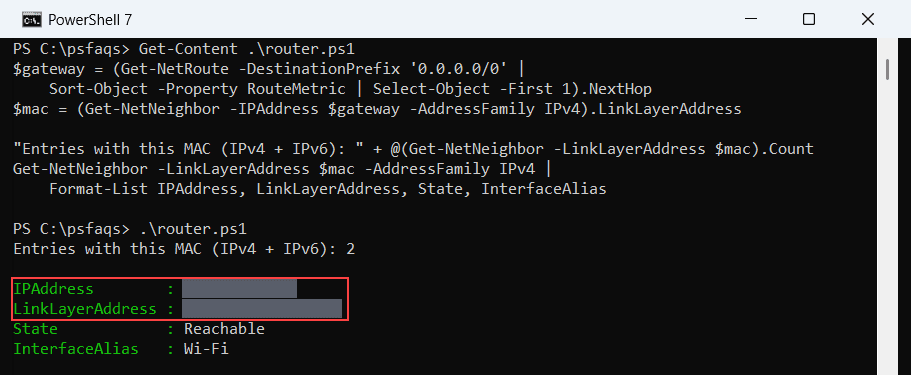
The first line matters. Without -AddressFamily IPv4, the same MAC came back twice, because the router also has an IPv6 link-local entry. Add the filter whenever you only want the IPv4 address.
The State column tells you how fresh the entry is. You’ll find more on formatting output with Format-Table if you’d rather see several devices in one table.
Which MAC address format does Get-NetNeighbor accept?
Windows stores MAC addresses as uppercase hex pairs separated by dashes, like 00-00-5E-00-53-0A. Switches, Linux tools, and inventory sheets often use colons or dots instead, so I tried four formats of the same router MAC:
# $mac holds the router's MAC from the first example
$forms = [ordered]@{
    'Uppercase dashes' = $mac
    'Lowercase dashes' = $mac.ToLower()
    'Colons'           = $mac -replace '-', ':'
    'No separators'    = $mac -replace '-'
}
foreach ($name in $forms.Keys) {
    $hits = @(Get-NetNeighbor -LinkLayerAddress $forms[$name] -AddressFamily IPv4 -ErrorAction SilentlyContinue)
    '{0,-17} {1} match(es)' -f $name, $hits.Count
}
Output (PowerShell 7 and 5.1):
Uppercase dashes  1 match(es)
Lowercase dashes  1 match(es)
Colons            0 match(es)
No separators     0 match(es)
Case doesn’t matter, but the colon and no-separator formats silently find nothing. That’s the most common reason a lookup fails even though the device is in the cache.
This small function converts any format to the one Windows uses. It strips every character that isn’t hex with a regular expression in PowerShell, then joins the pairs with dashes:
function ConvertTo-NeighborMac {
    param([Parameter(Mandatory)][string]$MacAddress)
    $hex = $MacAddress -replace '[^0-9A-Fa-f]'
    if ($hex.Length -ne 12) { return $null }
    ($hex.ToUpper() -split '(..)' -ne '') -join '-'
}
'00:00:5e:00:53:0a', '0000.5e00.530a', '00005E00530A', '00-00-5E' | ForEach-Object {
    '{0,-18} -> {1}' -f $_, (ConvertTo-NeighborMac $_)
}
Output (PowerShell 7 and 5.1):
00:00:5e:00:53:0a  -> 00-00-5E-00-53-0A
0000.5e00.530a     -> 00-00-5E-00-53-0A
00005E00530A       -> 00-00-5E-00-53-0A
00-00-5E           ->
The last input is only three bytes, so the function returns nothing instead of guessing. The -split ‘(..)’ trick keeps each two-character pair; see splitting strings in PowerShell for how capture groups work in -split.
Find all devices from one vendor with a MAC prefix
The first three bytes of a MAC address are the vendor’s ID, called the OUI (Organizationally Unique Identifier). Microsoft Learn lists -LinkLayerAddress as not supporting wildcards, but a trailing asterisk worked in both shells on my PC:
# $mac holds the router's MAC from the first example
$vendor = $mac.Substring(0, 8) + '*'     # first three bytes = the vendor (OUI)
$sameVendor = @(Get-NetNeighbor -LinkLayerAddress $vendor -AddressFamily IPv4)
"Entries from the same vendor: $($sameVendor.Count)"
"All of them start with the prefix: " + (@($sameVendor | Where-Object LinkLayerAddress -notlike $vendor).Count -eq 0)
Output (PowerShell 7):
Entries from the same vendor: 2
All of them start with the prefix: True
That’s handy for finding every printer or camera from one maker. If a future Windows build drops wildcard support, fall back to Where-Object with the -like operator in PowerShell, which always works:
Get-NetNeighbor -AddressFamily IPv4 |
    Where-Object LinkLayerAddress -like '00-00-5E*'
Search the ARP table with arp -a
The arp -a command shows the same IPv4 cache and works on every Windows version. It prints lowercase MACs with dashes, so text matching needs care.
This function turns each row of arp -a into an object. I ran it on sample text shaped exactly like the real output first:
function ConvertFrom-ArpTable {
    param([string[]]$Line)
    foreach ($l in $Line) {
        if ($l -match '^\s*(\d{1,3}(?:\.\d{1,3}){3})\s+([0-9a-f]{2}(?:-[0-9a-f]{2}){5})\s+(\S+)') {
            [pscustomobject]@{
                IPAddress  = $Matches[1]
                MacAddress = $Matches[2].ToUpper()
                Type       = $Matches[3]
            }
        }
    }
}
$sample = @'
Interface: 192.0.2.25 --- 0x10
  Internet Address      Physical Address      Type
  192.0.2.1             00-00-5e-00-53-01     dynamic
  192.0.2.40            00-00-5e-00-53-28     dynamic
  192.0.2.255           ff-ff-ff-ff-ff-ff     static
'@ -split "`r?`n"
ConvertFrom-ArpTable -Line $sample | Where-Object MacAddress -eq '00-00-5E-00-53-28'
Output (PowerShell 7 and 5.1):
IPAddress  MacAddress        Type
---------  ----------        ----
192.0.2.40 00-00-5E-00-53-28 dynamic
Then I fed it the real arp -a output from my PC. I’m only showing counts, since the rows are other devices on my home network:
$entries = ConvertFrom-ArpTable -Line (arp -a)
"Rows parsed from arp -a: $($entries.Count)"
$entries | Group-Object -Property Type | Sort-Object -Property Name |
    ForEach-Object { '{0,-8} {1}' -f $_.Name, $_.Count }
Output (PowerShell 7):