Data security is more critical than ever. With cyber threats on the rise, encrypting your drives using BitLocker is one of the most effective ways to protect sensitive data on Windows devices. While you can enable BitLocker through the Windows GUI, PowerShell provides a faster, more flexible, and automatable method—perfect for IT professionals and system administrators managing multiple machines.
In this tutorial, I will walk through everything you need to know about enabling BitLocker with PowerShell.
What is BitLocker?
BitLocker Drive Encryption is a full-disk encryption feature built into Windows 10, Windows 11, and Windows Server editions. It helps protect data by encrypting entire volumes, ensuring that unauthorized users cannot access the data even if the device is lost or stolen.
BitLocker can use multiple protection methods, including:
- TPM (Trusted Platform Module)
- PINs or passwords
- Recovery keys or recovery passwords
- Smart cards
When used with PowerShell, BitLocker becomes a powerful tool for automating encryption across networks or enterprise environments.
Prerequisites
Before enabling BitLocker using PowerShell, ensure the following:
- Operating System:
- Windows 10 Pro, Enterprise, or Education
- Windows 11 Pro, Enterprise, or Education
- Windows Server 2016 or later (BitLocker feature must be installed manually)
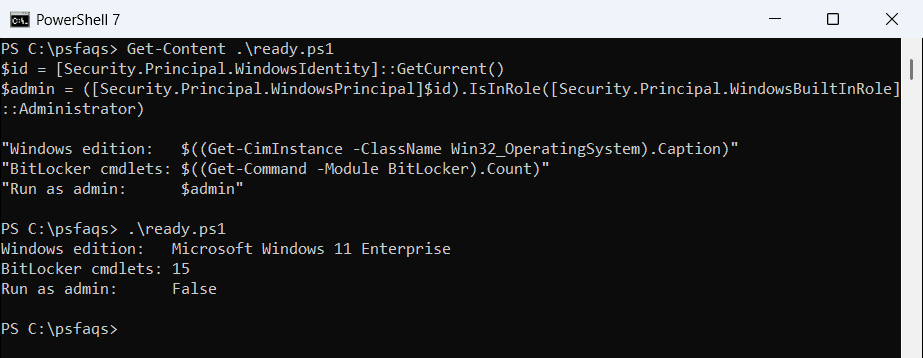
- Administrator Privileges:
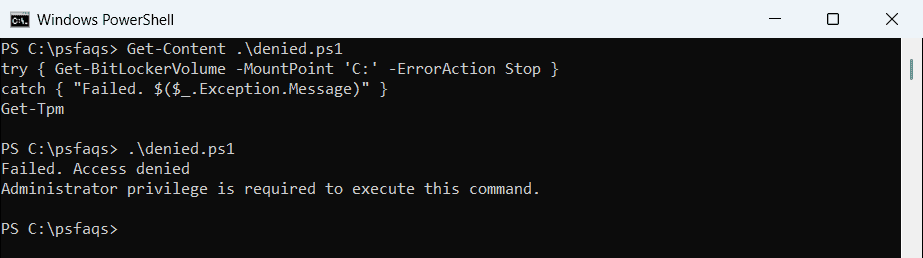
Run PowerShell as Administrator. - TPM Availability (optional but recommended):
Check TPM status using:Get-TPMIf TPM is not available, you can still use a password or recovery key protector. - BitLocker Module:
Ensure the BitLocker PowerShell module is available:Get-Command -Module BitLockerIf not installed, add it via:Install-WindowsFeature BitLocker -IncludeAllSubFeature -Restart
Check out PowerShell Get-WindowsAutoPilotInfo
Enable BitLocker with PowerShell
Now, let me guide you through the step-by-step process of enabling BitLocker using PowerShell.
Step 1: Check BitLocker Status
Before enabling encryption, verify the drive’s current BitLocker status:
Get-BitLockerVolumeThis command lists all drives and shows whether BitLocker is enabled, suspended, or off.
Step 2: Enable BitLocker on the Operating System Drive
To enable BitLocker on the C: drive with TPM protection:
Enable-BitLocker -MountPoint "C:" -TpmProtectorIf you also want to back up the recovery key to a file:
Enable-BitLocker -MountPoint "C:" -TpmProtector -RecoveryKeyPath "E:\RecoveryKeys"This command:
- Uses the TPM chip for authentication.
- Stores the recovery key in the specified folder.
Step 3: Add a Recovery Password (Optional but Recommended)
Adding a recovery password ensures you can unlock the drive if TPM fails:
Add-BitLockerKeyProtector -MountPoint "C:" -RecoveryPasswordProtectorTo view the recovery password:
(Get-BitLockerVolume -MountPoint "C:").KeyProtectorStep 4: Start Encryption
Once BitLocker is enabled, start the encryption process:
Start-BitLocker -MountPoint "C:"To monitor encryption progress:
Get-BitLockerVolume -MountPoint "C:" | Select-Object MountPoint, VolumeStatus, EncryptionPercentageEncryption time depends on drive size and hardware speed.
Step 5: Enable BitLocker on Data Drives
For non-OS drives (e.g., D:), use:
Enable-BitLocker -MountPoint "D:" -PasswordProtector -Password (ConvertTo-SecureString "MyStrongPassword123!" -AsPlainText -Force)This command uses a password protector instead of TPM—useful for external or removable drives.
Step 6: Backup Recovery Keys Automatically
To automatically back up recovery keys to Active Directory (AD) or Azure AD:
For AD environments:
Backup-BitLockerKeyProtector -MountPoint "C:" -KeyProtectorId (Get-BitLockerVolume -MountPoint "C:").KeyProtector[1].KeyProtectorIdFor Azure AD devices (Windows 11+):
Keys are automatically uploaded when the device is Azure AD joined.
Step 7: Verify Encryption and Compliance
After encryption completes, verify the drive status:
Get-BitLockerVolume | Select-Object MountPoint, ProtectionStatus, EncryptionMethodIf ProtectionStatus shows On, encryption is active and protecting your data.
Read Delete User Profiles Using PowerShell in Windows 11
Automate BitLocker Deployment with PowerShell Script
For enterprise or bulk deployment, you can use a PowerShell script like this:
$drives = Get-BitLockerVolume | Where-Object {$_.VolumeType -eq 'OperatingSystem'}
foreach ($drive in $drives) {
if ($drive.ProtectionStatus -eq 'Off') {
Enable-BitLocker -MountPoint $drive.MountPoint -TpmProtector -RecoveryKeyPath "E:\RecoveryKeys"
Start-BitLocker -MountPoint $drive.MountPoint
Write-Host "BitLocker enabled on $($drive.MountPoint)"
} else {
Write-Host "BitLocker already enabled on $($drive.MountPoint)"
}
}This script checks all system drives, enables BitLocker if it’s off, and saves recovery keys automatically.
Troubleshooting Common Issues
Here are some common issues you may encounter while working with PowerShell.
| Issue | Possible Cause | Solution |
|---|---|---|
| TPM not found | TPM is disabled in BIOS/UEFI | Enable TPM in BIOS |
| Access denied | PowerShell not run as Administrator | Run PowerShell as Administrator |
| Encryption paused | System restart or power loss | Resume using Resume-BitLocker -MountPoint "C:" |
| Recovery key not saving | Incorrect path or permissions | Verify folder path and permissions |
Check out Track User Login History on Windows Using PowerShell
Security Best Practices
- Always back up recovery keys to a secure location (e.g., AD, Azure AD, or a secure USB).
- Use TPM + PIN for maximum protection:
Enable-BitLocker -MountPoint "C:" -TpmAndPinProtector -Pin (ConvertTo-SecureString "123456" -AsPlainText -Force)- Monitor encryption compliance across your organization using Intune or Microsoft Endpoint Manager.
- Regularly audit BitLocker status with:
Get-BitLockerVolume | Export-Csv "C:\Reports\BitLockerStatus.csv" -NoTypeInformationIn this tutorial, I explained how to enable BitLocker with PowerShell step by step.
You may also like:
- Set the Default Printer Using PowerShell in Windows
- Set Password for Local User in Windows 11 Using PowerShell
Bijay Kumar is an esteemed author and the mind behind PowerShellFAQs.com, where he shares his extensive knowledge and expertise in PowerShell, with a particular focus on SharePoint projects. Recognized for his contributions to the tech community, Bijay has been honored with the prestigious Microsoft MVP award. With over 15 years of experience in the software industry, he has a rich professional background, having worked with industry giants such as HP and TCS. His insights and guidance have made him a respected figure in the world of software development and administration. Read more.