
To kill a process by name in PowerShell, run Stop-Process -Name followed by the process name, without .exe. It stops every running process with that name:
Stop-Process -Name notepadFor the tests in this guide, I started a few hidden ping.exe processes, so nothing real was harmed. Here the command stops two of them:
"Running before: $(@(Get-Process -Name PING).Count)"

Stop-Process -Name PING
Wait-Process -Name PING -ErrorAction SilentlyContinue

"Running after:  $(@(Get-Process -Name PING -ErrorAction SilentlyContinue).Count)"
Output:
Running before: 2
Running after:  0
I ran every example in PowerShell 7.6 and Windows PowerShell 5.1. Only the last trick, killing a whole process tree with one method call, is PowerShell 7 only.
Find the right process name
The name Stop-Process expects is the ProcessName from Get-Process. It usually matches the .exe file without the extension, but not always what Task Manager shows. Check first:
Get-Process | Sort-Object -Property CPU -Descending | Select-Object -First 10 -Property Name, Id, CPUNames aren’t case-sensitive, so ping and PING work the same. Wildcards like chrome* work too, but preview them with -WhatIf first, as shown below.
How do I kill a process only if it’s running?
If no process has that name, Stop-Process throws an error:
try {
    Stop-Process -Name PING -ErrorAction Stop
}
catch {
    $_.Exception.Message
}
Output:
Cannot find a process with the name "PING". Verify the process name and call the cmdlet again.In a script, check with Get-Process first and stop only what it finds. I wrapped that in a small function and called it twice:
function Stop-IfRunning {
    param([string]$Name)

    $processes = Get-Process -Name $Name -ErrorAction SilentlyContinue
    if ($processes) {
        $processes | Stop-Process
        "Stopped $(@($processes).Count) $Name process(es)."
    }
    else {
        "$Name isn't running. Nothing to do."
    }
}

Stop-IfRunning -Name PING
Stop-IfRunning -Name PING
Output:
Stopped 2 PING process(es).
PING isn't running. Nothing to do.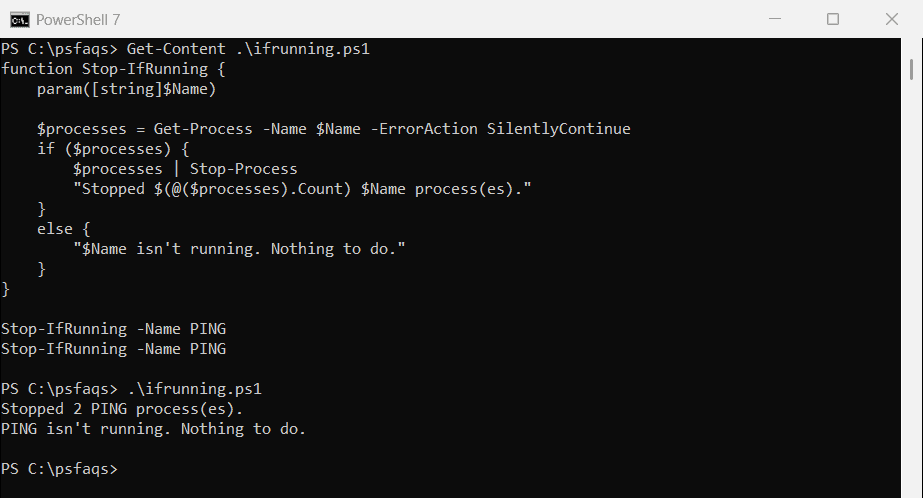
The first call stopped both processes. The second found nothing and said so, without an error. To check without stopping anything, see how to check if a process is running.
Preview what will be stopped with -WhatIf
-WhatIf lists each process Stop-Process would kill, with its ID, and stops nothing. Use it before any wildcard or bulk command:
Stop-Process -Name PING -WhatIfOutput (your process IDs will differ):
What if: Performing the operation "Stop-Process" on target "PING (37992)".
What if: Performing the operation "Stop-Process" on target "PING (57296)".
Does -Force kill a process harder?
No. This is a common mix-up. Stop-Process always ends the process immediately, the same way End task does in Task Manager, and any unsaved work in it is lost.
-Force only skips the confirmation prompt that appears when you stop a process owned by another user. To stop those processes at all, you also need to run PowerShell as administrator.
Be careful with system processes. Microsoft warns that stopping a process can stop services that depend on it, and in the worst case, Windows itself.
Kill a process by ID
When several processes share a name and you only want one of them, use its process ID. Here I start a process, keep its object, and stop exactly that one:
$ping = Start-Process ping.exe -ArgumentList '-n', '120', '127.0.0.1' -WindowStyle Hidden -PassThru

Stop-Process -Id $ping.Id
$ping.WaitForExit()

"Exited: $($ping.HasExited), exit code: $($ping.ExitCode)"
Output:
Exited: True, exit code: -1Stop-Process doesn’t wait for the process to exit, so call WaitForExit() or Wait-Process before you rely on it being gone. An exit code of -1 means the process was killed rather than closing normally.
For more ways to start processes and capture their IDs, see PowerShell Start-Process.
Kill processes that have been running too long
Because Get-Process returns objects, you can filter on any property before stopping. This stops only the process that started more than 3 seconds ago:
$cutoff = (Get-Date).AddSeconds(-3)

$stuck = Get-Process -Name PING | Where-Object { $_.StartTime -and $_.StartTime -lt $cutoff }
$stuck | Stop-Process
Wait-Process -InputObject $stuck

"Stopped $(@($stuck).Count), still running: $(@(Get-Process -Name PING).Count)"
Output:
Stopped 1, still running: 1In real use, you’d use minutes or hours, like (Get-Date).AddHours(-2), to clean up stuck jobs.
Keep the $_.StartTime -and check. StartTime is empty for processes you can’t read, and PowerShell treats an empty value as older than any date. When I tested the filter without it, the Windows System process matched.
Stop a process and its child processes
Stop-Process stops only the process you name. Anything it started keeps running. Here, killing a cmd.exe left its ping behind, while taskkill /T stopped both:
$parent = Start-Process cmd.exe -ArgumentList '/c', 'ping -n 120 127.0.0.1 > nul' -WindowStyle Hidden -PassThru
Start-Sleep -Seconds 1
Stop-Process -Id $parent.Id
Start-Sleep -Milliseconds 500
"After Stop-Process: $(@(Get-Process -Name PING -ErrorAction SilentlyContinue).Count) PING still running"

Get-Process -Name PING | Stop-Process

$parent = Start-Process cmd.exe -ArgumentList '/c', 'ping -n 120 127.0.0.1 > nul' -WindowStyle Hidden -PassThru
Start-Sleep -Seconds 1
taskkill /PID $parent.Id /T /F | Out-Null
Start-Sleep -Milliseconds 500
"After taskkill /T:  $(@(Get-Process -Name PING -ErrorAction SilentlyContinue).Count) PING still running"
Output:
After Stop-Process: 1 PING still running
After taskkill /T:  0 PING still running