
To find which ports are in use with PowerShell, list the listening TCP ports with Get-NetTCPConnection and add the process that owns each one:
Get-NetTCPConnection -State Listen |
    Select-Object -Property LocalAddress, LocalPort,
        @{ Name = 'Process'; Expression = { (Get-Process -Id $_.OwningProcess).ProcessName } } |
    Sort-Object -Property LocalPort
Below I find who’s using one specific port, write a quick in-use test, check UDP ports, compare with netstat and test ports on other computers.
A list of my own PC’s ports would show my apps and addresses, so for each example I opened a test listener on port 50827 and searched for it. That’s the first three lines of each script.
Find which process is using a port
-LocalPort narrows the list to one port, and OwningProcess holds the process ID. Get-Process turns the ID into a name:
# a test listener on port 50827, so there's something to find
$listener = [System.Net.Sockets.TcpListener]::new([System.Net.IPAddress]::Loopback, 50827)
$listener.Start()

Get-NetTCPConnection -LocalPort 50827 -State Listen |
    Select-Object -Property LocalAddress, LocalPort, State,
        @{ Name = 'Process'; Expression = { (Get-Process -Id $_.OwningProcess).ProcessName } }

$listener.Stop()
Output:
LocalAddress LocalPort  State Process
------------ ---------  ----- -------
127.0.0.1        50827 Listen pwsh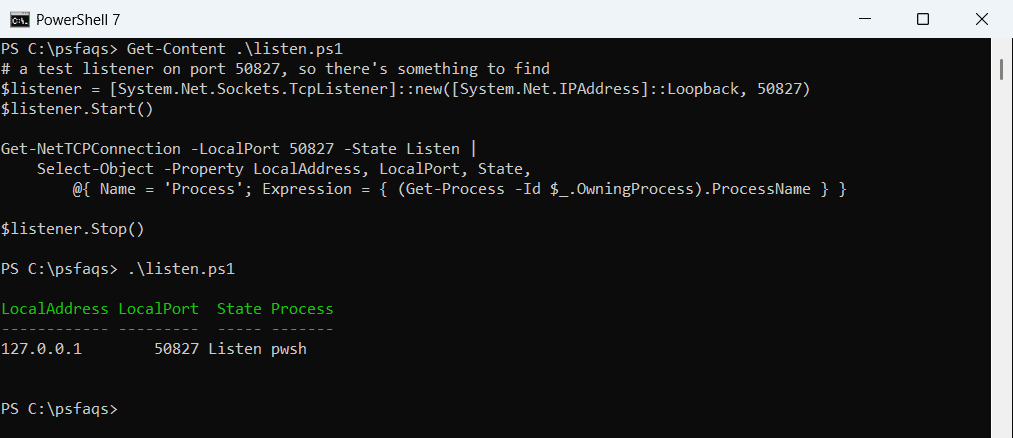
The process is pwsh because my script opened the port. In Windows PowerShell 5.1 it shows powershell. On a real port you’d see names like svchost, sqlservr or nginx.
LocalAddress 127.0.0.1 means only this PC can connect. 0.0.0.0 or :: means the port accepts connections from the network.
Check if a port is free before you use it
When a service won’t start because its port is taken, this small function gives a yes-or-no answer:
# a test listener on port 50827, so there's something to find
$listener = [System.Net.Sockets.TcpListener]::new([System.Net.IPAddress]::Loopback, 50827)
$listener.Start()

function Test-PortInUse ([int]$Port) {
    [bool](Get-NetTCPConnection -LocalPort $Port -State Listen -ErrorAction SilentlyContinue)
}

"Port 50827 in use: $(Test-PortInUse 50827)"
"Port 50828 in use: $(Test-PortInUse 50828)"
$listener.Stop()
Output:
Port 50827 in use: True
Port 50828 in use: False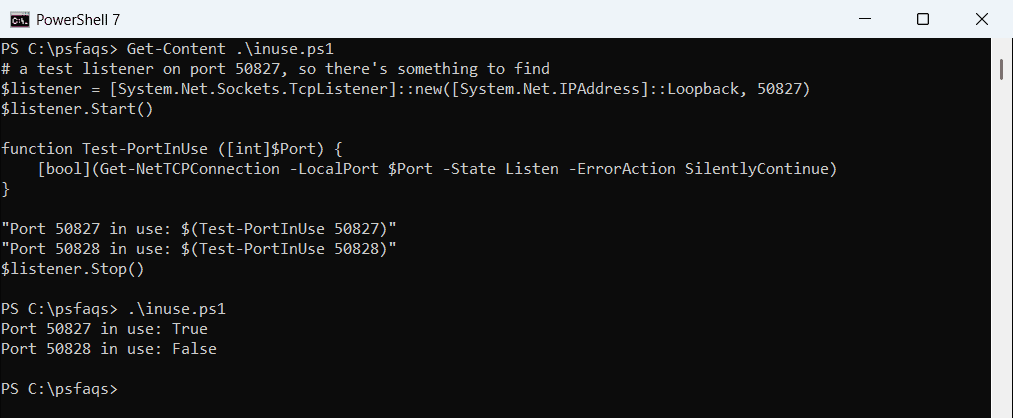
-ErrorAction SilentlyContinue matters, because Get-NetTCPConnection throws an error when nothing matches. More on that in PowerShell try catch.
Use netstat in PowerShell
netstat -ano works everywhere, including Windows Server Core and old systems. Select-String filters it to the port you want:
# a test listener on port 50827, so there's something to find
$listener = [System.Net.Sockets.TcpListener]::new([System.Net.IPAddress]::Loopback, 50827)
$listener.Start()

netstat -ano | Select-String -Pattern ':50827 .*LISTENING' |
    ForEach-Object { ($_.Line.Trim() -split '\s+')[0..3] -join '  ' }

$listener.Stop()
Output:
TCP 127.0.0.1:50827 0.0.0.0:0 LISTENING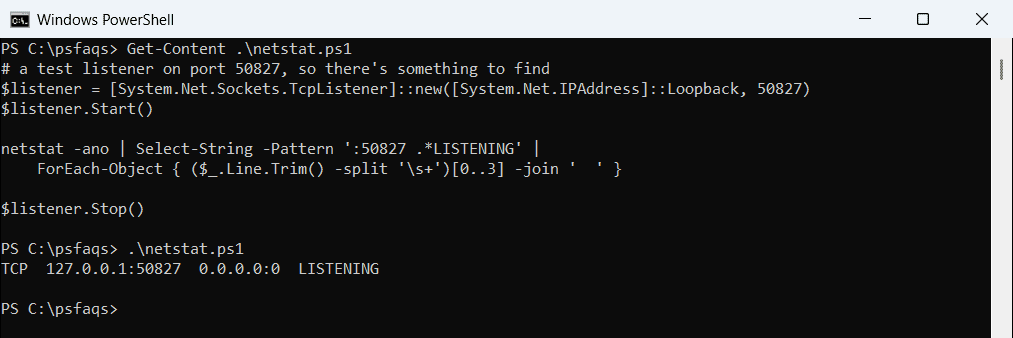
The last column, which I trimmed here, is the PID. Pass it to Get-Process -Id to get the name, just like OwningProcess.
Find UDP ports in use
UDP has no connections or states, so it has its own cmdlet. Get-NetUDPEndpoint lists the open UDP ports:
$udp = [System.Net.Sockets.UdpClient]::new([System.Net.IPEndPoint]::new([System.Net.IPAddress]::Loopback, 50829))

Get-NetUDPEndpoint -LocalPort 50829 | Select-Object -Property LocalAddress, LocalPort
$udp.Close()
Output:
LocalAddress LocalPort
------------ ---------
127.0.0.1        50829
DNS (53), DHCP (67 and 68) and many games and streaming apps use UDP. Add OwningProcess to see which program opened the port.
Test a port on another computer
To check whether a port answers on a server, use Test-NetConnection with -Port. -InformationLevel Quiet returns just True or False:
# a test listener on port 50827, so there's something to find
$listener = [System.Net.Sockets.TcpListener]::new([System.Net.IPAddress]::Loopback, 50827)
$listener.Start()

Test-NetConnection -ComputerName 127.0.0.1 -Port 50827 -InformationLevel Quiet
$listener.Stop()
Test-NetConnection -ComputerName 127.0.0.1 -Port 50827 -InformationLevel Quiet -WarningAction SilentlyContinue
Output:
True
False
True while my listener ran and False after I stopped it. For a server, use its name, as in Test-NetConnection -ComputerName NYC-SRV01 -Port 443.
Free a port that’s in use
Once you know the process, stop it. Check the name first, because stopping the wrong process can crash Windows:
$conn = Get-NetTCPConnection -LocalPort 8080 -State Listen
Get-Process -Id $conn.OwningProcess
Stop-Process -Id $conn.OwningProcess -Confirm
If the owner is svchost or System, the port belongs to a Windows service. Stop that service instead, as shown in restarting a Windows service with PowerShell.
List ports on a remote computer
Get-NetTCPConnection accepts -CimSession, so you can audit a server without signing in to it:
$session = New-CimSession -ComputerName 'NYC-SRV01'
Get-NetTCPConnection -CimSession $session -State Listen | Select-Object -Property LocalAddress, LocalPort, OwningProcess
Remove-CimSession -CimSession $session
Frequently Asked Questions
How do I see which ports are in use in PowerShell?
Run Get-NetTCPConnection -State Listen. Use Get-NetUDPEndpoint for UDP ports.
How do I find which process is using a port?
Run Get-NetTCPConnection -LocalPort 8080 and pass OwningProcess to Get-Process -Id.
How do I check if a port is open on a remote server?
Use Test-NetConnection -ComputerName NYC-SRV01 -Port 443 -InformationLevel Quiet. It returns True or False.