
If you’ve been working with PowerShell for a while, you’ve probably run into this situation: you’ve got an array full of objects — maybe from Get-Process, Get-ADUser, or a custom PSObject — and you need to extract one property as a clean array of strings.
It sounds simple, but there are actually several ways to do it, and each one behaves a bit differently depending on your scenario.
In this tutorial, I’ll walk you through 6 practical methods to convert an array of objects to an array of strings in PowerShell. I’ll explain each one with real examples so you can pick the right one for your situation.
What’s the Actual Problem?
Let me give you a quick example of the situation we’re dealing with.
Say you run this:
$processes = Get-Process
$processes.GetType()
You get back an array of System.Diagnostics.Process objects. Each object has dozens of properties like Name, Id, CPU, and so on.
Now, say you just want the names — a plain [string[]] array — because you want to pass them to another function, write them to a file, or compare them against another list.
That’s exactly what we’re solving here.
For the examples below, I’ll use this custom object array so it’s easy to follow along:
$employees = @(
    [PSCustomObject]@{ Name = "Alice"; Department = "IT"; Salary = 75000 },
    [PSCustomObject]@{ Name = "Bob";   Department = "HR"; Salary = 62000 },
    [PSCustomObject]@{ Name = "Carol"; Department = "Finance"; Salary = 88000 }
)
Our goal: extract the Name property and get back a clean [string[]] array.
Check out Find the Process Locking a File Using PowerShell
Method 1: Using ForEach-Object (The Classic Way)
This is probably the most straightforward method and the one I reach for first when teaching beginners.
$employees = @(
    [PSCustomObject]@{ Name = "Alice"; Department = "IT"; Salary = 75000 },
    [PSCustomObject]@{ Name = "Bob";   Department = "HR"; Salary = 62000 },
    [PSCustomObject]@{ Name = "Carol"; Department = "Finance"; Salary = 88000 }
)
$names = $employees | ForEach-Object { $_.Name }
$names
Output:
Alice
Bob
Carol
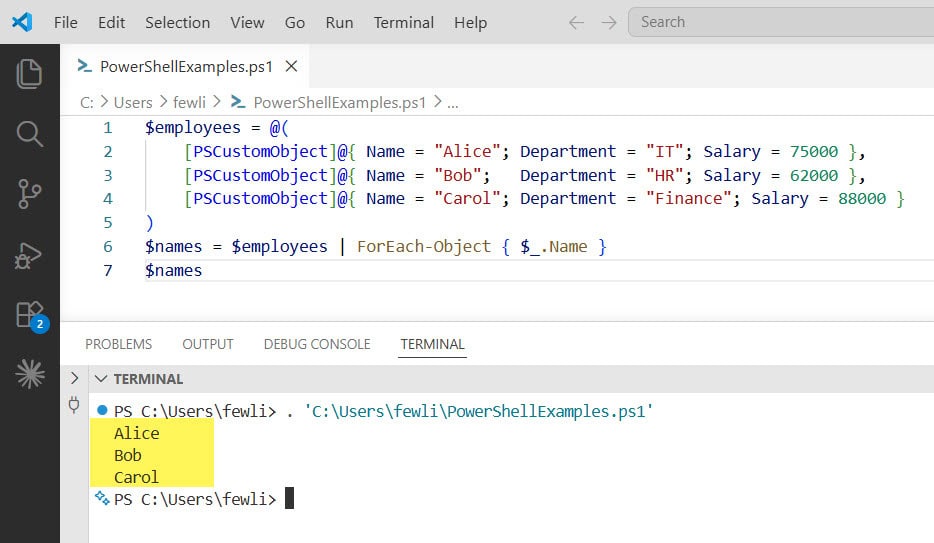
Here, ForEach-Object loops through each item in $employees. $_ refers to the current object, and .Name picks out just that property.
Here is the exact output in the screenshot below:
Let’s verify the type:
$names.GetType().FullName
# Output: System.Object[]

$names[0].GetType().FullName
# Output: System.String
The array itself is typed as Object[], but each element inside is a String. That’s usually fine for most scripts. But if you need a strict [string[]] type, keep reading — Method 3 handles that.
When to use this: When you want something readable and easy to understand. Also great when you need to do a bit of transformation while extracting — like trimming spaces or converting to uppercase.
Check out PowerShell Select-Object Value Only
Method 2: Using Select-Object -ExpandProperty
This is my personal favorite for most day-to-day tasks. It’s clean, explicit, and very readable. Here is how to use the Select-Object -ExpandProperty cmdlet.
$names = $employees | Select-Object -ExpandProperty Name
$names
Output:
Alice
Bob
Carol
The key here is -ExpandProperty. Without it, Select-Object Name would return objects that contain the Name property — not the raw string values. The -ExpandProperty flag tells PowerShell: “Don’t wrap it in a new object, just give me the value directly.”
Quick comparison to show you the difference:
# Without -ExpandProperty
$employees | Select-Object Name
# Output: objects with a Name property, not plain strings

# With -ExpandProperty
$employees | Select-Object -ExpandProperty Name
# Output: plain string values
This is one of those things that trips people up when they’re starting out. If you’ve ever piped output to Out-File or Where-Object and gotten weird results, this is likely the reason.
When to use this: Almost always. It’s clean, pipeable, and works great in scripts. Also useful with Dir | Select-Object -ExpandProperty Name to get a list of filenames as strings.
Check out PowerShell where-object in array
Method 3: Using Type Casting with [string[]]
If you specifically need a typed [string[]] array (not just an Object[] of strings), you can cast the whole thing during extraction.
$names = [string[]]($employees | Select-Object -ExpandProperty Name)
$names.GetType().FullName
# Output: System.String[]
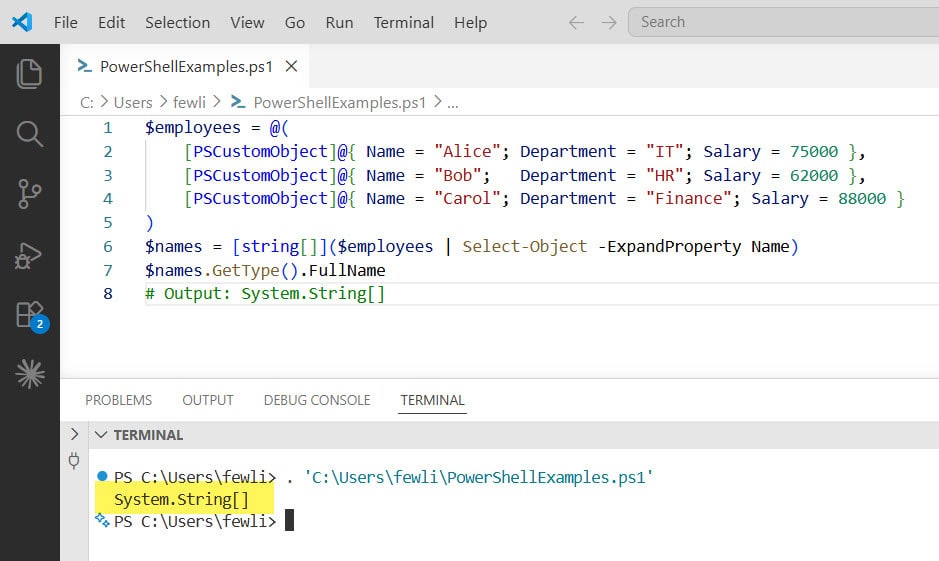
This forces PowerShell to create a proper System.String[] typed array. This matters when:
- You’re calling a .NET method that specifically expects
[string[]] - You’re working with COM objects or certain APIs
- You want to be explicit about type safety in your script
You can check out the exact output in the screenshot below:
You can also do this with the .ForEach() method (available in PowerShell 4+):
$names = [string[]]$employees.ForEach({ $_.Name })
Both approaches produce the same result. I personally like the .ForEach() version because it’s slightly faster on large arrays since it avoids the pipeline overhead.
When to use this: When you’re passing the array to a .NET method, a function with strict typing, or you just want to be precise about types in your code.
Read PowerShell Where-Object Count
Method 4: Using the .Name Shorthand (Property Access on Arrays)
PowerShell has a neat feature where you can access a property directly on an array, and it’ll return an array of that property’s values. It’s called “member enumeration.”
$names = $employees.Name
$names
Output:
Alice
Bob
Carol
This is the shortest syntax of all the methods. No pipeline, no cmdlets — just dot notation.
It’s not always the most obvious approach if someone else is reading your script, but it works beautifully for simple cases.
One thing to watch out for: if only one object is in the array, PowerShell might return a single string instead of an array. To protect against that, wrap it in @():
$names = @($employees.Name)
This guarantees you always get an array back, even if $employees only contains one item.
When to use this: Quick scripts, one-liners, or interactive use in the terminal. Keep in mind readability if you’re sharing the script with a team.
Check out Get JSON Data from a URL in PowerShell
Method 5: Using -join and Out-String (When You Want a Single String)
Sometimes what you actually want isn’t an array of strings, but one big concatenated string. For instance, you want to put all names in an email body separated by commas.
For that, -join is your friend:
$nameString = $employees.Name -join ", "
$nameString
# Output: Alice, Bob, Carol
You can use any delimiter you want — a newline, a pipe character, a semicolon:
$employees.Name -join "`n"   # Each name on a new line
$employees.Name -join " | "  # Pipe-separated
If you want a formatted multi-line output (like how PowerShell would print it to the console), Out-String does that:
$employees | Select-Object Name | Out-String
This gives you a string that looks like a table:
Name
----
Alice
Bob
Carol
Out-String is great for writing formatted output to log files or email bodies.
Note: The result of -join is a single System.String, not an array. And Out-String also returns a single string. If you need an actual array, use Methods 1–4 instead.
When to use this: Composing log messages, email bodies, sending data to an API that expects a comma-separated string, or writing to a text file.
Read PowerShell: Get Absolute Path of Directory
Method 6: Using [System.String]::Join()
This is the .NET way to do the same thing as -join. I don’t use this as often in PowerShell scripts, but it comes up when working in mixed .NET/PowerShell code or when you’re porting C# logic.
$nameString = [System.String]::Join(", ", $employees.Name)
$nameString
# Output: Alice, Bob, Carol
You can also pass in any separator you need. For example:
[System.String]::Join(" | ", $employees.Name)
# Output: Alice | Bob | Carol
It’s functionally identical to -join for most cases. The PowerShell -join operator is more idiomatic, so unless you have a specific reason to use the .NET class, stick with -join.
When to use this: Mostly when you’re working with .NET classes directly, writing mixed PowerShell/.NET code, or using a method that returns a [System.Collections.ArrayList] instead of a standard array.
Read PowerShell Find Folders Matching Pattern
Dealing with Real-World Scenarios
Let me show you a few practical cases where these methods actually come up.
Getting Process Names as a String Array
$runningApps = [string[]](Get-Process | Select-Object -ExpandProperty Name)
Comparing Two Lists of Usernames
$adUsers = Get-ADUser -Filter * | Select-Object -ExpandProperty SamAccountName
$csvUsers = Import-Csv "users.csv" | Select-Object -ExpandProperty Username

$onlyInAD = $adUsers | Where-Object { $_ -notin $csvUsers }
Writing a Clean List to a File
$employees | Select-Object -ExpandProperty Name | Out-File "names.txt"
Sending a Comma-Separated List in an Email
$nameList = $employees.Name -join ", "
Send-MailMessage -To "manager@company.com" -Subject "Employee List" -Body $nameList ...
Quick Reference: Which Method Should You Use?
Here’s a quick breakdown to help you decide:
ForEach-Object { $_.Property }— Best when you need to transform values during extraction (e.g., trim or format)Select-Object -ExpandProperty— Best all-around choice for clean, readable scripts[string[]]type cast — Use when strict typing matters (e.g., calling .NET methods).PropertyNameshorthand — Great for quick one-liners; wrap in@()for safety-join— Use when you need a single joined string, not an array[System.String]::Join()— Use in .NET-heavy scripts or when porting from C#
Mistakes You Should Avoid
A lot of people forget to use -ExpandProperty and write something like:
$names = $employees | Select-Object Name
Then they try to use $names as a string array and get confused when things don’t work. What they get back is an array of objects that have a Name property — not actual strings.
Always check what you’ve got with:
$names[0].GetType()
If it says Selected.System.Management.Automation.PSCustomObject instead of System.String, you know you forgot -ExpandProperty.
Wrapping Up
In this tutorial, I explained how to convert an array of objects to a string array in PowerShell using several methods.
For most scripts, Select-Object -ExpandProperty is the cleanest and most reliable method. If you just need a quick one-liner, the .PropertyName shorthand works great. And if you’re building up a string for a log or email, -join is your best bet.
Try a few of these in your own scripts and see which style clicks for you.
You may also like the following tutorials:
- Check if a User Account is Locked in PowerShell
- PowerShell Output to File and Console
- PowerShell Substring From End [Extract Text From the End of a String]

Bijay Kumar is an esteemed author and the mind behind PowerShellFAQs.com, where he shares his extensive knowledge and expertise in PowerShell, with a particular focus on SharePoint projects. Recognized for his contributions to the tech community, Bijay has been honored with the prestigious Microsoft MVP award. With over 15 years of experience in the software industry, he has a rich professional background, having worked with industry giants such as HP and TCS. His insights and guidance have made him a respected figure in the world of software development and administration. Read more.