
If you’ve been writing PowerShell scripts for a while, you already know the if/else statement like the back of your hand. It works, it’s readable, and it gets the job done. But sometimes you just want to check a condition and assign a value — without writing five lines of code for something that should take one.
That’s where the PowerShell ternary operator comes in.
In this tutorial, I’ll walk you through what it is, how it works, when to use it, and when to skip it. I’ll also show you several real-world examples of PowerShell ternary operator.
What Is the Ternary Operator in PowerShell?
The ternary operator is a shorthand way of writing an if/else statement. Instead of a full block with curly braces and multiple lines, you write the whole thing in a single line.
It was introduced in PowerShell 7.0, so if you’re still on Windows PowerShell 5.1, this won’t work — more on that later.
The syntax looks like this:
<condition> ? <value-if-true> : <value-if-false>
Think of the ? as asking “is this true?” and the : as saying “otherwise.” So you’re essentially saying: “Check this condition — if it’s true, give me the first thing; if it’s false, give me the second thing.”
Check out PowerShell Not Equal Operator
A Quick Side-by-Side Comparison
Let me show you the difference between the traditional PowerShell if/else and the ternary operator for the same task.
Traditional if/else:
$age = 20

if ($age -ge 18) {
    $result = "You can vote"
} else {
    $result = "You cannot vote"
}

Write-Host $result
Ternary operator:
$age = 20
$result = ($age -ge 18) ? "You can vote" : "You cannot vote"
Write-Host $result
You can see the exact output in the screenshot below:
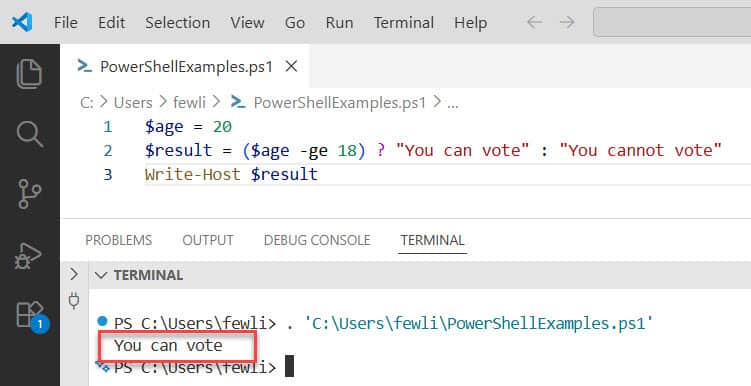
Both do the exact same thing. The ternary version just does it in one line. That’s the whole point — cleaner, tighter code for simple yes/no conditions.
Read PowerShell Match Operator Examples
Now, let me show you some real examples of using the ternary operator in PowerShell.
Example 1 – Basic Value Comparison
Let’s start simple. I want to compare two numbers and print which one is larger. Below is the PowerShell script and the ternary operator usage.
$a = 10
$b = 25

$result = ($a -gt $b) ? "$a is greater" : "$b is greater"
Write-Host $result
Output:
25 is greater
Since $a (10) is not greater than $b (25), the condition is false, so the second value is returned. Straightforward.
Check out PowerShell Filter Operators
Example 2 – Check If a File or Path Exists
This is one of the most practical uses I’ve found. Instead of a multi-line if block, you can check for a file or path inline:
$path = "C:\Logs\errors.txt"

$status = (Test-Path $path) ? "File exists" : "File not found"
Write-Host $status
If the file is there, you get “File exists.” If not, “File not found.” One line. Done.
You can also take it a step further and run an action based on that result:
$logFolder = "C:\Logs"
(Test-Path $logFolder) ? (Write-Host "Folder found") : (New-Item -ItemType Directory -Path $logFolder)
This checks if a folder exists. If it does, it logs a message. If it doesn’t, it creates the folder.
Example 3 – Assign Values to Variables Conditionally
Say you’re pulling system info and you want to tag whether a service is running or stopped:
$service = Get-Service -Name "wuauserv"
$statusLabel = ($service.Status -eq "Running") ? "Active" : "Inactive"
Write-Host "Windows Update is: $statusLabel"
This is much cleaner than writing an if/else block just to set a string label. If the service is running, you get “Active.” Otherwise, “Inactive.”
Read PowerShell Arithmetic Operators
Example 4 – Using It Inside a PSCustomObject
Here’s where the ternary operator really earns its place. When you’re building custom objects with multiple properties, writing separate if blocks for each one gets messy fast.
The old way:
if ($diskUsage -gt 80) { $diskStatus = "Critical" } else { $diskStatus = "OK" }
if ($cpuUsage -gt 90) { $cpuStatus = "High" } else { $cpuStatus = "Normal" }

[PSCustomObject]@{
    DiskStatus = $diskStatus
    CpuStatus  = $cpuStatus
}
With the ternary operator:
$diskUsage = 85
$cpuUsage = 45

[PSCustomObject]@{
    DiskStatus = ($diskUsage -gt 80) ? "Critical" : "OK"
    CpuStatus  = ($cpuUsage -gt 90) ? "High" : "Normal"
}
Much tighter. The properties are assigned right where they’re defined, so you can read it top to bottom without jumping around to find where each variable got set.
Check out PowerShell Logical Operators
Example 5 – Use It Inside Write-Host or Strings
You can also use the ternary operator directly inside a Write-Host or wherever you need an inline expression:
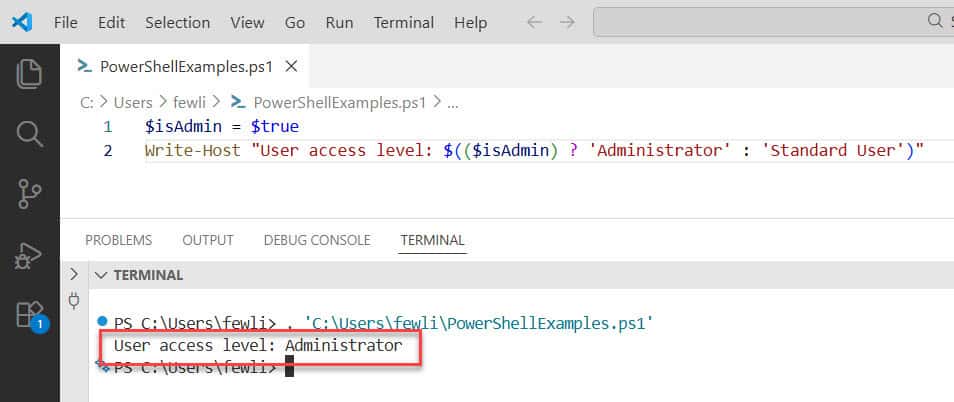
$isAdmin = $true
Write-Host "User access level: $(($isAdmin) ? 'Administrator' : 'Standard User')"
Notice the $() wrapping — that’s required when you’re using the ternary operator inside a string or as part of a larger expression. Without it, PowerShell won’t evaluate it correctly.
You can see the exact output in the screenshot below:
Example 6 – Nested Ternary Operators
Yes, you can nest ternary operators in PowerShell. That means one ternary’s false-value can itself be another ternary. It’s a bit like chaining if/elseif/else.
$score = 72

$grade = ($score -ge 90) ? "A" : ($score -ge 75) ? "B" : ($score -ge 60) ? "C" : "F"
Write-Host "Grade: $grade"
Output:
Grade: C
This checks: is the score 90 or above? No. Is it 75 or above? No. Is it 60 or above? Yes — so the result is “C.”
It works, but I’ll be honest — once you nest more than two levels deep, it gets hard to read. At that point, a regular if/elseif/else block or a switch statement is probably the better choice. Use nested ternaries sparingly.
Check out PowerShell Comparison Operators
Example 7 – Ternary in a Pipeline
You can use the ternary operator while processing objects in a pipeline in PowerShell. Here’s an example where I’m going through a list of users and tagging each one:
$users = @("Alice", "Bob", "Charlie")

$users | ForEach-Object {
    $label = ($_ -eq "Bob") ? "Manager" : "Employee"
    Write-Host "$_ - $label"
}
Output:
Alice - Employee
Bob - Manager
Charlie - Employee
Clean and readable. No nested if blocks inside the loop.
What About PowerShell 5.1?
The ? : ternary syntax only works in PowerShell 7.0 and above. If you run it in Windows PowerShell 5.1, you’ll get an error.
If you’re stuck on 5.1, you can fake a ternary using the if statement as an expression:
# Works in PowerShell 5.1
$result = if ($age -ge 18) { "Adult" } else { "Minor" }
Write-Host $result
This is a lesser-known trick — in PowerShell, if blocks can return values, so you can assign the output directly to a variable. It’s not as compact as the real ternary, but it does the same job.
When Should You Use the Ternary Operator?
Here’s when the ternary operator is a good fit:
- You’re checking a simple true/false condition and assigning one of two values
- You’re building a
PSCustomObjectwith multiple conditional properties - You want your script to look clean and tight
- You’re working in PowerShell 7+
And here’s when you should stick with if/else:
- The logic is more complex than a simple yes/no
- You need to run multiple lines of code in each branch, not just return a value
- You’re nesting more than two levels — at that point, readability suffers
- Your team includes people less familiar with the ternary syntax
The ternary operator is a tool, not a replacement for everything. Use it where it genuinely simplifies your code. Don’t use it just to look clever — your future self (and your teammates) will thank you.
Final Thoughts
The ternary operator is very useful in PowerShell. It’s especially handy when you’re building reports, creating custom objects, or doing quick conditional assignments inside loops in PowerShell.
Just remember — PowerShell 7+ only. And keep it simple. If the condition is straightforward and you’re assigning one of two values, go for it. If things are getting complicated, write the if/else block and be done with it. Readable code always wins.
Do let me know if you still have any questions related to PowerShell ternary operator in the comment below.
You may also like:

Bijay Kumar is an esteemed author and the mind behind PowerShellFAQs.com, where he shares his extensive knowledge and expertise in PowerShell, with a particular focus on SharePoint projects. Recognized for his contributions to the tech community, Bijay has been honored with the prestigious Microsoft MVP award. With over 15 years of experience in the software industry, he has a rich professional background, having worked with industry giants such as HP and TCS. His insights and guidance have made him a respected figure in the world of software development and administration. Read more.
