
To install software with PowerShell, use winget for any app in its catalog, msiexec for an .msi file, and Start-Process with the vendor’s silent switch for a setup .exe:
winget install --id Git.Git --exact --silent --accept-package-agreements --accept-source-agreements
Start-Process msiexec.exe -ArgumentList '/i "C:\Setup\Agent.msi" /qn /norestart' -Wait
Start-Process 'C:\Setup\setup.exe' -ArgumentList '/S' -Wait
In this tutorial, I’ll show you how to install software with PowerShell on Windows 11 and 10, check what’s already there, read installer exit codes, and install winget itself when it’s missing.
One honest note: my test account isn’t an administrator, so I didn’t install anything for this post. Every check, search and exit-code demo below ran for real in PowerShell 7 and Windows PowerShell 5.1; the install lines are shown as code.
Check if the software is already installed
Installing over an existing copy wastes time and sometimes fails, so a good script checks first. Windows lists installed desktop programs under three Uninstall registry keys, and this function searches all of them for a name:
function Get-InstalledApp {
    param([string]$Name)
    $paths = 'HKLM:\SOFTWARE\Microsoft\Windows\CurrentVersion\Uninstall\*',
             'HKLM:\SOFTWARE\WOW6432Node\Microsoft\Windows\CurrentVersion\Uninstall\*',
             'HKCU:\SOFTWARE\Microsoft\Windows\CurrentVersion\Uninstall\*'
    Get-ItemProperty -Path $paths -ErrorAction SilentlyContinue |
        Where-Object { $_.DisplayName -match "^$([regex]::Escape($Name))(\s|$)" }
}

foreach ($app in '7-Zip', 'Git', 'Notepad++') {
    $hit = Get-InstalledApp -Name $app | Select-Object -First 1
    if ($hit) { '{0,-10} installed      {1}' -f $app, $hit.DisplayVersion }
    else      { '{0,-10} not installed' -f $app }
}
Output:
7-Zip      installed      24.05
Git        installed      2.47.1.2
Notepad++  not installed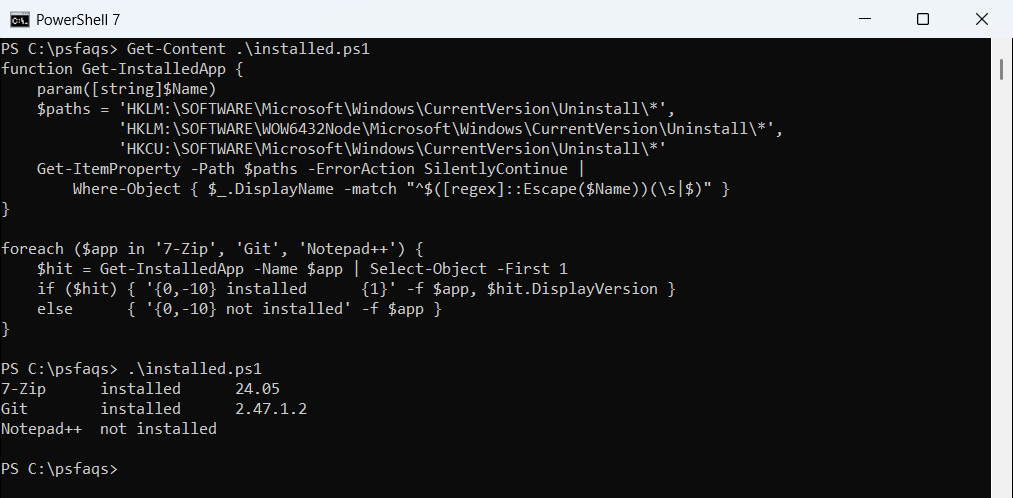
The 64-bit key, the WOW6432Node key for 32-bit apps and the per-user HKCU key together cover what Settings shows. Reading registry values with Get-ItemProperty explains the cmdlet doing the work.
The match anchors the name at the start and stops at a space, so “Git” doesn’t also catch “GitHub Desktop”. To see everything, list all installed programs instead.
Get-Package works only in Windows PowerShell 5.1
Many older answers use Get-Package for this check. It works in Windows PowerShell 5.1, but PowerShell 7 doesn’t ship the Programs provider:
try {
    Get-Package -Name Git -ProviderName Programs -ErrorAction Stop |
        Format-Table Name, Version, ProviderName -AutoSize
}
catch { "Failed. $($_.Exception.Message)" }
Output in Windows PowerShell 5.1:
Name Version  ProviderName
---- -------  ------------
Git  2.47.1.2 Programs
Output in PowerShell 7: