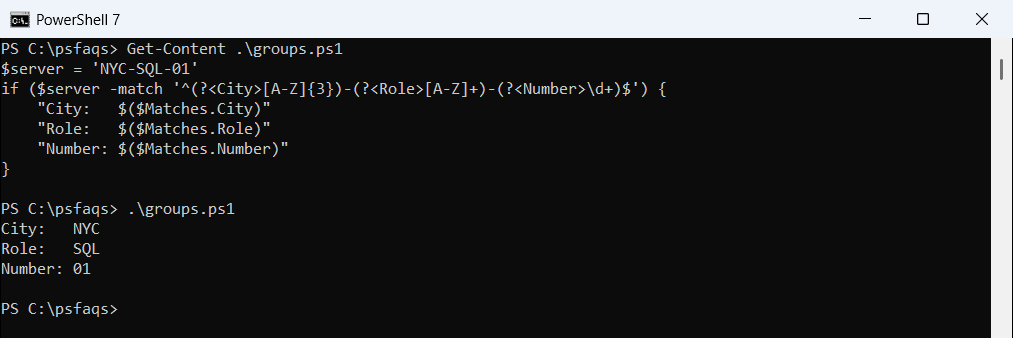
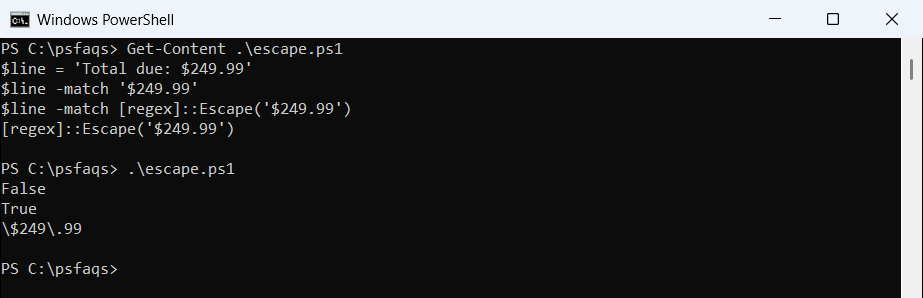
Do you want to know about the -match operator in PowerShell? Let me explain to you. In this tutorial, how to work with PowerShell -match operator with examples.
The PowerShell -match operator is used to determine if a string matches a specified regular expression pattern. It returns $true if a match is found and $false otherwise. For example, to check if the string “Los Angeles, New York, Chicago, Houston” contains “New York”, you can use the command $cities -match "New York", which will return $true if “New York” is present in the string.
What is the PowerShell -match Operator?
The -match operator in PowerShell is used to determine if a string matches a specified regular expression pattern. It’s a Boolean operator that returns $true if a match is found and $false otherwise. This operator is particularly useful for pattern matching and text processing tasks.
Syntax of the -match Operator
The basic syntax for the -match operator is as follows:
$string -match $pattern$string: The input string you want to search.$pattern: The regular expression pattern you want to match.
The -match operator uses regular expressions to search for patterns within strings. Regular expressions are sequences of characters that form a search pattern. They are incredibly powerful for text processing and can be used to perform complex searches and replacements.
Check out PowerShell Filter Operators
PowerShell -match Operator Examples
Let me show you some practical examples to see how the -match operator works in PowerShell.
Example 1: Simple String Matching
Suppose you have a string containing a list of cities, and you want to check if “New York” is in the list:
$cities = "Los Angeles, New York, Chicago, Houston"
if ($cities -match "New York") {
Write-Output "New York is in the list."
} else {
Write-Output "New York is not in the list."
}Output:
New York is in the list.I executed the above PowerShell script using VS code, and you can see the output in the screenshot below:

Example 2: Case-Insensitive Matching
By default, the -match operator is case-insensitive. Let’s see this in action:
$name = "John Doe"
if ($name -match "john") {
Write-Output "Match found."
} else {
Write-Output "Match not found."
}Output:
Match found.You can see the output in the screenshot below:

Check out PowerShell Arithmetic Operators
Example 3: Using Regular Expressions
Regular expressions can be used to perform more complex searches. For instance, let’s find all cities that start with the letter “C”:
$cities = "Los Angeles, New York, Chicago, Houston, Columbus"
if ($cities -match "\bC\w*\b") {
Write-Output "A city starting with 'C' is found."
} else {
Write-Output "No city starting with 'C' found."
}Output:
A city starting with 'C' is found.Check out PowerShell Like Operator
PowerShell Match Operator for Multiple Values
When working with PowerShell, you might need to check if a string matches multiple patterns or values. The -match operator can be combined with regular expressions to achieve this. One efficient method is to use the pipe (|) character within a regular expression to specify multiple patterns.
Method: Using the Pipe (|) Character for Multiple Patterns
The pipe character acts as an OR operator in regular expressions, allowing you to match any one of several patterns. Here’s how you can implement it:
Here is an example.
Suppose you have a string containing a list of cities, and you want to check if it contains either “New York”, “Chicago”, or “Houston”:
$cities = "Los Angeles, New York, Chicago, Houston, Miami"
$pattern = "New York|Chicago|Houston"
if ($cities -match $pattern) {
Write-Output "The string contains one of the specified cities."
} else {
Write-Output "None of the specified cities are in the string."
}Output:
The string contains one of the specified cities.You can see the output in the screenshot below:

In this example, the $pattern variable contains the regular expression "New York|Chicago|Houston". The -match operator checks if the $cities string matches any of these patterns. If it does, the script outputs that one of the specified cities is present in the string. This method is particularly useful for checking multiple values efficiently within a single operation.
Check out PowerShell Logical Operators
PowerShell Match Operator with Wildcards
In PowerShell, while the -match operator primarily uses regular expressions for pattern matching, you can also incorporate wildcard-like patterns using regex syntax to achieve flexible and dynamic string searches. Wildcards in regular expressions can be incredibly powerful for matching various string patterns.
Using Regex Wildcards
In regular expressions, the dot (.) character serves as a wildcard that matches any single character, and the asterisk (*) character matches zero or more occurrences of the preceding element. Combining these, you can create patterns that function similarly to traditional wildcards.
Let me show you an example.
Suppose you have a string containing a list of file names, and you want to check if any file name ends with “.txt”:
$fileNames = "report.doc, summary.txt, data.csv, notes.txt"
$pattern = "\.txt$"
if ($fileNames -match $pattern) {
Write-Output "The string contains a file with a .txt extension."
} else {
Write-Output "No .txt files are found in the string."
}Output:
The string contains a file with a .txt extension.Here is the output in the screenshot below:

In this example, the $pattern variable contains the regular expression "\.txt$". Here’s a breakdown of the pattern:
\.: Escapes the dot character, matching a literal dot.txt: Matches the characters “txt”.$: Asserts the position at the end of the string.
The -match operator checks if any part of the $fileNames string ends with “.txt”. If it does, the script outputs that a “.txt” file is present in the string.
Conclusion
I explained everything about the PowerShell -match operator in this tutorial with examples.
You may also like the following tutorials:
Bijay Kumar is an esteemed author and the mind behind PowerShellFAQs.com, where he shares his extensive knowledge and expertise in PowerShell, with a particular focus on SharePoint projects. Recognized for his contributions to the tech community, Bijay has been honored with the prestigious Microsoft MVP award. With over 15 years of experience in the software industry, he has a rich professional background, having worked with industry giants such as HP and TCS. His insights and guidance have made him a respected figure in the world of software development and administration. Read more.