
The PowerShell -like operator compares text against a wildcard pattern and returns True or False. * matches any characters and ? matches exactly one:
'Seattle' -like 'Sea*'    # True
'Denver' -like 'Den?er'   # True
It ignores case unless you use -clike, and the pattern must cover the whole string. I tested every example in PowerShell 7 and Windows PowerShell 5.1, including one file filter that behaves differently.
Wildcards you can use with -like
PowerShell supports four wildcard forms: * for any run of characters, ? for one character, [A-C] for a range and [abc] for a set. Here they are side by side:
"'Seattle' -like 'Sea*':        $('Seattle' -like 'Sea*')"
"'Denver'  -like 'Den?er':      $('Denver' -like 'Den?er')"
"'PC-B12'  -like 'PC-[A-C]*':   $('PC-B12' -like 'PC-[A-C]*')"
"'PC-D12'  -like 'PC-[A-C]*':   $('PC-D12' -like 'PC-[A-C]*')"
"'INV-1042' -like 'INV-[0-9]*': $('INV-1042' -like 'INV-[0-9]*')"
"'Austin'  -notlike '*TX*':     $('Austin' -notlike '*TX*')"
"'Austin'  -clike 'austin':     $('Austin' -clike 'austin')"
Output:
'Seattle' -like 'Sea*':        True
'Denver'  -like 'Den?er':      True
'PC-B12'  -like 'PC-[A-C]*':   True
'PC-D12'  -like 'PC-[A-C]*':   False
'INV-1042' -like 'INV-[0-9]*': True
'Austin'  -notlike '*TX*':     True
'Austin'  -clike 'austin':     False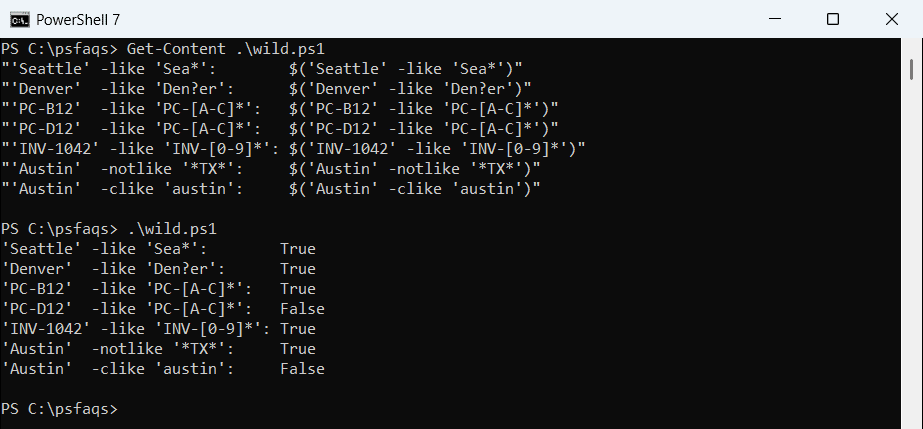
-notlike flips the result, and -clike makes it case-sensitive. For patterns wildcards can’t express, use the -match operator with a regex.
Filter a list with -like
With a collection on the left, -like returns the matching items instead of True or False:
$cities = 'Austin', 'Dallas', 'Denver', 'Seattle'

"Starts with D: $(($cities -like 'D*') -join ', ')"
"Has an 'a':    $(($cities -like '*a*') -join ', ')"
"Matches found: $(@($cities -like 'Bo*').Count)"
Output:
Starts with D: Dallas, Denver
Has an 'a':    Austin, Dallas, Seattle
Matches found: 0
No match gives an empty result, so test .Count rather than the value itself. In pipelines, Where-Object does the same job, as shown in the Where-Object guide.
How do I match square brackets with -like?
Brackets are wildcards, so a file name like Q3-report[1].xlsx doesn’t match itself. Escape them with backticks, or let [WildcardPattern]::Escape do it:
$file = 'Q3-report[1].xlsx'

"Plain pattern:     $($file -like 'Q3-report[1].xlsx')"
"Backtick escaped:  $($file -like 'Q3-report`[1`].xlsx')"
"Escape() method:   $($file -like [WildcardPattern]::Escape('Q3-report[1].xlsx'))"
"Escaped text:      $([WildcardPattern]::Escape('Q3-report[1].xlsx'))"
Output:
Plain pattern:     False
Backtick escaped:  True
Escape() method:   True
Escaped text:      Q3-report`[1`].xlsx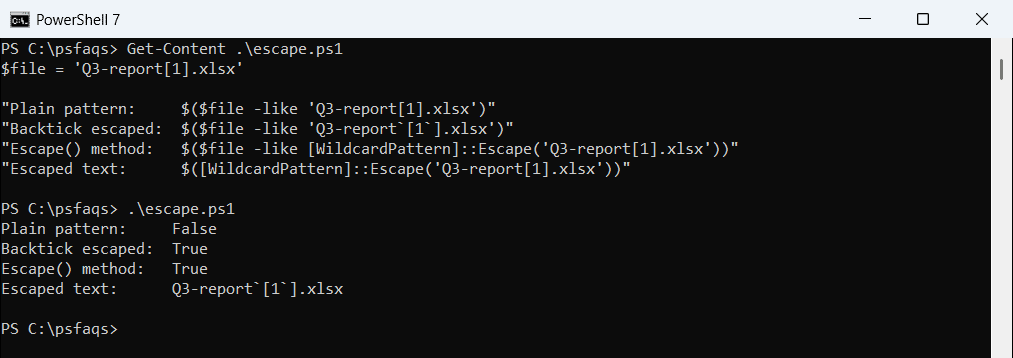
Keep the pattern in single quotes so PowerShell doesn’t eat the backticks first. When you work with such files, -LiteralPath avoids wildcards altogether, as in renaming files with Rename-Item.
An unbalanced bracket is an error rather than a False:
try {
    'Austin' -like '[A-Z'
}
catch {
    "Failed. $($_.Exception.Message)"
}
Output:
Failed. The specified wildcard character pattern is not valid: [A-Z-like vs -eq vs -match
-eq treats * as a normal character, -like needs the pattern to cover the whole string, and -match finds a regex anywhere in it:
$name = 'Maria Lopez'

"-eq 'Maria*':    $($name -eq 'Maria*')"
"-like 'Maria*':  $($name -like 'Maria*')"
"-like 'Lopez':   $($name -like 'Lopez')"
"-match 'Lopez':  $($name -match 'Lopez')"
Output:
-eq 'Maria*':    False
-like 'Maria*':  True
-like 'Lopez':   False
-match 'Lopez':  True
So ‘Lopez’ needs ‘*Lopez*’ with -like but works as-is with -match. Checking if a string contains a substring compares these options for text searches.
Why does -Filter *.xls also return .xlsx files?
Get-ChildItem -Filter hands the pattern to Windows instead of using PowerShell’s wildcards. In my test folder, Windows PowerShell 5.1 returned the .xlsx file for *.xls:
$path = 'C:\psfaqs\likedemo'

"-Filter *.xls:           $((Get-ChildItem -Path $path -Filter *.xls).Name -join ', ')"
"Where-Object -like:      $((Get-ChildItem -Path $path | Where-Object Name -like '*.xls').Name -join ', ')"
Output:
-Filter *.xls:           budget.xls
Where-Object -like:      budget.xls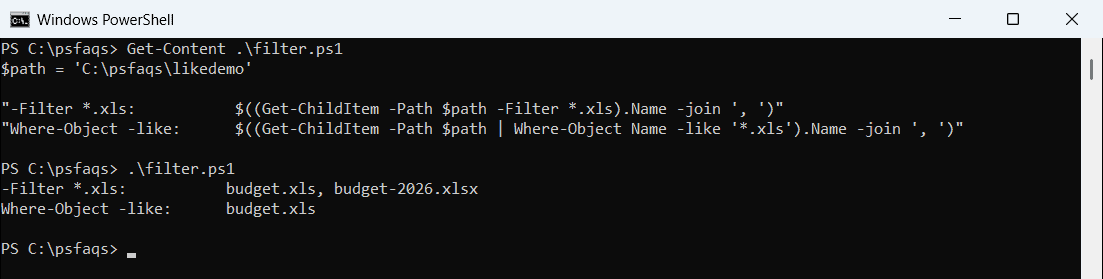
That’s PowerShell 7, which returned only budget.xls. The likely cause is the file’s short 8.3 name, which ends in .XLS. Where-Object with -like checks the real name and gave the same answer in both.
For a prefix-only check that compares StartsWith(), -like and -match, see PowerShell string starts with.
Microsoft notes that file system wildcard matching works differently than string matching. Get-ChildItem -Filter explains when the faster -Filter is safe.
Frequently Asked Questions
What does -like do in PowerShell?
It compares a string to a wildcard pattern and returns True or False. Microsoft lists the wildcards in about_Wildcards.
Is -like case-sensitive?
No. Use -clike for a case-sensitive comparison, or -ilike to make case-insensitivity explicit.