
To uninstall a program with PowerShell, the simplest way on Windows 10 and 11 is winget. Find the program’s ID, then uninstall it silently:
winget list --name "ODBC Driver 17"
winget uninstall --id Microsoft.msodbcsql.17 --silent
Below I show three more methods: Uninstall-Package, msiexec with the product code, and the program’s own uninstall string. For safety, my examples find and preview the uninstall without removing anything.
Find the program and its uninstall string
Every installed desktop program registers itself under the Uninstall keys in the registry. This search finds one program and shows how Windows removes it:
$paths = 'HKLM:\SOFTWARE\Microsoft\Windows\CurrentVersion\Uninstall\*',
         'HKLM:\SOFTWARE\WOW6432Node\Microsoft\Windows\CurrentVersion\Uninstall\*'

Get-ItemProperty -Path $paths -ErrorAction SilentlyContinue |
    Where-Object DisplayName -like '*ODBC Driver 17*' |
    ForEach-Object {
        "Name:        $($_.DisplayName)"
        "Version:     $($_.DisplayVersion)"
        "Uninstall:   $($_.UninstallString)"
        "ProductCode: $($_.PSChildName)"
    }
Output:
Name:        Microsoft ODBC Driver 17 for SQL Server
Version:     17.10.6.1
Uninstall:   MsiExec.exe /I{0E0F96AC-80DE-4400-A40C-429D63293651}
ProductCode: {0E0F96AC-80DE-4400-A40C-429D63293651}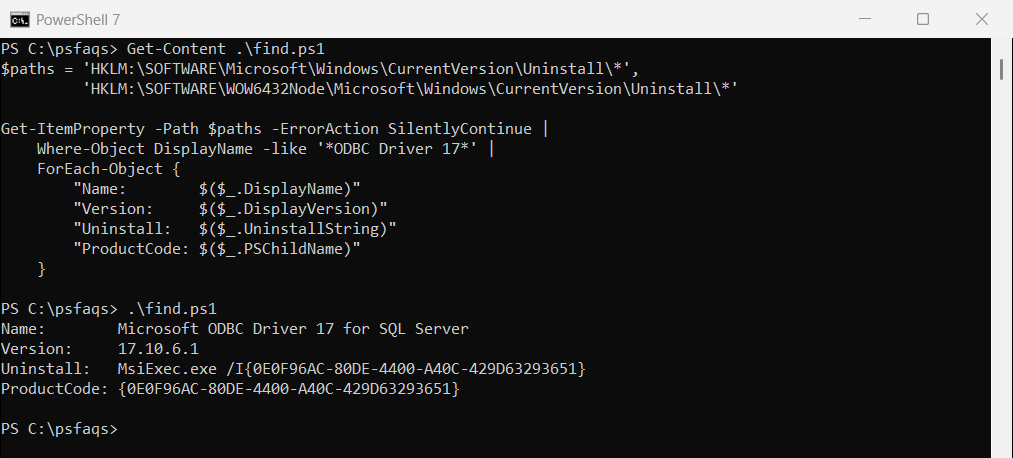
Always search both keys. 32-bit programs on 64-bit Windows are under WOW6432Node. Listing installed programs covers the full search.
Why not Win32_Product?
Many old guides use Get-WmiObject Win32_Product. Avoid it: it’s slow, and Microsoft warns it runs a consistency check that can repair or reconfigure every MSI program on the PC.
Method 1: Uninstall with winget
winget matches programs by name or ID and can list what’s installed:
winget list --name "ODBC Driver 17" --disable-interactivityOutput:
Name                                    Id                     Version   Available Source
-----------------------------------------------------------------------------------------
Microsoft ODBC Driver 17 for SQL Server Microsoft.msodbcsql.17 17.10.6.1 17.11.1.1 winget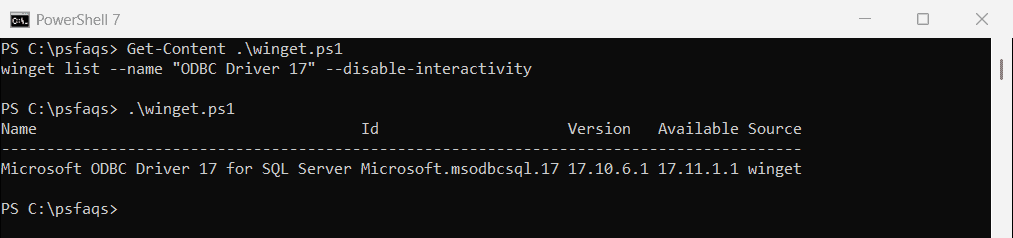
Then run winget uninstall --id Microsoft.msodbcsql.17 --silent. Add –exact to avoid matching similar names. Microsoft covers the options in the winget uninstall reference.
Method 2: Uninstall-Package in Windows PowerShell 5.1
Windows PowerShell 5.1 can list MSI and regular programs with Get-Package. Pipe to Uninstall-Package, and use -WhatIf to preview first:
Get-Package -Name '*ODBC Driver 17*' | ForEach-Object { "$($_.Name) $($_.Version) (provider: $($_.ProviderName))" }

Get-Package -Name '*ODBC Driver 17*' | Uninstall-Package -WhatIf
Output:
Microsoft ODBC Driver 17 for SQL Server 17.10.6.1 (provider: msi)
What if: Performing the operation "Uninstall Package." on target "Package 'Microsoft ODBC Driver 17 for SQL Server' with version '17.10.6.1'.".
Remove -WhatIf to uninstall for real. PowerShell 7 doesn’t include the msi and Programs providers, so use winget there.
Method 3: msiexec with the product code
For MSI programs, the product code in braces is all you need. The uninstall string above uses /I, which opens the change, repair or remove screen. Use /X to remove it silently instead:
Start-Process -FilePath msiexec.exe -ArgumentList '/x {0E0F96AC-80DE-4400-A40C-429D63293651} /qn /norestart' -Wait/qn hides all prompts, and /norestart stops an automatic reboot. The msiexec reference lists every switch.
Method 4: Run the program’s own uninstaller
Non-MSI programs have their own uninstaller in UninstallString, and some provide a QuietUninstallString. Use the quiet one when it exists:
$app = Get-ItemProperty -Path 'HKLM:\SOFTWARE\Microsoft\Windows\CurrentVersion\Uninstall\*' |
    Where-Object DisplayName -like 'Contoso Reports*'
if ($app.QuietUninstallString) { cmd.exe /c $app.QuietUninstallString }
else { cmd.exe /c $app.UninstallString }
Silent switches differ between installers, such as /S, /silent or /quiet. Check the vendor’s documentation.
Uninstall a program on remote computers
Wrap any of these methods in Invoke-Command. You need admin rights on each PC:
Invoke-Command -ComputerName PC-SALES-07, PC-SALES-08 -ScriptBlock {
    Start-Process -FilePath msiexec.exe -ArgumentList '/x {0E0F96AC-80DE-4400-A40C-429D63293651} /qn /norestart' -Wait
}
For Store apps, use Remove-AppxPackage instead, as in reinstalling Snipping Tool.
Frequently Asked Questions
How do I uninstall a program with PowerShell?
Run winget uninstall --id Publisher.App --silent. In Windows PowerShell 5.1 you can also use Get-Package -Name 'App*' | Uninstall-Package.
How do I uninstall a program silently?
For MSI programs, run msiexec /x {ProductCode} /qn /norestart. With winget, add –silent.
Why shouldn’t I use Win32_Product to uninstall programs?
Querying Win32_Product is slow and runs a consistency check that can repair or reconfigure installed MSI programs.