
To uninstall Firefox using PowerShell, run winget with Firefox’s package ID. –silent hides the uninstaller window:
winget uninstall --id Mozilla.Firefox --exact --silent --source wingetWithout winget, run Firefox’s own uninstaller, helper.exe, with /S. Below I find the install first, build a safe uninstall function, and cover remote PCs. I tested the read-only parts in PowerShell 7 and Windows PowerShell 5.1.
Check if Firefox is installed
Windows lists installed programs in three Uninstall registry keys: 64-bit, 32-bit and per-user. This function searches all of them and returns the uninstaller path:
function Get-FirefoxInstall {
    $keys = 'HKLM:\SOFTWARE\Microsoft\Windows\CurrentVersion\Uninstall\*',
            'HKLM:\SOFTWARE\WOW6432Node\Microsoft\Windows\CurrentVersion\Uninstall\*',
            'HKCU:\Software\Microsoft\Windows\CurrentVersion\Uninstall\*'
    Get-ItemProperty -Path $keys -ErrorAction SilentlyContinue |
        Where-Object DisplayName -like 'Mozilla Firefox*' |
        Select-Object DisplayName, DisplayVersion,
            @{ n = 'Uninstaller'; e = { $_.UninstallString.Trim('"') } }
}

Get-FirefoxInstall | Format-List
Output:
DisplayName    : Mozilla Firefox (x64 en-US)
DisplayVersion : 156.0.1
Uninstaller    : C:\Program Files\Mozilla Firefox\uninstall\helper.exe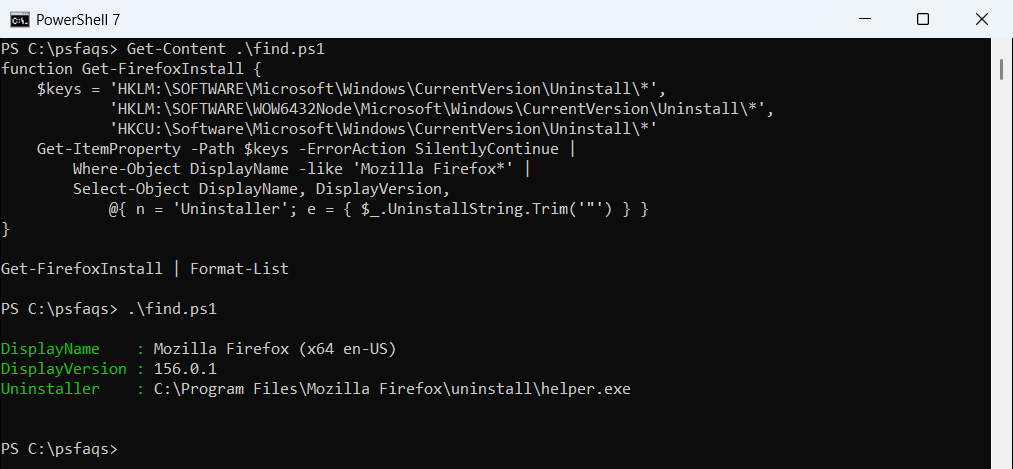
My test PC has Firefox installed, and I left it that way. A per-user install shows a path under AppData instead. Listing installed programs uses the same keys for every app.
Get-Package works only in Windows PowerShell 5.1
Many old guides find Firefox with Get-Package. That relies on the Programs provider, which PowerShell 7 doesn’t have:
try {
    Get-Package -Name 'Mozilla Firefox*' -ProviderName Programs -ErrorAction Stop |
        Format-Table Name, Version, ProviderName -AutoSize
}
catch {
    "Failed. $($_.Exception.Message)"
}
Output:
Failed. Unable to find package providers (Programs).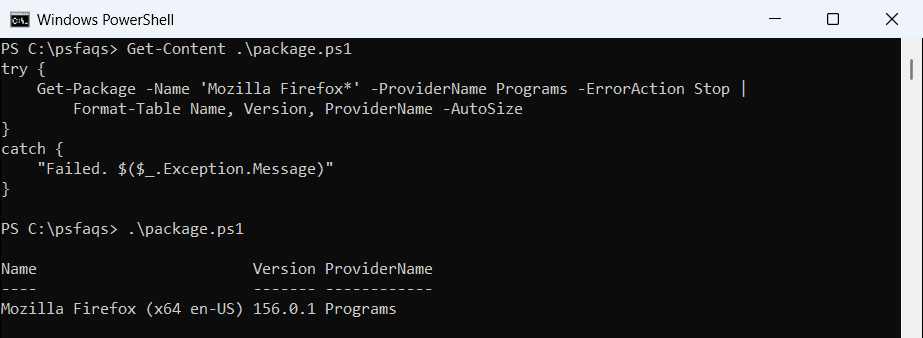
That’s the PowerShell 7 output: the provider simply doesn’t exist there. The registry function above works in both versions, so I’d use it in scripts.
Uninstall Firefox with winget
winget is the simplest route on Windows 10 and 11. List the package first to confirm the ID matches:
winget list --id Mozilla.Firefox --exact --accept-source-agreements --disable-interactivity |
    Select-Object -Last 3
Output:
Name                        Id              Version Available Source
--------------------------------------------------------------------
Mozilla Firefox (x64 en-US) Mozilla.Firefox 156.0.1 157.0.1   winget
Then uninstall it. Microsoft notes that –source winget avoids a Microsoft Store agreement prompt, and –silent suppresses the uninstaller UI:
winget uninstall --id Mozilla.Firefox --exact --silent --source winget --accept-source-agreementsRun it in an elevated window for an all-users install. Installing winget with PowerShell helps on servers that don’t have it.
Uninstall Firefox silently with helper.exe
Mozilla’s own uninstaller sits in the uninstall folder of the install directory. Mozilla documents /S for a silent uninstall from an elevated prompt:
Start-Process -FilePath 'C:\Program Files\Mozilla Firefox\uninstall\helper.exe' -ArgumentList '/S' -Wait-Wait keeps the script from moving on before the uninstall finishes. More options for launching programs are in the Start-Process guide.
How do I uninstall Firefox with a script safely?
I put both functions in FirefoxTools.ps1. Uninstall-Firefox supports -WhatIf, so you can see what it would remove before it removes anything:
function Uninstall-Firefox {
    [CmdletBinding(SupportsShouldProcess)]
    param()
    foreach ($ff in Get-FirefoxInstall) {
        if ($PSCmdlet.ShouldProcess("$($ff.DisplayName) $($ff.DisplayVersion)", 'Uninstall silently with helper.exe /S')) {
            Start-Process -FilePath $ff.Uninstaller -ArgumentList '/S' -Wait
        }
    }
}
. .\FirefoxTools.ps1
Uninstall-Firefox -WhatIfOutput:
What if: Performing the operation "Uninstall silently with helper.exe /S" on target "Mozilla Firefox (x64 en-US) 156.0.1".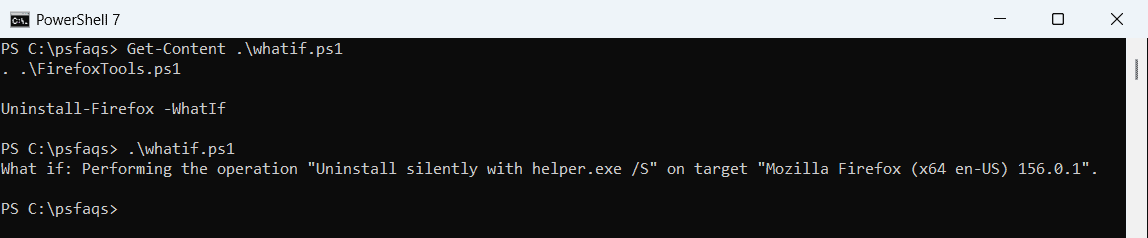
I only ran it with -WhatIf, because I still use Firefox on this PC. Drop -WhatIf in an admin window to uninstall. Uninstalling a program with PowerShell shows the same idea for other apps.
Uninstall Firefox from multiple computers
Save a copy of FirefoxTools.ps1 as Remove-Firefox.ps1 and add Uninstall-Firefox as its last line. Invoke-Command -FilePath sends that local script to each PC and runs it there:
Invoke-Command -ComputerName PC-AUSTIN-01, PC-DENVER-07 -FilePath .\Remove-Firefox.ps1Because the script travels with the command, the targets don’t need access to a file share. It needs WinRM and admin rights, so enable WinRM first if the connection fails.
Remove leftover Firefox profiles
Uninstalling leaves each user’s bookmarks and settings in their AppData folder. To remove them too, delete the profile folder after the uninstall:
Remove-Item -Path "$env:APPDATA\Mozilla\Firefox" -Recurse -WhatIfThis deletes saved passwords and bookmarks for good, so back them up first. Remove-Item explains -Recurse and -WhatIf in detail.
Frequently Asked Questions
How do I uninstall Firefox silently with PowerShell?
Run winget uninstall --id Mozilla.Firefox --exact --s