
To set the default browser for users with PowerShell, create a default associations XML file for the browser and apply it with the Set a default associations configuration file policy. Windows applies it when the user signs in.
You can’t just change a registry value, which is what most scripts online try. Below I show why, how to check the current browser, and the method Microsoft supports for Windows 10 and 11.
Why editing the UserChoice key doesn’t work
Windows keeps each user’s browser choice in a UserChoice key for http and https. Each key holds two values, not one:
foreach ($protocol in 'http', 'https') {
    $key = "HKCU:\Software\Microsoft\Windows\Shell\Associations\UrlAssociations\$protocol\UserChoice"
    "$protocol UserChoice values: $((Get-Item -Path $key).Property -join ', ')"
}
Output in Windows PowerShell 5.1:
http UserChoice values: ProgId, Hash
https UserChoice values: ProgId, Hash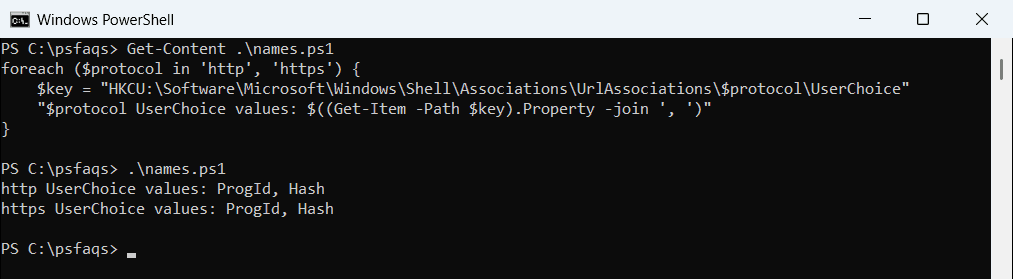
The Hash protects the ProgId, so a script that writes only the ProgId, like Set-ItemProperty ... -Name ProgId -Value ChromeHTML, doesn’t produce a valid default. Windows can reset it and show an “An app default was reset” notice.
Default printers are easier to script, as shown in setting the default printer.
Check the current default browser
Reading the ProgId is fine. This checks the https key, which is the one browsers care about most:
$key    = 'HKCU:\Software\Microsoft\Windows\Shell\Associations\UrlAssociations\https\UserChoice'
$progId = (Get-ItemProperty -Path $key -Name ProgId).ProgId

"A default browser is set: $(-not [string]::IsNullOrEmpty($progId))"
Output:
A default browser is set: TrueI print only whether a browser is set, since the actual value is personal to this PC. Pass $progId to the function below to get a friendly name.
Turn a ProgId into a browser name
function Get-BrowserName {
    param([Parameter(Mandatory)] [string]$ProgId)
    switch -Wildcard ($ProgId) {
        'ChromeHTML'   { 'Google Chrome' }
        'MSEdgeHTM'    { 'Microsoft Edge' }
        'FirefoxURL*'  { 'Mozilla Firefox' }
        'BraveHTML'    { 'Brave' }
        default        { "Unknown ($ProgId)" }
    }
}

foreach ($id in 'ChromeHTML', 'MSEdgeHTM', 'FirefoxURL-308046B0AF4A39CB', 'SomethingElse') {
    '{0,-28} -> {1}' -f $id, (Get-BrowserName -ProgId $id)
}
Output:
ChromeHTML                   -> Google Chrome
MSEdgeHTM                    -> Microsoft Edge
FirefoxURL-308046B0AF4A39CB  -> Mozilla Firefox
SomethingElse                -> Unknown (SomethingElse)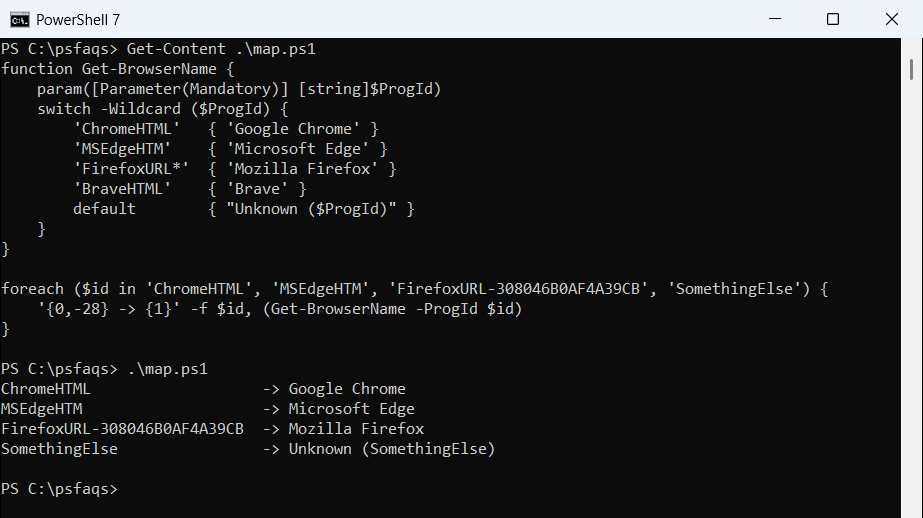
Firefox adds a code after FirefoxURL that depends on the install, so the function matches it with a wildcard. I ran these examples in PowerShell 7.6 and Windows PowerShell 5.1.
Set the default browser the supported way
Step 1: Create the associations XML file
The easiest way to get a correct file is to set the browser by hand on one test PC, then export its associations from an elevated prompt:
Dism /Online /Export-DefaultAppAssociations:C:\Temp\AppAssociations.xmlKeep only the browser lines, or build a small file yourself. This creates and checks one for Chrome:
$xml = @'
<?xml version="1.0" encoding="UTF-8"?>
<DefaultAssociations>
  <Association Identifier="http"  ProgId="ChromeHTML" ApplicationName="Google Chrome" />
  <Association Identifier="https" ProgId="ChromeHTML" ApplicationName="Google Chrome" />
  <Association Identifier=".htm"  ProgId="ChromeHTML" ApplicationName="Google Chrome" />
  <Association Identifier=".html" ProgId="ChromeHTML" ApplicationName="Google Chrome" />
</DefaultAssociations>
'@
Set-Content -Path C:\psfaqs\DefaultBrowser.xml -Value $xml -Encoding UTF8

([xml](Get-Content -Path C:\psfaqs\DefaultBrowser.xml -Raw)).DefaultAssociations.Association |
    Select-Object -Property Identifier, ProgId, ApplicationName
Output:
Identifier ProgId     ApplicationName
---------- ------     ---------------
http       ChromeHTML Google Chrome
https      ChromeHTML Google Chrome
.htm       ChromeHTML Google Chrome
.html      ChromeHTML Google Chrome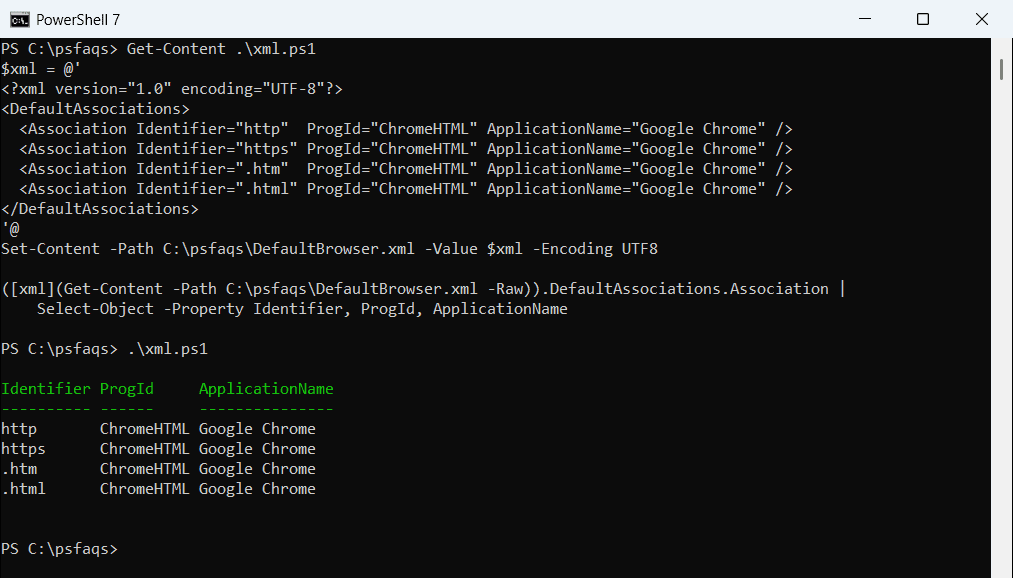
Microsoft’s default app associations guide explains the export in detail, including why you should re-export after major Windows updates.
Step 2: Apply it with Group Policy or the registry
In Group Policy, go to Computer Configuration > Administrative Templates > Windows Components > File Explorer. Enable Set a default associations configuration file and enter the path to the XML file.
For a single PC or a script, the same policy can be set with PowerShell from an elevated session:
$key = 'HKLM:\SOFTWARE\Policies\Microsoft\Windows\System'
New-Item -Path $key -Force | Out-Null
Set-ItemProperty -Path $key -Name DefaultAssociationsConfiguration -Value 'C:\ProgramData\DefaultBrowser.xml'
Users get the new default the next time they sign in. The policy works on Windows 10 and 11 Pro, Enterprise and Education, according to Microsoft’s ApplicationDefaults policy reference.
Let users change it later (Windows 11 22H2 and later)
By default, the policy applies the file at every sign-in, so users can’t keep a different browser.
On Windows 11 22H2 and later, add Suggested="true" to an Association line and a Version number to DefaultAssociations. The browser is then set once, and again only when you raise the Version.
Printer defaults can be scripted directly, unlike browsers, as shown in setting the default printer.