
To set a proxy in PowerShell for one request, pass it to -Proxy on Invoke-WebRequest or Invoke-RestMethod. Add -ProxyUseDefaultCredentials if the proxy needs your Windows sign-in:
Invoke-WebRequest -Uri 'https://learn.microsoft.com' `
    -Proxy 'http://proxy.contoso.com:8080' -ProxyUseDefaultCredentials
For a whole session, the method differs between PowerShell 7 and Windows PowerShell 5.1. I cover both below, plus bypass lists and the Windows-wide proxy. The proxy server in my examples is made up, and my own settings stayed unchanged.
Check the current proxy settings
Windows keeps two proxy settings: the one in Settings, used by browsers and most apps, and WinHTTP, used by services. This reads both without changing anything:
$settings = Get-ItemProperty -Path 'HKCU:\Software\Microsoft\Windows\CurrentVersion\Internet Settings'
"Proxy enabled: $($settings.ProxyEnable -eq 1)"
"Proxy server:  $(if ($settings.ProxyServer) { $settings.ProxyServer } else { '(not set)' })"
netsh winhttp show proxy
Output:
Proxy enabled: False
Proxy server:  (not set)

Current WinHTTP proxy settings:

    Direct access (no proxy server).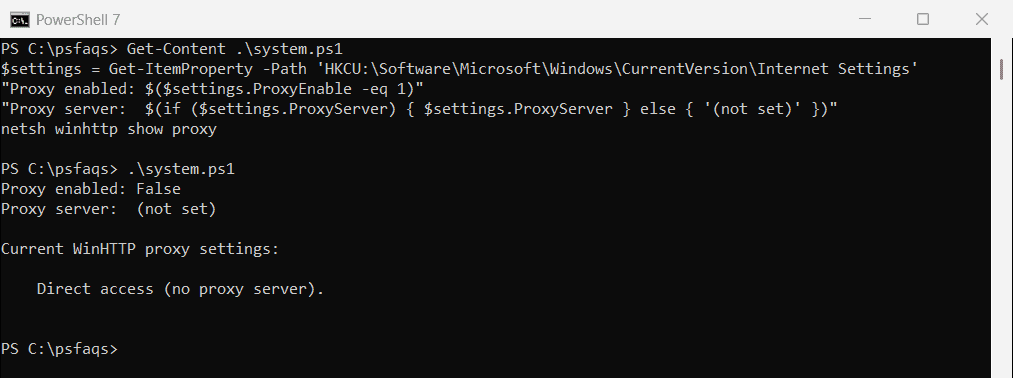
If Proxy enabled is True, PowerShell already uses that proxy by default. You only need the steps below when it’s missing or different.
Web requests are where proxy settings matter most, as shown in PowerShell Invoke-WebRequest.
Use a proxy for one command
-Proxy works on Invoke-WebRequest and Invoke-RestMethod in both versions. For a proxy that needs a separate account, use -ProxyCredential:
$cred = Get-Credential -Message 'Proxy account'
Invoke-RestMethod -Uri 'https://api.contoso.com/orders' `
    -Proxy 'http://proxy.contoso.com:8080' -ProxyCredential $cred
Invoke-WebRequest examples covers the cmdlet itself.
Set a proxy for the session in PowerShell 7
PowerShell 7 reads the HTTP_PROXY, HTTPS_PROXY and NO_PROXY environment variables. Set them before the first web request in the session:
$env:HTTPS_PROXY = 'http://proxy.contoso.com:8080'
$env:NO_PROXY = '.contoso.com,localhost'

$proxy = [System.Net.Http.HttpClient]::DefaultProxy
foreach ($url in 'https://learn.microsoft.com', 'https://intranet.contoso.com', 'https://localhost:5001') {
    $via = if ($proxy.IsBypassed($url)) { 'direct (NO_PROXY)' } else { $proxy.GetProxy($url).Authority }
    '{0,-30} {1}' -f $url, $via
}
Output:
https://learn.microsoft.com    proxy.contoso.com:8080
https://intranet.contoso.com   direct (NO_PROXY)
https://localhost:5001         direct (NO_PROXY)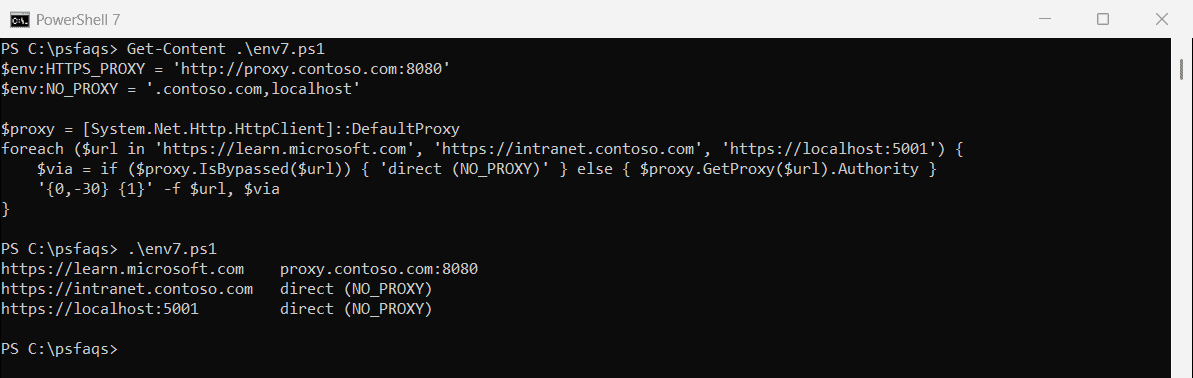
A leading dot in NO_PROXY matches every subdomain. Once the session has made a request, change the proxy with [System.Net.Http.HttpClient]::DefaultProxy = [System.Net.WebProxy]::new('http://proxy.contoso.com:8080') instead.
Keep it for every session
Put the $env: lines in your profile, or store HTTPS_PROXY as a user environment variable. Setting environment variables shows both.
Set a proxy for the session in Windows PowerShell 5.1
Windows PowerShell 5.1 ignores those variables and follows the Windows proxy setting:
$env:HTTPS_PROXY = 'http://proxy.contoso.com:8080'

$proxy = [System.Net.WebRequest]::DefaultWebProxy
"PowerShell $($PSVersionTable.PSVersion.Major).$($PSVersionTable.PSVersion.Minor)"
"Goes direct, ignoring HTTPS_PROXY: $($proxy.IsBypassed('https://learn.microsoft.com'))"
Output:
PowerShell 5.1
Goes direct, ignoring HTTPS_PROXY: True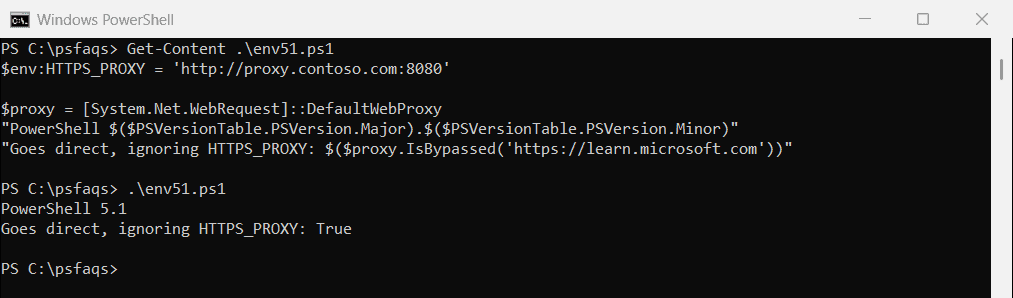
Set the default web proxy instead. It lasts until you close the window:
[System.Net.WebRequest]::DefaultWebProxy = [System.Net.WebProxy]::new('http://proxy.contoso.com:8080')
[System.Net.WebRequest]::DefaultWebProxy.Credentials = [System.Net.CredentialCache]::DefaultNetworkCredentials
That second line also fixes Install-Module errors behind a proxy that requires sign-in. Install-Module is not recognized covers other module errors.
Skip the proxy for internal sites
A WebProxy object takes a bypass list of regular expressions. BypassProxyOnLocal skips names without dots, like printserver:
$proxy = [System.Net.WebProxy]::new('http://proxy.contoso.com:8080')
$proxy.BypassProxyOnLocal = $true
$proxy.BypassList = @('.*\.contoso\.com$')

foreach ($url in 'https://learn.microsoft.com', 'https://intranet.contoso.com', 'http://printserver') {
    '{0,-30} Bypassed: {1}' -f $url, $proxy.IsBypassed($url)
}
Output:
https://learn.microsoft.com    Bypassed: False
https://intranet.contoso.com   Bypassed: True
http://printserver             Bypassed: True
Assign this object to DefaultWebProxy in 5.1, or to HttpClient.DefaultProxy in 7.
Set the proxy for all of Windows
To change the proxy for services that use WinHTTP, run this in an elevated window. The second line copies your Settings proxy instead:
netsh winhttp set proxy proxy-server="proxy.contoso.com:8080" bypass-list="*.contoso.com;<local>"
netsh winhttp import proxy source=ie
Undo it with netsh winhttp reset proxy. For browsers and apps, use Settings > Network & internet > Proxy. On company PCs, Group Policy usually manages both.
Frequently Asked Questions
How do I use a proxy with Invoke-WebRequest?
Add -Proxy 'http://proxy.contoso.com:8080', plus -ProxyUseDefaultCredentials or -ProxyCredential if it needs a sign-in.
Does PowerShell use the Windows proxy settings?
Yes. Both versions follow the Settings proxy by default. PowerShell 7 lets HTTPS_PROXY and HTTP_PROXY override it.
</