
To get the window size in PowerShell, read $Host.UI.RawUI.WindowSize. It returns the width in characters and the height in lines:
$Host.UI.RawUI.WindowSizeTo set the window size, assign a new Size object to the same property, keeping the buffer at least as wide. I tested this in the classic console window in PowerShell 7 and Windows PowerShell 5.1, and covered Windows Terminal separately.
Get the current window and buffer size
RawUI exposes four sizes. The window is what you see, the buffer is the scrollable area behind it, and the two maximums depend on your screen and font:
$ui = $Host.UI.RawUI

"Window size:      $($ui.WindowSize.Width) x $($ui.WindowSize.Height)"
"Buffer size:      $($ui.BufferSize.Width) x $($ui.BufferSize.Height)"
"Largest window:   $($ui.MaxWindowSize.Width) x $($ui.MaxWindowSize.Height)"
"Largest physical: $($ui.MaxPhysicalWindowSize.Width) x $($ui.MaxPhysicalWindowSize.Height)"
Output:
Window size:      120 x 30
Buffer size:      120 x 9001
Largest window:   120 x 61
Largest physical: 1904 x 61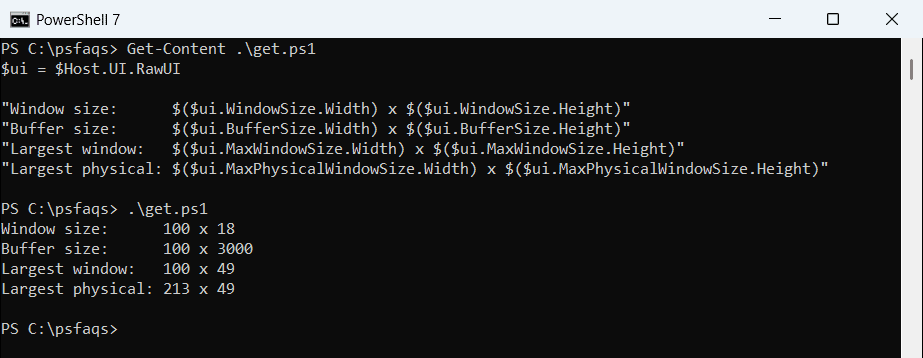
Sizes are in characters and lines, not pixels, so a bigger font means a smaller maximum. To use the width in your own output, see Format-Table, which fits its columns to the window width.
Set the PowerShell window size
Windows refuses a window wider than its buffer, so the order of changes matters. This function grows the buffer first when needed, then sets the window:
function Set-ConsoleWindowSize ([int]$Width, [int]$Height) {
    $ui = $Host.UI.RawUI
    $max = $ui.MaxPhysicalWindowSize
    $Width = [math]::Min($Width, $max.Width)
    $Height = [math]::Min($Height, $max.Height)

    # The buffer must be at least as wide as the window, so grow it first
    if ($ui.BufferSize.Width -lt $Width) {
        $rows = $ui.BufferSize.Height
        $ui.BufferSize = New-Object System.Management.Automation.Host.Size($Width, $rows)
    }
    $ui.WindowSize = New-Object System.Management.Automation.Host.Size($Width, $Height)
    "Window is now $($ui.WindowSize.Width) x $($ui.WindowSize.Height)"
}

Set-ConsoleWindowSize -Width 90 -Height 22
Output:
Window is now 90 x 22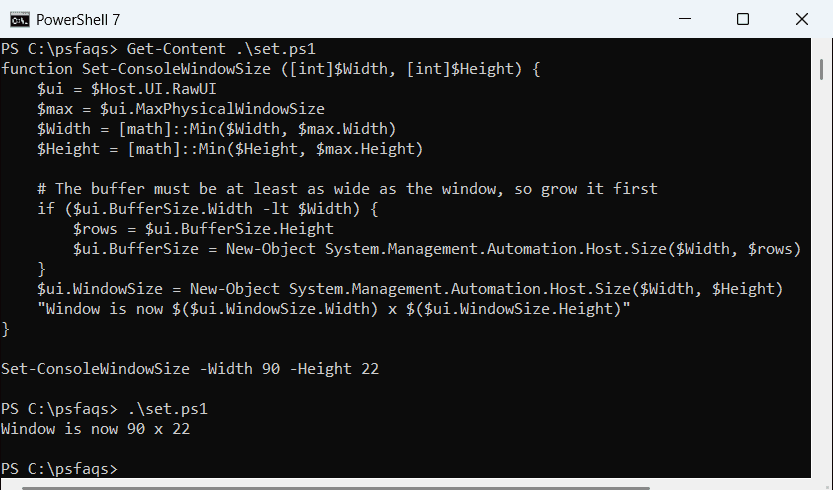
The buffer keeps its old width, which is why a horizontal scroll bar appears.
The function also caps both values at MaxPhysicalWindowSize, so a too-large request shrinks instead of failing. Put the function in your profile to resize every new window. Functions in PowerShell covers parameters and defaults.
Why does PowerShell say the window cannot be wider than the screen buffer?
Setting the window without touching the buffer is the most common mistake. Here I ask for 5000 columns:
$ui = $Host.UI.RawUI
try {
    $ui.WindowSize = New-Object System.Management.Automation.Host.Size(5000, 20)
}
catch {
    "Failed. $($_.Exception.InnerException.Message)"
}
Output:
Failed. Window cannot be wider than the screen buffer. (Parameter 'value.Width')
Actual value was 5000.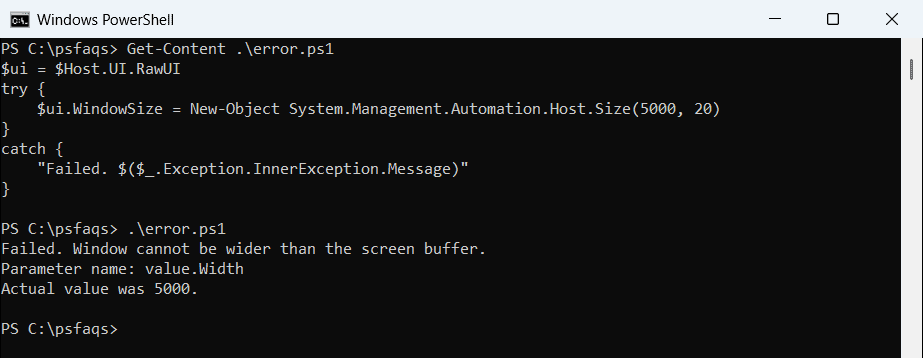
That’s PowerShell 7, which keeps the parameter name on the first line. Windows PowerShell 5.1 prints it on its own “Parameter name:” line, so match only the first sentence. Try and catch in PowerShell explains why InnerException holds the real message.
Set the window size in Windows Terminal
Windows Terminal manages its own window, so the RawUI examples above are for the classic console host. For Terminal, set the size when you open it. –size takes columns and rows:
wt --size 120,40
wt --maximized
wt --pos 100,50 --size 140,45 -p "PowerShell"
To make it permanent, add initialCols and initialRows to the root of settings.json. The defaults are 120 and 30, and they’re ignored when launchMode is maximized:
{
    "initialCols": 140,
    "initialRows": 40,
    "launchMode": "default"
}
Not sure which one you’re using? Windows Terminal vs PowerShell explains the difference between the terminal and the shell.
Open PowerShell maximized
To start a new PowerShell window maximized from a script, use Start-Process with -WindowStyle:
Start-Process pwsh -WindowStyle Maximized
Start-Process powershell -WindowStyle Maximized
If Windows Terminal is your default terminal app, Terminal opens the window and its own settings decide the size. More launch options are in the Start-Process guide.
Frequently Asked Questions
How do I get the window size in PowerShell?
Read $Host.UI.RawUI.WindowSize. Width is in characters and Height is in lines.
How do I change the PowerShell window size?
Set $Host.UI.RawUI.WindowSize to a new Size object, after making sure BufferSize is at least as wide.
Why do I get ‘Window cannot be wider than the screen buffer’?
The window is wider than the buffer. Increase $Host.UI.RawUI.BufferSize first, then set the window.
How do I set the size of Windows Terminal?
Use wt --size 120,40, or set initialCols and initialRows. Microsoft lists them in Terminal startup settings.
How do I open Windows Terminal maximized?
Run wt --maximized or set launchMode to maximized. See wt command line arguments.
Making your console easier to work in? Try these: