To get a list of installed programs using PowerShell, read the Uninstall keys in the registry with Get-ItemProperty. That’s the same data Windows shows in Settings > Apps > Installed apps, and it works without admin rights.
Here’s the short version. It checks the 64-bit, 32-bit and per-user locations and prints each program’s name, version and publisher:
Get-ItemProperty 'HKLM:\Software\Microsoft\Windows\CurrentVersion\Uninstall\*',
'HKLM:\Software\WOW6432Node\Microsoft\Windows\CurrentVersion\Uninstall\*',
'HKCU:\Software\Microsoft\Windows\CurrentVersion\Uninstall\*' -ErrorAction SilentlyContinue |
Where-Object DisplayName |
Select-Object DisplayName, DisplayVersion, Publisher |
Sort-Object DisplayName
Below, I’ll turn that into a reusable function, check whether one program is installed, export the list to CSV, and cover winget, Microsoft Store apps, Get-Package and remote computers.
I tested everything on a Windows 11 PC in both PowerShell 7.6 and Windows PowerShell 5.1. When the two versions behave differently, I’ll point it out.
List installed programs from the registry
Windows keeps an Uninstall entry for almost every desktop program. Setup tools write the display name, version, publisher and install date there.
This example reads all three locations, drops empty keys and shows the first ten Microsoft programs on my machine:
$paths = 'HKLM:\Software\Microsoft\Windows\CurrentVersion\Uninstall\*',
'HKLM:\Software\WOW6432Node\Microsoft\Windows\CurrentVersion\Uninstall\*',
'HKCU:\Software\Microsoft\Windows\CurrentVersion\Uninstall\*'
Get-ItemProperty -Path $paths -ErrorAction SilentlyContinue |
Where-Object { $_.DisplayName -and $_.SystemComponent -ne 1 -and -not $_.ParentKeyName } |
Select-Object DisplayName, DisplayVersion, Publisher |
Sort-Object DisplayName -Unique |
Where-Object Publisher -eq 'Microsoft Corporation' |
Select-Object -First 10 |
Format-Table -AutoSize
Output:
DisplayName DisplayVersion Publisher
----------- -------------- ---------
Active Directory Rights Management Services Client 2.1 1.0.5406.9 Microsoft Corporation
Copilot 154.0.4258.37 Microsoft Corporation
IIS 10.0 Express 10.0.08009 Microsoft Corporation
Microsoft .NET SDK 7.0.403 (x64) from Visual Studio 7.4.323.52024 Microsoft Corporation
Microsoft 365 - en-us 16.0.20430.20048 Microsoft Corporation
Microsoft 365 Apps for enterprise - en-us 16.0.20430.20048 Microsoft Corporation
Microsoft Edge 154.0.4258.37 Microsoft Corporation
Microsoft ODBC Driver 17 for SQL Server 17.10.6.1 Microsoft Corporation
Microsoft OneNote - en-us 16.0.20430.20048 Microsoft Corporation
Microsoft PowerBI Desktop (x64) 2.157.1354.0 Microsoft Corporation
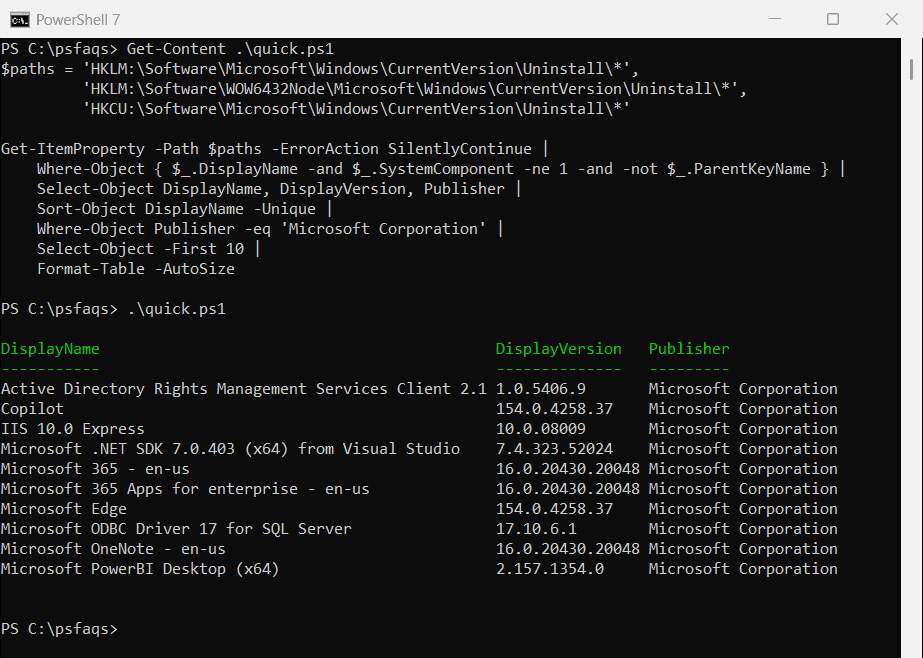
The SystemComponent and ParentKeyName filters hide background components and updates. I’ll explain them in the function section below.
Remove the Where-Object Publisher and Select-Object -First 10 lines to see everything. On my PC, that’s 54 programs.
Why check three registry keys?
If you only read one key, you’ll miss programs. Each location holds a different kind of install:
| Registry path | What it contains |
|---|---|
HKLM:\Software\Microsoft\Windows\CurrentVersion\Uninstall | 64-bit programs installed for all users |
HKLM:\Software\WOW6432Node\Microsoft\Windows\CurrentVersion\Uninstall | 32-bit programs on 64-bit Windows |
HKCU:\Software\Microsoft\Windows\CurrentVersion\Uninstall | Per-user installs, such as VS Code (User) or Zoom |
The per-user key only shows programs for the account running the script. Another user’s per-user apps live in their own registry hive, so an admin script won’t see them there.
Microsoft documents the values you’ll find in these keys, like DisplayName, DisplayVersion and InstallDate, in the Uninstall Registry Key reference.
Build a reusable Get-InstalledProgram function
The raw registry list is noisy. It includes hidden system components and every update as its own entry.
This function filters those out, adds a Scope column (64-bit, 32-bit or current user) and removes duplicates. You can also pass a name with wildcards:
function Get-InstalledProgram {
param([string]$Name = '*')
$paths = 'HKLM:\Software\Microsoft\Windows\CurrentVersion\Uninstall\*',
'HKLM:\Software\WOW6432Node\Microsoft\Windows\CurrentVersion\Uninstall\*',
'HKCU:\Software\Microsoft\Windows\CurrentVersion\Uninstall\*'
Get-ItemProperty -Path $paths -ErrorAction SilentlyContinue |
Where-Object {
$_.DisplayName -and # skip empty keys
$_.SystemComponent -ne 1 -and # hidden from Apps & features
-not $_.ParentKeyName -and # skip updates/patches of another product
$_.DisplayName -like $Name
} |
Select-Object DisplayName, DisplayVersion, Publisher, InstallDate,
@{ Name = 'Scope'; Expression = {
if ($_.PSPath -like '*HKEY_CURRENT_USER*') { 'Current user' }
elseif ($_.PSPath -like '*WOW6432Node*') { '32-bit' }
else { '64-bit' } } } |
Sort-Object DisplayName -Unique
}
$all = Get-InstalledProgram
"Installed programs: $($all.Count)"
Get-InstalledProgram -Name '*Python*' | Format-Table DisplayName, DisplayVersion, Scope -AutoSize
Output:
Installed programs: 54
DisplayName DisplayVersion Scope
----------- -------------- -----
Python 3.12.5 (64-bit) 3.12.5150.0 Current user
Python Launcher 3.12.5150.0 32-bit

Two filters do most of the work. SystemComponent = 1 marks entries Windows hides from Installed apps. ParentKeyName marks updates that belong to another product.
That’s why this count is closer to what you see in Settings than the raw registry list.
How do I check if a program is installed?
Wrap the same query in a function that returns $true or $false. That’s handy in deployment scripts, where you want to skip an install that’s already done:
function Test-ProgramInstalled {
param([Parameter(Mandatory)][string]$Name)
$paths = 'HKLM:\Software\Microsoft\Windows\CurrentVersion\Uninstall\*',
'HKLM:\Software\WOW6432Node\Microsoft\Windows\CurrentVersion\Uninstall\*',
'HKCU:\Software\Microsoft\Windows\CurrentVersion\Uninstall\*'
[bool](Get-ItemProperty -Path $paths -ErrorAction SilentlyContinue |
Where-Object DisplayName -like $Name)
}
Test-ProgramInstalled -Name 'Git'
Test-ProgramInstalled -Name 'Google Chrome'
Test-ProgramInstalled -Name 'Adobe Photoshop*'
Output:
True
True
False
The name is matched with -like, so add a wildcard when the display name includes a version, such as 'Adobe Photoshop*'.
Get the install date of each program
InstallDate is stored as text in yyyyMMdd format, and some programs leave it empty. Convert it to a real date before you sort or filter:
$paths = 'HKLM:\Software\Microsoft\Windows\CurrentVersion\Uninstall\*',
'HKLM:\Software\WOW6432Node\Microsoft\Windows\CurrentVersion\Uninstall\*'
Get-ItemProperty -Path $paths -ErrorAction SilentlyContinue |
Where-Object { $_.DisplayName -and $_.InstallDate -match '^\d{8}$' } |
Select-Object DisplayName,
@{ Name = 'Installed'; Expression = { [datetime]::ParseExact($_.InstallDate, 'yyyyMMdd', $null) } } |
Where-Object Installed -ge (Get-Date '2026-01-01') |
Sort-Object Installed -Descending |
Select-Object -First 5 DisplayName, @{ Name = 'Installed'; Expression = { $_.Installed.ToShortDateString() } } |
Format-Table -AutoSize
Output:
DisplayName Installed
----------- ---------
Microsoft Edge 9/26/2026
Copilot 9/25/2026
Microsoft Teams Meeting Add-in for Microsoft Office 9/24/2026
Google Chrome 9/23/2026
Microsoft Edge WebView2 Runtime 9/20/2026
This lists the five most recent installs since January 1, 2026. Programs that don’t write an install date simply won’t show up in this list.
Export the list of installed programs to CSV
When you need an inventory for an audit or a ticket, pipe the clean list to Export-Csv. You can open the file in Excel:
$paths = 'HKLM:\Software\Microsoft\Windows\CurrentVersion\Uninstall\*',
'HKLM:\Software\WOW6432Node\Microsoft\Windows\CurrentVersion\Uninstall\*',
'HKCU:\Software\Microsoft\Windows\CurrentVersion\Uninstall\*'
Get-ItemProperty -Path $paths -ErrorAction SilentlyContinue |
Where-Object { $_.DisplayName -and $_.SystemComponent -ne 1 -and -not $_.ParentKeyName } |
Select-Object DisplayName, DisplayVersion, Publisher, InstallDate |
Sort-Object DisplayName -Unique |
Export-Csv -Path .\installed-programs.csv -NoTypeInformation -Encoding UTF8
$rows = Import-Csv .\installed-programs.csv
"Saved $($rows.Count) programs to installed-programs.csv"
$rows | Where-Object Publisher -eq 'Microsoft Corporation' | Select-Object -First 3 DisplayName, DisplayVersion
Output:
Saved 54 programs to installed-programs.csv
DisplayName DisplayVersion
----------- --------------
Active Directory Rights Management Services Client 2.1 1.0.5406.9
Copilot 154.0.4258.37
IIS 10.0 Express 10.0.08009
I added -NoTypeInformation and -Encoding UTF8 for Windows PowerShell 5.1. PowerShell 7 already writes UTF-8 without the type line, so they’re harmless there.
List installed apps with winget
The Windows Package Manager can also list installed apps, including many Store apps. It adds an Available column when a newer version exists:
winget list --id Git.Git --accept-source-agreements

Watch out with --name. It does a substring match, so winget list --name Git also returned Snagit on my PC. Use --id or add --exact when you want one app.
If the command isn’t found, see how to install winget with PowerShell. The full option list is in the winget list documentation.
List Microsoft Store apps with Get-AppxPackage
Store apps (MSIX/APPX packages) don’t use the Uninstall keys. Use Get-AppxPackage for them:
$apps = 'Microsoft.WindowsCalculator', 'Microsoft.WindowsNotepad', 'Microsoft.Paint'
Get-AppxPackage |
Where-Object Name -in $apps |
Select-Object Name, Version |
Sort-Object Name
Output:
Name Version
---- -------
Microsoft.Paint 11.2605.81.0
Microsoft.WindowsCalculator 11.2607.0.0
Microsoft.WindowsNotepad 11.2607.14.0
Run Get-AppxPackage on its own to list every package for your account. Add -AllUsers from an elevated session to include other users.
I filter with Where-Object on purpose. In PowerShell 7, -Name accepts only one name, and passing an array fails with “Cannot convert ‘System.Object[]’ to the type ‘System.String'”.
Get-Package works only in Windows PowerShell 5.1
Older articles often suggest Get-Package -ProviderName Programs. It still works in Windows PowerShell 5.1:
Get-Package -ProviderName Programs |
Where-Object Name -like 'Microsoft Visual C++*' |
Select-Object Name, Version |
Sort-Object Name
Output:
Name Version
---- -------
Microsoft Visual C++ 2012 Redistributable (x86) - 11.0.61030 11.0.61030.0
Microsoft Visual C++ v14 Redistributable (x64) - 14.50.35719 14.50.35719.0
Microsoft Visual C++ v14 Redistributable (x86) - 14.50.35719 14.50.35719.0
PowerShell 7 doesn’t ship the Programs or msi providers, so the same command fails there:
Get-Package -ProviderName Programs
Output in PowerShell 7:
Get-Package: C:\psfaqs\runs\installed-programs\getpackage7.ps1:1
Line |
1 | Get-Package -ProviderName Programs
| ~~~~~~~~~~~~~~~~~~~~~~~~~~~~~~~~~~
| Unable to find package providers (Programs).
For scripts that must run in both versions, stick with the registry approach.
Why you shouldn’t use Win32_Product
Many scripts use Get-WmiObject -Class Win32_Product. I don’t recommend it, for two reasons.
First, the query isn’t optimized. Windows starts a consistency check of every Windows Installer product, verifying and repairing each one. It’s slow, and you’ll see Event ID 1035 “Windows Installer reconfigured the product” for each app.
Microsoft explains this in Windows Installer reconfigured all applications. It also misses anything that wasn’t installed with an MSI.
Second, Get-WmiObject doesn’t exist in PowerShell 7. Get-CimInstance Win32_Product runs, but it triggers the same repair check.
Get installed programs on a remote computer
To inventory other PCs, send the registry query to them with Invoke-Command. PowerShell remoting (WinRM) must be enabled on the targets, and you need admin rights there:
$computers = 'SRV01', 'SRV02', 'PC-ACCT-17'
$scriptBlock = {
$paths = 'HKLM:\Software\Microsoft\Windows\CurrentVersion\Uninstall\*',
'HKLM:\Software\WOW6432Node\Microsoft\Windows\CurrentVersion\Uninstall\*'
Get-ItemProperty -Path $paths -ErrorAction SilentlyContinue |
Where-Object { $_.DisplayName -and $_.SystemComponent -ne 1 -and -not $_.ParentKeyName } |
Select-Object DisplayName, DisplayVersion, Publisher
}
Invoke-Command -ComputerName $computers -ScriptBlock $scriptBlock |
Select-Object PSComputerName, DisplayName, DisplayVersion, Publisher |
Export-Csv .\installed-programs-all.csv -NoTypeInformation
Each row comes back with a PSComputerName property, so one CSV covers every machine. Replace the names with your own computers.
The script block skips the HKCU key on purpose. In a remote session, HKCU belongs to your admin account, not to the person who uses that PC.
When I ran the script block locally, it returned 48 programs: the 54 from the function minus the per-user installs.
If remoting isn’t set up yet, enable WinRM with PowerShell first. Keep the firewall rule limited to your management network instead of opening it to any address.
Frequently Asked Questions
Why doesn’t my list match Settings > Apps exactly?
Settings also shows Microsoft Store apps, which live outside the Uninstall keys, and it hides entries marked as system components. Combine the registry list with Get-AppxPackage if you need Store apps too.
Do I need admin rights to list installed programs?
No. Standard users can read the HKLM and HKCU Uninstall keys. You only need admin rights for Get-AppxPackage -AllUsers and for remote computers.
How do I get installed programs on multiple computers at once?
Pass several names to Invoke-Command -ComputerName and export the results with Export-Csv. The PSComputerName column tells you which PC each row came from.
Is Get-WmiObject Win32_Product safe to run?
It works, but it’s slow and it makes Windows Installer verify and repair every MSI product. Read the Uninstall registry keys instead.
How do I list installed programs with winget?
Run winget list. Use --id or --exact to check a single app, because --name matches any part of the name.
Next, try these Windows admin tasks:
- Uninstall a program with PowerShell
- List installed PowerShell modules
- Check for Windows updates using PowerShell
- Get computer information using PowerShell
Bijay Kumar is an esteemed author and the mind behind PowerShellFAQs.com, where he shares his extensive knowledge and expertise in PowerShell, with a particular focus on SharePoint projects. Recognized for his contributions to the tech community, Bijay has been honored with the prestigious Microsoft MVP award. With over 15 years of experience in the software industry, he has a rich professional background, having worked with industry giants such as HP and TCS. His insights and guidance have made him a respected figure in the world of software development and administration. Read more.