
To create a local admin account using PowerShell, create the user with New-LocalUser and add it to the Administrators group with Add-LocalGroupMember. Run both in PowerShell as administrator:
$password = Read-Host -Prompt 'Password' -AsSecureString
New-LocalUser -Name 'helpdesk-admin' -Password $password -FullName 'Help Desk Admin'
Add-LocalGroupMember -Group 'Administrators' -Member 'helpdesk-admin'
Below I check for an elevated window, build a strong password, preview the account with -WhatIf and confirm the group membership. I didn’t add any accounts to my own PC.
Open PowerShell as administrator
Both cmdlets fail with Access denied in a normal window. This quick check tells you whether your session is elevated:
$identity = [Security.Principal.WindowsIdentity]::GetCurrent()
$principal = [Security.Principal.WindowsPrincipal]::new($identity)
"Running as administrator: $($principal.IsInRole([Security.Principal.WindowsBuiltInRole]::Administrator))"
Output:
Running as administrator: False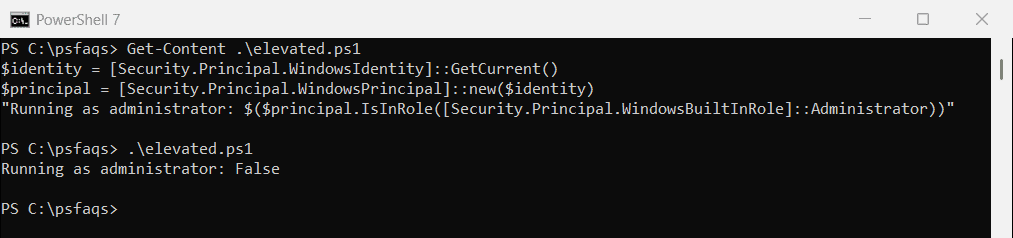
Right-click PowerShell or Terminal and choose Run as administrator. The LocalAccounts cmdlets work in PowerShell 7 and 5.1, but not in 32-bit PowerShell on 64-bit Windows.
Create the user with a strong password
Read-Host -AsSecureString is best when you type the password yourself. For a scripted setup, generate a random one so no password sits in the script:
$chars = [char[]]'ABCDEFGHJKLMNPQRSTUVWXYZabcdefghijkmnopqrstuvwxyz23456789!@#$%*'
$bytes = [byte[]]::new(20)
[Security.Cryptography.RandomNumberGenerator]::Create().GetBytes($bytes)
$password = ConvertTo-SecureString -String (-join ($bytes | ForEach-Object { $chars[$_ % $chars.Length] })) -AsPlainText -Force
"Password length: $($password.Length) characters"

New-LocalUser -Name 'helpdesk-admin' -Password $password -FullName 'Help Desk Admin' `
    -Description 'Local admin for support' -WhatIf
Output:
Password length: 20 characters
What if: Performing the operation "Create new local user" on target "helpdesk-admin".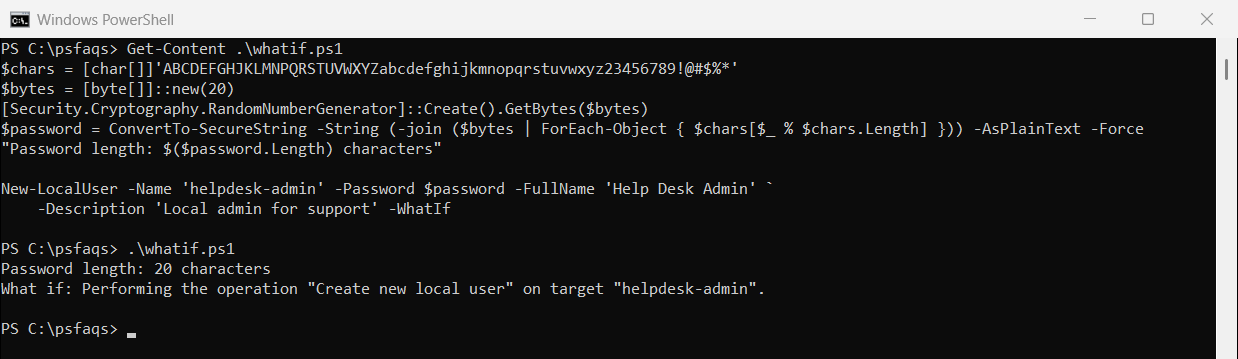
Remove -WhatIf to create it. Add -PasswordNeverExpires for a support account, or -AccountExpires (Get-Date).AddDays(30) for a temporary one. The New-LocalUser reference lists every option.
Add the user to the Administrators group
Add-LocalGroupMember gives the account admin rights. The account must already exist, even when you use -WhatIf:
Add-LocalGroupMember -Group 'Administrators' -Member 'helpdesk-admin'On a non-English Windows PC, the group has a different name. Its well-known SID, S-1-5-32-544, is the same everywhere:
$admins = Get-LocalGroup -SID 'S-1-5-32-544'
"Name:    $($admins.Name)"
"SID:     $($admins.SID)"
"Members: $(@(Get-LocalGroupMember -SID 'S-1-5-32-544').Count)"
Output:
Name:    Administrators
SID:     S-1-5-32-544
Members: 2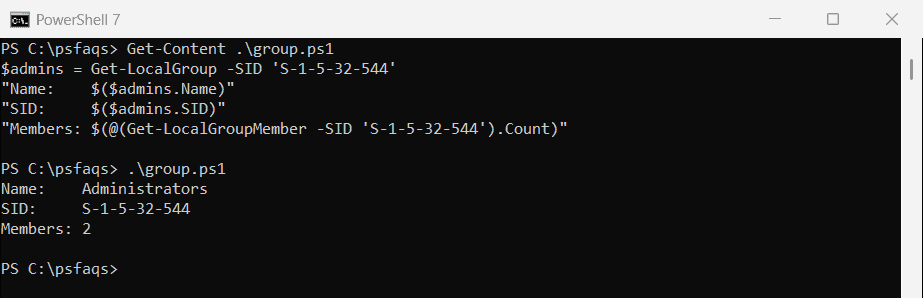
Use Add-LocalGroupMember -SID 'S-1-5-32-544' -Member 'helpdesk-admin' to work in any language.
Check the new admin account
List the group members to confirm the account is there. Listing local administrators goes deeper:
Get-LocalGroupMember -Group 'Administrators' | Select-Object -Property Name, PrincipalSourceCreate a local admin on remote computers
Wrap the commands in Invoke-Command to run them on other PCs. You need admin rights there and WinRM turned on:
$password = Read-Host -Prompt 'Password' -AsSecureString
Invoke-Command -ComputerName PC-SALES-07, PC-SALES-08 -ScriptBlock {
    New-LocalUser -Name 'helpdesk-admin' -Password $using:password -PasswordNeverExpires
    Add-LocalGroupMember -Group 'Administrators' -Member 'helpdesk-admin'
}
Giving every PC the same local admin password is risky. Microsoft’s Windows LAPS sets a unique, rotating password on each PC for you.
Use net user in Command Prompt
The older net commands do the same job. The asterisk makes net user prompt for the password:
net user helpdesk-admin * /add
net localgroup Administrators helpdesk-admin /add
Remove admin rights or delete the account
Take the account out of the group, or remove it completely:
Remove-LocalGroupMember -Group 'Administrators' -Member 'helpdesk-admin'
Remove-LocalUser -Name 'helpdesk-admin'
Frequently Asked Questions
How do I create a local admin account with PowerShell?
Run New-LocalUser to create the account, then Add-LocalGroupMember -Group 'Administrators' -Member 'name', both as administrator.
How do I make an existing user a local admin?
Run Add-LocalGroupMember -Group 'Administrators' -Member 'username' in an elevated window.
How do I set a password that never expires?
Add -PasswordNeverExpires to New-LocalUser, or run Set-LocalUser -Name 'username' -PasswordNeverExpires $true.