
You can only uninstall Microsoft Edge using PowerShell or Settings if your PC was set up in the European Economic Area (EEA). In the US and everywhere else, Windows treats Edge as part of the operating system and blocks its uninstaller.
Below I show how to check what’s installed and why removal is blocked, the command that works in the EEA, and the safe ways to get Edge out of your way everywhere else. I tested the checks on Windows 11 in PowerShell 7.6 and 5.1.
Check the installed Edge version
Edge lives in Program Files (x86). The file version tells you which build you have:
$edge = Join-Path -Path ${env:ProgramFiles(x86)} -ChildPath 'Microsoft\Edge\Application\msedge.exe'
"Edge installed: $(Test-Path -Path $edge)"
"Edge version:   $((Get-Item -Path $edge).VersionInfo.ProductVersion)"
Output:
Edge installed: True
Edge version:   154.0.4258.37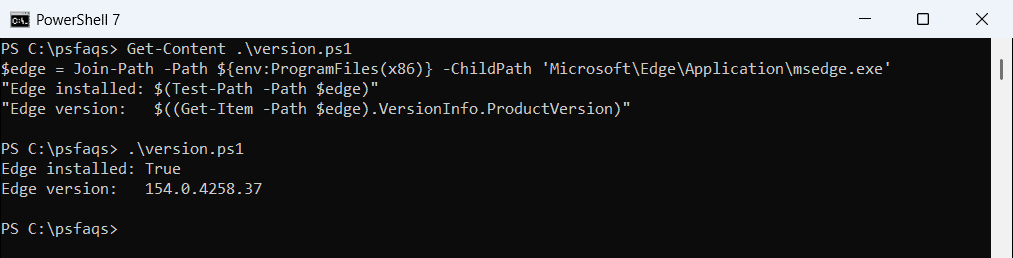
For other apps, see uninstalling a program with PowerShell.
Why Edge won’t uninstall outside the EEA
Edge’s entry in the Uninstall registry key has NoRemove set to 1, which hides the Uninstall button in Settings. Its uninstaller is setup.exe with these arguments:
$key = 'HKLM:\SOFTWARE\WOW6432Node\Microsoft\Windows\CurrentVersion\Uninstall\Microsoft Edge'
$entry = Get-ItemProperty -Path $key

"Version:      $($entry.DisplayVersion)"
"NoRemove:     $($entry.NoRemove)"
"Uninstaller:  $(($entry.UninstallString -split '"')[1] | Split-Path -Leaf)"
"Arguments:    $(($entry.UninstallString -split '"')[2].Trim())"
Output:
Version:      154.0.4258.37
NoRemove:     1
Uninstaller:  setup.exe
Arguments:    --uninstall --msedge --channel=stable --system-level --verbose-logging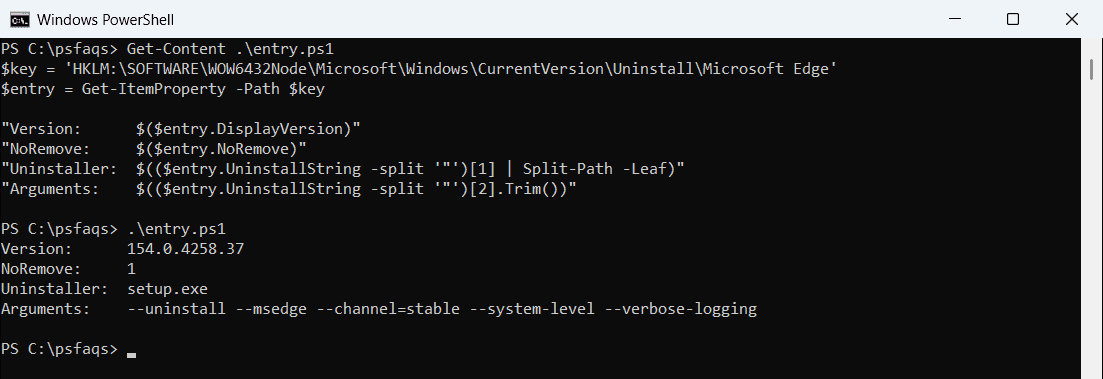
Running that setup.exe command yourself usually does nothing outside the EEA. Tricks that force it past this, such as extra switches or edited region files, aren’t supported by Microsoft and can break Windows Update and apps that need Edge.
Don’t remove WebView2
Edge shares its engine with the WebView2 Runtime, which many apps use to show web content, including Microsoft 365 apps, Teams and Widgets. EdgeUpdate manages both:
Get-ChildItem -Path 'HKLM:\SOFTWARE\WOW6432Node\Microsoft\EdgeUpdate\Clients' |
    ForEach-Object { Get-ItemProperty -Path $_.PSPath } |
    Where-Object name -like 'Microsoft Edge*' |
    ForEach-Object { '{0,-32} {1}' -f $_.name, $_.pv }
Output:
Microsoft Edge                   154.0.4258.37
Microsoft Edge WebView2 Runtime  154.0.4258.37
Microsoft Edge Update            1.3.271.7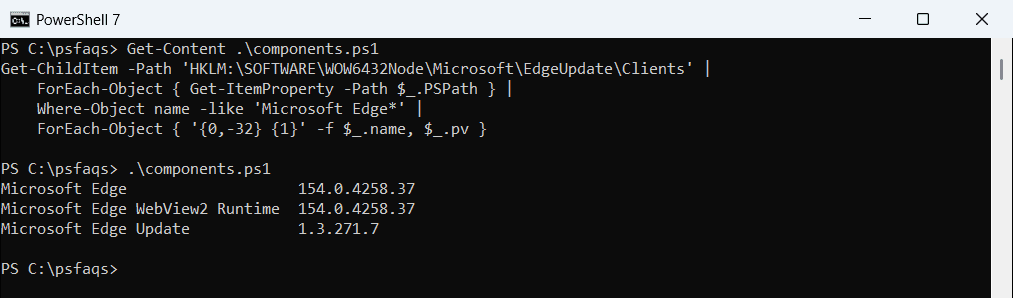
Even where Edge itself can be removed, keep WebView2 installed.
Uninstall Edge in the EEA
On PCs set up with an EEA region, Windows 11 23H2 and later let you remove Edge in Settings > Apps > Installed apps. From PowerShell, winget does the same:
winget uninstall --id Microsoft.EdgeWindows decides this from the region chosen during setup, and Microsoft says it can only change with a PC reset. The details are in Microsoft’s Digital Markets Act announcement.
Keep Edge out of your way everywhere else
If you can’t uninstall Edge, you can stop it from running in the background. These Microsoft-supported policies turn off Startup boost and background apps. Run them as administrator:
$policy = 'HKLM:\SOFTWARE\Policies\Microsoft\Edge'
New-Item -Path $policy -Force | Out-Null
Set-ItemProperty -Path $policy -Name StartupBoostEnabled -Value 0 -Type DWord
Set-ItemProperty -Path $policy -Name BackgroundModeEnabled -Value 0 -Type DWord
Then choose another default browser in Settings > Apps > Default apps, and unpin Edge from the taskbar.
Remove Edge Beta, Dev or Canary
The preview channels are normal apps and do uninstall anywhere, for example winget uninstall --id Microsoft.Edge.Beta. Uninstalling programs with PowerShell covers other apps.
Frequently Asked Questions
Can I uninstall Microsoft Edge with PowerShell?
Only on PCs set up in the European Economic Area. There, winget uninstall --id Microsoft.Edge works. Elsewhere, Windows blocks it.
Why is the Uninstall button for Edge grayed out?
Edge’s uninstall entry has NoRemove set to 1 outside the EEA, so Windows hides the option.
Is it safe to force-uninstall Edge?
No. Forced removal isn’t supported and can break Windows Update and apps that rely on Edge components.
Should I uninstall the WebView2 Runtime too?
No. Many apps, including Microsoft 365 apps, need WebView2 to work.
How do I stop Edge from running in the background?
Set the StartupBoostEnabled and BackgroundModeEnabled policies to 0 under HKLM:\SOFTWARE\Policies\Microsoft\Edge. See Microsoft’s WebView2 overview.
Related software guides: