
If you’ve been writing PowerShell scripts for a while, you’ve probably typed something like $i++ inside a loop. That little ++ is a unary operator in PowerShell. In this tutorial, I’ll walk you through every PowerShell unary operator with practical examples you can use right away.
What Is a Unary Operator in PowerShell?
Most operators in PowerShell work on two values. For example, 5 + 3 takes two numbers and adds them. A unary operator only works on one value — it either modifies it or evaluates it. That’s the “unary” part: one operand, one operation.
PowerShell has several unary operators:
++— Increment (adds 1)--— Decrement (subtracts 1)-— Negation (flips the sign)+— Positive (no-op, keeps the value as-is)!— Logical NOT (flips a boolean),— Creates a single-element array
Let me go through each one with real examples.
Check out PowerShell Ternary Operator
The Increment Operator (++)
This is probably the most-used unary operator in PowerShell. It adds 1 to a variable.
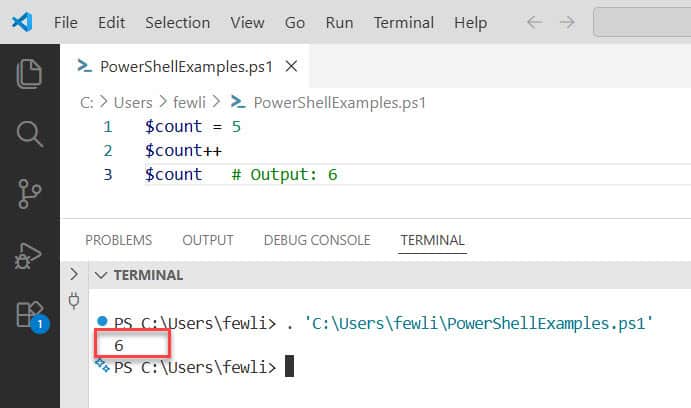
$count = 5
$count++
$count   # Output: 6
Simple enough. But here’s where it gets interesting — you can place ++ either after the variable (postfix) or before it (prefix), and they behave differently.
Here is the exact output in the screenshot below:
Postfix vs. Prefix Increment
Postfix ($count++) — the variable is used first, then incremented.
$count = 5
$result = $count++
$result   # Output: 5  (original value was captured first)
$count    # Output: 6  (incremented after)
Prefix (++$count) — the variable is incremented first, then used.
$count = 5
$result = ++$count
$result   # Output: 6  (incremented before assignment)
$count    # Output: 6
Most of the time in loops, you use the postfix version because you don’t need to capture the result. But when you’re assigning the incremented value to something else, the prefix version is what you want.
Practical Example: Counter in a Loop
Here is a practical example.
$i = 0
while ($i -lt 5) {
    Write-Host "Processing item $i"
    $i++
}
This is the classic use case. Clean, readable, and no need to write $i = $i + 1 every time.
Check out PowerShell Not Equal Operator
The Decrement Operator (–)
The decrement operator does the opposite — it subtracts 1 from a variable. Same prefix/postfix rules apply.
$score = 10
$score--
$score   # Output: 9
Practical Example: Countdown
Here is a practical example of using the decrement operator (–) in PowerShell.
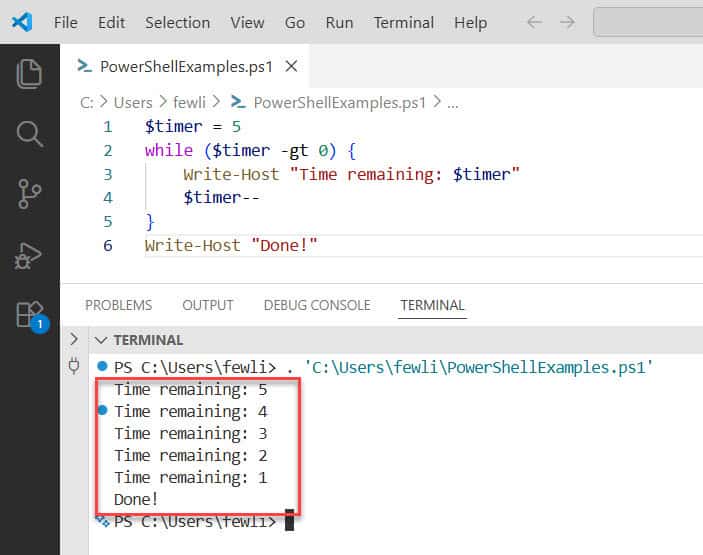
$timer = 5
while ($timer -gt 0) {
    Write-Host "Time remaining: $timer"
    $timer--
}
Write-Host "Done!"
Output:
Time remaining: 5
Time remaining: 4
Time remaining: 3
Time remaining: 2
Time remaining: 1
Done!
The prefix version works here too — --$timer — but it would decrement before displaying, so you’d see 4, 3, 2, 1, 0 instead. Keep that in mind depending on what you need.
Here is the exact output in the screenshot below:
Read PowerShell Match Operator Examples
The Negation Operator (-)
The - unary operator flips the sign of a number. You’re not subtracting anything here — you’re just inverting the value.
$temp = 25
$negative = -$temp
$negative   # Output: -25
It also works the other way — turning a negative into a positive:
$loss = -150
$adjusted = -$loss
$adjusted   # Output: 150
Practical Example: Reversing a Value
$balance = 500
$debt = -$balance
Write-Host "You owe: $debt"   # Output: You owe: -500
This is handy when you’re working with financial data or calculating offsets.
The Positive Operator (+)
Honestly, this one is rarely used on its own, but it exists. The + unary operator simply confirms the value is positive. It doesn’t change anything.
$num = -8
$same = +$num
$same   # Output: -8  (still negative — + doesn't flip the sign)
Wait — so +$num doesn’t make a negative number positive? Correct. The + unary operator is not the same as multiplying by -1. It just says “evaluate this as a number.” If the value is already negative, it stays negative.
Where it occasionally shows up is in type coercion:
$str = "42"
$num = +$str
$num.GetType().Name   # Output: Int32
PowerShell converted the string "42" to an integer. Neat trick when you need a quick type conversion.
Check out PowerShell Filter Operators
The Logical NOT Operator (!)
The ! operator flips a boolean — $true becomes $false, and $false becomes $true.
$isEnabled = $true
!$isEnabled   # Output: False
PowerShell also has a -not operator that does exactly the same thing. You can use either one.
$isEnabled = $false
-not $isEnabled   # Output: True
I personally prefer ! for quick, short checks and -not when I want the script to be more readable for someone else.
Practical Example: Toggle a Setting
$darkMode = $false

if (!$darkMode) {
    Write-Host "Dark mode is off. Turning it on."
    $darkMode = $true
}
Practical Example: Checking if a File Does NOT Exist
$path = "C:\Logs\output.txt"

if (!(Test-Path $path)) {
    Write-Host "File not found. Creating it."
    New-Item -Path $path -ItemType File
}
This one you’ll use constantly in real scripts. The ! before (Test-Path $path) inverts the result — so the block only runs if the file doesn’t exist.
Check out PowerShell Arithmetic Operators
The Comma Operator (,) — Unary Version
Most people know the comma operator as a way to create arrays:
$fruits = "Apple", "Banana", "Cherry"
But used as a unary operator (placing it before a single value), the comma creates a one-element array:
$item = ,"SingleFruit"
$item.GetType().Name   # Output: Object[]
$item.Count            # Output: 1
Why would you ever need this? A few reasons:
- When a function expects an array and you only have one value
- When you want to prevent PowerShell from “unrolling” a single-item collection in the pipeline
- When you’re building arrays dynamically and need to start with a single item
$singleServer = ,"SERVER01"
foreach ($server in $singleServer) {
    Write-Host "Connecting to $server"
}
This treats "SERVER01" as a proper array, so your foreach loop works the same way it would with multiple servers.
Read PowerShell Logical Operators [With Examples]
Combining Unary Operators in Real Scripts
Let me put a few of these together in a more realistic example:
$retries = 3
$connected = $false

while ($retries -gt 0 -and !$connected) {
    Write-Host "Attempting connection... ($retries attempts left)"

    # Simulate a connection attempt
    $connected = $false  # Change to $true to simulate success

    if (!$connected) {
        $retries--
        Write-Host "Failed. Retrying..."
    }
}

if (!$connected) {
    Write-Host "Could not connect after all attempts."
}
Here I’m using -- to decrement the retry counter and ! to check the boolean state. This is the kind of script you’d write when polling a service or testing a network connection.
A Quick Reference
| Operator | Name | What It Does | Example |
|---|---|---|---|
++ | Increment | Adds 1 to a variable | $i++ → 6 if $i was 5 |
-- | Decrement | Subtracts 1 from a variable | $i-- → 4 if $i was 5 |
- | Negation | Flips the sign of a number | -$x turns 10 into -10 |
+ | Positive | Confirms/coerces to number | +$str converts “5” to int |
! | Logical NOT | Flips a boolean | !$true → $false |
, | Array (unary) | Creates a one-element array | ,$val wraps value in array |
Things to Watch Out For
- Prefix vs. postfix matters when you’re assigning the result to another variable. Always test which version gives you the behavior you expect.
+does not negate — it doesn’t turn negative numbers positive.!and-notare interchangeable, but-notreads more naturally in long conditions.- When using
++or--on a string variable that holds a number (like"5"), PowerShell will convert it to an integer automatically. That’s handy but can surprise you if you’re not expecting it.
$val = "10"
$val++
$val.GetType().Name   # Output: Int32 — PowerShell converted it!
Once you’re aware of this behavior, you can actually use it to your advantage in scripts that read numeric strings from files or user input.
Unary operators are small but powerful. Getting comfortable with ++, --, !, and the others will make your everyday PowerShell scripts shorter and cleaner without sacrificing readability.
You may also like:
- PowerShell Comparison Operators
- PowerShell Not Operator
- How to Use -and Operator in PowerShell?
- PowerShell -contains Operator

Bijay Kumar is an esteemed author and the mind behind PowerShellFAQs.com, where he shares his extensive knowledge and expertise in PowerShell, with a particular focus on SharePoint projects. Recognized for his contributions to the tech community, Bijay has been honored with the prestigious Microsoft MVP award. With over 15 years of experience in the software industry, he has a rich professional background, having worked with industry giants such as HP and TCS. His insights and guidance have made him a respected figure in the world of software development and administration. Read more.
