
To get the current logged-on user on a remote computer with PowerShell, read the UserName property of Win32_ComputerSystem with Get-CimInstance:
(Get-CimInstance -ClassName Win32_ComputerSystem -ComputerName PC-SALES-07).UserNameIt returns DOMAIN\user for whoever is signed in at the console. Below I test the same queries on my own PC, show the two remoting errors you’ll most likely hit, and cover Remote Desktop sessions with quser. Account and PC names are masked.
Get the signed-in user with Win32_ComputerSystem
Run without -ComputerName, the query checks your own PC. Add -ComputerName to ask another one:
$cs = Get-CimInstance -ClassName Win32_ComputerSystem
"Signed-in user: $($cs.UserName)"
Output:
Signed-in user: DESKTOP-4T7K2QX\alice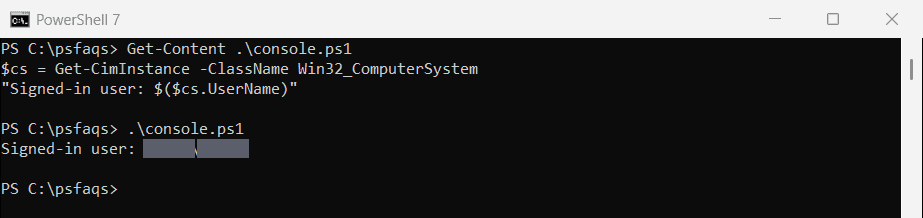
UserName is empty when nobody is at the console, or when the only users are connected through Remote Desktop. For those, use quser, covered below.
Check the owner of explorer.exe
Every signed-in user runs their own explorer.exe, so its owner is a second way to see who’s logged on:
Get-CimInstance -ClassName Win32_Process -Filter "Name = 'explorer.exe'" |
    Invoke-CimMethod -MethodName GetOwner |
    ForEach-Object { "explorer.exe runs as: $($_.Domain)\$($_.User)" } |
    Sort-Object -Unique
Output:
explorer.exe runs as: DESKTOP-4T7K2QX\alice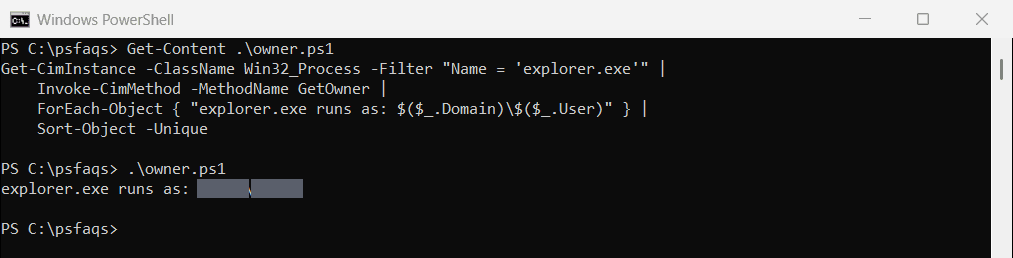
This also catches Remote Desktop users, since each session starts its own explorer.exe. Showing logged-in users covers more local methods.
Fix the common remote errors
Get-CimInstance -ComputerName uses WinRM. On my test PC, WinRM is stopped and the PC isn’t in a domain, which produces the two errors you’ll see most often:
"WinRM service: $((Get-Service -Name WinRM).Status)"

foreach ($computer in 'localhost', 'PC-SALES-07') {
    try {
        Get-CimInstance -ClassName Win32_ComputerSystem -ComputerName $computer -ErrorAction Stop | Out-Null
        "${computer}: connected"
    }
    catch {
        $first = ($_.Exception.Message -split '(?<=\.) ')[0]
        "${computer}: Failed. $first"
    }
}
Output:
WinRM service: Stopped
localhost: Failed. The client cannot connect to the destination specified in the request.
PC-SALES-07: Failed. The WinRM client cannot process the request.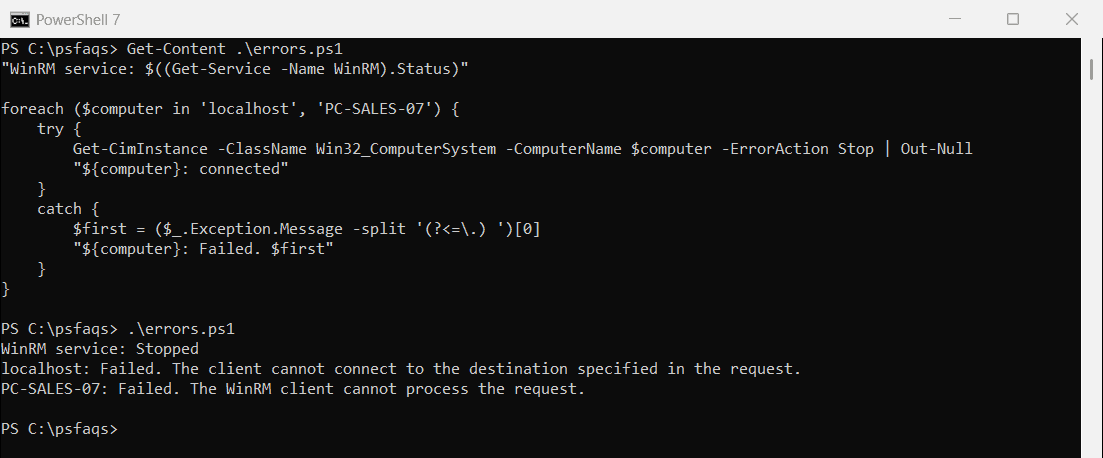
“The client cannot connect” means WinRM isn’t running on the target. Run Enable-PSRemoting there as administrator. Windows Server has it on by default, but Windows 10 and 11 don’t.
“The WinRM client cannot process the request” means Kerberos can’t be used, usually because your PC isn’t in a domain. Use HTTPS or add the target to TrustedHosts. Microsoft’s about_Remote_Troubleshooting walks through both.
Use DCOM when WinRM is blocked
If you can’t turn on WinRM, a CIM session can use DCOM instead, the protocol the old Get-WmiObject used:
$option = New-CimSessionOption -Protocol Dcom
$session = New-CimSession -ComputerName PC-SALES-07 -SessionOption $option
(Get-CimInstance -CimSession $session -ClassName Win32_ComputerSystem).UserName
Remove-CimSession -CimSession $session
DCOM needs admin rights on the target and the Windows Management Instrumentation firewall rules enabled.
List all sessions, including Remote Desktop, with quser
quser (query user) lists every session on a computer, with its state and idle time:
quser /server:PC-SALES-07It works without WinRM, but you need permission on the remote PC. The query user reference explains each column.
Check many computers at once
Loop through a list and capture failures instead of stopping on the first one:
$computers = 'PC-SALES-07', 'PC-SALES-08', 'PC-HR-02'
foreach ($computer in $computers) {
    try {
        $user = (Get-CimInstance -ClassName Win32_ComputerSystem -ComputerName $computer -ErrorAction Stop).UserName
        [pscustomobject]@{ Computer = $computer; User = $user }
    }
    catch { [pscustomobject]@{ Computer = $computer; User = 'Unreachable' } }
}
Pipe the results to Export-Csv to keep a record.
Frequently Asked Questions
How do I get the logged-on user on a remote computer with PowerShell?
Run (Get-CimInstance -ClassName Win32_ComputerSystem -ComputerName PC01).UserName. You need admin rights and WinRM on the remote PC.
Why is UserName empty for a remote computer?
Nobody is signed in at the console, or users are only connected through Remote Desktop. Use quser /server:PC01 instead.
How do I see Remote Desktop users on a remote computer?
Run quser /server:PC01. It lists every session, including RDP sessions.