
To write to a log file in PowerShell, use Add-Content with a timestamp from Get-Date. Add-Content creates the file the first time and appends a new line on every call after that:
$log = 'C:\psfaqs\Logs\backup.log'

Add-Content -Path $log -Value "$(Get-Date -Format 'yyyy-MM-dd HH:mm:ss') Backup started"
Add-Content -Path $log -Value "$(Get-Date -Format 'yyyy-MM-dd HH:mm:ss') Copied 1,284 files"

Get-Content -Path $log
Output:
2026-09-28 08:21:39 Backup started
2026-09-28 08:21:39 Copied 1,284 files
Below I turn this into a reusable Write-Log function, add daily log files and error logging, and show one file-name mistake that hides your log. I ran every example in PowerShell 7.6 and Windows PowerShell 5.1.
Create the log folder first
Add-Content creates the file but not a missing folder. New-Item -Force creates the folder if needed and does nothing if it’s already there:
$folder = 'C:\psfaqs\Logs\Payroll'
New-Item -Path $folder -ItemType Directory -Force | Out-Null

Add-Content -Path "$folder\payroll.log" -Value 'Folder and log file are ready'
Get-Content -Path "$folder\payroll.log"
Output:
Folder and log file are readyA reusable Write-Log function
Most scripts need the same format on every line: a timestamp, a level and the message. This function handles it, and ValidateSet rejects typos like -Level WARNING:
function Write-Log {
    param(
        [Parameter(Mandatory)] [string]$Message,
        [ValidateSet('INFO', 'WARN', 'ERROR')] [string]$Level = 'INFO',
        [string]$Path = 'C:\psfaqs\Logs\app.log'
    )
    $line = '{0} [{1}] {2}' -f (Get-Date -Format 'yyyy-MM-dd HH:mm:ss'), $Level, $Message
    Add-Content -Path $Path -Value $line
}

Write-Log -Message 'Nightly backup started'
Write-Log -Message 'Drive D is 85% full' -Level WARN
Write-Log -Message 'Backup finished in 4 minutes'

Get-Content -Path C:\psfaqs\Logs\app.log
Output:
2026-09-28 08:21:43 [INFO] Nightly backup started
2026-09-28 08:21:43 [WARN] Drive D is 85% full
2026-09-28 08:21:43 [INFO] Backup finished in 4 minutes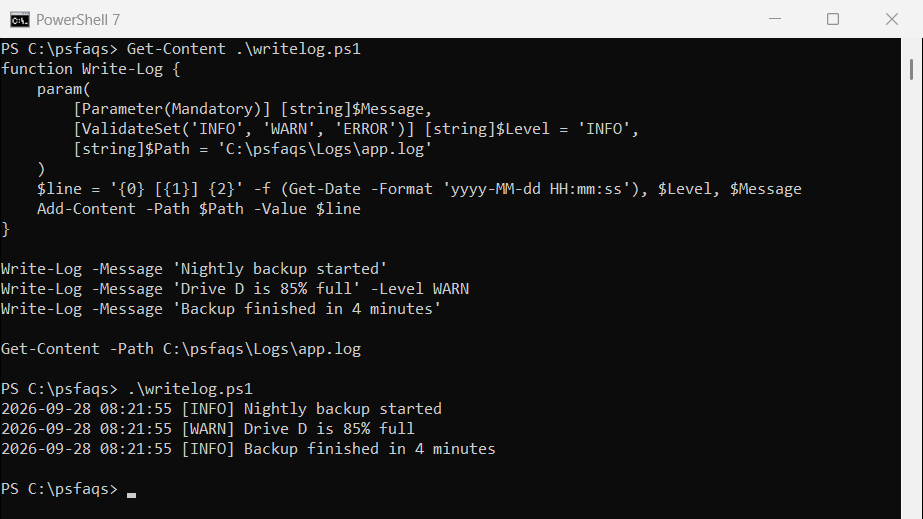
I use the yyyy-MM-dd HH:mm:ss format because it sorts correctly as text. If servers in several time zones write to one place, log in UTC with (Get-Date).ToUniversalTime().
The function appends each entry with Add-Content, which is covered in PowerShell Add-Content.
To stamp each log line with the function that wrote it, see how to get the current function name in PowerShell.
Create a log file with the date in its name
Put the date in the file name to start a new log each day, or add the time to get one file per run:
$today   = Get-Date -Format 'yyyy-MM-dd'
$logFile = "C:\psfaqs\Logs\backup-$today.log"
Add-Content -Path $logFile -Value 'Daily backup ran'

$runLog = "C:\psfaqs\Logs\export-$(Get-Date -Format 'yyyy-MM-dd_HHmmss').log"
Add-Content -Path $runLog -Value 'Export ran'

(Get-ChildItem -Path C:\psfaqs\Logs).Name
Output:
backup-2026-09-28.log
export-2026-09-28_082145.log
The time part uses HHmmss with no separators. That’s on purpose, as the next section shows.
Don’t put a colon in the file name
A format like ‘yyyy-MM-dd HH:mm’ looks natural, but Windows doesn’t allow colons in file names. Instead of an error, you get something worse:
$stamp = ([datetime]'2026-09-28 14:30').ToString('yyyy-MM-dd HH:mm')
Add-Content -Path "C:\psfaqs\Logs\run-$stamp.log" -Value 'Job finished'

Get-ChildItem -Path C:\psfaqs\Logs | ForEach-Object { "File: [$($_.Name)]  Size: $($_.Length) bytes" }
Get-Item -Path 'C:\psfaqs\Logs\run-2026-09-28 14' -Stream * | ForEach-Object { "Stream: $($_.Stream)" }
Output:
File: [run-2026-09-28 14]  Size: 0 bytes
Stream: :$DATA
Stream: 30.log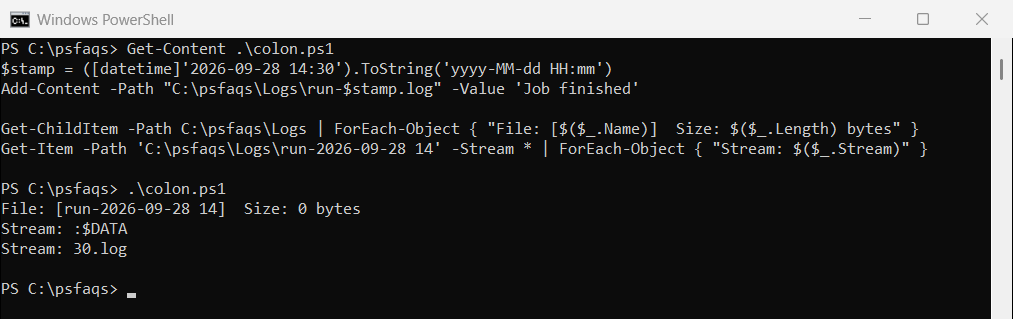
NTFS read everything after the colon as the name of an alternate data stream. You get an empty file, and the log text is hidden where File Explorer won’t show it. Microsoft’s file naming rules list the reserved characters.
Log errors from try/catch
Write the error message and line number to the log in the catch block. Add -ErrorAction Stop, because most cmdlet errors don’t trigger catch without it:
function Write-Log {
    param(
        [Parameter(Mandatory)] [string]$Message,
        [ValidateSet('INFO', 'WARN', 'ERROR')] [string]$Level = 'INFO',
        [string]$Path = 'C:\psfaqs\Logs\app.log'
    )
    $line = '{0} [{1}] {2}' -f (Get-Date -Format 'yyyy-MM-dd HH:mm:ss'), $Level, $Message
    Add-Content -Path $Path -Value $line
}

try {
    Copy-Item -Path C:\psfaqs\Reports\q4-sales.xlsx -Destination C:\psfaqs\Archive -ErrorAction Stop
    Write-Log -Message 'Copied q4-sales.xlsx'
}
catch {
    Write-Log -Level ERROR -Message ('{0} (line {1})' -f $_.Exception.Message, $_.InvocationInfo.ScriptLineNumber)
}

Get-Content -Path C:\psfaqs\Logs\app.log
Output:
2026-09-28 08:21:48 [ERROR] Cannot find path 'C:\psfaqs\Reports\q4-sales.xlsx' because it does not exist. (line 12)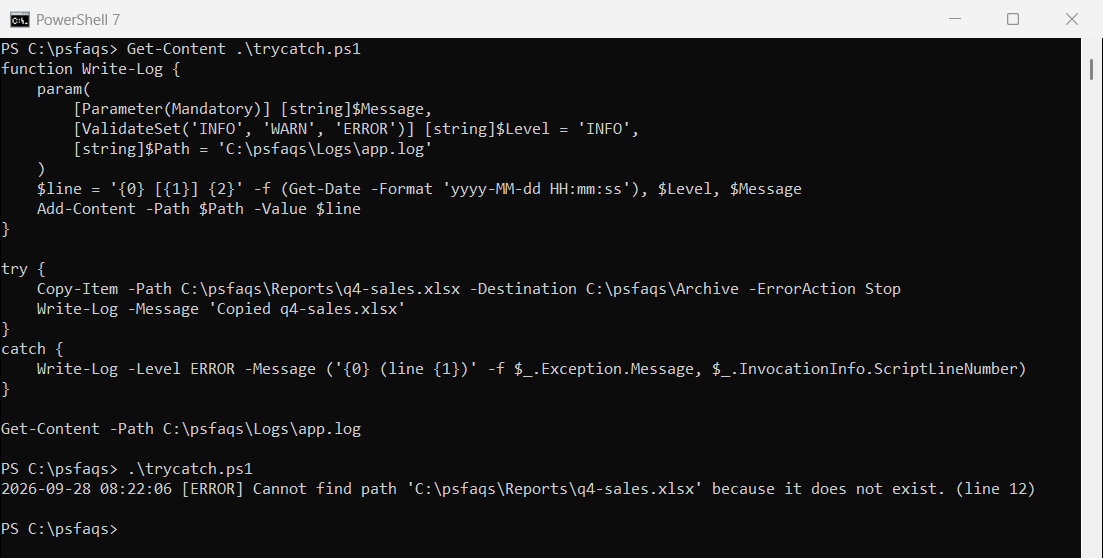
$_.Exception.Message holds the text, and $_.InvocationInfo.ScriptLineNumber the line that failed. Microsoft covers the rest in about_Try_Catch_Finally.
Log everything with Start-Transcript
When you want a full record of a run, Start-Transcript copies everything that appears in the console to a file, including Write-Host output:
Start-Transcript -Path C:\psfaqs\Logs\session.log | Out-Null
'Checking disk space...'
Write-Host 'Drive C has 120 GB free'
Stop-Transcript | Out-Null

'--- Found in the transcript:'
Get-Content -Path C:\psfaqs\Logs\session.log | Select-String -Pattern '^(Checking|Drive C)' | ForEach-Object Line
Output:
Checking disk space...
Drive C has 120 GB free
--- Found in the transcript:
Checking disk space...
Drive C has 120 GB free
The first two lines come from the console, and the last two from the transcript file. Stop-Transcript closes the file.
The transcript header includes the user name and computer name, so check before you share one. In PowerShell 7, -UseMinimalHeader leaves them out, as the