
To get the Windows activation status with PowerShell, query the SoftwareLicensingProduct class for Windows and read LicenseStatus. A value of 1 means Windows is activated:
Get-CimInstance -ClassName SoftwareLicensingProduct -Filter "ApplicationID = '55c92734-d682-4d71-983e-d6ec3f16059f' AND PartialProductKey IS NOT NULL" |
    Select-Object -Property Name, LicenseStatus
It works without admin rights in PowerShell 7 and 5.1. Below I turn the number into readable text, build a quick yes-or-no check, query remote PCs and compare it with slmgr.
Get the activation status
The ApplicationID in the filter is the one Windows uses, so Office and other licensed products stay out of the results. LicenseStatus is a number, so I map it to text:
$statusText = @{
    0 = 'Unlicensed'; 1 = 'Licensed'; 2 = 'Initial grace period'; 3 = 'Additional grace period'
    4 = 'Non-genuine grace period'; 5 = 'Notification'; 6 = 'Extended grace period'
}
$windows = Get-CimInstance -ClassName SoftwareLicensingProduct -Filter "ApplicationID = '55c92734-d682-4d71-983e-d6ec3f16059f' AND PartialProductKey IS NOT NULL"

$windows | Select-Object -Property Name, @{ Name = 'Status'; Expression = { $statusText[[int]$_.LicenseStatus] } }
Output:
Name                           Status
----                           ------
Windows(R), Enterprise edition Licensed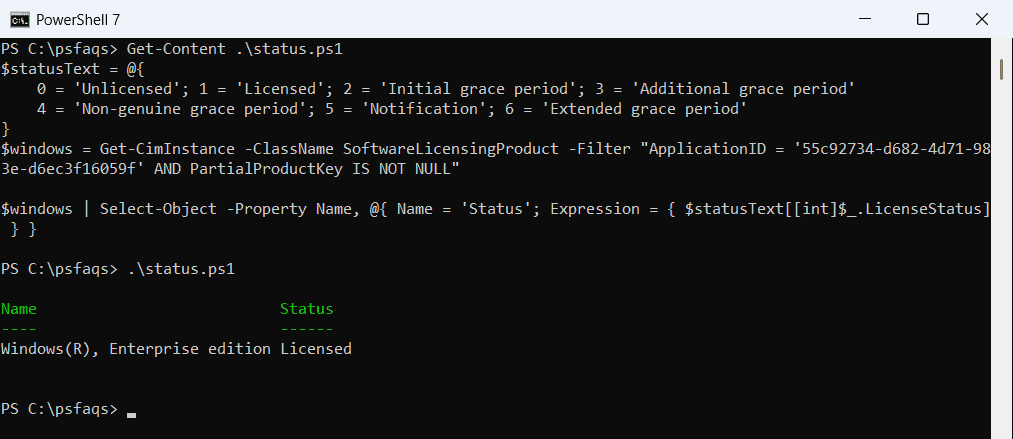
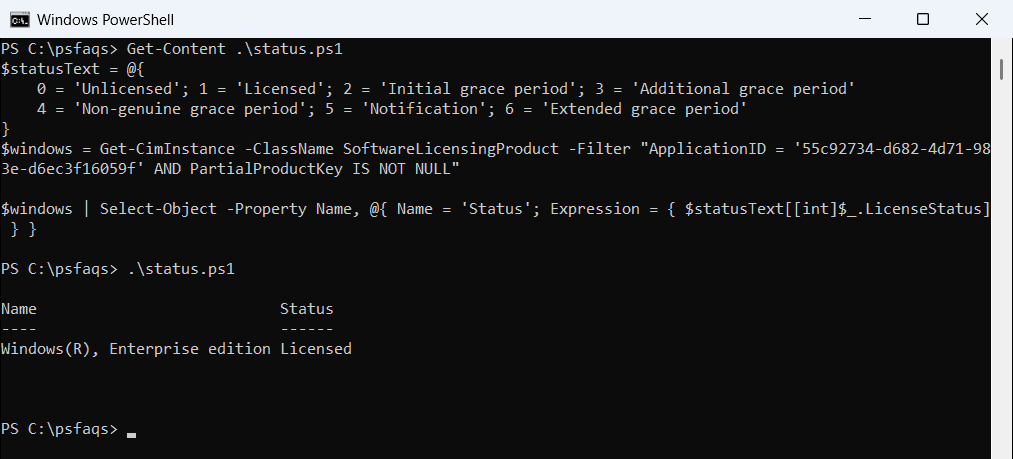
Windows PowerShell 5.1 returns exactly the same result:
I selected only the name and status on purpose. The class also has a PartialProductKey property with the last five characters of the key, which I don’t share.
If you need the key itself, see retrieving your Windows product key.
What the LicenseStatus values mean
| Value | Status | What to do |
|---|---|---|
| 0 | Unlicensed | Activate Windows or enter a valid key |
| 1 | Licensed | Nothing, Windows is activated |
| 2 | Initial grace period | Activate before the grace period ends |
| 3 | Additional grace period | Usually after a hardware change, activate again |
| 4 | Non-genuine grace period | Check the license source |
| 5 | Notification | Windows shows activation reminders until you activate |
| 6 | Extended grace period | Activate before it ends |
Return a simple True or False
In scripts I don’t want a table, just an answer. This function returns True when Windows is licensed:
function Test-WindowsActivation {
    $filter = "ApplicationID = '55c92734-d682-4d71-983e-d6ec3f16059f' AND PartialProductKey IS NOT NULL"
    $product = Get-CimInstance -ClassName SoftwareLicensingProduct -Filter $filter
    [bool]($product | Where-Object -Property LicenseStatus -EQ 1)
}

"Windows is activated: $(Test-WindowsActivation)"
Output:
Windows is activated: True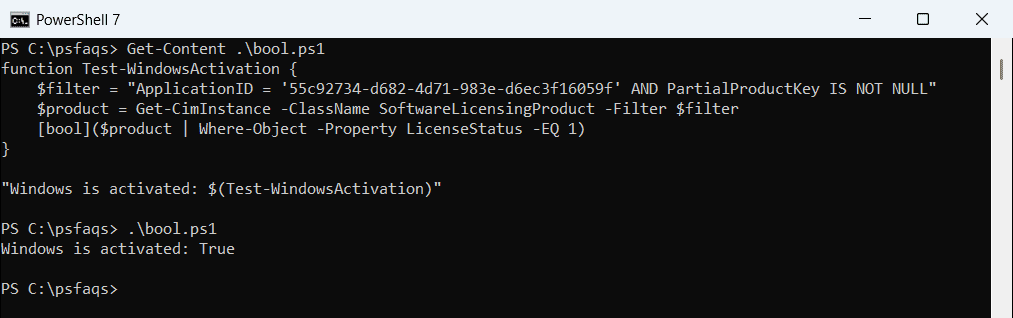
Use it in an if statement, or in a compliance check before you deploy software. For other system details, see getting BIOS information with PowerShell.
Check activation on remote computers
Get-CimInstance takes -ComputerName, so the same query works across many PCs. It uses WinRM on the remote computers:
$statusText = @{
    0 = 'Unlicensed'; 1 = 'Licensed'; 2 = 'Initial grace period'; 3 = 'Additional grace period'
    4 = 'Non-genuine grace period'; 5 = 'Notification'; 6 = 'Extended grace period'
}
$filter = "ApplicationID = '55c92734-d682-4d71-983e-d6ec3f16059f' AND PartialProductKey IS NOT NULL"
Get-CimInstance -ComputerName 'NYC-PC01', 'DAL-PC02' -ClassName SoftwareLicensingProduct