
PowerShell Format-List shows each property of an object on its own line, which makes wide objects easy to read. Pipe any output to it, or use its alias fl:
Get-Process -Id $PID | Format-List Name, Id, StartTime
Get-Service -Name Spooler | fl *
I tested every example below in PowerShell 7.6 and Windows PowerShell 5.1 with demo employee objects.
What does Format-List do in PowerShell?
Format-List prints label : value pairs, one property per line. Each value gets a whole line, so fewer values are cut off than in a table.
I’ll use three demo employees for the rest of the post. Each one has five properties:
$employees = @(
    [pscustomobject]@{ Name = 'Maria Lopez'; Department = 'Sales'; City = 'Austin'
        Email = 'maria.lopez@contoso.com'; Skills = @('Excel', 'CRM', 'Negotiation') }
    [pscustomobject]@{ Name = 'Tom Baker'; Department = 'IT'; City = 'Denver'
        Email = 'tom.baker@contoso.com'; Skills = @('PowerShell', 'Azure') }
    [pscustomobject]@{ Name = 'Dana Reyes'; Department = 'Sales'; City = 'Seattle'
        Email = 'dana.reyes@contoso.com'; Skills = @('CRM') }
)
Pipe the first employee to Format-List and every property lands on its own line:
$employees[0] | Format-ListOutput:
Name       : Maria Lopez
Department : Sales
City       : Austin
Email      : maria.lopez@contoso.com
Skills     : {Excel, CRM, Negotiation}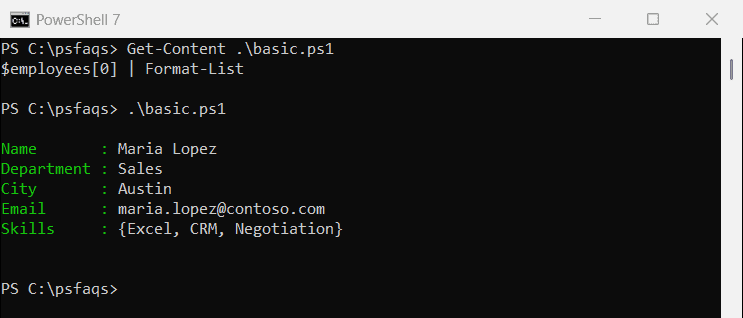
Without a format cmdlet, PowerShell chooses the layout for you. It printed this five-property object as a list anyway, but a two-property selection came out as a table:
$employees | Select-Object Name, CityOutput:
Name        City
----        ----
Maria Lopez Austin
Tom Baker   Denver
Dana Reyes  Seattle
When you want a specific layout, ask for it. Use Format-List for the vertical view and Format-Table for columns.
Show specific properties with Format-List -Property
Name the properties you want after -Property, in the order you want them. The parameter name is optional, so Format-List Name, Email works too:
$employees | Format-List -Property Name, Department, EmailOutput:
Name       : Maria Lopez
Department : Sales
Email      : maria.lopez@contoso.com

Name       : Tom Baker
Department : IT
Email      : tom.baker@contoso.com

Name       : Dana Reyes
Department : Sales
Email      : dana.reyes@contoso.com
Each object gets its own block, separated by a blank line. This is the same idea as picking properties with Select-Object, except the result is only for display.
Display all properties with Format-List *
Many objects hide most of their properties by default. Format-List * (or -Property *) shows all of them, which is the fastest way to explore an object you haven’t used before.
The property names also accept wildcards. This asks for Name, anything ending in “ment”, and anything starting with E:
$employees[1] | Format-List -Property Name, *ment, E*Output:
Name       : Tom Baker
Department : IT
Email      : tom.baker@contoso.com
I use this all the time with commands such as Get-Service or Get-ADUser to find every property of an object before I write the rest of a script.
Use calculated properties in Format-List
You can rename a property, compute a new value, or format it on the way out. Pass a hashtable with Name (or Label), Expression and, optionally, FormatString:
$hire = @{ Name = 'Hired'; Expression = { [datetime]'2026-05-18' }; FormatString = 'yyyy-MM-dd' }
$skills = @{ Label = 'SkillCount'; Expression = { $_.Skills.Count } }
$employees[1] | Format-List Name, $hire, $skills
Output:
Name       : Tom Baker
Hired      : 2026-05-18
SkillCount : 2
FormatString takes the same format codes as the -f operator, so yyyy-MM-dd gives a clean ISO date. The calculated properties don’t change the object; they only change what you see.
This is handy when your data comes from an array of custom objects and the raw property names aren’t friendly.
Group Format-List output with -GroupBy
-GroupBy adds a heading every time the value of a property changes. It doesn’t sort for you, so sort the objects with Sort-Object first or you’ll get the same group several times:
$employees |
    Sort-Object Department, Name |
    Format-List -GroupBy Department -Property Name, City
Output:
   Department: IT

Name : Tom Baker
City : Denver


   Department: Sales

Name : Dana Reyes
City : Seattle

Name : Maria Lopez
City : Austin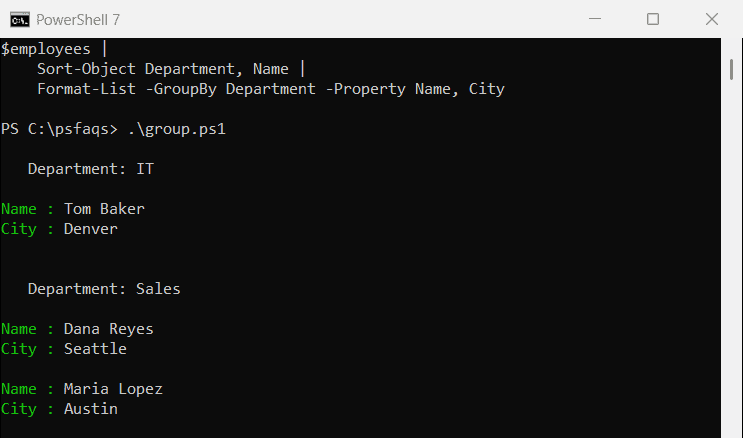
I added Name as a second sort key so the order inside each group is predictable. Windows PowerShell 5.1 printed the same groups with a few more blank lines between them.
Why does Format-List cut off values with an ellipsis?
Array properties show only the first four items. The $FormatEnumerationLimit preference variable controls that number, and its default is 4. Here’s an employee with six skills:
$analyst = [pscustomobject]@{
    Name   = 'Maria Lopez'
    Skills = 'Excel', 'CRM', 'Negotiation', 'Forecasting', 'SQL', 'Python'
}
$analyst | Format-List
Output:
Name   : Maria Lopez
Skills : {Excel, CRM, Negotiation, Forecasting…}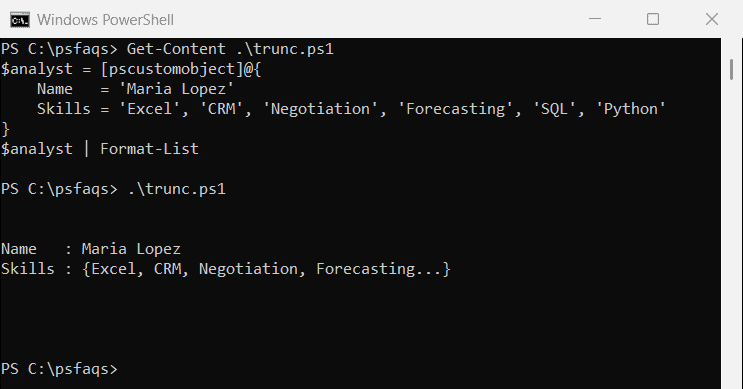
The two versions mark the cut differently. Windows PowerShell 5.1 ends the l