PowerShell Curl [Guide to Web Requests in PowerShell]

In this tutorial, I’ll walk you through everything you need to know about making web requests in PowerShell – from basic GET requests to complex API interactions with authentication.

If you’re working in a Windows environment and need to interact with web services or APIs, then you can use PowerShell’s web request capabilities.

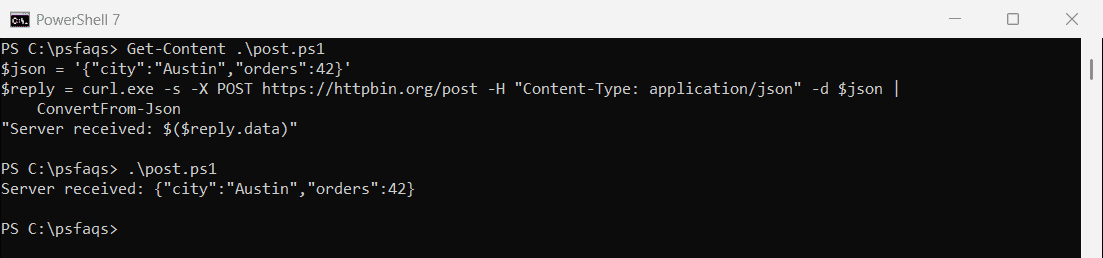
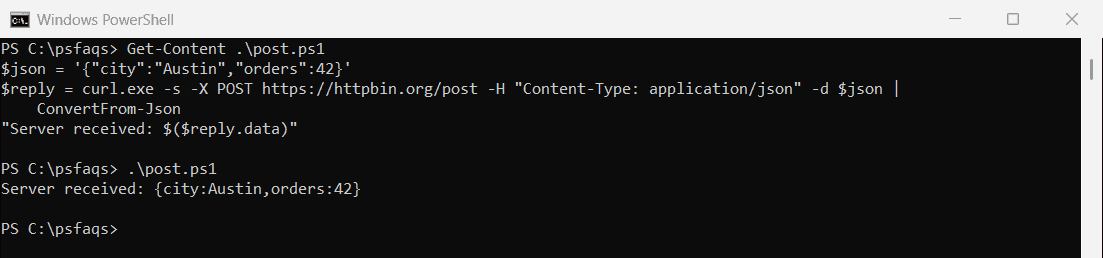
While Linux users have the familiar curl command, Windows PowerShell offers even more powerful alternatives that give you the same functionality with the added benefits of PowerShell’s object-oriented approach.

Understanding PowerShell’s Web Request Cmdlets

PowerShell provides two primary cmdlets for making web requests: Invoke-WebRequest and Invoke-RestMethod. Each has its strengths, and I’ll show you when to use each one.

Invoke-WebRequest: The PowerShell Equivalent of Curl

Invoke-WebRequest is PowerShell’s comprehensive web request cmdlet that functions similarly to curl. It allows you to retrieve web content, submit form data, and handle cookies and sessions.

Here’s a basic example of how to use it to fetch a webpage:

Invoke-WebRequest -Uri "https://weather.gov" -Method Get

When you run this command, PowerShell returns a rich object containing the entire HTTP response, including headers, status codes, and content. This makes it perfect for scenarios where you need to process or parse the response in detail.

Invoke-RestMethod: Streamlined for API Interactions

For working with REST APIs that return structured data like JSON or XML, Invoke-RestMethod is often a better choice. It automatically parses the response into PowerShell objects.

$response = Invoke-RestMethod -Uri "https://api.weather.gov/points/39.7456,-97.0892"
$response.properties.forecast

I use this approach when working with APIs because it automatically converts JSON or XML responses into PowerShell objects, making the data immediately usable in my scripts without additional parsing steps.

Check out Get Default Browser Using PowerShell

PowerShell Curl Aliases: Simplified Commands

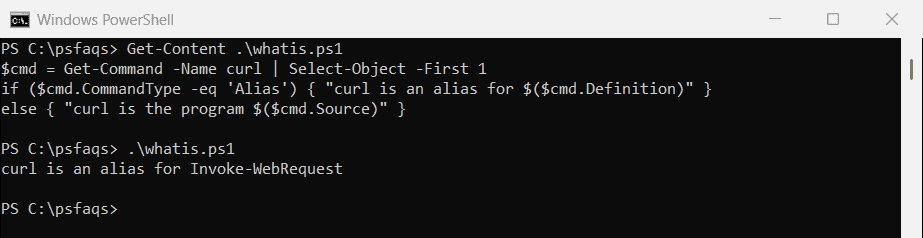
If you’re coming from a Linux background or prefer the brevity of curl, PowerShell offers aliases that make the transition easier. In PowerShell 3.0 and later, you can create aliases for these cmdlets.

Set-Alias -Name curl -Value Invoke-WebRequest
Set-Alias -Name wget -Value Invoke-WebRequest

After setting these aliases, you can use familiar syntax:

curl https://weather.gov

I find these aliases particularly helpful when working across different platforms or when writing quick one-liners. However, for production scripts, I recommend using the full cmdlet names for better readability and maintainability.

Check out Get an IP Address Using PowerShell in Windows

Making Different Types of HTTP Requests

GET Requests

GET requests are the most common type of HTTP request. They’re used to retrieve data from a server.

$response = Invoke-WebRequest -Uri "https://www.nasdaq.com" -Method Get
$response.StatusCode  # Should return 200 for successful requests

I use GET requests whenever I need to fetch information without modifying any data on the server. The response object provides access to the status code, content, and headers.

POST Requests

POST requests allow you to send data to a server, typically to create or update resources.

$body = @{
    name = "John Smith"
    location = "New York"
    department = "Finance"
} | ConvertTo-Json

$response = Invoke-RestMethod -Uri "https://api.example.com/employees" -Method Post -Body $body -ContentType "application/json"

When making POST requests, remember to set the appropriate content type. For JSON data, use “application/json” as shown in the example above.

PUT and DELETE Requests

Similarly, you can make PUT requests to update resources and DELETE requests to remove them:

# PUT request to update a resource
Invoke-RestMethod -Uri "https://api.example.com/employees/123" -Method Put -Body $body -ContentType "application/json"

# DELETE request to remove a resource
Invoke-RestMethod -Uri "https://api.example.com/employees/123" -Method Delete

I’ve found these particularly useful when automating workflows that require updating or removing resources through APIs.

Check out Get Windows Update History Using PowerShell

Handle Authentication

I will show you here how to handle authentication with the Invoke-RestMethod PowerShell cmdlet.

Basic Authentication

Many APIs require authentication. Here’s how to use basic authentication:

$credentials = Get-Credential  # Will prompt for username and password
$response = Invoke-RestMethod -Uri "https://api.example.com/secure" -Credential $credentials

When working with internal systems at various companies, I’ve often needed to use basic authentication for accessing protected resources.

API Key Authentication

For APIs that use key-based authentication:

$headers = @{
    "X-API-Key" = "your-api-key-here"
}
$response = Invoke-RestMethod -Uri "https://api.example.com/data" -Headers $headers

This method is common with many commercial APIs I’ve worked with, including weather services and financial data providers.

OAuth Authentication

For more complex OAuth flows:

$token = "your-oauth-token"
$headers = @{
    "Authorization" = "Bearer $token"
}
$response = Invoke-RestMethod -Uri "https://api.example.com/protected" -Headers $headers

I’ve implemented this pattern numerous times when connecting to services like Microsoft Graph API and various cloud platforms.

Check out Get Computer Information Using PowerShell

Working with Response Data

Parsing HTML Content

When you need to extract specific information from HTML:

$webPage = Invoke-WebRequest -Uri "https://www.cnn.com"
$headlines = $webPage.ParsedHtml.getElementsByTagName("h2") | ForEach-Object { $_.innerText }

This technique is incredibly useful for web scraping scenarios where an API isn’t available. I’ve used it to extract stock prices and news headlines for monitoring dashboards.

Processing JSON Data

For working with JSON APIs:

$weatherData = Invoke-RestMethod -Uri "https://api.weather.gov/gridpoints/TOP/31,80/forecast"
$forecast = $weatherData.properties.periods[0]

Write-Output "Today's forecast for Kansas City: $($forecast.shortForecast), $($forecast.temperature)°$($forecast.temperatureUnit)"

The automatic JSON parsing is one of my favorite features of Invoke-RestMethod as it saves significant time when working with data-rich APIs.

Advanced Techniques

Handling Cookies and Sessions

For websites that require session persistence:

$session = New-Object Microsoft.PowerShell.Commands.WebRequestSession
$response = Invoke-WebRequest -Uri "https://example.com/login" -SessionVariable session -Method Post -Body $loginForm
$protectedPage = Invoke-WebRequest -Uri "https://example.com/protected" -WebSession $session

I’ve used this approach extensively when automating interactions with web applications that require login sessions.

Downloading Files

To download files efficiently:

$downloadUrl = "https://download.microsoft.com/sample/file.zip"
$outputPath = "C:\Downloads\file.zip"
Invoke-WebRequest -Uri $downloadUrl -OutFile $outputPath

This is much more straightforward than older methods of downloading files in PowerShell and has been a staple in my deployment scripts.

Handling Redirects

By default, PowerShell follows redirects, but you can control this behavior:

$response = Invoke-WebRequest -Uri "https://bit.ly/shorturl" -MaximumRedirection 0 -ErrorAction SilentlyContinue
$redirectUrl = $response.Headers.Location

I’ve found this technique useful when I need to resolve shortened URLs before proceeding with further actions.

Read How to Get and Set Window Size in PowerShell?

Real-World Examples

Monitoring Website Availability

Here’s a script I created to monitor critical websites for a retail company in Boston:

$sites = @("https://www.microsoft.com", "https://www.amazon.com", "https://www.apple.com")
$results = @()

foreach ($site in $sites) {
    try {
        $response = Invoke-WebRequest -Uri $site -TimeoutSec 10
        $status = "Online"
        $statusCode = $response.StatusCode
    }
    catch {
        $status = "Offline"
        $statusCode = $_.Exception.Response.StatusCode.value__
    }

    $results += [PSCustomObject]@{
        Site = $site
        Status = $status
        StatusCode = $statusCode
        ResponseTime = $response.BaseResponse.ResponseTime
    }
}

$results | Format-Table -AutoSize

Creating a Weather Dashboard

This example demonstrates how to build a simple weather dashboard for US cities:

$cities = @("New York", "Los Angeles", "Chicago", "Houston", "Phoenix")
$weatherData = @()

foreach ($city in $cities) {
    # Convert city to coordinates (simplified for example)
    # In reality, you would use a geocoding API
    $coordinates = @{
        "New York" = "40.7128,-74.0060"
        "Los Angeles" = "34.0522,-118.2437"
        "Chicago" = "41.8781,-87.6298"
        "Houston" = "29.7604,-95.3698"
        "Phoenix" = "33.4484,-112.0740"
    }

    $coords = $coordinates[$city]
    $pointsUrl = "https://api.weather.gov/points/$coords"

    $pointData = Invoke-RestMethod -Uri $pointsUrl
    $forecastUrl = $pointData.properties.forecast

    $forecast = Invoke-RestMethod -Uri $forecastUrl
    $currentForecast = $forecast.properties.periods[0]

    $weatherData += [PSCustomObject]@{
        City = $city
        Temperature = "$($currentForecast.temperature) $($currentForecast.temperatureUnit)"
        Conditions = $currentForecast.shortForecast
        WindSpeed = $currentForecast.windSpeed
    }
}

$weatherData | Format-Table -AutoSize

Check out Get Windows Event Logs using PowerShell

Troubleshooting Common Issues

Handling SSL/TLS Errors

If you encounter SSL/TLS errors, you might need to set the security protocol:

[Net.ServicePointManager]::SecurityProtocol = [Net.SecurityProtocolType]::Tls12

I’ve had to use this countless times when working with older systems or APIs that require specific TLS versions.

Dealing with Rate Limiting

For APIs with rate limits, implement a delay between requests:

$items = 1..100
foreach ($item in $items) {
    Invoke-RestMethod -Uri "https://api.example.com/items/$item"
    Start-Sleep -Milliseconds 500  # Add delay between requests
}

This approach has saved me from being blocked by APIs when processing large batches of data.

Conclusion

PowerShell’s web request capabilities offer Windows administrators and developers powerful tools for interacting with web services and APIs. Through Invoke-WebRequest and Invoke-RestMethod, you can accomplish everything traditional curl can do, but with the added benefits of PowerShell’s object-oriented approach.

You may also like the following tutorials:

100 PowerShell cmdlets download free

100 POWERSHELL CMDLETS E-BOOK

FREE Download an eBook that contains 100 PowerShell cmdlets with complete script and examples.