Need to check if a PowerShell module is installed? Run Get-Module -ListAvailable -Name with the module’s name. It returns the module when it’s installed and nothing when it isn’t, so it drops straight into an if:
if (Get-Module -ListAvailable -Name ImportExcel) { 'Installed' } else { 'Not installed' }Leave out -Name and the same command lists every installed module. Below I’ll cover both jobs, plus versions, gallery installs, #Requires, and why PowerShell 7 and Windows PowerShell 5.1 often disagree.
How to check if a PowerShell module is installed
Pass one or more names to Get-Module -ListAvailable and test the result. Here’s a loop that checks two modules and prints a plain answer for each:
foreach ($name in 'ImportExcel', 'Az.Accounts') {
    if (Get-Module -ListAvailable -Name $name) {
        "$name is installed"
    }
    else {
        "$name is not installed"
    }
}
Output:
ImportExcel is installed
Az.Accounts is not installed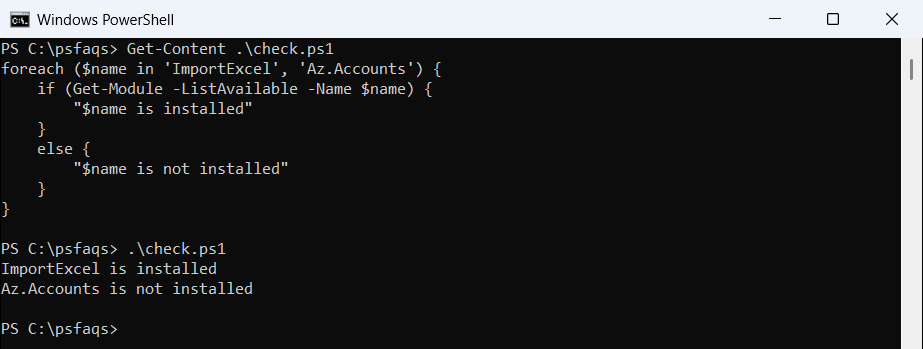
It finds modules installed any way: from the PowerShell Gallery, by an installer, or copied into a module folder by hand. The check itself is a regular PowerShell if-else statement, because an empty result counts as false.
A reusable true/false check
If several scripts need the same test, wrap it in a small function. Casting the result to [bool] gives you a clean True or False:
function Test-ModuleInstalled {
    param([Parameter(Mandatory)][string]$Name)
    [bool](Get-Module -ListAvailable -Name $Name)
}

Test-ModuleInstalled -Name ImportExcel
Test-ModuleInstalled -Name Contoso.Inventory
Output:
True
False
I named the missing module Contoso.Inventory on purpose, since it doesn’t exist anywhere. If you’re new to this, writing functions in PowerShell covers the param block used here.
Check several required modules at once
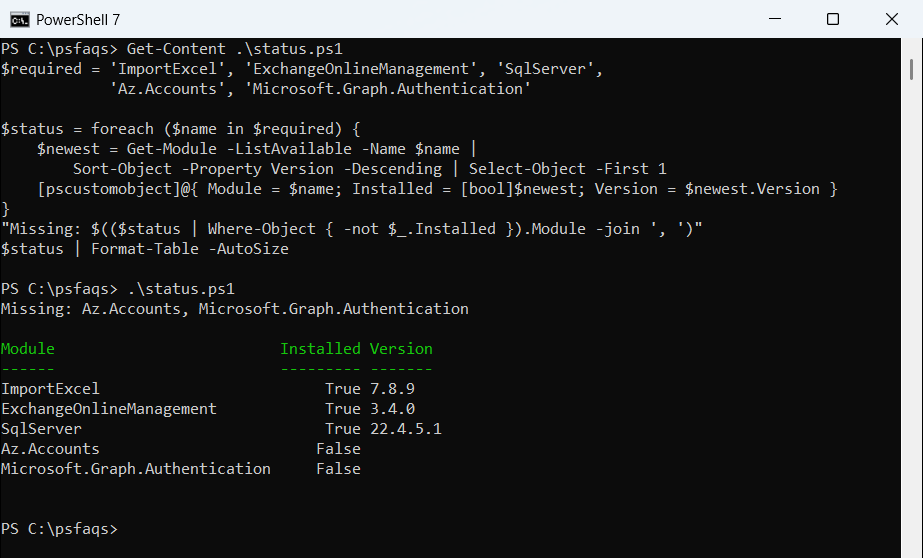
Before a big script runs, it helps to see every dependency in one table. This builds a status object per module and prints the missing ones first:
$required = 'ImportExcel', 'ExchangeOnlineManagement', 'SqlServer',
            'Az.Accounts', 'Microsoft.Graph.Authentication'

$status = foreach ($name in $required) {
    $newest = Get-Module -ListAvailable -Name $name |
        Sort-Object -Property Version -Descending | Select-Object -First 1
    [pscustomobject]@{ Module = $name; Installed = [bool]$newest; Version = $newest.Version }
}
"Missing: $(($status | Where-Object { -not $_.Installed }).Module -join ', ')"
$status | Format-Table -AutoSize
Output in PowerShell 7:
Missing: Az.Accounts, Microsoft.Graph.Authentication

Module                         Installed Version
------                         --------- -------
ImportExcel                         True 7.8.9
ExchangeOnlineManagement            True 3.4.0
SqlServer                           True 22.4.5.1
Az.Accounts                        False
Microsoft.Graph.Authentication     False