
To list local users with PowerShell, run Get-LocalUser. It returns every local account on the PC, including the built-in ones, with whether each is enabled:
Get-LocalUser | Sort-Object -Property Name | ForEach-Object {
    '{0,-20} Enabled: {1,-5}  Source: {2}' -f $_.Name, $_.Enabled, $_.PrincipalSource
}
Output:
Administrator        Enabled: False  Source: Local
DefaultAccount       Enabled: False  Source: Local
alice                Enabled: True   Source: MicrosoftAccount
Guest                Enabled: False  Source: Local
svc-backup           Enabled: False  Source: Local
WDAGUtilityAccount   Enabled: False  Source: Local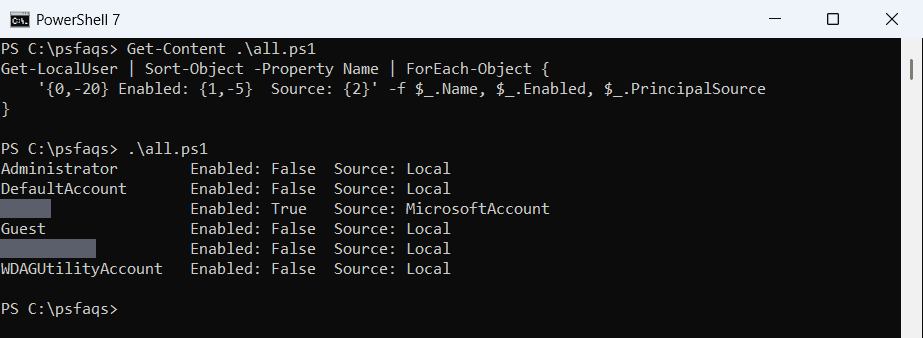
Below I filter enabled accounts, compare Get-LocalUser with net user and CIM, export a report and check remote PCs. I masked my own account names in the output.
What the built-in accounts are
Every Windows PC has a few built-in accounts, and they’re normally disabled:
| Account | What it’s for |
|---|---|
| Administrator | The built-in admin account, disabled by default |
| Guest | Temporary access with very limited rights |
| DefaultAccount | Used by Windows itself; never sign in with it |
| WDAGUtilityAccount | Used by Microsoft Defender Application Guard |
PrincipalSource shows where an account comes from. Local means a normal local account, and MicrosoftAccount means someone signs in with a Microsoft account.
To see which accounts have admin rights, see listing local administrators.
Find enabled accounts
Where-Object filters the list, and Group-Object counts accounts by type:
$users = Get-LocalUser
"Enabled accounts:  $(@($users | Where-Object Enabled).Count) of $(@($users).Count)"
$users | Group-Object -Property { $_.PrincipalSource } | Sort-Object -Property Name |
    ForEach-Object { '{0,-17}  {1}' -f "$($_.Name):", $_.Count }
Output:
Enabled accounts:  1 of 6
Local:             5
MicrosoftAccount:  1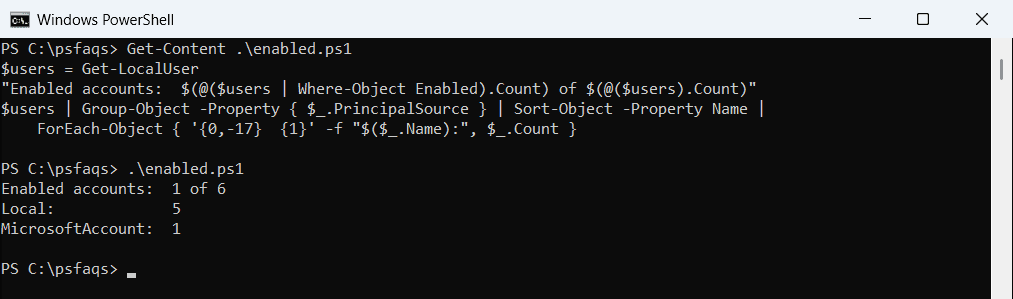
For a security review, check enabled accounts regularly. Listing local administrators shows which of them have admin rights.
List local users with net user
The classic net user command works everywhere, including PCs without the LocalAccounts module:
net userOutput:
User accounts for \\DESKTOP-4T7K2QX

-------------------------------------------------------------------------------
Administrator            DefaultAccount           alice
Guest                    svc-backup               WDAGUtilityAccount
The command completed successfully.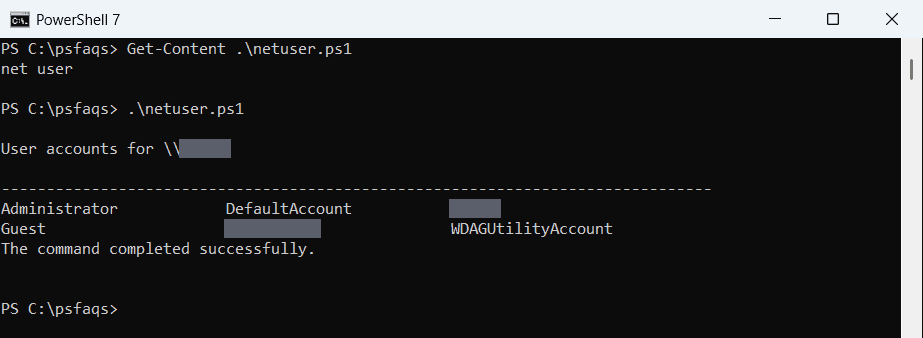
It only returns plain text, though. Use Get-LocalUser when you want to filter, sort or export.
List local users with CIM
Win32_UserAccount also works in both versions and on remote PCs. Filter it to local accounts so it doesn’t query your domain:
Get-CimInstance -ClassName Win32_UserAccount -Filter 'LocalAccount = True' |
    Select-Object -Property Name, Disabled
Export local users to CSV
Select the properties you need and export them for a report:
Get-LocalUser |
    Select-Object -Property Name, Enabled, PrincipalSource, LastLogon, PasswordLastSet |
    Export-Csv -Path C:\Reports\local-users.csv -NoTypeInformation
LastLogon can be empty for Microsoft accounts, because Windows records their sign-ins differently.
List local users on remote computers
Run Get-LocalUser through Invoke-Command. You need admin rights and WinRM on each PC:
Invoke-Command -ComputerName PC-SALES-07, PC-SALES-08 -ScriptBlock {
    Get-LocalUser | Where-Object Enabled | Select-Object -Property Name, Principa