
To show progress when copying files with PowerShell, loop over the files and call Write-Progress before each Copy-Item. The bar’s percentage is the file number divided by the file count:
Write-Progress -Activity 'Copying' -Status "$i of $($files.Count)" -PercentComplete ($i / $files.Count * 100)PowerShell 7.4 and later also give Copy-Item a progress bar of its own. Windows PowerShell 5.1 doesn’t have one, so I’ll show both routes, plus byte-level progress and Robocopy.
Does Copy-Item show a progress bar in PowerShell?
In PowerShell 7.4 and later, yes. Microsoft’s release notes list “Add progress to Copy-Item” for 7.4, and the Copy-Item cmdlet now reports how many files and megabytes it has copied, plus the speed.
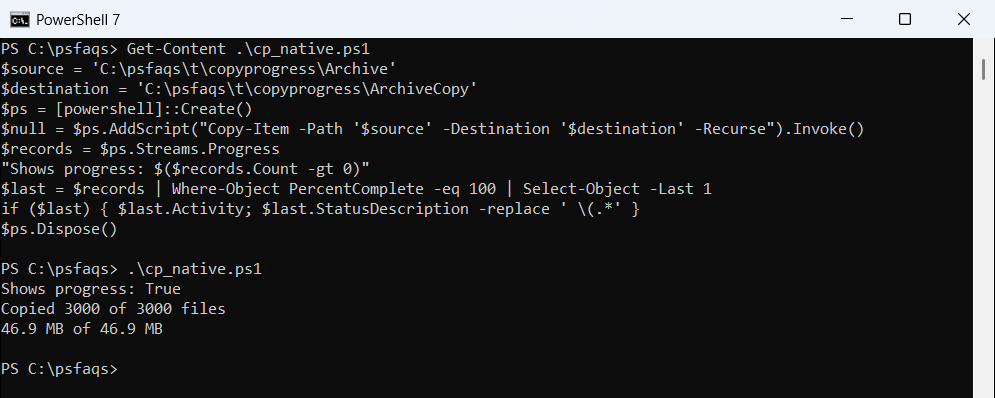
Windows PowerShell 5.1 shows nothing until the copy ends. You can prove it by running Copy-Item in a separate PowerShell instance and reading its progress stream:
$source = 'C:\psfaqs\t\copyprogress\Archive'
$destination = 'C:\psfaqs\t\copyprogress\ArchiveCopy'
$ps = [powershell]::Create()
$null = $ps.AddScript("Copy-Item -Path '$source' -Destination '$destination' -Recurse").Invoke()
$records = $ps.Streams.Progress
"Shows progress: $($records.Count -gt 0)"
$last = $records | Where-Object PercentComplete -eq 100 | Select-Object -Last 1
if ($last) { $last.Activity; $last.StatusDescription -replace ' \(.*' }
$ps.Dispose()
Output:
Shows progress: True
Copied 3000 of 3000 files
46.9 MB of 46.9 MB
That output is from PowerShell 7.6 copying 3,000 scanned files of 16 KB each. Windows PowerShell 5.1 ran the same script and printed only Shows progress: False, because it never writes a single progress record.
The bar doesn’t appear right away. In my tests, the first record showed up about two seconds into the copy, so a quick copy that finishes sooner never shows one.
To keep the bar out of a scheduled script, add the -ProgressAction common parameter, which 7.4 introduced:
Copy-Item -Path 'C:\psfaqs\t\copyprogress\Archive' -Destination 'C:\psfaqs\t\copyprogress\ArchiveCopy' -Recurse -ProgressAction SilentlyContinue
"Files copied: $((Get-ChildItem 'C:\psfaqs\t\copyprogress\ArchiveCopy' -File).Count)"
Output:
Files copied: 3000Windows PowerShell 5.1 rejects it with “A parameter cannot be found that matches parameter name ‘ProgressAction'”. For scripts that run in both versions, set $ProgressPreference = 'SilentlyContinue' instead.
Show progress for many files with Write-Progress
For Windows PowerShell 5.1, or when you want your own wording, wrap Copy-Item in a loop. Get-ChildItem collects the files first, so you know the total before the first copy:
$source = 'C:\psfaqs\t\copyprogress\Reports'
$destination = 'C:\psfaqs\t\copyprogress\Backup'
$files = Get-ChildItem -Path $source -File -Recurse
$i = 0
foreach ($file in $files) {
    $i++
    $target = Join-Path $destination $file.FullName.Substring($source.Length)
    $null = New-Item -Path (Split-Path $target) -ItemType Directory -Force
    $status = "$i of $($files.Count): $($file.Name)"
    Write-Progress -Activity 'Copying reports' -Status $status -PercentComplete ($i / $files.Count * 100)
    Copy-Item -Path $file.FullName -Destination $target -Force
}
Write-Progress -Activity 'Copying reports' -Completed
"Copied $i files"
(Get-ChildItem $destination -Recurse -Directory).FullName.Substring($destination.Length)
Output:
Copied 24 files
\2026
\2026\Q1
\2026\Q2
The last line lists the folders that were created, which shows the subfolder structure survived. The Substring call cuts the source path off each file and Join-Path puts the destination in front of what’s left.
Many loops online copy every file into one folder, so two sales-1.csv files from different quarters overwrite each other. Building the target path per file avoids that.
Calling New-Item with -Force works like a create folder if it doesn’t exist check, since it returns the existing folder without an error.
Each Write-Progress parameter has a job. -Activity is the heading, -Status is the line under it, and -PercentComplete fills the bar. The foreach loop over the files in a folder is the same pattern you’d use for any per-file task.
What happens if you forget -Completed?
The finished bar stays on screen while the rest of your script runs. Here is a short loop with no -Completed call at the end:
foreach ($i in 1..12) {
    Write-Progress -Activity 'Copying reports' -Status "$i of 12" -PercentComplete ($i / 12 * 100)
    Start-Sleep -Milliseconds 100
}
'Copy finished. The script keeps running...'
Output:
Copy finished. The script keeps running...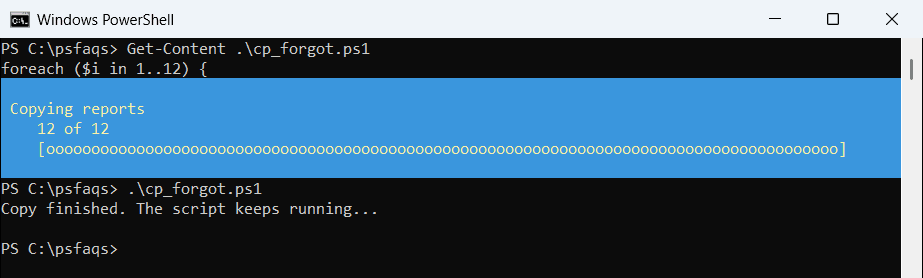
In Windows PowerShell 5.1 the blue box sits over the top of the window and hides whatever is printed there. PowerShell 7’s one-line bar stays under the prompt instead. One Write-Progress -Activity 'Copying reports' -Completed after the loop clears either one.
Track copy progress by size and time remaining
Counting files is misleading when sizes vary a lot. Ten small text files and one 4 GB backup move the bar the same amount each. Weight it by bytes instead, using the total from Measure-Object:
$source = 'C:\psfaqs\t\copyprogress\Reports'
$destination = 'C:\psfaqs\t\copyprogress\Backup'
$files = Get-ChildItem -Path $source -File -Recurse
$totalBytes = ($files | Measure-Object -Property Length -Sum).Sum
$doneBytes = 0
$timer = [Diagnostics.Stopwatch]::StartNew()
foreach ($file in $files) {
    $pct = [int]($doneBytes / $totalBytes * 100)
    $left = -1
    if ($doneBytes -gt 0) {
        $rate = $doneBytes / $timer.Elapsed.TotalSeconds
        $left = [int](($totalBytes - $doneBytes) / $rate)
    }
    $progress = @{
        Activity         = 'Copying reports'
        Status           = "$pct% of $([math]::Round($totalBytes / 1MB, 2)) MB"
        PercentComplete  = $pct
        SecondsRemaining = $left
        CurrentOperation = $file.Name
    }
    Write-Progress @progress
    $target = Join-Path $destination $file.FullName.Substring($source.Length)
    $null = New-Item -Path (Split-Path $target) -ItemType Directory -Force
    Copy-Item -Path $file.FullName -Destination $target -Force
    $doneBytes += $file.Length
}
Write-Progress -Activity 'Copying reports' -Completed
"Copied $([math]::Round($doneBytes / 1MB, 2)) MB in $($files.Count) files"
Output:
Copied 1.52 MB in 24 files