
To list running services in PowerShell, pipe Get-Service to Where-Object and keep the ones whose Status is Running. Here I check a set of standard Windows services:
$services = 'Spooler', 'W32Time', 'BITS', 'wuauserv',
            'Dnscache', 'WinRM', 'LanmanServer', 'EventLog'

Get-Service -Name $services |
    Where-Object Status -eq 'Running' |
    Sort-Object -Property Name |
    Format-Table -Property Status, Name, DisplayName
Output:
 Status Name         DisplayName
 ------ ----         -----------
Running Dnscache     DNS Client
Running EventLog     Windows Event Log
Running LanmanServer Server
Running Spooler      Print Spooler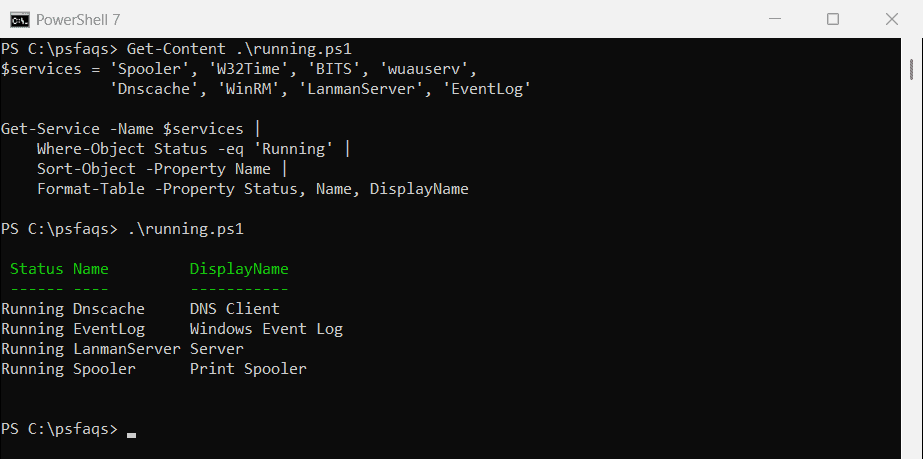
Without -Name, Get-Service returns every service on the PC. I limited the examples to built-in Windows services, so the list doesn’t show the other software installed on my laptop. On yours, just drop the -Name part.
I ran every example in PowerShell 7.6 and Windows PowerShell 5.1. Most results matched, but the two versions differ on remote computers and on a few properties.
Count running and stopped services
To get a quick picture of the whole PC, count the services instead of listing them:
$all     = Get-Service
$running = $all | Where-Object Status -eq 'Running'

"Running: $($running.Count) of $($all.Count) services"
Output on my PC:
Running: 145 of 317 servicesWindows always has more services installed than running, because many start only when something needs them.
To restart a stopped or stuck service, see restarting a Windows service.
Show the start type
StartType tells you whether a service starts with Windows (Automatic), when needed (Manual), or never (Disabled):
$services = 'Spooler', 'W32Time', 'BITS', 'wuauserv',
            'Dnscache', 'WinRM', 'LanmanServer', 'EventLog'

Get-Service -Name $services |
    Sort-Object -Property Name |
    Select-Object -Property Name, Status, StartType
Output:
Name          Status StartType
----          ------ ---------
BITS         Stopped    Manual
Dnscache     Running Automatic
EventLog     Running Automatic
LanmanServer Running Automatic
Spooler      Running Automatic
W32Time      Stopped    Manual
WinRM        Stopped    Manual
wuauserv     Stopped    Manual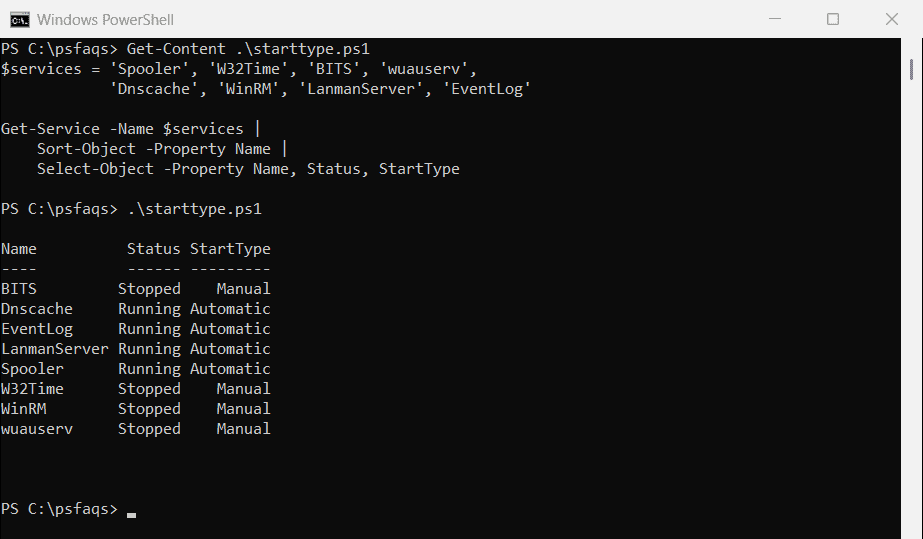
Find automatic services that aren’t running
An automatic service that’s stopped is often the first clue when something breaks. This check reports them, or says all is well:
$services = 'Spooler', 'W32Time', 'BITS', 'wuauserv',
            'Dnscache', 'WinRM', 'LanmanServer', 'EventLog'

$problems = Get-Service -Name $services |
    Where-Object { $_.StartType -eq 'Automatic' -and $_.Status -ne 'Running' }

if ($problems) { $problems | Select-Object Name, Status } else { 'All automatic services in the list are running.' }
Output:
All automatic services in the list are running.Some automatic services stop on purpose after they finish their work, so treat the list as a place to start looking, not a list of failures.
To change the start type, see setting a service to automatic.
Find services by display name
The display name is the friendly name you see in the Services app. -DisplayName accepts wildcards, which helps when you don’t know the short name:
Get-Service -DisplayName '*Windows Update*', '*Print Spooler*' |
    Select-Object -Property Name, DisplayName, Status
Output:
Name     DisplayName     Status
----     -----------     ------
Spooler  Print Spooler  Running
wuauserv Windows Update Stopped
Use the short Name, like wuauserv, in scripts. It’s shorter and doesn’t change between Windows languages.
Once you’ve found the service, you can restart it as shown in restarting a Windows service.
Get the service account and program path
PowerShell 7 added UserName and BinaryPathName to Get-Service:
Get-Service -Name Spooler | Select-Object -Property Name, UserName, BinaryPathNameOutput in PowerShell 7:
Name    UserName    BinaryPathName
----    --------    --------------
Spooler LocalSystem C:\WINDOWS\System32\spoolsv.exe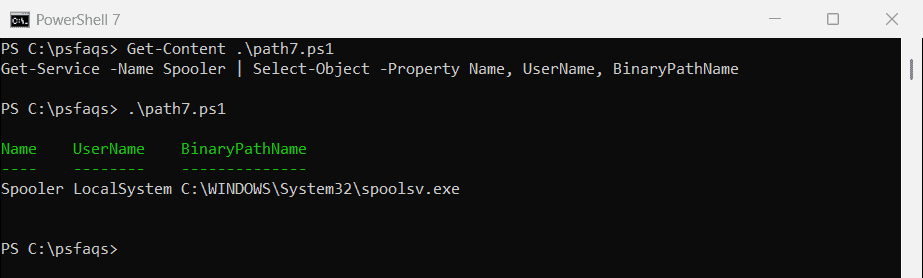
In Windows PowerShell 5.1 those properties come back empty. The Win32_Service class gives the same details in both versions:
Get-CimInstance -ClassName Win32_Service -Filter "Name = 'Spooler'" |
    Select-Object -Property Name, State, StartMode, StartName, PathName
Output:
Name      : Spooler
State     : Running
StartMode : Auto
StartName : LocalSystem
PathName  : C:\WINDOWS\System32\spoolsv.exe
StartName is the account and PathName is the program. Note that CIM calls the start type StartMode and uses Auto instead of Automatic.
How do I check services on another computer?
In Windows PowerShell 5.1, Get-Service has a -ComputerName parameter:
Get-Service -Name Spooler -ComputerName localhost | Select-Object -Property MachineName, Name, StatusOutput in Windows PowerShell 5.1:
MachineName Name     Status
----------- ----     ------
localhost   Spooler Running
PowerShell 7 removed it, so the same command fails:
try {
    Get-Service -Name Spooler -ComputerName localhost -ErrorAction Stop
}
catch {
    $_.Exception.Message
}
Output in PowerShell 7:
A parameter cannot be found that matches parameter name 'ComputerName'.In PowerShell 7, run Get-Service on the other computer with Invoke-Command. That needs PowerShell remoting enabled on the target, so I didn’t run it here:
Invoke-Command -ComputerName WEB01, WEB02 -ScriptBlock {
    Get