
Windows doesn’t record who last modified a file. NTFS keeps the time of the last change, but not the user, so to check who modified a file with PowerShell you need file auditing turned on before the change happens.
Below I show what you can get right away (the time, the owner and Office’s own Last Modified By field) and how to set up auditing so the next change is recorded with a user name.
Check when the file was last changed
LastWriteTime is always there. Sorting by it shows the most recently changed files first. I used sample files with fixed dates:
Get-ChildItem -Path .\Reports -File |
    Sort-Object -Property LastWriteTime -Descending |
    Select-Object -Property Name, LastWriteTime
Output:
Name             LastWriteTime
----             -------------
Q3-forecast.docx 10/2/2026 2:15:00 PM
vendors.csv      10/1/2026 8:40:00 AM
budget-2026.xlsx 9/28/2026 10:05:00 AM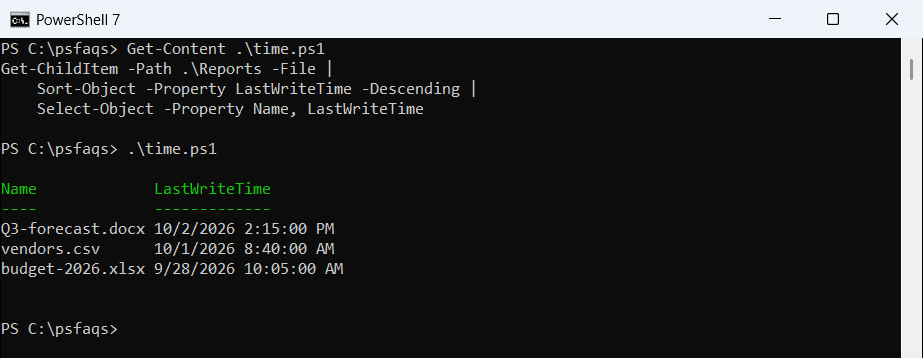
This answers when, not who. For date filters, see finding files modified after a date.
The owner isn’t the last editor
Get-Acl shows the file’s owner. It’s tempting to read that as the last editor, but it’s usually whoever created the file:
(Get-Acl -Path .\Reports\Q3-forecast.docx).OwnerOutput:
DESKTOP-4T7K2QX\aliceI replaced my account with DESKTOP-4T7K2QX\alice. Other people can edit a file all day and the owner never changes.
Read Last Modified By in Office files
Word, Excel and PowerPoint files store their own Last Modified By field, written by Office when someone saves. A .docx is a zip file, and the field lives in docProps/core.xml:
Add-Type -AssemblyName System.IO.Compression.FileSystem
$path = (Resolve-Path -Path .\Reports\Q3-forecast.docx).Path

$zip    = [System.IO.Compression.ZipFile]::OpenRead($path)
$reader = [System.IO.StreamReader]::new($zip.GetEntry('docProps/core.xml').Open())
[xml]$core = $reader.ReadToEnd()
$reader.Close(); $zip.Dispose()

"Created by:       $($core.coreProperties.creator)"
"Last modified by: $($core.coreProperties.lastModifiedBy)"
"Saved (UTC):      $($core.coreProperties.modified.'#text')"
Output:
Created by:       Dan Brooks
Last modified by: Amy Miller
Saved (UTC):      2026-10-02T19:15:00Z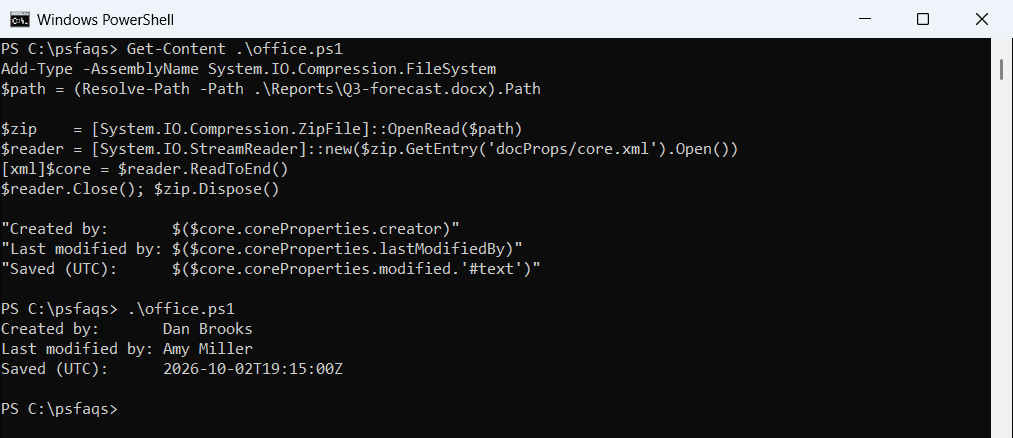
I built this sample file myself, so the names are examples. The field is only as reliable as the editor’s Office user name, and other apps may not update it, but it’s often the quickest answer.
Turn on file auditing to record who changes files
For a real answer on any file type, enable auditing. It needs administrator rights, which is why checking the policy from a normal window fails:
auditpol /get /subcategory:"File System"
"Exit code: $LASTEXITCODE"
Output:
Error 0x00000522 occurred:
A required privilege is not held by the client.

Exit code: 1314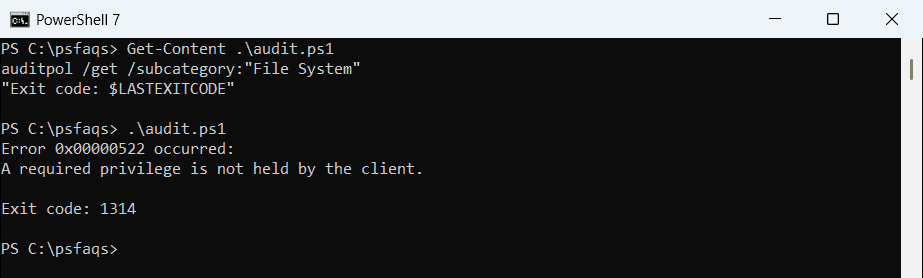
In an elevated window, it’s a two-step setup. First turn on the File System audit category:
auditpol /set /subcategory:"File System" /success:enableThen add an audit rule to the folder, so Windows knows which changes to record. This one logs successful writes by anyone:
$folder = 'D:\Shares\Finance'
$acl  = Get-Acl -Path $folder -Audit
$rule = [System.Security.AccessControl.FileSystemAuditRule]::new(
    'Everyone', 'Write, Delete', 'ContainerInherit, ObjectInherit', 'None', 'Success')
$acl.AddAuditRule($rule)
Set-Acl -Path $folder -AclObject $acl
On a domain, set the audit policy through Group Policy instead. Microsoft covers the setting in Audit File System.
Find who changed the file in the Security log
After auditing is on, every change writes event 4663 with the user name and file path. Search for the file name:
Get-WinEvent -FilterHashtable @{ LogName = 'Security'; Id = 4663 } -MaxEvents 500 |
    Where-Object { $_.Message -like '*Q3-forecast.docx*' } |
    Select-Object -First 5 -Property TimeCreated,
        @{ Name = 'User'; Expression = { $_.Properties[1].Value } }
The second property holds the account name. Event details are in Event 4663, and reading the Security log is covered in getting Windows event logs with PowerShell.
See who has a file open right now
On a file server, Get-SmbOpenFile shows which user has a shared file open at this moment. Run it as administrator on the server:
Get-SmbOpenFile | Where-Object Path -like '*Q3-forecast.docx' | Select-Object -Property ClientUserName, ClientComputerName, PathFrequently Asked Questions
Can PowerShell show who last modified a file?
Not by default. Windows only stores the time. Enable file system auditing, and then event 4663 records the user.
Is the file owner the person who last modified it?
Usually not. The owner is normally whoever created the file, and it doesn’t change when others edit it.
How do I see the last modified by name for a Word or Excel file?
Read the lastModifiedBy field in docProps/core.xml inside the file, or open File > Info in Office.
Which event ID shows file changes?
Event 4663 in the Security log, once the File System audit policy and a folder audit rule are in place.