
To list scheduled tasks with PowerShell, run Get-ScheduledTask. It returns every task you have permission to see, with its folder, name and state:
Get-ScheduledTaskOn a typical PC that’s a couple of hundred tasks. Below I narrow the list by folder, name and state, read run results, see what each task runs, query remote PCs and export a report.
To keep my outputs short, and my own apps private, I ran the examples against Windows’ built-in tasks only. The commands work the same on any task.
List tasks in one folder
Tasks live in folders, just like in Task Scheduler. -TaskPath limits the list to one folder. The path must start and end with a backslash. I selected two columns so the long names fit:
Get-ScheduledTask -TaskPath '\Microsoft\Windows\Windows Defender\' |
    Select-Object -Property TaskName, State
Output:
TaskName                           State
--------                           -----
Windows Defender Cache Maintenance Ready
Windows Defender Cleanup           Ready
Windows Defender Scheduled Scan    Ready
Windows Defender Verification      Ready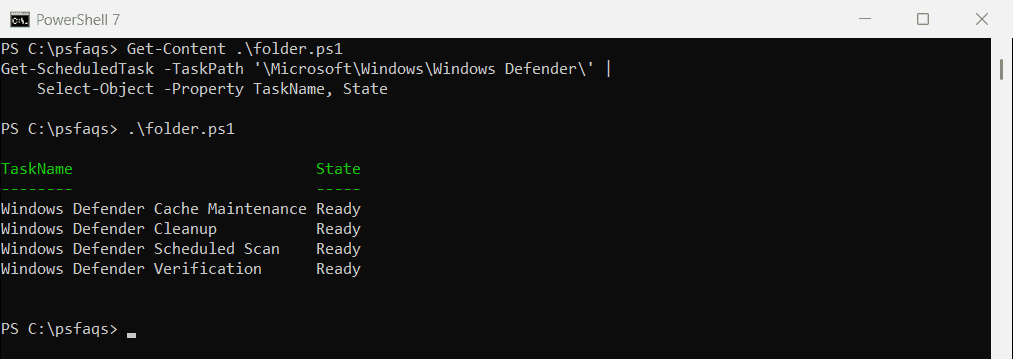
Most third-party apps put their tasks in the root folder, \. To list only those, run Get-ScheduledTask -TaskPath '\'.
Scheduled tasks are also a common reason for PowerShell popping up randomly.
Find a task by name
-TaskName takes one or more names, and wildcards such as '*Defrag*' work too:
Get-ScheduledTask -TaskName 'ScheduledDefrag', 'SynchronizeTime'Output:
TaskPath                                       TaskName                          State
--------                                       --------                          -----
\Microsoft\Windows\Defrag\                     ScheduledDefrag                   Ready
\Microsoft\Windows\Time Synchronization\       SynchronizeTime                   Ready
If a name doesn’t exist, you get the error No MSFT_ScheduledTask objects found. Add -ErrorAction SilentlyContinue when you only want to test whether a task exists.
Filter tasks by state
State is Ready, Running, Disabled or Queued. Group-Object gives you a quick count of the built-in tasks:
Get-ScheduledTask |
    Where-Object { $_.TaskPath -like '\Microsoft\Windows\*' } |
    Group-Object -Property State -NoElement |
    Sort-Object -Property Name
Output:
Count Name
----- ----
   34 Disabled
  143 Ready
    3 Running
The Running count changes from moment to moment. To list the disabled tasks instead of counting them, use Get-ScheduledTask | Where-Object State -EQ 'Disabled'.
Get last run results with Get-ScheduledTaskInfo
Run history isn’t part of Get-ScheduledTask. Pipe the task to Get-ScheduledTaskInfo, which adds LastRunTime, NextRunTime, LastTaskResult and NumberOfMissedRuns:
Get-ScheduledTask -TaskName 'SynchronizeTime' |
    Get-ScheduledTaskInfo |
    Select-Object -Property TaskName, LastTaskResult, NumberOfMissedRuns
Output:
TaskName        LastTaskResult NumberOfMissedRuns
--------        -------------- ------------------
SynchronizeTime              0                  0
A LastTaskResult of 0 means success. Anything else is an error or status code, such as 267011, which means the task has never run.
See what a task runs
The Actions property holds the program and its arguments. Triggers holds the schedule:
$task = Get-ScheduledTask -TaskName 'SynchronizeTime'
$task.Actions | Format-List -Property Execute, Arguments
Output:
Execute   : %windir%\system32\sc.exe
Arguments : start w32time task_started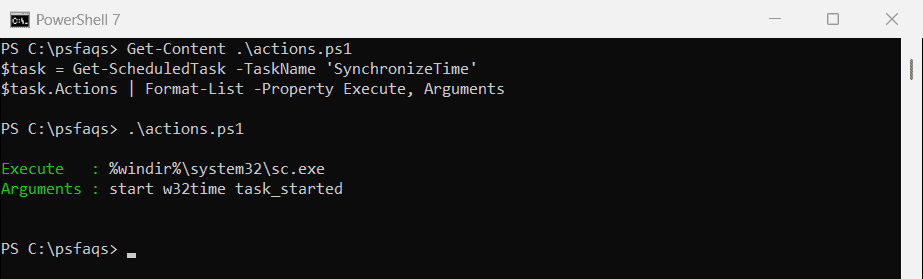
This is how I check an unknown task before I disable it. If Execute points to a script, checking who modified that file last can help too.
Export all tasks with run times to CSV
For an audit, combine both cmdlets in one loop and export the result:
Get-ScheduledTask | ForEach-Object {
    $info = $_ | Get-ScheduledTaskInfo
    [pscustomobject]@{
        TaskPath       = $_.TaskPath
        TaskName       = $_.TaskName
        State          = $_.State
        LastRunTime    = $info.LastRunTime
        NextRunTime    = $info.NextRunTime
        LastTaskResult = $info.LastTaskResult
    }
} | Export-Csv -Path C:\Reports\scheduled-tasks-2026-10.csv -NoTypeInformation
Piping the task object passes both its name and path, so tasks with the same name in different folders don’t get mixed up. More in PowerShell Export-Csv.
List scheduled tasks on a remote computer
Get-ScheduledTask has no -ComputerName parameter. Open a CIM session to the remote PC and pass it with -CimSession:
$session = New-CimSession -ComputerName 'NYC-SRV01', 'DAL-SRV02'
Get-ScheduledTask -CimSession $session -TaskPath '\' |
    Select-Object -Property PSComputerName, TaskName, State
Remove-CimSession -CimSession $session
You need admin rights on the remote PCs, and WinRM must be enabled. PSComputerName shows which server each task came from. The Get-ScheduledTask reference lists every parameter.
Use schtasks.exe instead
schtasks.exe works on every Windows version and doesn’t need the ScheduledTasks module. Convert its CSV output to objects:
schtasks.exe /Query /FO CSV /V | ConvertFrom-Csv |
    Select-Object -Property TaskName, Status, 'Next Run Time' -First 5
The column names come from your Windows display language, so scripts that run worldwide are safer with Get-ScheduledTask.
Frequently Asked Questions
How do I list all scheduled tasks in PowerShell?
Run Get-ScheduledTask. Add -TaskPath '\' to see only the tasks in the root folder, where most apps put theirs.