
Test-NetConnection checks whether your computer can reach another host, and whether a specific TCP port on it is open. Give it a computer name and a port:
Test-NetConnection -ComputerName learn.microsoft.com -Port 443 |
    Select-Object -Property ComputerName, RemotePort, TcpTestSucceeded
Output:
ComputerName        RemotePort TcpTestSucceeded
------------        ---------- ----------------
learn.microsoft.com        443             True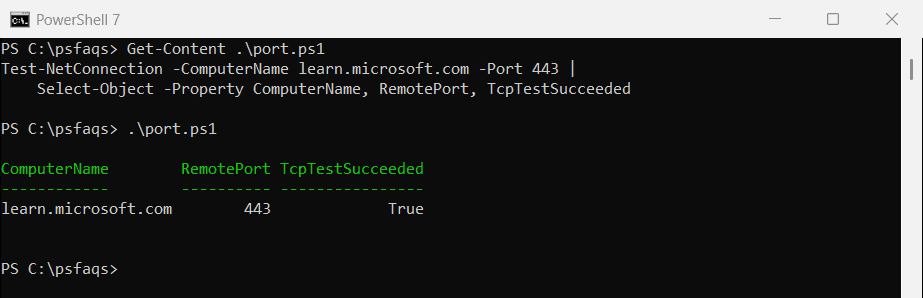
TcpTestSucceeded True means the port accepted a connection. I selected three properties because the full output also lists your own IP address and network adapter. Every example ran in PowerShell 7.6 and Windows PowerShell 5.1 on Windows 11.
Get a simple True or False
In scripts, add -InformationLevel Quiet. Test-NetConnection then returns just True or False, which drops straight into an if statement:
$open = Test-NetConnection -ComputerName learn.microsoft.com -Port 443 -InformationLevel Quiet
"Port 443 reachable: $open"
Output:
Port 443 reachable: TrueThere are other ways to test a port, compared in checking if a port is open.
Test several ports
Loop through the ports you care about. -WarningAction SilentlyContinue hides the yellow warning Test-NetConnection prints for every closed port:
foreach ($port in 80, 443, 3389) {
    $ok = Test-NetConnection -ComputerName www.microsoft.com -Port $port -InformationLevel Quiet -WarningAction SilentlyContinue
    '{0,-5} {1}' -f $port, $(if ($ok) { 'open' } else { 'closed or filtered' })
}
Output:
80    open
443   open
3389  closed or filtered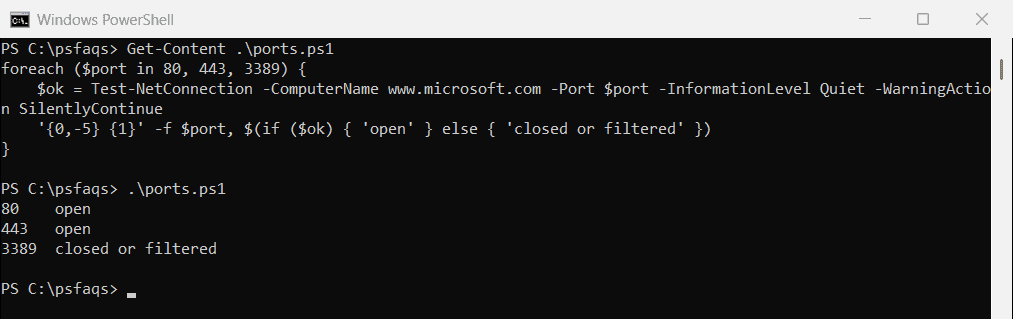
“Closed or filtered” can mean nothing listens on the port, or a firewall blocks it. From outside, you can’t tell which. Checking if a port is open covers more ways to test ports.
A failed ping doesn’t mean the host is down
Without -Port, Test-NetConnection sends a ping. Many servers and firewalls block ping, so a working website can still fail it:
$result = Test-NetConnection -ComputerName learn.microsoft.com -Port 443 -WarningAction SilentlyContinue
"Ping succeeded: $($result.PingSucceeded)"
"Port 443 open:  $($result.TcpTestSucceeded)"
Output:
Ping succeeded: False
Port 443 open:  True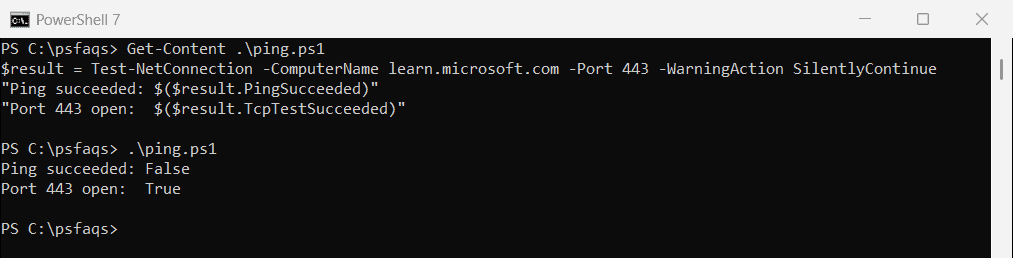
Always test the port the service actually uses. Ping only tells you whether ICMP is allowed on the network.
Use the built-in port names
-CommonTCPPort takes a name instead of a number for the most common ports:
(Get-Command -Name Test-NetConnection).Parameters['CommonTCPPort'].Attributes.ValidValues -join ', 'Output:
HTTP, RDP, SMB, WINRMHTTP is 80, RDP is 3389, SMB is 445 and WINRM is 5985. For example, Test-NetConnection -ComputerName Server01 -CommonTCPPort RDP.
Trace the route
-TraceRoute lists each router between you and the host, like tracert. Add -Hops to stop after a set number:
Test-NetConnection -ComputerName learn.microsoft.com -TraceRoute -Hops 15The first hops are your own network, so be careful when sharing this output. Test-NetConnection’s other parameters are in the Test-NetConnection reference.
Test-Connection -TcpPort in PowerShell 7
PowerShell 7 added -TcpPort to Test-Connection. It returns just True or False, but it doesn’t exist in Windows PowerShell 5.1:
Test-Connection -TargetName learn.microsoft.com -TcpPort 443Output in PowerShell 7.6:
TrueUse Test-NetConnection in scripts that must run in both versions. Microsoft covers the PowerShell 7 option in the Test-Connection reference.
Test many servers at once
Put the names in an array and collect the results as objects, so you can sort them or export them to CSV:
$servers = 'web01', 'web02', 'sql01'
$servers | ForEach-Object {
    [pscustomobject]@{
        Server = $_
        Https  = Test-NetConnection -ComputerName $_ -Port 443 -InformationLevel Quiet -WarningAction SilentlyContinue
    }
}
Frequently Asked Questions
How do I test if a port is open with PowerShell?
Run Test-NetConnection -ComputerName server01 -Port 443. TcpTestSucceeded is True when the port accepts connections.
How do I get just True or False from Test-NetConnection?
Add -InformationLevel Quiet. It returns a single Boolean you can use in if statements.
Why does Test-NetConnection fail the ping when the site works?
The server or a firewall blocks ICMP ping. Test the real service port with -Port instead.
How do I hide the warning for closed ports?
Add -WarningAction SilentlyContinue to the command.
What is the difference between Test-NetConnection and Test-Connection?
Test-NetConnection tests ports and routes and works in both versions. Test-Connection pings, and in PowerShell 7 it can also test a port with -TcpPort. See Microsoft’s