
To find SQL Server instances using PowerShell on a server, read the Instance Names\SQL registry key. Every installed instance has a value there, named after the instance:
Get-ItemProperty 'HKLM:\SOFTWARE\Microsoft\Microsoft SQL Server\Instance Names\SQL'To search a whole network instead, you’ll need Windows PowerShell 5.1 or the SQL tools. Below I cover the registry, services, the network search and remote servers, with what changed in PowerShell 7.
Find SQL Server instances on the local computer
This function reads the registry key in both the 64-bit and 32-bit views, so it also catches older 32-bit installs. I also count the SQL Server services as a second check:
function Get-LocalSqlInstance {
    $keys = 'HKLM:\SOFTWARE\Microsoft\Microsoft SQL Server\Instance Names\SQL',
            'HKLM:\SOFTWARE\WOW6432Node\Microsoft\Microsoft SQL Server\Instance Names\SQL'
    foreach ($key in $keys | Where-Object { Test-Path $_ }) {
        $values = Get-ItemProperty -Path $key
        foreach ($name in $values.PSObject.Properties.Name -notlike 'PS*') {
            [pscustomobject]@{ Instance = $name; InstanceId = $values.$name; Source = $key.Split('\')[2] }
        }
    }
}

$found = @(Get-LocalSqlInstance)
$services = @(Get-Service -Name 'MSSQLSERVER', 'MSSQL$*' -ErrorAction SilentlyContinue)
"Instances in the registry: $($found.Count)"
"SQL Server services:       $($services.Count)"
if (-not $found -and -not $services) { 'No SQL Server instances are installed on this PC.' }
Output:
Instances in the registry: 0
SQL Server services:       0
No SQL Server instances are installed on this PC.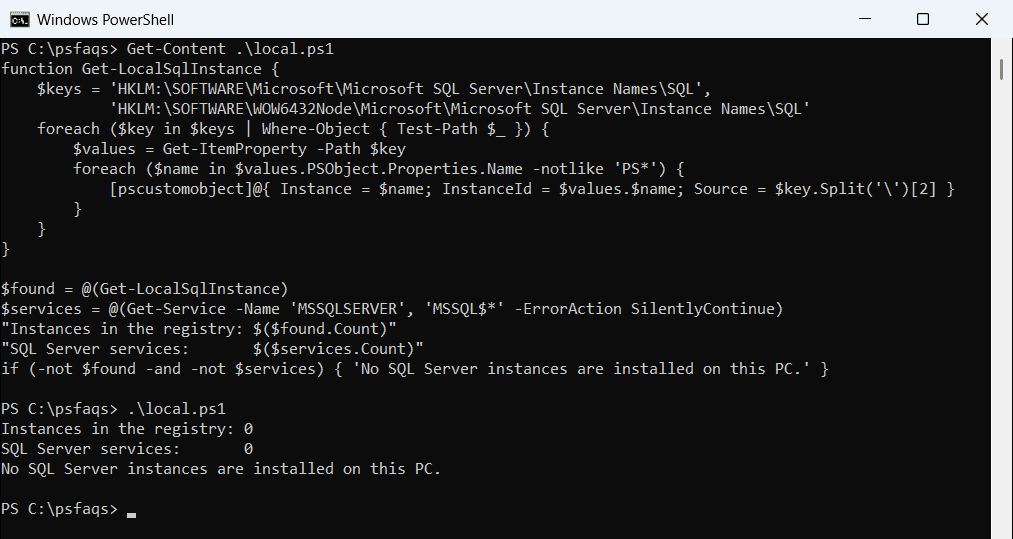
My test PC doesn’t run SQL Server, so the real answer is zero. Test-Path keeps the function quiet on machines like this. Working with registry keys explains the provider paths.
Read instance names, versions and connection names
On a SQL Server, each registry value maps an instance name to an instance ID like MSSQL16.SQLEXPRESS. The number is the major version. I ran this on sample values in that exact shape:
# Sample values shaped like Get-ItemProperty '...\Instance Names\SQL' on a SQL Server
$computer = 'SQL-AUSTIN-01'
$values = [ordered]@{
    MSSQLSERVER = 'MSSQL16.MSSQLSERVER'
    SQLEXPRESS  = 'MSSQL15.SQLEXPRESS'
    REPORTS     = 'MSSQL17.REPORTS'
}
$versions = @{ 17 = '2025'; 16 = '2022'; 15 = '2019'; 14 = '2017'; 13 = '2016'; 12 = '2014'; 11 = '2012' }

foreach ($name in $values.Keys) {
    $id = $values[$name]
    $major = [int]($id -replace '^MSSQL(\d+).*', '$1')
    [pscustomobject]@{
        Instance   = $name
        Version    = "SQL Server $($versions[$major])"
        ConnectTo  = $(if ($name -eq 'MSSQLSERVER') { $computer } else { "$computer\$name" })
    }
}
Output:
Instance    Version         ConnectTo
--------    -------         ---------
MSSQLSERVER SQL Server 2022 SQL-AUSTIN-01
SQLEXPRESS  SQL Server 2019 SQL-AUSTIN-01\SQLEXPRESS
REPORTS     SQL Server 2025 SQL-AUSTIN-01\REPORTS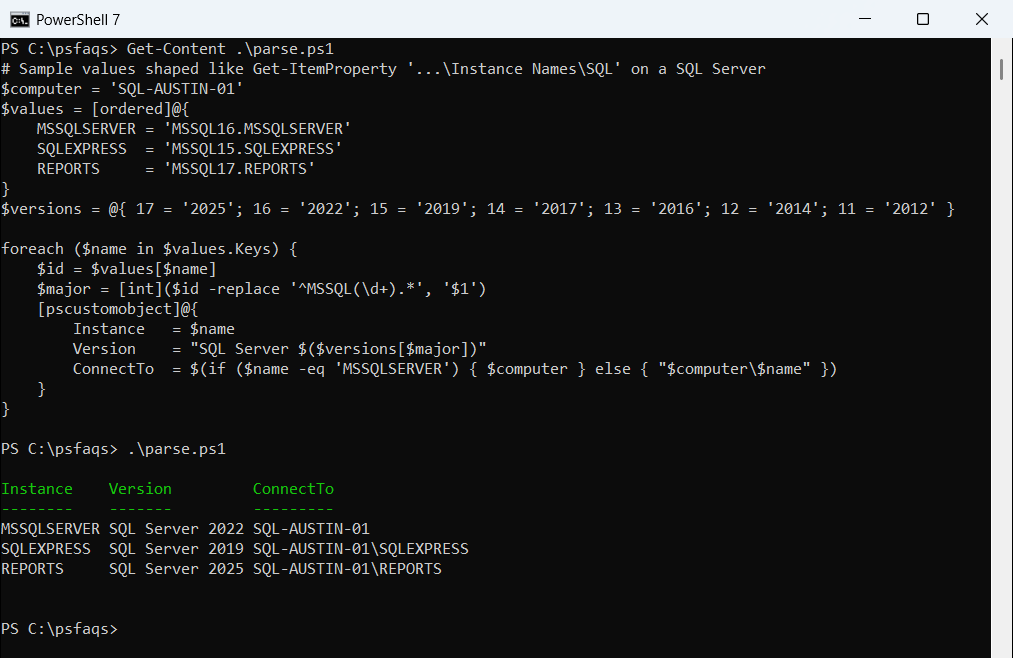
MSSQLSERVER is the default instance, so you connect with just the server name. Named instances need SERVER\NAME. The version numbers come from Microsoft’s table, where 17 is SQL Server 2025 and 16 is 2022.
The -replace pattern pulls the number out of the instance ID. Replacing text in strings explains how capture groups like $1 work.
Find SQL Server instances from Windows services
Every Database Engine instance runs as a service. The default one is MSSQLSERVER, and named ones are MSSQL$ followed by the name:
Get-Service -Name 'MSSQLSERVER', 'MSSQL$*' -ErrorAction SilentlyContinue |
    Select-Object Name, Status, StartType
To turn service names into instance names, skip the Agent, Browser and full-text services. Here’s that logic on sample names:
# Sample service names shaped like Get-Service -Name 'MSSQL*', 'SQL*' on a SQL Server
$names = 'MSSQLSERVER', 'MSSQL$SQLEXPRESS', 'SQLSERVERAGENT', 'SQLAgent$SQLEXPRESS', 'SQLBrowser', 'MSSQLFDLauncher'

$names | Where-Object { $_ -eq 'MSSQLSERVER' -or $_ -like 'MSSQL$*' } | ForEach-Object {
    $instance = if ($_ -eq 'MSSQLSERVER') { 'MSSQLSERVER (default)' } else { $_.Split('$')[1] }
    '{0,-18} -> instance {1}' -f $_, $instance
}
Output:
MSSQLSERVER        -> instance MSSQLSERVER (default)
MSSQL$SQLEXPRESS   -> instance SQLEXPRESS
The service check also tells you whether each instance is running. Listing running services covers more Get-Service filters.
Can PowerShell 7 find SQL Server instances on the network?
Old scripts use SqlDataSourceEnumerator to ask the network for SQL Servers. That class is part of .NET Framework, so it’s only in Windows PowerShell 5.1:
$type = 'System.Data.Sql.SqlDataSourceEnumerator' -as [type]
"PowerShell $($PSVersionTable.PSVersion.Major) on $($PSVersionTable.PSEdition)"
"SqlDataSourceEnumerator available: $([bool]$type)"
Output:
PowerShell 7 on Core
SqlDataSourceEnumerator available: False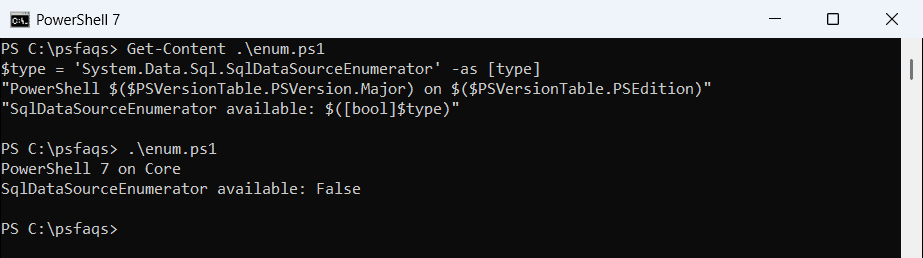
Windows PowerShell 5.1 returns True. There, the network search is one line:
[System.Data.Sql.SqlDataSourceEnumerator]::Instance.GetDataSources() |
    Format-Table ServerName, InstanceName, Version -AutoSize
I didn’t run it, because it broadcasts across my home network. Microsoft warns the list isn’t always complete, only covers the local network segment, and depends on the SQL Browser service. Check your PowerShell version before relying on it.
Find SQL Server instances on remote servers
For a known list of servers, run the registry check on each one with Invoke-Command. It works in both versions and doesn’t depend on SQL Browser:
Invoke-Command -ComputerName SQL-AUSTIN-01, SQL-DENVER-02 -ScriptBlock {
    $key = 'HKLM:\SOFTWARE\Microsoft\Microsoft SQL Server\Instance Names\SQL'
    if (Test-Path $key) { (Get-Item $key).Property }
} | Select-Object PSComputerName, @{ n = 'Instance'; e = { $_ } }
This needs WinRM on the servers and admin rights. I donR