
To get the file name from a path in PowerShell, use Split-Path -Leaf. -Parent gives you the folder part instead:
$path = 'C:\Reports\2026\Q3\sales-summary.xlsx'

Split-Path -Path $path -Leaf
Split-Path -Path $path -Parent
Output:
sales-summary.xlsx
C:\Reports\2026\Q3
Split-Path only works on the text, so the file doesn’t need to exist. I ran every example in PowerShell 7.6 and Windows PowerShell 5.1 and note the 7-only options.
Get the name without the extension, and the extension
The .NET Path class returns each part in one call. It works the same in both versions:
$path = 'C:\Reports\2026\Q3\sales-summary.xlsx'

"File name:         $([System.IO.Path]::GetFileName($path))"
"Without extension: $([System.IO.Path]::GetFileNameWithoutExtension($path))"
"Extension:         $([System.IO.Path]::GetExtension($path))"
"Folder:            $([System.IO.Path]::GetDirectoryName($path))"
Output:
File name:         sales-summary.xlsx
Without extension: sales-summary
Extension:         .xlsx
Folder:            C:\Reports\2026\Q3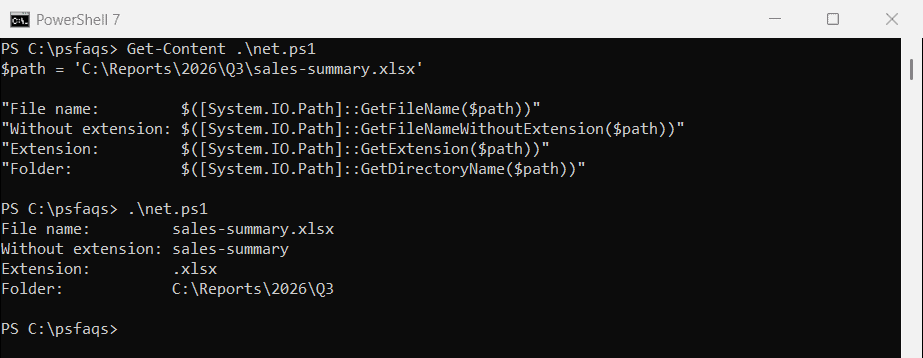
The extension includes the dot. Microsoft’s Path class reference lists more methods, like ChangeExtension and Combine.
PowerShell 7: -LeafBase and -Extension
PowerShell 7 added the same two parts to Split-Path. Windows PowerShell 5.1 doesn’t have these parameters:
$path = 'C:\Reports\2026\Q3\sales-summary.xlsx'

"-LeafBase:  $(Split-Path -Path $path -LeafBase)"
"-Extension: $(Split-Path -Path $path -Extension)"
Output in PowerShell 7:
-LeafBase:  sales-summary
-Extension: .xlsx
There are more ways to drop the extension in getting a file name without the extension.
File names and extensions from Get-ChildItem
Files you list with Get-ChildItem already have Name, BaseName and Extension properties:
Get-ChildItem -Path C:\psfaqs\Paths -File |
    ForEach-Object { '{0,-18} BaseName: {1,-13} Extension: [{2}]' -f $_.Name, $_.BaseName, $_.Extension }
Output:
budget-2026.xlsx   BaseName: budget-2026   Extension: [.xlsx]
q3-sales.csv       BaseName: q3-sales      Extension: [.csv]
README             BaseName: README        Extension: []
A file with no extension, like README, gets an empty Extension. Getting all files in a folder covers filtering by extension.
Double extensions like .tar.gz
Every method above treats only the last part as the extension:
$archive = 'backup-2026-09-28.tar.gz'

"GetExtension:      $([System.IO.Path]::GetExtension($archive))"
"Everything after the first dot: $($archive.Substring($archive.IndexOf('.')))"
Output:
GetExtension:      .gz
Everything after the first dot: .tar.gz
If you need .tar.gz as one extension, take everything after the first dot, as in the second line.
Paths that end with a backslash
A folder path with a trailing backslash trips up the .NET method, which sees an empty file name:
$folder = 'C:\Reports\2026\'

"Split-Path -Leaf: [$(Split-Path -Path $folder -Leaf)]"
"GetFileName:      [$([System.IO.Path]::GetFileName($folder))]"
"Trim first:       [$([System.IO.Path]::GetFileName($folder.TrimEnd('\')))]"
Output:
Split-Path -Leaf: [2026]
GetFileName:      []
Trim first:       [2026]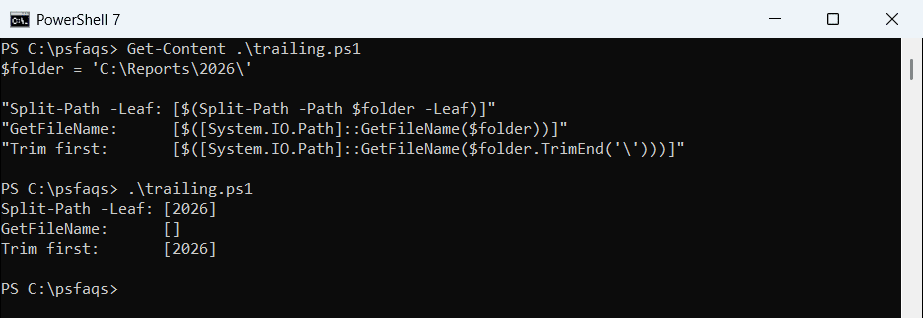
Split-Path handles it, or trim the backslash first with TrimEnd(‘\’).
Split a path into an array
Split on the backslash to get each folder as an item. -split uses regex, so the backslash needs escaping as \\:
$path = 'C:\Reports\2026\Q3\sales-summary.xlsx'

$parts = $path -split '\\'
"$($parts.Count) parts: $($parts -join ' | ')"
"Drive: $($parts[0]), file: $($parts[-1]), year folder: $($parts[2])"
Output:
5 parts: C: | Reports | 2026 | Q3 | sales-summary.xlsx
Drive: C:, file: sales-summary.xlsx, year folder: 2026
Splitting strings in PowerShell explains why -split needs the escape.
Network (UNC) paths
A UNC path starts with two backslashes, which leaves two empty items. Filter them out:
$share = '\\fileserver01\finance\2026\budget.xlsx'

"-split:           $(($share -split '\\') -join ' | ')"
"Without empties:  $(($share -split '\\' | Where-Object { $_ }) -join ' | ')"
"Split + [char[]]: $(($share.Split([char[]]'\', [StringSplitOptions]::RemoveEmptyEntries)) -join ' | ')"
Output:
-split:            |  | fileserver01 | finance | 2026 | budget.xlsx
Without empties:  fileserver01 | finance | 2026 | budget.xlsx
Split + [char[]]: fileserver01 | finance | 2026 | budget.xlsx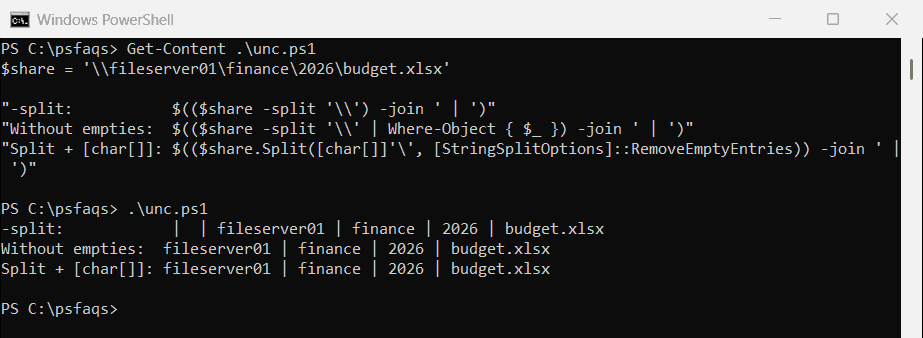
Pass the separator as [char[]] in the Split method. With a single [char], Windows PowerShell 5.1 picks a different overload and keeps the empty items:
$share = '\\fileserver01\finance\2026\budget.xlsx'
($share.Split([char]'\', [StringSplitOptions]::RemoveEmptyEntries)) -join ' | '
Output in PowerShell 7:
fileserver01 | finance | 2026 | budget.xlsxOutput in Windows PowerShell 5.1:
| | fileserver01 | finance | 2026 | budget.xlsxGet the drive letter
-Qualifier returns the drive, and -NoQualifier the rest of the path:
$path = 'C:\Reports\2026\Q3\sales-summary.xlsx'

"Qualifier:   $(Split-Path -Path $path -Qualifier)"
"NoQualifier: $(Split-Path -Path $path -NoQualifier)"
Output:
Qualifier:   C:
NoQualifier: \Reports\2026\Q3\sales-summary.xlsx
The