
To set the execution policy in PowerShell for your own account, run Set-ExecutionPolicy with RemoteSigned and the CurrentUser scope. It doesn’t need administrator rights:
Set-ExecutionPolicy -ExecutionPolicy RemoteSigned -Scope CurrentUserRemoteSigned runs scripts you write and blocks unsigned scripts from the internet. Below I check the current policy, change it for one session only, deal with blocked downloads and explain each policy.
I didn’t change the saved policy on my PC. The examples read it, use -WhatIf or change only the current session.
Check the current execution policy
Get-ExecutionPolicy -List shows the policy at every scope. The first defined one from the top wins:
Get-ExecutionPolicy -ListOutput:
        Scope ExecutionPolicy
        ----- ---------------
MachinePolicy       Undefined
   UserPolicy       Undefined
      Process          Bypass
  CurrentUser    RemoteSigned
 LocalMachine    RemoteSigned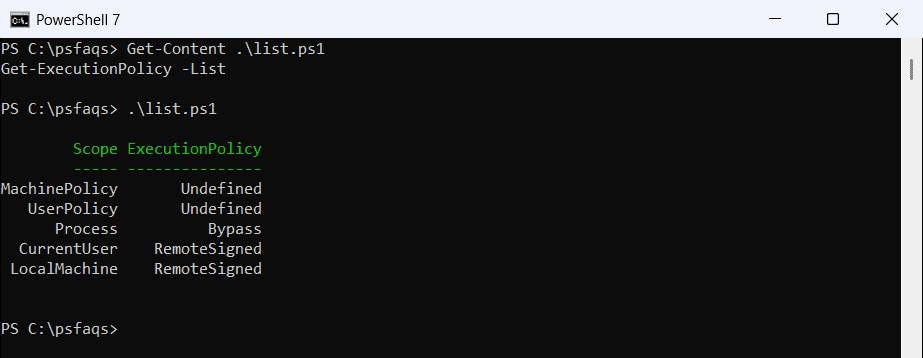
Process says Bypass because my test runner starts PowerShell with -ExecutionPolicy Bypass, which I explain below. MachinePolicy and UserPolicy come from Group Policy and override everything else.
PowerShell 7 and Windows PowerShell 5.1 keep separate settings. On my PC, LocalMachine is RemoteSigned in PowerShell 7 but Undefined in 5.1, so set the policy in each version you use.
If you hit the “running scripts is disabled” error, see fixing running scripts is disabled.
The execution policies explained
| Policy | What it allows | When to use it |
|---|---|---|
| Restricted | No scripts, only commands typed at the prompt | Default on Windows client PCs |
| RemoteSigned | Your own scripts, plus downloaded scripts only if signed | Most users and developers; default on Windows Server |
| AllSigned | Only scripts signed by a trusted publisher | Locked-down company PCs |
| Unrestricted | All scripts, with a warning for downloaded ones | Rarely needed |
| Bypass | Everything, with no warnings | Automation that controls its own security |
| Undefined | Nothing set at this scope | Removes a policy from a scope |
An execution policy isn’t a security boundary. It stops you from running scripts by accident, not an attacker who can type commands.
Set the policy for one session only
The Process scope changes the policy for the current window and is gone when you close it. Nothing is saved, so it’s the safest way to test:
Set-ExecutionPolicy -Scope Process -ExecutionPolicy RemoteSigned -Force
"Effective policy: $(Get-ExecutionPolicy)"
"Process scope:    $(Get-ExecutionPolicy -Scope Process)"
Output:
Effective policy: RemoteSigned
Process scope:    RemoteSigned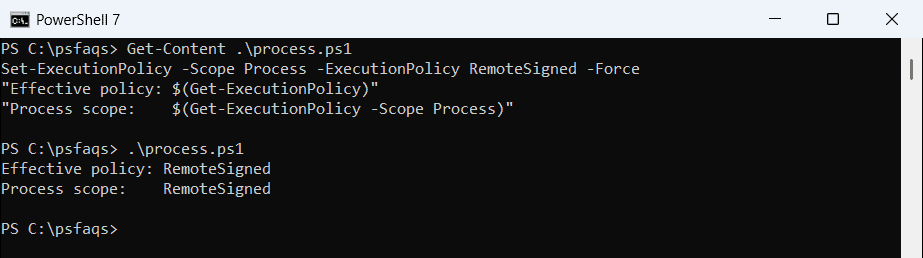
-Force skips the confirmation prompt. The value lives in the PSExecutionPolicyPreference environment variable of that one process.
Set it for your account or the whole PC
CurrentUser is saved for your account and doesn’t need admin rights. Preview the change with -WhatIf first:
Set-ExecutionPolicy -Scope CurrentUser -ExecutionPolicy RemoteSigned -WhatIfOutput:
What if: Performing the operation "Set-ExecutionPolicy" on target "RemoteSigned".LocalMachine applies to everyone on the PC and needs an elevated window:
Set-ExecutionPolicy -ExecutionPolicy RemoteSigned -Scope LocalMachineIf Group Policy sets MachinePolicy or UserPolicy, your change is saved but has no effect.
Run a downloaded script under RemoteSigned
Windows marks files from the internet with a hidden Zone.Identifier stream. I added one to a sample script, then ran it before and after Unblock-File:
Set-ExecutionPolicy -Scope Process -ExecutionPolicy RemoteSigned -Force

try { & .\Scripts\Get-Report.ps1 }
catch { "Failed. $($_.Exception.Message)" }

Unblock-File -Path .\Scripts\Get-Report.ps1
& .\Scripts\Get-Report.ps1
Output:
Failed. File C:\psfaqs\Scripts\Get-Report.ps1 cannot be loaded. The file C:\psfa