
Get-Location (or $PWD) tells you the current directory in PowerShell. For the PowerShell script path, read $PSScriptRoot for the script’s folder or $PSCommandPath for the full .ps1 path:
Get-Location
$PWD.Path
$PSScriptRoot      # inside a script
$PSCommandPath     # inside a script
Those two answers differ more often than you’d think. The current directory is wherever the caller happens to be, while the script path never moves. I ran every example below in PowerShell 7 and Windows PowerShell 5.1.
Get the current directory with Get-Location and $PWD
Get-Location returns a PathInfo object, and $PWD holds the same object. Use .Path when you need plain text:
Get-Location
"`$PWD:                 $PWD"
"(Get-Location).Path:  $((Get-Location).Path)"
"Type:                 $((Get-Location).GetType().Name)"
Output:
Path
----
C:\psfaqs
$PWD:                 C:\psfaqs
(Get-Location).Path:  C:\psfaqs
Type:                 PathInfo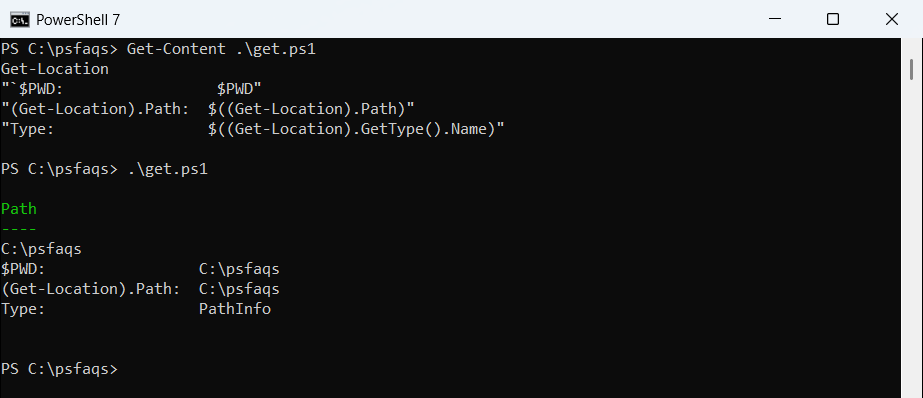
pwd and gl are built-in aliases for Get-Location. To move somewhere else first, see changing the directory in PowerShell.
Get the PowerShell script path with $PSScriptRoot and $PSCommandPath
$PSScriptRoot is the folder that holds the running script. $PSCommandPath is the full path of the .ps1 file itself. My where.ps1 prints both, plus the caller’s location:
"Script folder (`$PSScriptRoot): $PSScriptRoot"
"Script file (`$PSCommandPath):  $PSCommandPath"
"Caller's location:             $(Get-Location)"
I called the same script twice, first from C:\psfaqs and then after moving to C:\Windows:
$script = (Resolve-Path -Path .\scripts\where.ps1).Path
& $script

Set-Location -Path C:\Windows
& $script
Output:
Script folder ($PSScriptRoot): C:\psfaqs\scripts
Script file ($PSCommandPath):  C:\psfaqs\scripts\where.ps1
Caller's location:             C:\psfaqs
Script folder ($PSScriptRoot): C:\psfaqs\scripts
Script file ($PSCommandPath):  C:\psfaqs\scripts\where.ps1
Caller's location:             C:\Windows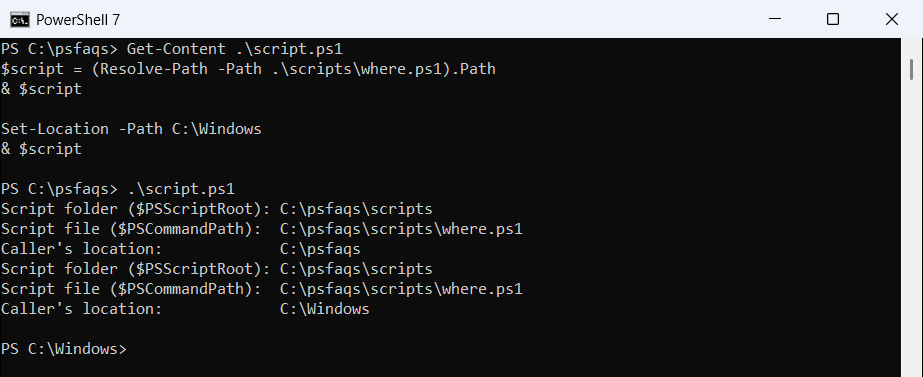
The script folder didn’t change, but Get-Location did. That’s why $PSScriptRoot, not the current directory, is the right base for files that ship with a script.
Both variables are empty when you type commands straight into the console, because no script is running. Running a script from the command line gives you the same values, whatever folder you start in.
How do I get the script path with $MyInvocation?
Before PowerShell 3.0, the usual trick was $MyInvocation.MyCommand.Path. It still works at the top level of a script, and Split-Path -Parent turns it into the folder:
"MyCommand.Path:   $($MyInvocation.MyCommand.Path)"
"MyCommand.Name:   $($MyInvocation.MyCommand.Name)"
"Parent folder:    $(Split-Path -Path $MyInvocation.MyCommand.Path -Parent)"

function Show-ScriptPath {
    "In a function, MyCommand.Path: [$($MyInvocation.MyCommand.Path)]"
    "In a function, PSScriptRoot:   [$PSScriptRoot]"
}
Show-ScriptPath
& .\scripts\inv.ps1Output:
MyCommand.Path:   C:\psfaqs\scripts\inv.ps1
MyCommand.Name:   inv.ps1
Parent folder:    C:\psfaqs\scripts
In a function, MyCommand.Path: []
In a function, PSScriptRoot:   [C:\psfaqs\scripts]<