
If you’ve spent any time working with strings in PowerShell, you already know that finding the first occurrence of something is easy — IndexOf() handles that in one line. But what about the second occurrence? Or the third? That’s where things get a little more interesting.
In this tutorial, I’ll show you several ways to find the second occurrence of a character or substring in a string using PowerShell. I’ll cover everything from the simple two-step IndexOf() approach to regex-based methods and a reusable function you can drop into any script.
Let’s get into it.
Why Would You Need the Second Occurrence?
More often than you’d think. Here are some real situations where this comes up:
- You have a file path like
C:\Servers\Backups\File.logand you want to extract everything after the second backslash. - You’re parsing a log line like
ERROR: [2026-05-07] [ServerName] Disk fulland need the content inside the second set of brackets. - You’re working with DNS names like
server01.domain.localand want everything after the second dot. - You’re splitting delimited strings where the first delimiter is a header and the second is where the real data starts.
- You’re cleaning up exported data from SharePoint or a CSV where values have repeating separators.
Any of these sound familiar? Good. Let’s solve them.
Check out Convert String to Decimal in PowerShell
How IndexOf() Works in PowerShell
Before jumping to the second occurrence, it helps to understand IndexOf() properly — because that’s the foundation for most of what follows.
$string = "server.domain.local"
$position = $string.IndexOf(".")
Write-Host $position
Output:
6
IndexOf() returns the zero-based index of the first occurrence of your character or substring. If the character isn’t found, it returns -1.
Now here’s the key thing most people don’t realize: IndexOf() has an overload that lets you specify a starting position. That’s exactly what we use to find the second occurrence.
Read PowerShell New Line in String
Method 1: Using IndexOf() with a Start Position
This is the most straightforward approach. You find the first occurrence, then start your second search from one position after it.
$string = "server.domain.local"

# Find the first occurrence
$first = $string.IndexOf(".")

# Find the second occurrence, starting just after the first
$second = $string.IndexOf(".", $first + 1)

Write-Host "First dot at index: $first"
Write-Host "Second dot at index: $second"
Output:
First dot at index: 6
Second dot at index: 13
I executed the above PowerShell script, and you can see the exact output in the screenshot below:
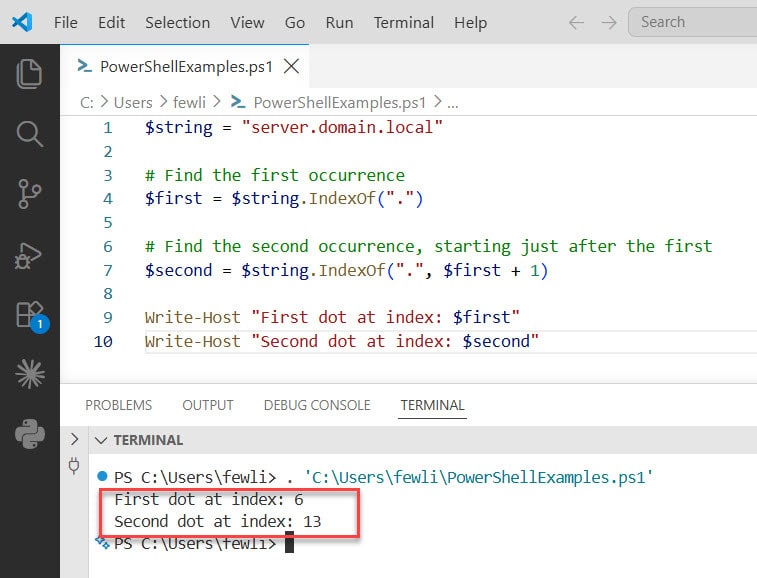
The magic is in $first + 1 — you’re telling IndexOf() to skip everything up to and including the first match, then look for the next one from there.
If there is no second occurrence, $second will return -1. So it’s a good habit to check for that before doing anything with the result:
if ($second -ge 0) {
    Write-Host "Second occurrence found at index: $second"
} else {
    Write-Host "No second occurrence found."
}
Check out PowerShell Convert Byte Array to Hex String
Method 2: Extracting a Substring After the Second Occurrence
Usually you don’t just want the position — you want the text that comes after it. Here’s how to combine IndexOf() with Substring() to extract everything after the second occurrence of a character:
$string = "server.domain.local"

$first = $string.IndexOf(".")
$second = $string.IndexOf(".", $first + 1)

# Get everything after the second dot
$result = $string.Substring($second + 1)

Write-Host $result
Output:
local
Here is the exact output in the screenshot below:
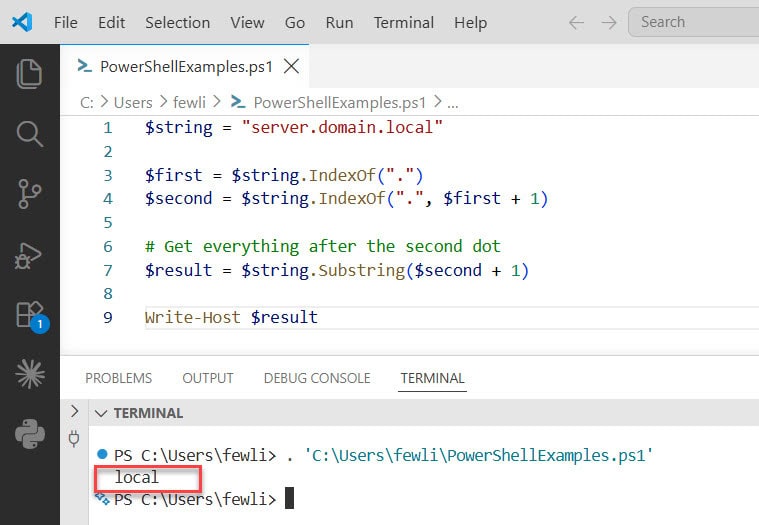
And if you want everything before the second occurrence:
$result = $string.Substring(0, $second)
Write-Host $result
Output:
server.domain
This is super useful for parsing domain names, file paths, version numbers — anything with a repeating delimiter where position matters.
Check out Find Strings in PowerShell Hash Tables
Method 3: Using the Split() Method
Sometimes the cleanest approach isn’t to search for a position at all — it’s to just split the string on your delimiter and work with the resulting array. This is especially readable when you need chunks of the string, not just an index.
$string = "server.domain.local"
$parts = $string.Split(".")

# Parts: parts[0] = "server", parts[1] = "domain", parts[2] = "local"
Write-Host "Second segment: $($parts[1])"
Write-Host "Everything after second dot: $($parts[2])"
Output:
Second segment: domain
Everything after second dot: local
If you want to reconstruct everything after the second occurrence (useful when there are more than three segments), join the remaining elements back together:
$string = "C:\Windows\System32\drivers\etc"
$parts = $string.Split("\")

# Join everything from index 3 onwards (after the second backslash)
$result = $parts[3..($parts.Length - 1)] -join "\"
Write-Host $result
Output:
drivers\etc
The [3..($parts.Length - 1)] slice grabs every element from index 3 to the end, and -join "\" puts the backslash delimiters back in. Clean and readable.
Read Split a String by Semicolon in PowerShell
Method 4: Using [regex]::Matches() to Find All Occurrences
When you need more than just the second occurrence — or you want to find the nth occurrence dynamically — [regex]::Matches() is your best friend. It returns all matches in one shot, and you can index into the result.
$string = "one.two.three.four.five"

$matches = [regex]::Matches($string, "\.")

# Access the second occurrence (index 1, since it's zero-based)
$secondMatch = $matches[1]

Write-Host "Second dot at index: $($secondMatch.Index)"
Output:
Second dot at index: 7
Since [regex]::Matches() returns a collection, you can grab any occurrence you want — just change the index:
$matches[0]  # First occurrence
$matches[1]  # Second occurrence
$matches[2]  # Third occurrence
Always check how many matches were found before indexing into the collection, or you’ll get a null reference error:
if ($matches.Count -ge 2) {
    Write-Host "Second occurrence found at index: $($matches[1].Index)"
} else {
    Write-Host "Less than 2 occurrences found."
}
Check out Split String by Space in PowerShell
Method 5: Finding the Second Occurrence of a Word (Not Just a Character)
Everything above works just as well for full words or multi-character substrings. The IndexOf() approach handles it natively:
$string = "The server is down. The server needs a restart."

$first = $string.IndexOf("server")
$second = $string.IndexOf("server", $first + 1)

Write-Host "First 'server' at index: $first"
Write-Host "Second 'server' at index: $second"
Output:
First 'server' at index: 4
Second 'server' at index: 20
And with [regex]::Matches() for multi-character patterns:
$string = "The server is down. The server needs a restart."

$matches = [regex]::Matches($string, "server")

Write-Host "Total occurrences: $($matches.Count)"
Write-Host "Second occurrence at index: $($matches[1].Index)"
Output:
Total occurrences: 2
Second occurrence at index: 20
Check out Split a String and Get the Second Element in PowerShell
Method 6: Case-Insensitive Search for the Second Occurrence
By default, IndexOf() is case-sensitive. If your string might have mixed casing, you’ll want to tell it to ignore case:
$string = "Error: Server offline. ERROR: Disk full."

$first = $string.IndexOf("error", [System.StringComparison]::OrdinalIgnoreCase)
$second = $string.IndexOf("error", $first + 1, [System.StringComparison]::OrdinalIgnoreCase)

Write-Host "Second 'error' (case-insensitive) at index: $second"
Output:
Second 'error' (case-insensitive) at index: 23
The [System.StringComparison]::OrdinalIgnoreCase parameter is the key here — it tells IndexOf() not to care about letter casing when comparing.
With regex, case-insensitive matching is even simpler — just pass [System.Text.RegularExpressions.RegexOptions]::IgnoreCase:
$matches = [regex]::Matches($string, "error", [System.Text.RegularExpressions.RegexOptions]::IgnoreCase)
Write-Host "Second occurrence at index: $($matches[1].Index)"
Read PowerShell Split String by Comma
Method 7: A Reusable Find-NthOccurrence Function
If you find yourself doing this regularly, it’s worth wrapping the logic in a reusable function. Here’s one you can drop into any script or PowerShell profile:
function Find-NthOccurrence {
    param (
        [string]$InputString,
        [string]$SearchValue,
        [int]$Nth = 1,
        [switch]$IgnoreCase
    )

    $currentIndex = 0
    $foundCount   = 0

    while ($currentIndex -lt $InputString.Length) {
        if ($IgnoreCase) {
            $pos = $InputString.IndexOf($SearchValue, $currentIndex, [System.StringComparison]::OrdinalIgnoreCase)
        } else {
            $pos = $InputString.IndexOf($SearchValue, $currentIndex)
        }

        if ($pos -eq -1) { return -1 }  # No more occurrences

        $foundCount++

        if ($foundCount -eq $Nth) {
            return $pos
        }

        $currentIndex = $pos + $SearchValue.Length
    }

    return -1
}
Now you can call it like this:
$string = "one.two.three.four.five"

# Find the 2nd occurrence of "."
$index = Find-NthOccurrence -InputString $string -SearchValue "." -Nth 2
Write-Host "2nd dot at index: $index"

# Find the 3rd occurrence of "."
$index = Find-NthOccurrence -InputString $string -SearchValue "." -Nth 3
Write-Host "3rd dot at index: $index"

# Case-insensitive search
$string2 = "Apple Banana apple Cherry apple"
$index = Find-NthOccurrence -InputString $string2 -SearchValue "apple" -Nth 2 -IgnoreCase
Write-Host "2nd 'apple' at index: $index"
Output:
2nd dot at index: 7
3rd dot at index: 13
2nd 'apple' at index: 14
This function handles any nth occurrence, supports case-insensitive matching, and returns -1 gracefully when the occurrence doesn’t exist. It’s the kind of utility function that quietly saves you a lot of time across multiple projects.
Check out Split Strings by Newlines in PowerShell
A Real-World Example
Let’s say you’re processing log file lines that look like this:
2026-05-07|INFO|Server01|Disk usage at 85%
2026-05-07|WARN|Server02|CPU spike detected
2026-05-07|ERROR|Server03|Service stopped unexpectedly
You want to extract the server name — which is the text between the second and third pipe characters. Here’s how:
$lines = @(
    "2026-05-07|INFO|Server01|Disk usage at 85%",
    "2026-05-07|WARN|Server02|CPU spike detected",
    "2026-05-07|ERROR|Server03|Service stopped unexpectedly"
)

foreach ($line in $lines) {
    $parts = $line.Split("|")
    $serverName = $parts[2]
    $message    = $parts[3]
    Write-Host "Server: $serverName | Message: $message"
}
Output:
Server: Server01 | Message: Disk usage at 85%
Server: Server02 | Message: CPU spike detected
Server: Server03 | Message: Service stopped unexpectedly
Or if you specifically want to use the second occurrence of | with IndexOf():
foreach ($line in $lines) {
    $first  = $line.IndexOf("|")
    $second = $line.IndexOf("|", $first + 1)
    $third  = $line.IndexOf("|", $second + 1)

    $serverName = $line.Substring($second + 1, $third - $second - 1)
    Write-Host "Server: $serverName"
}
Both approaches work — the Split() version is cleaner for structured data, while the IndexOf() version gives you more precision when you need exact character positions.
Common Mistakes to Avoid
A few things that catch people out:
- Forgetting that indexes are zero-based — The first character in a string is at index 0, not 1. Keep this in mind when using
Substring()after finding a position. - Not checking for
-1— If the character you’re searching for doesn’t exist,IndexOf()returns-1. If you then doSubstring(-1 + 1), you’ll get unexpected results. Always validate first. - Using
$firstinstead of$first + 1as the start position — If you start the second search at$firstinstead of$first + 1, you’ll just find the same first occurrence again. Add1(or the length of your search word) to move past it. - Assuming
Split()is always the answer —Split()is clean but it changes how you access the data. If your string has a variable number of delimiters, or if you need the actual index position,IndexOf()or regex is more reliable.
Quick Reference
| What You Want to Do | Method to Use |
|---|---|
| Find position of 2nd occurrence | IndexOf() with start position |
| Extract text after 2nd occurrence | IndexOf() + Substring() |
| Split string into chunks | Split() + array indexing |
| Find all occurrences at once | [regex]::Matches() |
| Find nth occurrence dynamically | Custom Find-NthOccurrence function |
| Case-insensitive nth occurrence | IndexOf() with OrdinalIgnoreCase |
Wrapping Up
Finding the second (or nth) occurrence of something in a string in PowerShell isn’t as difficult as it first looks. The core technique — using IndexOf() with a start position — is simple once you see it in action. From there, [regex]::Matches() gives you more flexibility when you need all occurrences at once, and the reusable function wraps everything up nicely for scripts you’ll use over and over.
Whether you’re parsing log files, cleaning up SharePoint data, or splitting file paths, these methods cover every situation you’re likely to hit.
You may also like the following tutorials:

Bijay Kumar is an esteemed author and the mind behind PowerShellFAQs.com, where he shares his extensive knowledge and expertise in PowerShell, with a particular focus on SharePoint projects. Recognized for his contributions to the tech community, Bijay has been honored with the prestigious Microsoft MVP award. With over 15 years of experience in the software industry, he has a rich professional background, having worked with industry giants such as HP and TCS. His insights and guidance have made him a respected figure in the world of software development and administration. Read more.