
To list local administrators with PowerShell, run Get-LocalGroupMember on the Administrators group. It works without admin rights in PowerShell 7 and 5.1:
Get-LocalGroupMember -Group 'Administrators'Below I run it, make it work on any language of Windows, use net localgroup as a fallback, check remote PCs and explain why an admin account isn’t always running as admin.
List the members of the Administrators group
Selecting Name and ObjectClass keeps the output short. ObjectClass tells you whether each member is a user or a group:
Get-LocalGroupMember -Group 'Administrators' | Select-Object -Property Name, ObjectClassOutput:
Name                ObjectClass
----                -----------
DESKTOP-4T7K2QX\Administrator User
DESKTOP-4T7K2QX\alice         User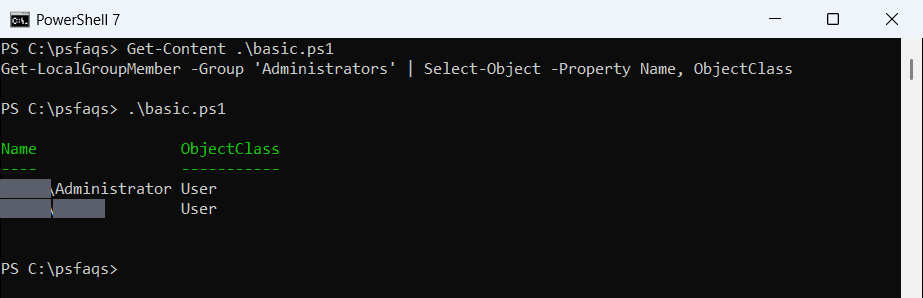
I replaced my PC and account names with DESKTOP-4T7K2QX\alice. The built-in Administrator account is there too, usually disabled.
Add PrincipalSource to see where each account comes from: Local, ActiveDirectory, AzureAD or MicrosoftAccount.
To see every account on the PC, see listing local users.
Use the SID so it works in any language
On a Spanish or German version of Windows, the group isn’t called Administrators. Its security identifier, S-1-5-32-544, is the same everywhere:
$group = Get-LocalGroup -SID 'S-1-5-32-544'
$members = Get-LocalGroupMember -SID 'S-1-5-32-544'
"Group name: $($group.Name)"
"Members:    $($members.Count)"
Output:
Group name: Administrators
Members:    2
Use -SID in scripts that run on PCs around the world. Well-known SIDs are listed in Understand security identifiers.
Use net localgroup as a fallback
Get-LocalGroupMember can fail when the group contains orphaned accounts that no longer exist. net localgroup still works, and it’s available everywhere:
net localgroup Administrators | Select-Object -Skip 6 | Where-Object { $_ -and $_ -notmatch 'completed successfully' }Output:
Administrator
alice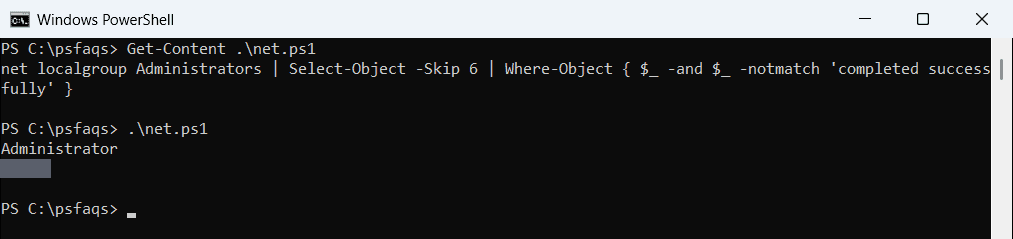
Select-Object -Skip 6 drops the header lines, and the filter removes the blank line and the success message.
Member of Administrators vs running elevated
Being in the Administrators group isn’t the same as running as administrator. With UAC, even admin accounts start PowerShell with standard rights:
$me = "$env:COMPUTERNAME\$env:USERNAME"
$isMember = (Get-LocalGroupMember -SID 'S-1-5-32-544').Name -contains $me

$principal = [Security.Principal.WindowsPrincipal][Security.Principal.WindowsIdentity]::GetCurrent()
$elevated  = $principal.IsInRole([Security.Principal.WindowsBuiltInRole]::Administrator)

"Member of Administrators: $isMember"
"Running elevated:         $elevated"
Output:
Member of Administrators: True
Running elevated:         False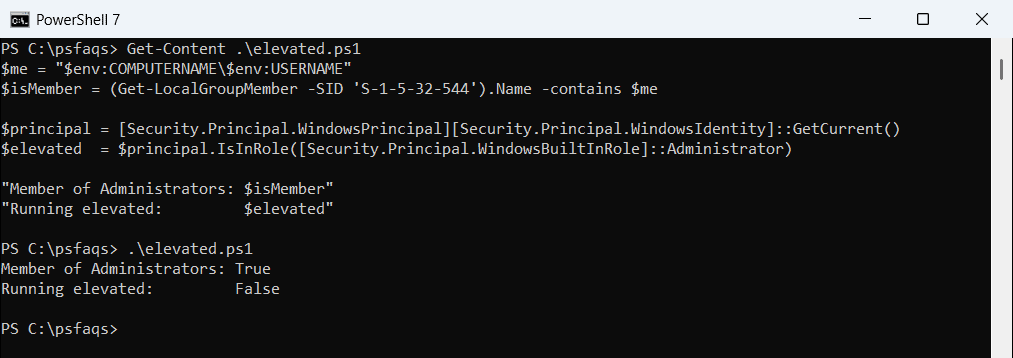
That’s why commands that change the system still need Run as administrator. Scripts should check IsInRole, as shown here, before doing admin-only work.
List local administrators on remote computers
Run the command on each PC with Invoke-Command, which needs PowerShell remoting enabled on the targets:
$computers = 'NYC-PC01', 'DAL-PC02'
Invoke-Command -ComputerName $computers -ScriptBlock {
    Get-LocalGroupMember -SID 'S-1-5-32-544' | Select-Object -Property Name, ObjectClass, PrincipalSource
} | Select-Object -Property PSComputerName, Name, ObjectClass, PrincipalSource |
    Export-Csv -Path C:\Reports\local-admins-2026-10.csv -NoTypeInformation
This gives you one CSV row per admin per PC, ready for an audit. For the users themselves, see listing local users with PowerShell.
Add or remove an administrator
Once you’ve found an account that shouldn’t be there, remove it in an elevated window:
Remove-LocalGroupMember -Group 'Administrators' -Member 'jsmith'To give someone admin rights instead, see creating a local admin account with PowerShell.
Frequently Asked Questions
How do I list local administrators with PowerShell?
Run Get-LocalGroupMember -Group 'Administrators'. It doesn’t need admin rights.
How do I list local admins on a non-English version of Windows?
Use the SID: Get-LocalGroupMember -SID 'S-1-5-32-544'. It works in every language.
Why does Get-LocalGroupMember fail with an error?
Usually because the group has an orphaned account. Use net localgroup Administrators instead, or remove the orphaned entry.
Why am I not elevated if I’m a local administrator?
UAC starts PowerShell with standard rights. Right-click PowerShell and choose Run as administrator.
How do I check local administrators on remote computers?
Use Invoke-Command with Get-LocalGroupMember in the script block, then export the results to CSV. See Microsoft’s