
To rename a Windows computer with PowerShell, open PowerShell as an administrator and run Rename-Computer -NewName with the new name. Add -Restart, because the new name only takes effect after a restart:
Rename-Computer -NewName 'SALES-NY-014' -RestartIt works the same in PowerShell 7 and Windows PowerShell 5.1. I didn’t rename my own PC for this article. Every example below either uses -WhatIf or only reads settings, and I replaced my real computer name with DESKTOP-4T7K2QX.
Check the current computer name
"Computer name: $env:COMPUTERNAME"
"DNS host name: $([System.Net.Dns]::GetHostName())"
Output:
Computer name: DESKTOP-4T7K2QX
DNS host name: DESKTOP-4T7K2QX
Write down the old name before you change it. You’ll need it to find the computer in your inventory or in Active Directory.
Preview the rename with -WhatIf
-WhatIf shows what Rename-Computer would do, without changing anything:
Rename-Computer -NewName 'SALES-NY-014' -WhatIfOutput:
What if: Performing the operation "Rename-Computer" on target "DESKTOP-4T7K2QX".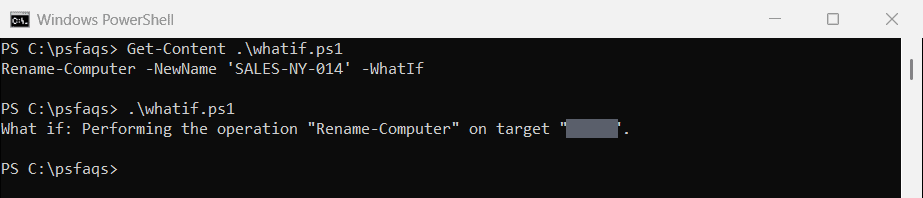
When you run it for real, Windows warns that the change takes effect after a restart. Add -Restart to reboot right away, or restart later.
Computer name rules
| Rule | Example that fails |
|---|---|
| 15 characters or fewer | ACCOUNTING-LAPTOP-07 |
| Letters, numbers and hyphens only | HR_PC01, SALES.NY |
| Not all numbers | 20260928 |
| Doesn’t start or end with a hyphen | DEV- |
The Rename-Computer help mentions 63 characters, which is the DNS limit. Windows itself allows only 15, as Microsoft’s naming conventions article explains. I check names with a small function before renaming:
function Test-ComputerName {
    param([Parameter(Mandatory)] [string]$Name)

    if ($Name.Length -gt 15)              { return 'too long (15 characters max)' }
    if ($Name -notmatch '^[A-Za-z0-9-]+$') { return 'only letters, numbers and hyphens' }
    if ($Name -match '^\d+$')             { return "can't be all numbers" }
    if ($Name -match '^-|-$')             { return "can't start or end with a hyphen" }
    'OK'
}

foreach ($name in 'SALES-NY-014', 'ACCOUNTING-LAPTOP-07', 'HR_PC01', '20260928', 'DEV-') {
    '{0,-21} {1}' -f $name, (Test-ComputerName -Name $name)
}
Output:
SALES-NY-014          OK
ACCOUNTING-LAPTOP-07  too long (15 characters max)
HR_PC01               only letters, numbers and hyphens
20260928              can't be all numbers
DEV-                  can't start or end with a hyphen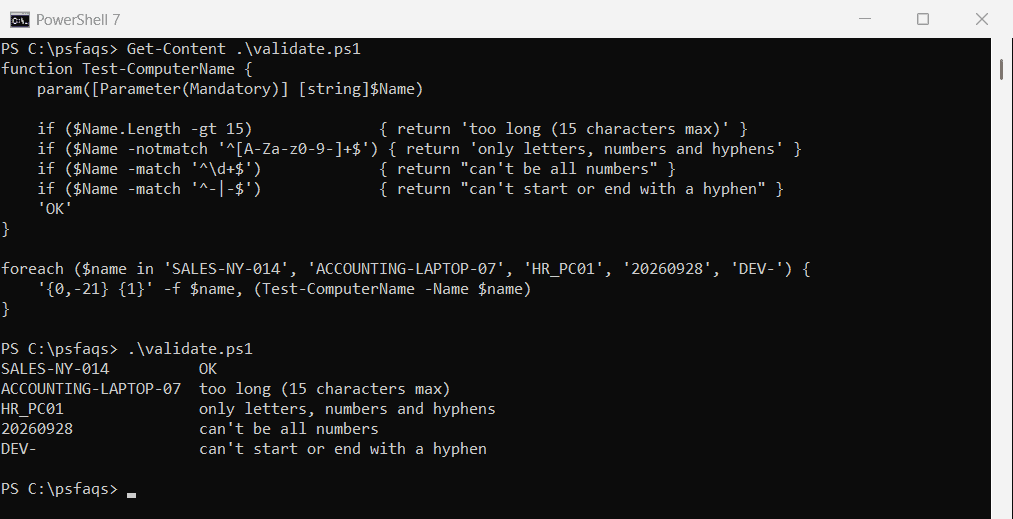
Rename a domain-joined computer
For a computer in an Active Directory domain, pass an account that’s allowed to rename computers in the domain. You’ll be asked for its password:
Rename-Computer -NewName 'SALES-NY-014' -DomainCredential CONTOSO\it-admin -RestartThis renames the computer account in Active Directory too, so the PC keeps its trust with the domain.
Rename a remote computer
Use -ComputerName for the current name of the remote PC. According to the Rename-Computer documentation, this doesn’t need PowerShell remoting to be set up:
Rename-Computer -ComputerName 'DESKTOP-8H2K1LM' -NewName 'SALES-NY-014' `
    -DomainCredential CONTOSO\it-admin -Force -Restart
-Force skips the confirmation prompt. Only use it when you’ve checked the names, because a wrong rename means another restart.
Rename several computers from a CSV file
Rename-Computer handles one computer per command, so loop over a list. Check each new name first, and only rename the ones that pass:
function Test-ComputerName {
    param([Parameter(Mandatory)] [string]$Name)

    if ($Name.Length -gt 15)              { return 'too long (15 characters max)' }
    if ($Name -notmatch '^[A-Za-z0-9-]+$') { return 'only letters, numbers and hyphens' }
    if ($Name -match '^\d+$')             { return "can't be all numbers" }
    if ($Name -match '^-|-$')             { return "can't start or end with a hyphen" }
    'OK'
}

$plan = @'
OldName,NewName
DESKTOP-8H2K1LM,SALES-NY-014
DESKTOP-3P9QW2Z,SALES-NY-015
LAPTOP-OLD7,ACCOUNTING-LAPTOP-07
'@ | ConvertFrom-Csv

foreach ($pc in $plan) {
    $check = Test-ComputerName -Name $pc.NewName
    if ($check -eq 'OK') { "Ready:   $($pc.OldName) -> $($pc.NewName)" }
    else                 { "Skipped: $($pc.OldName) -> $($pc.NewName) ($check)" }
}
Output:
Ready:   DESKTOP-8H2K1LM -> SALES-NY-014
Ready:   DESKTOP-3P9QW2Z -> SALES-NY-015
Skipped: LAPTOP-OLD7 -> ACCOUNTING-LAPTOP-07 (too long (15 characters max))
When the plan looks right, add the rename inside the if block:
Rename-Computer -ComputerName $pc.OldName -NewName $pc.NewName -DomainCredential $cred -Force -RestartGet the credential once, before the loop, with $cred = Get-Credential. Looping through a CSV file has more on reading the list from a file.
How do I know if a rename is waiting for a restart?
Windows keeps the current name and the name it will use after the next restart in two registry keys. If they differ, a restart is pending:
$key = 'HKLM:\SYSTEM\CurrentControlSet\Control\ComputerName'
$active  = (Get-ItemProperty -Path "$key\ActiveComputerName").ComputerName
$pending = (Get-ItemProperty -Path "$key\ComputerName").ComputerName

"Current name:       $active"
"Name after restart: $pending"
"Restart needed:     $($active -ne $pending)"
Output:
Current name:       DESKTOP-4T7K2QX
Name after restart: DESKTOP-4T7K2QX
Restart needed:     False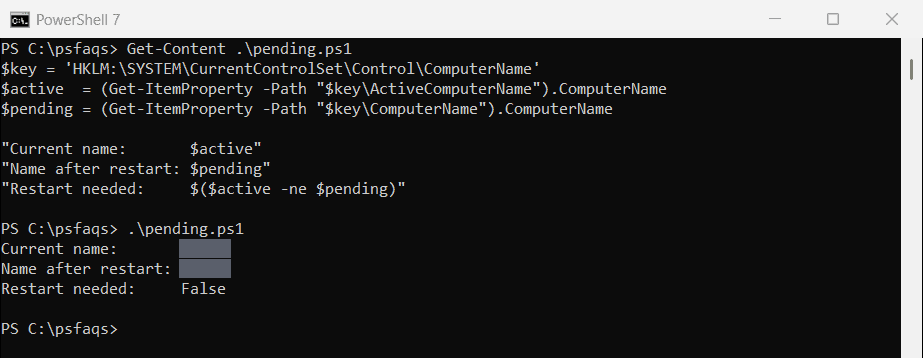
Right after a rename, the second line shows the new name and the last line says True.
Frequently Asked Questions
How do I rename a computer with PowerShell?
Run Rename-Computer -NewName 'NEW-NAME' -Restart in PowerShell as an administrator. The new name takes effect after the restart.
How do I rename a remote computer with PowerShell?
Use Rename-Computer -ComputerName OLD-NAME -NewName NEW-NAME -DomainCredential CONTOSO\admin -Restart. It doesn’t need PowerShell remoting.
How long can a Windows computer name be?
15 characters. Use letters, numbers and hyphens, and don’t use a name made only of numbers.
Do I need to restart after Rename-Computer?
Yes. The new name is used after the next restart. Add -Restart to reboot right away.
Does Rename-Computer work in PowerShell 7?
Yes, on Windows. It works the same as in Windows PowerShell 5.1, which also has an extra -Protocol parameter.
Other Windows admin tasks you can script the same way:

Bijay Kumar is an esteemed author and the mind behind PowerShellFAQs.com, where he shares his extensive knowledge and expertise in PowerShell, with a particular focus on SharePoint projects. Recognized for his contributions to the tech community, Bijay has been honored with the prestigious Microsoft MVP award. With over 15 years of experience in the software industry, he has a rich professional background, having worked with industry giants such as HP and TCS. His insights and guidance have made him a respected figure in the world of software development and administration. Read more.