
To list USB devices using PowerShell, run Get-PnpDevice and keep the devices whose InstanceId starts with USB. -PresentOnly limits the list to what’s plugged in right now:
Get-PnpDevice -PresentOnly | Where-Object InstanceId -like 'USB*' |
    Select-Object -Property Class, FriendlyName, Status
Below I group devices by type, list USB hubs, find USB drives, and show where Windows keeps a history of devices. I only show device classes and generic names from my PC, because device names and IDs can identify hardware.
List connected USB devices by type
Grouping by Class gives a quick overview of what’s on the USB bus:
$usb = Get-PnpDevice -PresentOnly | Where-Object InstanceId -like 'USB*'

"Connected USB devices: $(@($usb).Count)"
$usb | Group-Object -Property Class | Sort-Object -Property @{ Expression = "Count"; Descending = $true }, Name |
    ForEach-Object { '  {0,-10} {1}' -f $_.Name, $_.Count }
Output:
Connected USB devices: 8
  USB        4
  Biometric  1
  Bluetooth  1
  Camera     1
  HIDClass   1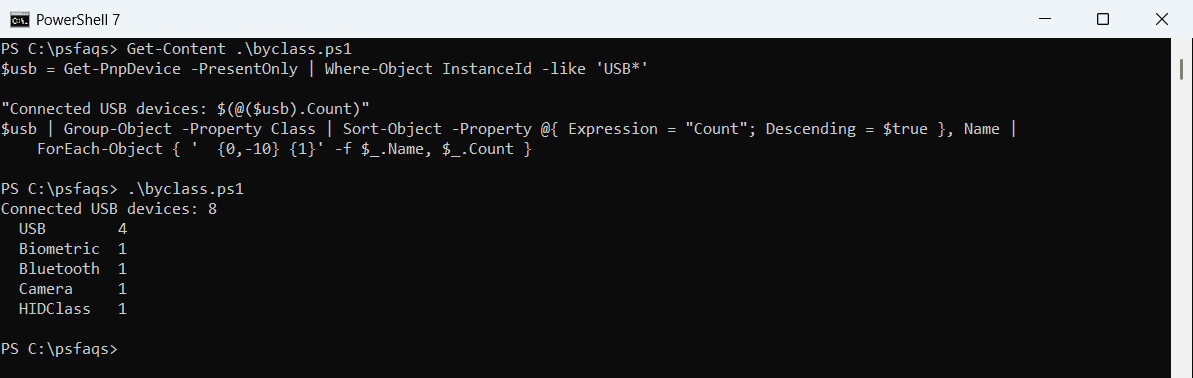
Laptops connect many built-in parts over USB, such as the camera, fingerprint reader and Bluetooth radio. That’s why you see them even with nothing plugged in.
For USB drives with drive letters, see listing drives in PowerShell.
List USB hubs and composite devices
The USB class holds hubs and composite devices. Filtering on USB\ instance IDs skips the PCI host controllers:
Get-PnpDevice -Class USB -PresentOnly |
    Where-Object InstanceId -like 'USB\*' |
    Sort-Object -Property FriendlyName |
    ForEach-Object { '{0,-26} {1}' -f $_.FriendlyName, $_.Status }
Output:
USB Composite Device       OK
USB Composite Device       OK
USB Root Hub (USB 3.0)     OK
USB Root Hub (USB 3.0)     OK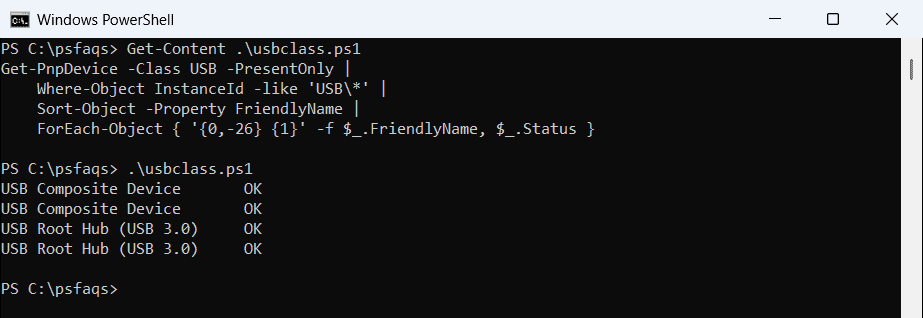
Status OK means the driver is working. Error or Unknown points to a driver problem.
Find USB flash drives and external disks
Storage devices show up in Get-Disk with a BusType of USB, along with their size:
$usbDisks = Get-Disk | Where-Object BusType -eq 'USB'
"USB drives connected: $(@($usbDisks).Count)"
$usbDisks | ForEach-Object { '  Disk {0}: {1:N1} GB' -f $_.Number, ($_.Size / 1GB) }
Output:
USB drives connected: 0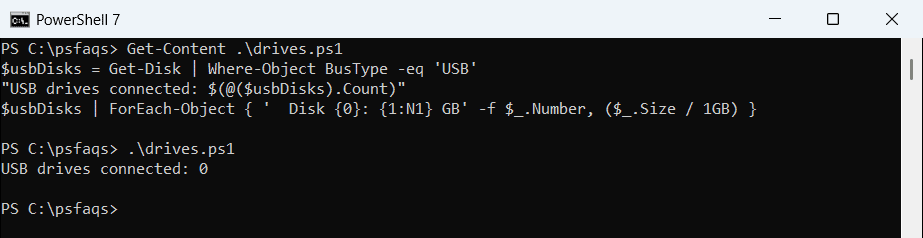
Plug in a drive and run it again to see its disk number and size. The Get-Disk reference lists the other properties, such as FriendlyName and HealthStatus.
To see the drive letters they get, see listing drives in PowerShell.
Include devices that were connected before
Drop -PresentOnly to include devices Windows remembers but that aren’t connected now:
Get-PnpDevice | Where-Object { $_.InstanceId -like 'USB*' -and $_.Status -eq 'Unknown' } |
    Select-Object -Property Class, FriendlyName
Status Unknown usually means the device isn’t plugged in. For USB storage specifically, Windows also records past drives under HKLM:\SYSTEM\CurrentControlSet\Enum\USBSTOR.
Be careful with InstanceId
InstanceId often contains the device’s serial number. That’s useful for tracking a specific drive, but remove it before you share a report.
List USB devices on a remote computer
Get-PnpDevice accepts a CIM session, so the same filter works on another PC with admin rights and WinRM:
$session = New-CimSession -ComputerName PC-SALES-07
Get-PnpDevice -CimSession $session -PresentOnly | Where-Object InstanceId -like 'USB*' |
    Select-Object -Property Class, FriendlyName, Status
Remove-CimSession -CimSession $session
Enabling WinRM covers the setup if the session fails.
Frequently Asked Questions
How do I list USB devices in PowerShell?
Run Get-PnpDevice -PresentOnly | Where-Object InstanceId -like 'USB*'. It lists every connected USB device.
How do I list USB drives with PowerShell?
Run Get-Disk | Where-Object BusType -eq 'USB'. It shows each USB disk with its number and size.
How do I see USB devices that were connected before?
Run Get-PnpDevice without -PresentOnly. Devices that aren’t connected show a status of Unknown.
Why do I see USB devices when nothing is plugged in?
Built-in parts like webcams, fingerprint readers and Bluetooth often connect over internal USB.
Does Get-PnpDevice need admin rights?
No, listing devices works in a normal window. Enabling or disabling devices needs admin rights. See Microsoft’s Get-PnpDevice reference.
Related hardware checks: