
To list drives in PowerShell, run Get-PSDrive -PSProvider FileSystem. It returns every disk drive letter PowerShell can see, including mapped network drives, with used and free space. For volume details such as file system and health, use Get-Volume:
Get-PSDrive -PSProvider FileSystem
Get-Volume
Below you’ll learn how to list drives in PowerShell five ways: Get-PSDrive, Get-Volume, Win32_LogicalDisk, the .NET DriveInfo class, and Get-Disk for the physical disks underneath. I’ll also cover mapped drives, remote computers, and a CSV export.
My test PC has a single C: drive, so the outputs are short. Yours will show every drive you have.
How to list all drives with Get-PSDrive
Get-PSDrive lists every drive in the current session. That’s more than disks: PowerShell providers expose the registry, certificates, environment variables, and more as drives too. I’ve shortened the Provider column:
Get-PSDrive | Sort-Object Name |
    Format-Table Name, @{ Label = 'Provider'; Expression = { $_.Provider.Name } } -AutoSize
Output (PowerShell 7):
Name     Provider
----     --------
Alias    Alias
C        FileSystem
Cert     Certificate
Env      Environment
Function Function
HKCU     Registry
HKLM     Registry
Temp     FileSystem
Variable Variable
WSMan    WSMan
Windows PowerShell 5.1 printed the same list minus one entry:
Name     Provider
----     --------
Alias    Alias
C        FileSystem
Cert     Certificate
Env      Environment
Function Function
HKCU     Registry
HKLM     Registry
Variable Variable
WSMan    WSMan
The missing drive is Temp. Microsoft added the Temp: drive in PowerShell 7.0, and it points to your user’s temp folder, the same path as $Env:TEMP. Custom columns like this one are explained in the PowerShell Format-Table guide.
The short alias for Get-PSDrive is gdr. Since Windows PowerShell 3.0, a USB stick you plug in shows up as a new drive without restarting the session.
List only disk drives (FileSystem provider)
To drop the registry and other provider drives, filter by the FileSystem provider. The Used and Free properties are in bytes, so I divide by 1GB and round:
Get-PSDrive -PSProvider FileSystem |
    Format-Table Name,
        @{ Label = 'Used (GB)'; Expression = { [math]::Round($_.Used / 1GB, 1) } },
        @{ Label = 'Free (GB)'; Expression = { [math]::Round($_.Free / 1GB, 1) } } -AutoSize
Output (PowerShell 7):
Name Used (GB) Free (GB)
---- --------- ---------
C      586.400   366.200
Temp   586.400   366.200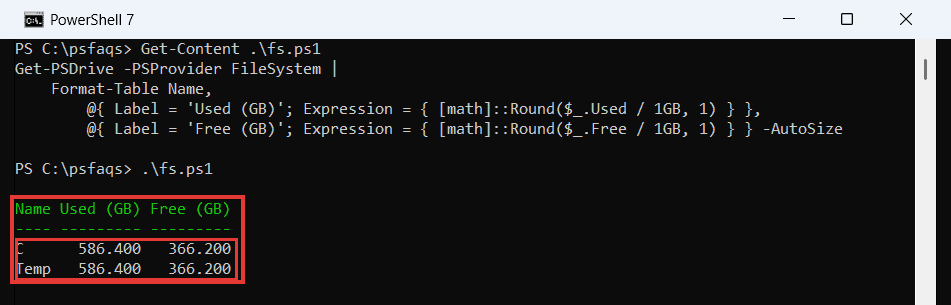
PowerShell 7 lists Temp with the same numbers as C, because the temp folder lives on C. Windows PowerShell 5.1 shows just the C drive:
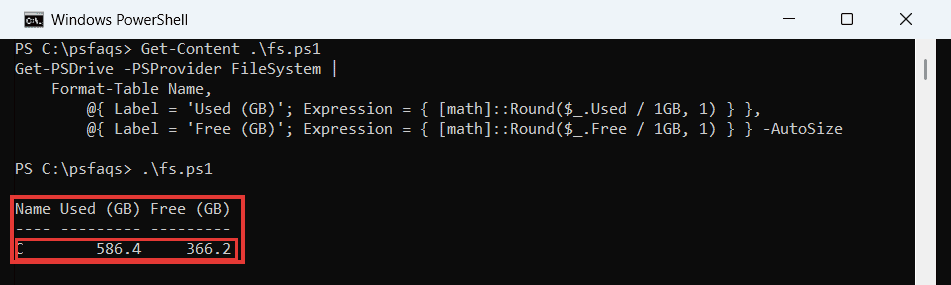
Look at the numbers, too. In my PowerShell 7.6 run, Format-Table padded the rounded values with trailing zeros (586.400), while 5.1 printed them as-is (586.4). The values are the same; only the display differs.
The guide to rounding numbers in PowerShell covers [math]::Round and format strings if you want identical output in both shells.
The property types also changed. Used is a signed Int64 in PowerShell 7 but an unsigned UInt64 in 5.1:
(Get-PSDrive -Name C).Used.GetType().NameOutput (PowerShell 7):
Int64Windows PowerShell 5.1 returned UInt64 for the same line. That can trip a strict type check in a shared script.
Check if a drive letter exists
Pass a letter without the colon to -Name. Add -ErrorAction SilentlyContinue so a missing drive returns nothing instead of an error, which makes it a clean if test:
foreach ($letter in 'C', 'Z') {
    if (Get-PSDrive -Name $letter -ErrorAction SilentlyContinue) {
        "$($letter): is in use"
    }
    else {
        "$($letter): is free"
    }
}
Output:
C: is in use
Z: is free
This is handy before you map a drive to a letter. For checking folders and files rather than drive letters, Test-Path in PowerShell is the better tool.
Show drive details with Get-Volume
Get-Volume comes from the Windows Storage module. It worked in both shells without admin rights on my PC, and it shows the file system, drive type, and health of every volume:
Get-Volume | Sort-Object DriveLetter |
    Format-Table DriveLetter, FileSystemLabel, FileSystem, DriveType, HealthStatus,
        @{ Label = 'Size (GB)'; Expression = { '{0:N1}' -f ($_.Size / 1GB) } } -AutoSize
Output:
DriveLetter FileSystemLabel FileSystem DriveType HealthStatus Size (GB)
----------- --------------- ---------- --------- ------------ ---------
                            NTFS       Fixed     Healthy      1.0
C           Windows         NTFS       Fixed     Healthy      952.6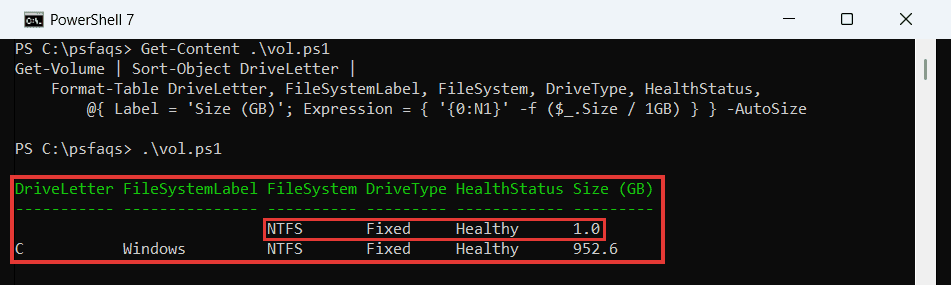
Notice the first row. It’s the Windows recovery volume, and it has no drive letter. Get-PSDrive and Win32_LogicalDisk skip volumes like that, but Get-Volume shows them. To count those volumes or look up one letter:
$noLetter = @(Get-Volume | Where-Object { -not $_.DriveLetter })
"Volumes without a drive letter: $($noLetter.Count)"
Get-Volume -DriveLetter C | Select-Object DriveLetter, FileSystemType, HealthStatus
Output:
Volumes without a drive letter: 1

DriveLetter FileSystemType HealthStatus
----------- -------------- ------------