
To list all environment variables in PowerShell, run Get-ChildItem on the Env: drive. Sorting by name makes the list easy to scan:
Get-ChildItem -Path Env: | Sort-Object -Property NameBelow I show how to read the output, pick out single variables, filter with wildcards, compare the Process, User and Machine scopes, and split PATH into readable lines. I tested it all in PowerShell 7.6 and 5.1.
List all environment variables
Env: is a PowerShell drive, like C:, that holds every environment variable in your session. Each item has a Name and a Value:
$all = Get-ChildItem -Path Env:
"Environment variables in this session: $($all.Count)"
"First item is a $($all[0].GetType().Name) with Name and Value"
Output:
Environment variables in this session: 97
First item is a DictionaryEntry with Name and Value
Your full list shows your username, PC name and profile paths, so be careful before you paste it into a forum or ticket. The aliases dir env: and ls env: give the same list.
Show specific variables
Pass one or more names after Env: to see just those variables:
Get-ChildItem -Path Env:OS, Env:PATHEXT, Env:NUMBER_OF_PROCESSORS, Env:PROCESSOR_ARCHITECTURE |
    Format-Table -Property Name, Value -AutoSize
Output:
Name                   Value
----                   -----
OS                     Windows_NT
PATHEXT                .COM;.EXE;.BAT;.CMD;.VBS;.VBE;.JS;.JSE;.WSF;.WSH;.MSC;.CPL
NUMBER_OF_PROCESSORS   16
PROCESSOR_ARCHITECTURE AMD64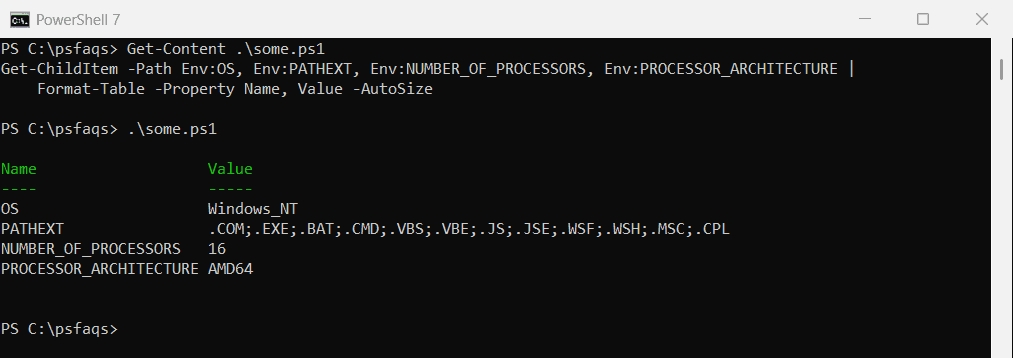
For a single value, $env:OS is shorter. Setting and getting environment variables covers the $env: syntax in detail.
Filter environment variables with wildcards
Env: supports wildcards, so you can list a group of related variables. Here I create three for this session only, then list them:
$env:PSFAQS_REPORT = 'Q3-Sales-2026'
$env:PSFAQS_REGION = 'West'
$env:PSFAQS_OWNER = 'finance-team'

Get-ChildItem -Path Env:PSFAQS_* | Sort-Object -Property Name | Format-Table -AutoSize
Output:
Name          Value
----          -----
PSFAQS_OWNER  finance-team
PSFAQS_REGION West
PSFAQS_REPORT Q3-Sales-2026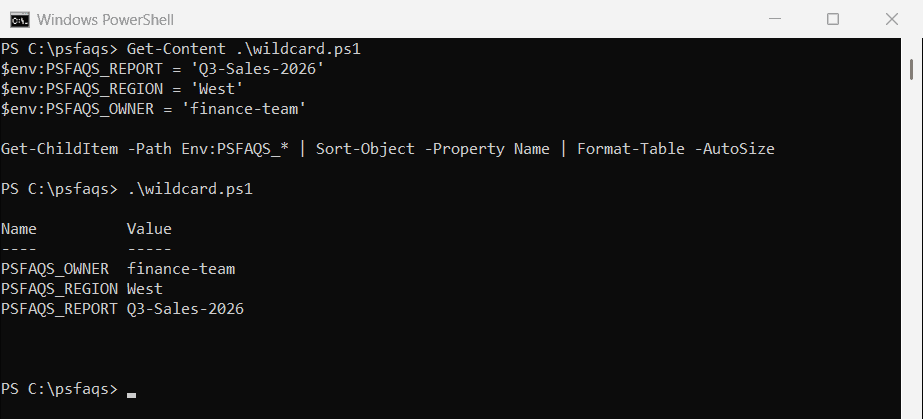
To search values instead of names, use Where-Object: Get-ChildItem Env: | Where-Object Value -like '*Java*'.
List variables by scope: Process, User and Machine
Env: shows the Process scope, which combines the Machine and User variables plus anything your session added. The .NET Environment class reads each scope separately:
foreach ($scope in 'Process', 'User', 'Machine') {
    $vars = [Environment]::GetEnvironmentVariables($scope)
    '{0,-8} {1,3} variables' -f $scope, $vars.Count
}
Output:
Process   97 variables
User       6 variables
Machine   21 variables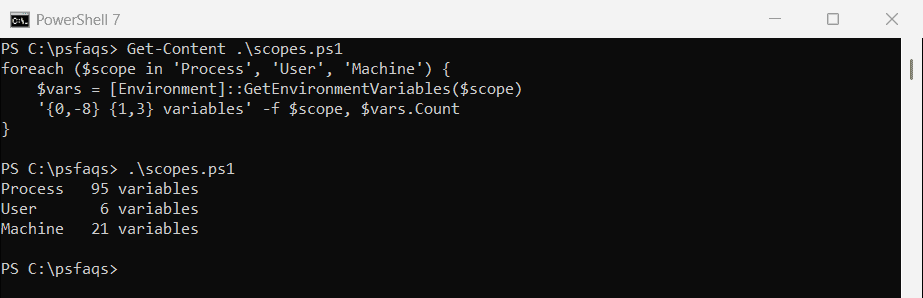
List one scope’s names with [Environment]::GetEnvironmentVariables('User').Keys.
List the PATH variable one folder per line
PATH is one long string separated by semicolons. Split it to read it, and filter it to find specific folders:
$entries = $env:Path -split ';' | Where-Object { $_ }
"PATH has $($entries.Count) folders. The Windows ones:"
$entries | Where-Object { $_ -like "$env:windir*" }
Output:
PATH has 32 folders. The Windows ones:
C:\WINDOWS\system32
C:\WINDOWS
C:\WINDOWS\System32\Wbem
C:\WINDOWS\System32\WindowsPowerShell\v1.0
C:\WINDOWS\System32\OpenSSH
A missing Windows folder here explains many “is not recognized as the name of a cmdlet” errors for built-in tools.
Export environment variables to a file
To compare two PCs or save a snapshot, export the list to CSV:
Get-ChildItem -Path Env: | Sort-Object Name |
    Select-Object Name, Value |
    Export-Csv -Path C:\Reports\env-vars.csv -NoTypeInformation
Review the file before you share it, since it includes account and path details. In Command Prompt, the set command lists the same variables.
Frequently Asked Questions
How do I list all environment variables in PowerShell?
Run Get-ChildItem -Path Env:. Add | Sort-Object Name to sort them alphabetically.
How do I show the value of one environment variable?
Use $env:NAME, for example $env:OS, or Get-ChildItem Env:OS.
How do I list only user or system environment variables?
Run [Environment]::GetEnvironmentVariables('User') or [Environment]::GetEnvironmentVariables('Machine').
How do I search environment variables by value?
Pipe to Where-Object: Get-ChildItem Env: | Where-Object Value -like '*text*'.
What is the PowerShell equivalent of the set command?
Get-ChildItem Env: lists the same variables that set shows in Command Prompt. See Microsoft’s