
To check if a registry key exists in PowerShell, pass the key’s path to Test-Path. It returns True when the key is there and False when it isn’t, so you can create the key only when the check fails:
$key = 'HKCU:\Software\Contoso'
Test-Path -Path $key        # True or False
if (-not (Test-Path -Path $key)) {
    New-Item -Path $key -Force | Out-Null
}
Keep -Force inside the if block, because on a key that already exists New-Item -Force quietly empties it. I tested all of this in PowerShell 7 and Windows PowerShell 5.1 against a throwaway HKCU key and read-only HKLM paths.
Check if a registry key exists with Test-Path
PowerShell maps the registry to drives, so HKLM: and HKCU: keys behave like folders and the Test-Path cmdlet can check them. Here I checked two HKLM keys and one HKCU key in a loop:
$keys = 'HKLM:\SOFTWARE\Microsoft\Windows\CurrentVersion',
        'HKLM:\SOFTWARE\Contoso',
        'HKCU:\Software\PSFAQsDemo\Contoso'
foreach ($key in $keys) {
    if (Test-Path -Path $key) { "Found:   $key" }
    else { "Missing: $key" }
}
Output:
Found:   HKLM:\SOFTWARE\Microsoft\Windows\CurrentVersion
Missing: HKLM:\SOFTWARE\Contoso
Found:   HKCU:\Software\PSFAQsDemo\Contoso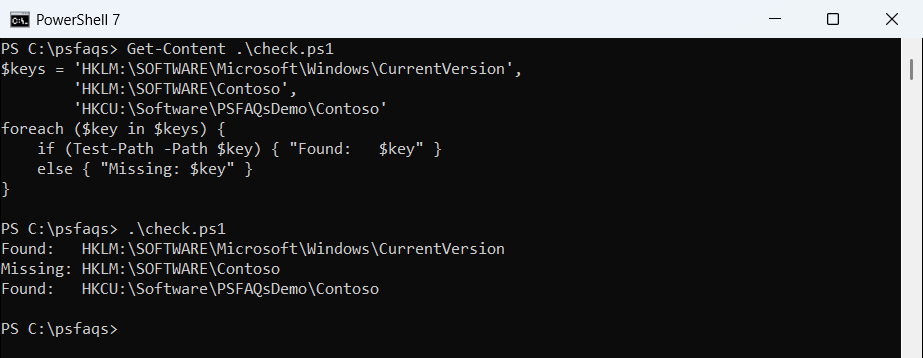
Test-Path returns a plain Boolean, which is why it drops straight into an if/else statement. I ran this from a standard account, so reading and checking HKLM keys doesn’t need an elevated session.
Test-Path options for registry paths: Registry::, -PathType and wildcards
You don’t have to use the drive names. The Registry:: prefix takes the full hive name, which helps for hives without a drive, like HKEY_USERS. -PathType Container confirms the path is a key:
$key = 'HKCU:\Software\PSFAQsDemo\Contoso'
$full = 'Registry::HKEY_CURRENT_USER\Software\PSFAQsDemo\Contoso'
"Drive path:        $(Test-Path -Path $key)"
"Registry:: path:   $(Test-Path -Path $full)"
"-PathType Container: $(Test-Path -Path $key -PathType Container)"
"-PathType Leaf:      $(Test-Path -Path $key -PathType Leaf)"
"-Path Cont*:         $(Test-Path -Path 'HKCU:\Software\PSFAQsDemo\Cont*')"
"-LiteralPath Cont*:  $(Test-Path -LiteralPath 'HKCU:\Software\PSFAQsDemo\Cont*')"
Output:
Drive path:        True
Registry:: path:   True
-PathType Container: True
-PathType Leaf:      False
-Path Cont*:         True
-LiteralPath Cont*:  False
Watch the last two lines. -Path treats * and [ ] as wildcards, so ‘Cont*’ returned True even though no key has that exact name. Use -LiteralPath when the key name comes from user input.
Other ways to check a registry key: Get-Item, try/catch, reg query
Test-Path is the shortest check, but you’ll meet these other patterns in older scripts. All four agree that the Missing key isn’t there:
$key = 'HKCU:\Software\PSFAQsDemo\Missing'
$item = Get-Item -Path $key -ErrorAction SilentlyContinue
"Get-Item returned null:  $($null -eq $item)"
try   { Get-Item -Path $key -ErrorAction Stop | Out-Null }
catch { "try/catch: Failed. $($_.Exception.Message)" }
reg.exe query 'HKCU\Software\PSFAQsDemo\Missing' *> $null
"reg query exit code:     $LASTEXITCODE"
$cu = [Microsoft.Win32.Registry]::CurrentUser
$rk = $cu.OpenSubKey('Software\PSFAQsDemo\Missing')
"OpenSubKey is null:      $($null -eq $rk)"
Output:
Get-Item returned null:  True
try/catch: Failed. Cannot find path 'HKCU:\Software\PSFAQsDemo\Missing' because it does not exist.
reg query exit code:     1
OpenSubKey is null:      True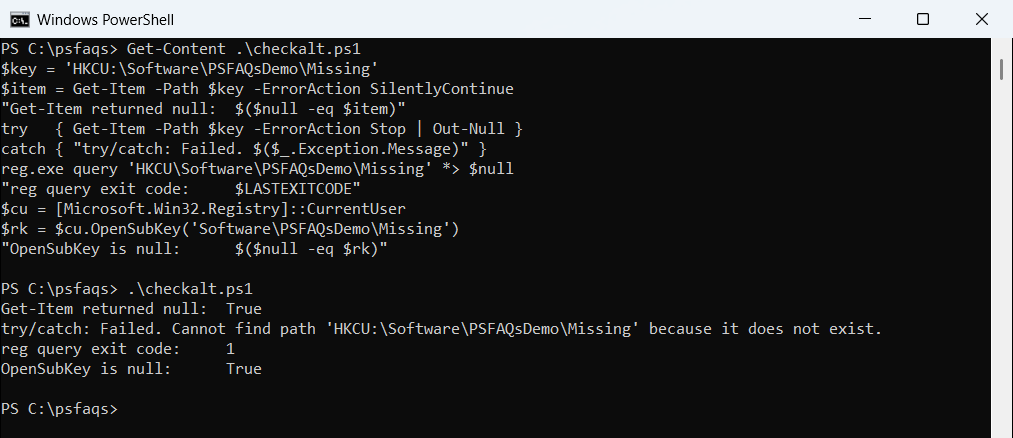
Get-Item with -ErrorAction Stop throws an ItemNotFoundException, which a catch block or the $Error variable can pick up. Use that when you want the reason, not just True or False.
reg.exe query sets $LASTEXITCODE to 0 when the key exists and 1 when it doesn’t. OpenSubKey returns $null for a missing key and doesn’t throw, which suits .NET-heavy code.
How do I check if a registry value exists?
Test-Path only works on keys. Point it at a value and it returns False even when the value is there, so ask the key for its value names instead:
$key = 'HKCU:\Software\PSFAQsDemo\Contoso'
"Test-Path on the value:  $(Test-Path -Path "$key\Port")"
$names = (Get-Item -Path $key).GetValueNames()
"Port value exists:       $($names -contains 'Port')"
"Timeout value exists:    $($names -contains 'Timeout')"
$t = Get-ItemProperty -Path $key -Name Timeout -ErrorAction SilentlyContinue
"Get-ItemProperty found:  $($null -ne $t)"
try   { Get-ItemPropertyValue -Path $key -Name Timeout -ErrorAction Stop }
catch { "Failed. $($_.Exception.Message)" }
Output:
Test-Path on the value:  False
Port value exists:       True
Timeout value exists:    False
Get-ItemProperty found:  False
Failed. Property Timeout does not exist at path HKEY_CURRENT_USER\Software\PSFAQsDemo\Contoso.
GetValueNames() with the -contains operator is the cleanest test, and it ignores case like the registry does. Get-ItemProperty with -ErrorAction SilentlyContinue also returns nothing for a missing value.
Get-ItemProperty