
To get Windows event logs using PowerShell, run Get-WinEvent with the log name. This returns the 20 newest events from the System log:
Get-WinEvent -LogName System -MaxEvents 20For anything bigger, filter with -FilterHashtable so Windows does the filtering before PowerShell sees the events. Below I cover listing logs, filtering by ID, level and date, the Security log, exporting and remote PCs.
Event messages can contain user names and app details, so on my own PC I only show counts and built-in messages. The time-based commands are shown as code.
List the available event logs
Windows has hundreds of logs. -ListLog shows them with their size and number of records. Pass * for all of them, or name the ones you want:
Get-WinEvent -ListLog 'Application', 'System', 'Setup' |
    Select-Object -Property LogName, RecordCount, IsEnabled
Output:
LogName     RecordCount IsEnabled
-------     ----------- ---------
Application       52948      True
System            36269      True
Setup              2398      True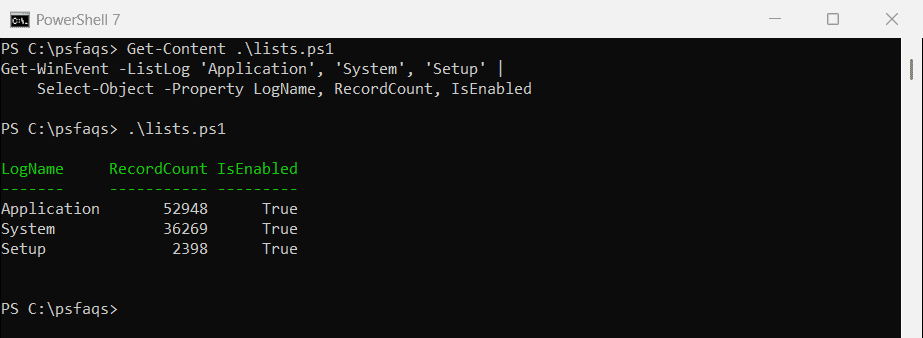
Logs such as Microsoft-Windows-PowerShell/Operational live under Applications and Services Logs in Event Viewer. Find them with Get-WinEvent -ListLog *PowerShell*.
A common use of these logs is tracking user login history.
Filter events by ID
A FilterHashtable is the fastest way to query. Event 6005 means the Event Log service started, which happens at every boot:
Get-WinEvent -FilterHashtable @{ LogName = 'System'; Id = 6005 } -MaxEvents 1 |
    Format-List -Property Id, ProviderName, LevelDisplayName, Message
Output:
Id               : 6005
ProviderName     : EventLog
LevelDisplayName : Information
Message          : The Event log service was started.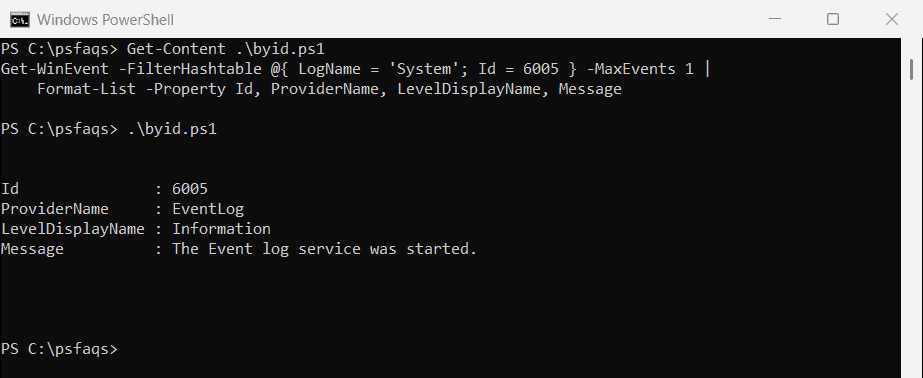
Pass several IDs as a list, such as Id = 6005, 6006. To count boots, wrap the query in @() and read .Count. For shutdown and restart times, see getting the last reboot time.
Filter by level and date
Level 1 is Critical, 2 Error, 3 Warning and 4 Information. This counts the errors and warnings in the System log over the last seven days:
$filter = @{
    LogName   = 'System'
    Level     = 2, 3          # 2 = Error, 3 = Warning
    StartTime = (Get-Date).AddDays(-7)
}
Get-WinEvent -FilterHashtable $filter |
    Group-Object -Property LevelDisplayName -NoElement |
    Sort-Object -Property Name
Output:
Count Name
----- ----
   47 Error
  155 Warning
To see the events themselves, select the useful columns. EndTime limits the range at the other end:
$filter = @{
    LogName   = 'Application'
    Level     = 2
    StartTime = Get-Date -Date '2026-10-01'
    EndTime   = Get-Date -Date '2026-10-04'
}
Get-WinEvent -FilterHashtable $filter |
    Select-Object -Property TimeCreated, Id, ProviderName, Message
If nothing matches, Get-WinEvent writes a No events were found error, so add -ErrorAction SilentlyContinue in scripts.
Read the Security log
Sign-ins, lockouts and audit events go to the Security log, and only administrators can read it. From a normal window you get this:
try { Get-WinEvent -LogName 'Security' -MaxEvents 5 -ErrorAction Stop }
catch { "Failed. $($_.Exception.Message)" }
Output:
Failed. Attempted to perform an unauthorized operation.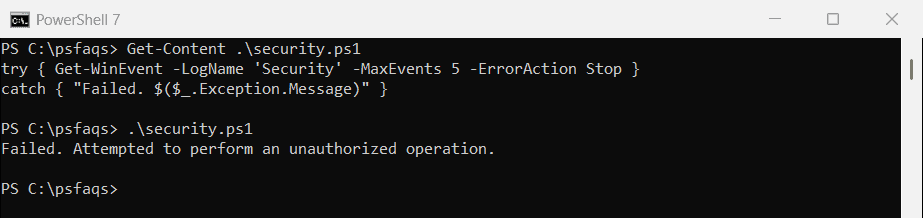
In an elevated window, event 4624 lists successful sign-ins:
Get-WinEvent -FilterHashtable @{ LogName = 'Security'; Id = 4624 } -MaxEvents 10 |
    Select-Object -Property TimeCreated, Id, Message
For a full report of who signed in and when, see tracking user login history with PowerShell.
Export events to CSV
Select the columns first, because the full event objects have dozens of properties:
Get-WinEvent -FilterHashtable @{ LogName = 'System'; Level = 2 } -MaxEvents 500 |
    Select-Object -Property TimeCreated, Id, ProviderName, Message |
    Export-Csv -Path C:\Reports\system-errors-2026-10.csv -NoTypeInformation
Open the file in Excel or bring it back with Import-Csv. See PowerShell Export-Csv for more options.
Get events from a remote computer
Get-WinEvent has a -ComputerName parameter. It uses the Event Log service on the remote PC, not PowerShell remoting:
Get-WinEvent -ComputerName 'NYC-SRV01' -FilterHashtable @{ LogName = 'System'; Level = 2 } -MaxEvents 20The firewall on the remote PC must allow Remote Event Log Management.
Get-EventLog vs Get-WinEvent
Older guides use Get-EventLog. It’s a Windows PowerShell 5.1 cmdlet that only reads the classic logs, such as Application and System. In PowerShell 7 it still runs, but through a compatibility layer:
(Get-Command -Name Get-EventLog).CommandTypeOutput:
FunctionPowerShell 7 returns Function because it calls a proxy that runs Get-EventLog in a hidden Windows PowerShell 5.1 session, while 5.1 returns Cmdlet. Microsoft explains this in about_Windows_PowerShell_Compatibility. Use Get-WinEvent in new scripts.
Frequently Asked Questions
How do I get event logs in PowerShell?
Run Get-WinEvent -LogName System -MaxEvents 20, or filter with -FilterHashtable for specific IDs, levels or dates.
How do I filter event logs by event ID?
Use Get-WinEvent -FilterHashtable @{ LogName = 'System'; Id = 6005 }. Pass several IDs as a comma-separated list.