
To enable WinRM using PowerShell, run Enable-PSRemoting in an elevated window. It starts the WinRM service, sets it to start automatically, creates a listener and opens the firewall:
Enable-PSRemoting -ForceBefore you run it, check the current state and the two things that usually make it fail: a Public network and missing firewall rules. I ran these read-only checks in PowerShell 7.6 and 5.1 on a Windows 11 PC where WinRM is still off.
Check the WinRM service
On Windows 10 and 11, WinRM is installed but not running. Get-Service shows its state:
Get-Service -Name WinRM | ForEach-Object {
    "WinRM service: $($_.Status), start type $($_.StartType)"
}
Output:
WinRM service: Stopped, start type Manual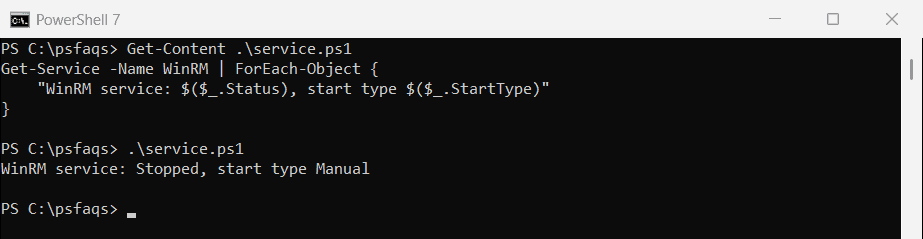
Windows Server has remoting turned on by default, so you’ll usually see Running and Automatic there.
Test whether WinRM answers
Test-WSMan sends a WS-Management request. When WinRM is off, it fails with the same error remote commands show:
try {
    Test-WSMan -ComputerName localhost -ErrorAction Stop | Out-Null
    'WinRM is answering on this PC'
}
catch {
    $message = [regex]::Match($_.Exception.Message, '<f:Message>([^.]+\.)').Groups[1].Value
    "Test-WSMan: Failed. $message"
}
Output:
Test-WSMan: Failed. The client cannot connect to the destination specified in the request.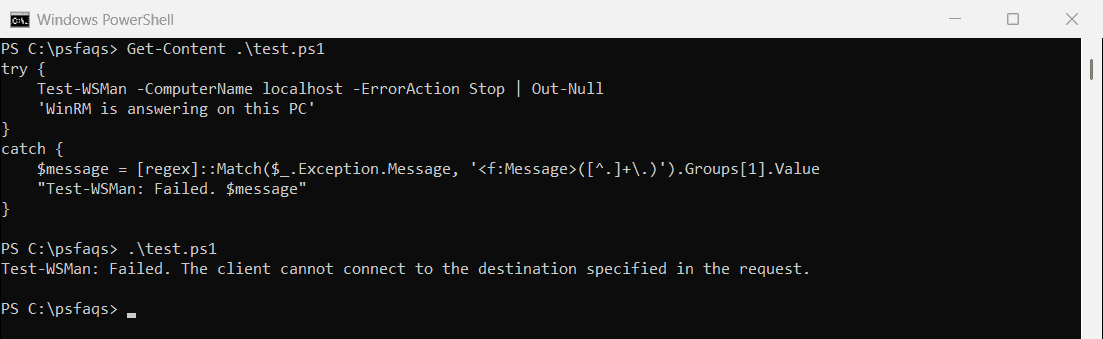
After you enable WinRM, the same command returns the protocol version instead. Fixing common remote errors covers the other messages you might see.
Check the network profile and firewall
On Windows 10 and 11, Enable-PSRemoting refuses to run while any network is set to Public. This check shows the profile and the WinRM firewall rules:
Get-NetConnectionProfile | ForEach-Object { "Network '$($_.InterfaceAlias)' is $($_.NetworkCategory)" }

Get-NetFirewallRule -DisplayGroup 'Windows Remote Management' | ForEach-Object {
    '{0} [{1}] enabled: {2}' -f $_.DisplayName, $_.Profile, $_.Enabled
}
Output:
Network 'Wi-Fi' is Public
Windows Remote Management (HTTP-In) [Public] enabled: False
Windows Remote Management (HTTP-In) [Domain, Private] enabled: False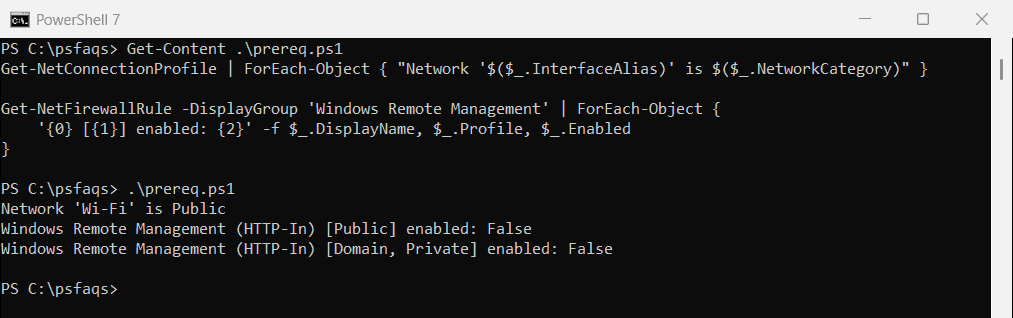
Switch trusted networks to Private in Settings, or use -SkipNetworkProfileCheck as shown below.
Enable WinRM with Enable-PSRemoting
Run this in PowerShell as administrator. -Force skips the confirmation prompts:
Enable-PSRemoting -Force
Test-WSMan -ComputerName localhost
If a network is Public and you can’t change it, add -SkipNetworkProfileCheck. It enables WinRM but only allows connections from the local subnet on Public networks:
Enable-PSRemoting -Force -SkipNetworkProfileCheckThe Enable-PSRemoting reference explains each step the cmdlet takes.
Enable WinRM with winrm quickconfig
The older command-line tool does the same basic setup from an elevated Command Prompt or PowerShell window: winrm quickconfig.
Connect from a computer outside the domain
Inside a domain, Kerberos handles authentication. For workgroup PCs, add the target to TrustedHosts on the computer you connect from:
Set-Item -Path WSMan:\localhost\Client\TrustedHosts -Value 'PC-SALES-07' -Concatenate -Force
Get-Item -Path WSMan:\localhost\Client\TrustedHosts
TrustedHosts skips checking the remote PC’s identity, so keep the list short. For internet-facing or untrusted networks, set up an HTTPS listener instead, as described in about_Remote_Troubleshooting.
Enable WinRM on many computers
In a domain, a Group Policy is the cleanest way: allow remote server management through WinRM, set the service to start automatically, and open the firewall rule. For a few PCs, you can use PsExec or run the command at each one.
Turn WinRM off again
To undo it, disable the session configurations, stop the service and close the firewall rules, all as administrator:
Disable-PSRemoting -Force
Stop-Service -Name WinRM
Set-Service -Name WinRM -StartupType Manual
Disable-NetFirewallRule -DisplayGroup 'Windows Remote Management'
Frequently Asked Questions
How do I enable WinRM using PowerShell?
Open PowerShell as administrator and run Enable-PSRemoting -Force. Then test it with Test-WSMan -ComputerName localhost.
Why does Enable-PSRemoting fail on a Public network?
On Windows client versions it won’t open the firewall on Public networks. Set the network to Private or add -SkipNetworkProfileCheck.
How do I check if WinRM is enabled?
Run Get-Service -Name WinRM and Test-WSMan -ComputerName localhost. Running plus a successful test means it’s on.
What is the difference between WinRM and PowerShell remoting?
WinRM is the Windows service that carries the traffic. PowerShell remoting is the feature that runs commands over it.