
To create a self-signed certificate using PowerShell, run New-SelfSignedCertificate with the DNS names and the certificate store to save it in. The current-user store doesn’t need admin rights:
New-SelfSignedCertificate -DnsName 'app.contoso.local', 'localhost' `
    -CertStoreLocation Cert:\CurrentUser\My -NotAfter (Get-Date).AddYears(1)
Below I show what a self-signed certificate contains, how to export it as .cer and .pfx files, and how to trust it for testing. To keep my own certificate store clean, I built the test certificate in memory with .NET.
What’s inside a self-signed certificate
Here I create a certificate for app.contoso.local and localhost, valid for one year. The .NET CertificateRequest class does this without touching any certificate store:
$rsa = [System.Security.Cryptography.RSA]::Create(2048)
$request = [System.Security.Cryptography.X509Certificates.CertificateRequest]::new(
    'CN=app.contoso.local', $rsa,
    [System.Security.Cryptography.HashAlgorithmName]::SHA256,
    [System.Security.Cryptography.RSASignaturePadding]::Pkcs1)

$names = [System.Security.Cryptography.X509Certificates.SubjectAlternativeNameBuilder]::new()
$names.AddDnsName('app.contoso.local')
$names.AddDnsName('localhost')
$request.CertificateExtensions.Add($names.Build())

$cert = $request.CreateSelfSigned([DateTimeOffset]::Now, [DateTimeOffset]::Now.AddYears(1))

"Subject:     $($cert.Subject)"
"Issuer:      $($cert.Issuer)"
"Valid until: $($cert.NotAfter.ToString('yyyy-MM-dd'))"
"Names:       $(($cert.Extensions | Where-Object { $_.Oid.Value -eq '2.5.29.17' }).Format($false))"
"Private key: $($cert.HasPrivateKey)"
Output:
Subject:     CN=app.contoso.local
Issuer:      CN=app.contoso.local
Valid until: 2027-09-30
Names:       DNS Name=app.contoso.local, DNS Name=localhost
Private key: True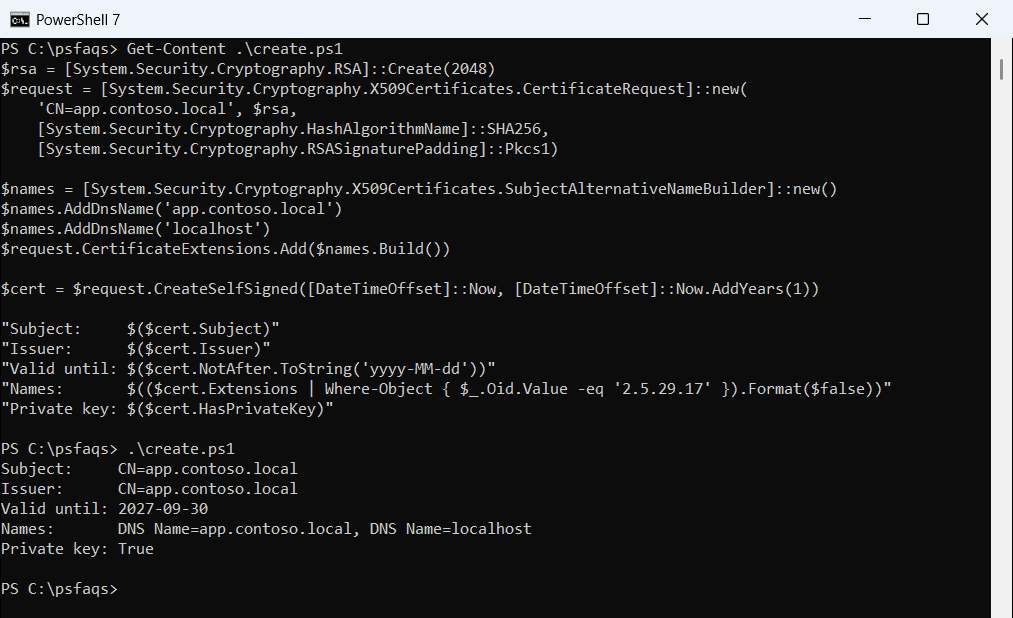
The subject and issuer are identical because the certificate signs itself. Browsers and other computers won’t trust it unless you tell them to. The CertificateRequest reference covers the .NET approach.
For SSH logins, you need a key pair instead, as shown in generating SSH keys.
Create it in the certificate store with New-SelfSignedCertificate
For most tasks, New-SelfSignedCertificate is simpler, and it saves the certificate straight to a store. The PKI module works in PowerShell 7 and Windows PowerShell 5.1:
$cert = New-SelfSignedCertificate -DnsName 'app.contoso.local', 'localhost' `
    -CertStoreLocation Cert:\CurrentUser\My `
    -KeyExportPolicy Exportable -NotAfter (Get-Date).AddYears(1)
$cert.Thumbprint
Use Cert:\LocalMachine\My for a certificate that services like IIS use, which needs an elevated window. For signing scripts, add -Type CodeSigningCert.
Export the certificate to .cer and .pfx files
A .cer file holds only the public certificate, and a .pfx file also holds the private key, protected by a password:
$rsa = [System.Security.Cryptography.RSA]::Create(2048)
$request = [System.Security.Cryptography.X509Certificates.CertificateRequest]::new(
    'CN=app.contoso.local', $rsa,
    [System.Security.Cryptography.HashAlgorithmName]::SHA256,
    [System.Security.Cryptography.RSASignaturePadding]::Pkcs1)

$names = [System.Security.Cryptography.X509Certificates.SubjectAlternativeNameBuilder]::new()
$names.AddDnsName('app.contoso.local')
$names.AddDnsName('localhost')
$request.CertificateExtensions.Add($names.Build())

$cert = $request.CreateSelfSigned([DateTimeOffset]::Now, [DateTimeOffset]::Now.AddYears(1))

[IO.File]::WriteAllBytes('C:\psfaqs\Certs\app.cer', $cert.Export('Cert'))
[IO.File]::WriteAllBytes('C:\psfaqs\Certs\app.pfx', $cert.Export('Pfx', 'Demo-Only-2026'))

Get-ChildItem -Path C:\psfaqs\Certs | ForEach-Object { '{0,-8} {1,5} bytes' -f $_.Name, $_.Length }
Output:
app.cer    746 bytes
app.pfx   2422 bytes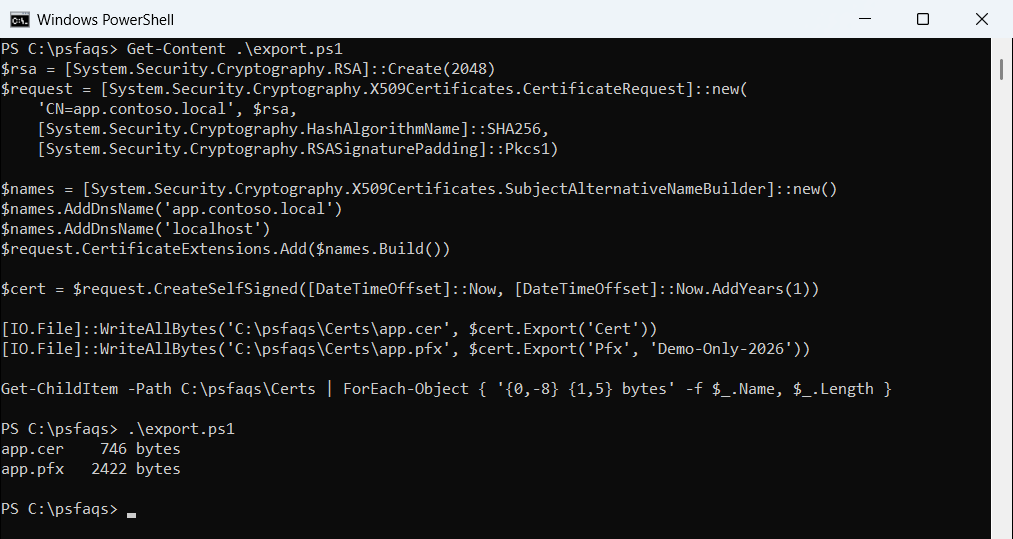
From the store, use the built-in cmdlets. Read-Host keeps the password out of your script:
$password = Read-Host -Prompt 'PFX password' -AsSecureString
Export-Certificate -Cert $cert -FilePath C:\Certs\app.cer
Export-PfxCertificate -Cert $cert -FilePath C:\Certs\app.pfx -Password $password
The Export-PfxCertificate reference explains the protection options.
Check which file has the private key
Load both files back to confirm what each one contains:
$rsa = [System.Security.Cryptography.RSA]::Create(2048)
$request = [System.Security.Cryptography.X509Certificates.CertificateRequest]::new(
    'CN=app.contoso.local', $rsa,
    [System.Security.Cryptography.HashAlgorithmName]::SHA256,
    [System.Security.Cryptography.RSASignaturePadding]::Pkcs1)

$names = [System.Security.Cryptography.X509Certificates.SubjectAlternativeNameBuilder]::new()
$names.AddDnsName('app.contoso.local')
$names.AddDnsName('localhost')
$request.CertificateExtensions.Add($names.Build())

$cert = $request.CreateSelfSigned([DateTimeOffset]::Now, [DateTimeOffset]::Now.AddYears(1))

[IO.File]::WriteAllBytes('C:\psfaqs\Certs\app.cer', $cert.Export('Cert'))
[IO.File]::WriteAllBytes('C:\psfaqs\Certs\app.pfx', $cert.Export('Pfx', 'Demo-Only-2026'))

$public = [System.Security.Cryptography.X509Certificates.X509Certificate2]::new('C:\psfaqs\Certs\app.cer')
$full = [System.Security.Cryptography.X509Certificates.X509Certificate2]::new('C:\psfaqs\Certs\app.pfx', 'Demo-Only-2026')
"app.cer has private key: $($public.HasPrivateKey)"
"app.pfx has private key: $($full.HasPrivateKey)"
"Same certificate:        $($public.Thumbprint -eq $full.Thumbprint)"
Output:
app.cer has private key: False
app.pfx has private key: True
Same certificate:        True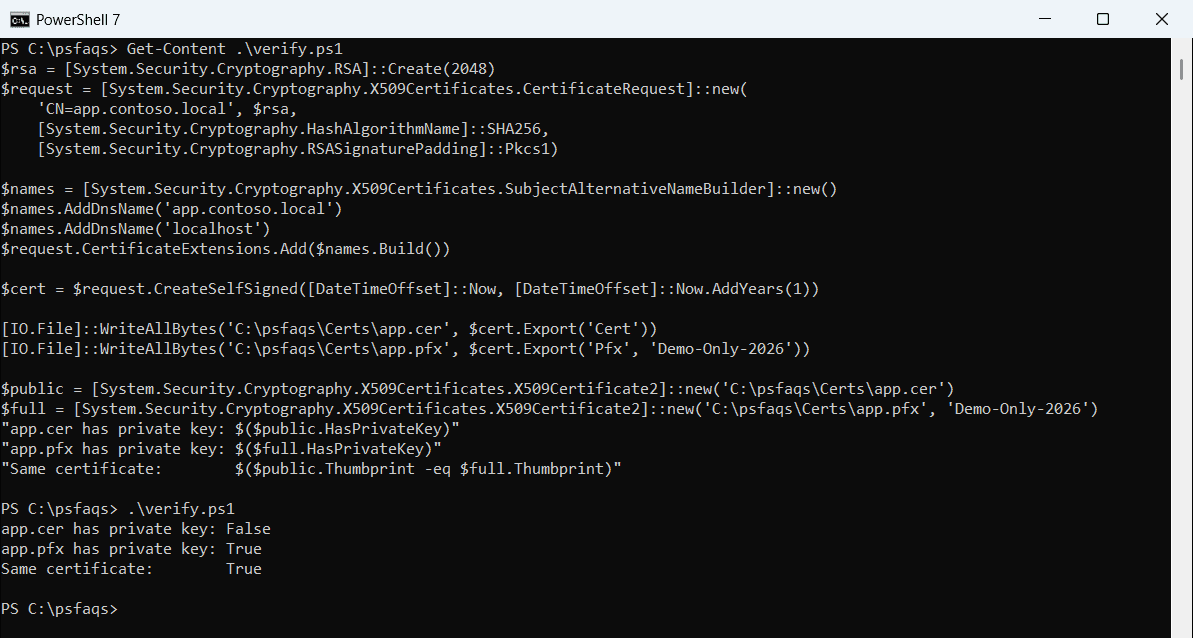
Give the .cer file to anyone who needs to trust the certificate. Keep the .pfx file private, like a password.
Trust the certificate on a test PC
To stop browser warnings on your own test PC, import the .cer file into your Trusted Root store:
Import-Certificate -FilePath C:\Certs\app.cer -CertStoreLocation Cert:\CurrentUser\RootWindows asks you to confirm. Only do this for certificates you created, and remove it when testing ends. Self-signed certificates are for testing and internal tools, not public websites.