
To enable Remote Desktop using PowerShell, set fDenyTSConnections to 0 in the registry and turn on the Remote Desktop firewall rules. Run both lines as administrator:
Set-ItemProperty -Path 'HKLM:\System\CurrentControlSet\Control\Terminal Server' -Name fDenyTSConnections -Value 0
Enable-NetFirewallRule -DisplayGroup 'Remote Desktop'
Below I check the current state first, then cover NLA, allowing users, enabling RDP on remote PCs and turning it off again. The checks ran on Windows 11 in PowerShell 7.6 and 5.1.
Check if Remote Desktop is enabled
The fDenyTSConnections value controls RDP. 1 means connections are denied, and 0 means they’re allowed. Any user can read it:
$ts = Get-ItemProperty -Path 'HKLM:\System\CurrentControlSet\Control\Terminal Server'
"fDenyTSConnections:     $($ts.fDenyTSConnections)"
"Remote Desktop enabled: $($ts.fDenyTSConnections -eq 0)"
Output:
fDenyTSConnections:     1
Remote Desktop enabled: False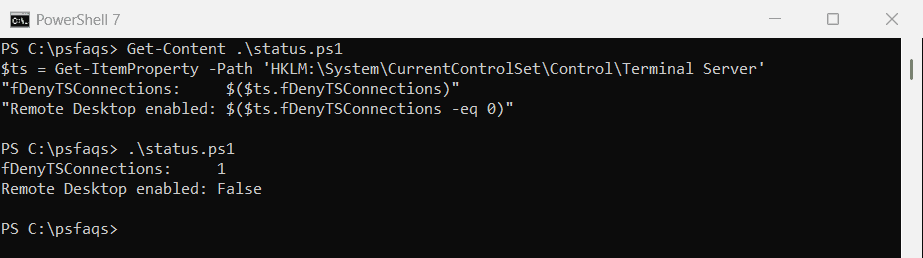
Changing the value needs an elevated window. Microsoft notes you must be an administrator to change this setting.
To confirm port 3389 is reachable from another PC, use Test-NetConnection.
Check the Remote Desktop firewall rules
Enabling RDP isn’t enough if the firewall blocks port 3389. The Remote Desktop rule group shows whether the rules are on:
$rules = Get-NetFirewallRule -DisplayGroup 'Remote Desktop'
$rules | ForEach-Object { '{0,-37} Enabled: {1}' -f $_.DisplayName, $_.Enabled }

"Group ID for non-English Windows: $($rules[0].Group)"
Output:
Remote Desktop - User Mode (TCP-In)   Enabled: False
Remote Desktop - User Mode (UDP-In)   Enabled: False
Remote Desktop - Shadow (TCP-In)      Enabled: False
Group ID for non-English Windows: @FirewallAPI.dll,-28752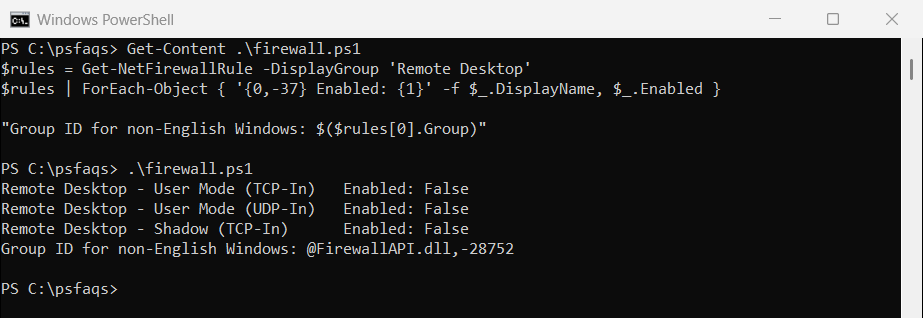
The display name ‘Remote Desktop’ only works on English Windows. On other languages, use the group ID instead: Enable-NetFirewallRule -Group '@FirewallAPI.dll,-28752'.
Check the edition, NLA and port
Windows Home can’t host Remote Desktop connections, only Pro, Enterprise, Education and Server can. This check covers the edition and the connection settings:
$rdp = Get-ItemProperty -Path 'HKLM:\System\CurrentControlSet\Control\Terminal Server\WinStations\RDP-Tcp'
$edition = (Get-ItemProperty -Path 'HKLM:\SOFTWARE\Microsoft\Windows NT\CurrentVersion').EditionID
$listening = Test-NetConnection -ComputerName localhost -Port 3389 -InformationLevel Quiet -WarningAction SilentlyContinue

"Windows edition:   $edition (can host RDP: $($edition -notlike 'Core*'))"
"NLA required:      $($rdp.UserAuthentication -eq 1)"
"RDP port:          $($rdp.PortNumber)"
"Listening on 3389: $listening"
Output:
Windows edition:   Enterprise (can host RDP: True)
NLA required:      True
RDP port:          3389
Listening on 3389: False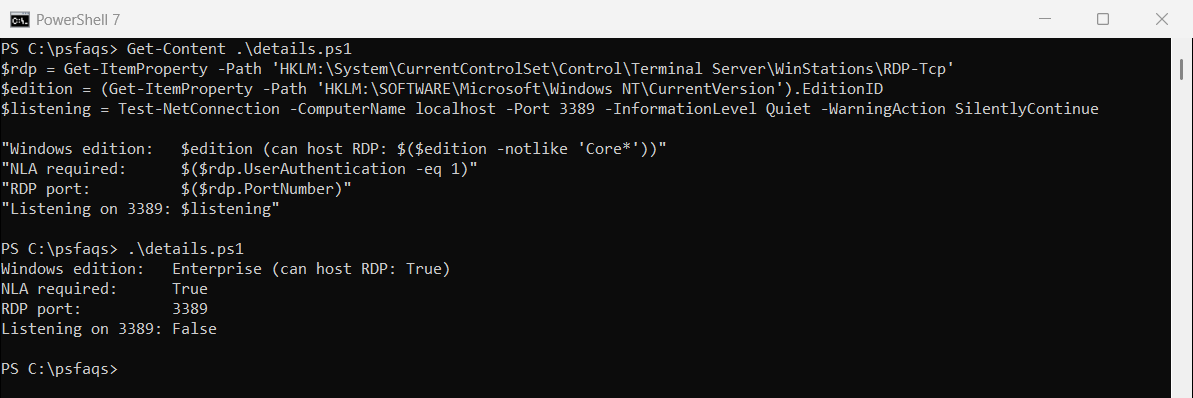
Home editions show an EditionID starting with Core. Nothing listens on 3389 until you enable RDP.
Enable Remote Desktop with Network Level Authentication
Microsoft recommends keeping NLA on, so users sign in before a session starts. In an elevated window, enable RDP, require NLA and open the firewall:
$ts = 'HKLM:\System\CurrentControlSet\Control\Terminal Server'
Set-ItemProperty -Path $ts -Name fDenyTSConnections -Value 0
Set-ItemProperty -Path "$ts\WinStations\RDP-Tcp" -Name UserAuthentication -Value 1
Enable-NetFirewallRule -DisplayGroup 'Remote Desktop'
Run the status check again, and it reports True. Microsoft’s Enable Remote Desktop on your PC explains why NLA matters.
Allow a user to connect
Administrators can connect by default. Add other accounts to the Remote Desktop Users group:
Add-LocalGroupMember -Group 'Remote Desktop Users' -Member 'CONTOSO\jsmith'Listing local administrators shows who already has access.
Enable Remote Desktop on a remote computer
With PowerShell remoting, you can run the same commands on another PC. You need admin rights there:
Invoke-Command -ComputerName PC-SALES-07 -ScriptBlock {
    Set-ItemProperty -Path 'HKLM:\System\CurrentControlSet\Control\Terminal Server' -Name fDenyTSConnections -Value 0
    Enable-NetFirewallRule -DisplayGroup 'Remote Desktop'
}
Then test the port from your PC with a port check on 3389.
Disable Remote Desktop
To turn RDP off, reverse both settings in an elevated window:
Set-ItemProperty -Path 'HKLM:\System\CurrentControlSet\Control\Terminal Server' -Name fDenyTSConnections -Value 1
Disable-NetFirewallRule -DisplayGroup 'Remote Desktop'
On domain PCs, Group Policy can override these values, so check with your IT team if a change doesn’t stick. Microsoft documents the firewall cmdlet in the Enable-NetFirewallRule reference.
Frequently Asked Questions
How do I enable Remote Desktop with PowerShell?
As administrator, set fDenyTSConnections to 0 under HKLM:\System\CurrentControlSet\Control\Terminal Server and run Enable-NetFirewallRule -DisplayGroup 'Remote Desktop'.
How do I check if Remote Desktop is enabled?
Read fDenyTSConnections with Get-ItemProperty. A value of 0 means Remote Desktop is enabled.