
To retrieve your Windows product key using PowerShell, read the OA3xOriginalProductKey property of the SoftwareLicensingService class. It returns the key your PC’s maker stored in the firmware:
(Get-CimInstance -ClassName SoftwareLicensingService).OA3xOriginalProductKeyIt doesn’t need administrator rights. In my examples below I mask the keys with a small Hide-Key function before printing them, because a product key is a license you shouldn’t share.
Get the key stored in the firmware
Most PCs sold with Windows 10 or 11 have a key built into the firmware. Windows reads it automatically after a reinstall. This is the same command with the output masked:
function Hide-Key { param([string]$Key) if ($Key) { $Key -replace '[A-Z0-9]', 'X' } else { '(none)' } }

$key = (Get-CimInstance -ClassName SoftwareLicensingService).OA3xOriginalProductKey

if ($key) { "Key stored in the firmware: $(Hide-Key $key)" }
else { 'No product key is stored in this PC''s firmware' }
Output:
Key stored in the firmware: XXXXX-XXXXX-XXXXX-XXXXX-XXXXX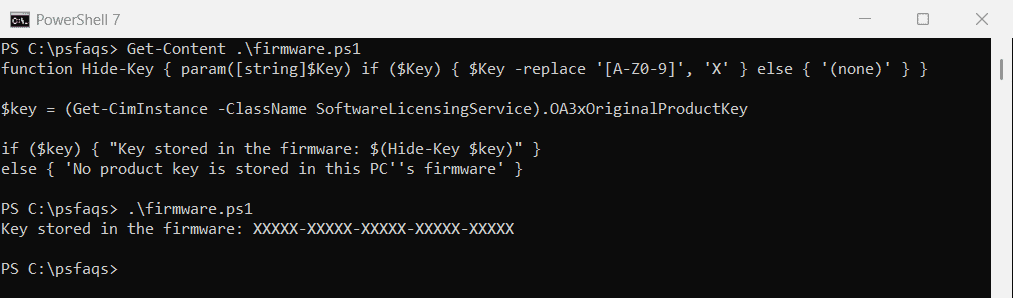
If the result is empty, the PC was built without an embedded key. That’s common for custom-built PCs and many business machines.
To check whether Windows is activated with that key, see getting the Windows activation status.
Check the key Windows is actually using
Windows’ licensing tools show only the last five characters of the installed key. SoftwareLicensingProduct returns those, plus the license channel and whether Windows is activated:
function Hide-Key { param([string]$Key) if ($Key) { $Key -replace '[A-Z0-9]', 'X' } else { '(none)' } }

$windows = Get-CimInstance -ClassName SoftwareLicensingProduct -Filter "PartialProductKey IS NOT NULL" |
    Where-Object Name -like 'Windows*'

"License channel:         $($windows.Description)"
"Licensed:                $($windows.LicenseStatus -eq 1)"
"Last 5 of installed key: $(Hide-Key $windows.PartialProductKey)"
Output:
License channel:         Windows(R) Operating System, VOLUME_MAK channel
Licensed:                True
Last 5 of installed key: XXXXX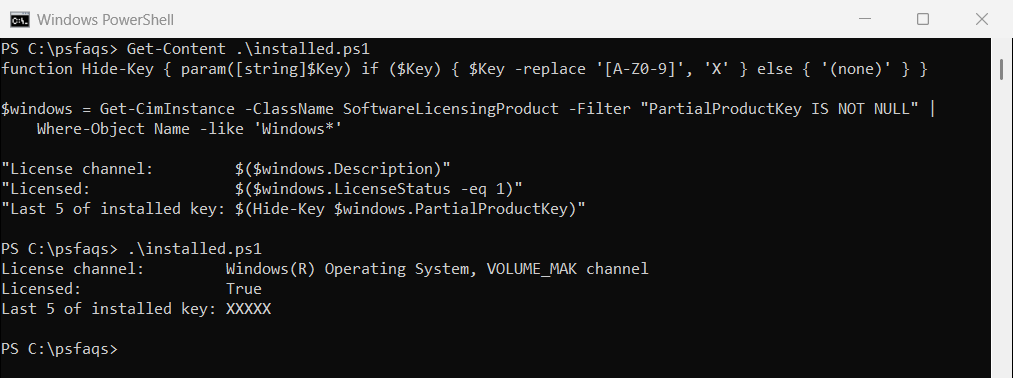
The channel tells you where the license came from: Retail, OEM, or a volume channel like MAK or KMS on work PCs. A LicenseStatus of 1 means Windows is activated.
Is the firmware key the one in use?
Not always. On my PC, the firmware holds the key the maker shipped, but Windows was activated later with a business volume key:
$firmware = (Get-CimInstance -ClassName SoftwareLicensingService).OA3xOriginalProductKey
$installed = (Get-CimInstance -ClassName SoftwareLicensingProduct -Filter "PartialProductKey IS NOT NULL" |
    Where-Object Name -like 'Windows*').PartialProductKey

"Firmware key found:              $([bool]$firmware)"
"Installed key matches firmware:  $($firmware -and $firmware.EndsWith($installed))"
Output:
Firmware key found:              True
Installed key matches firmware:  False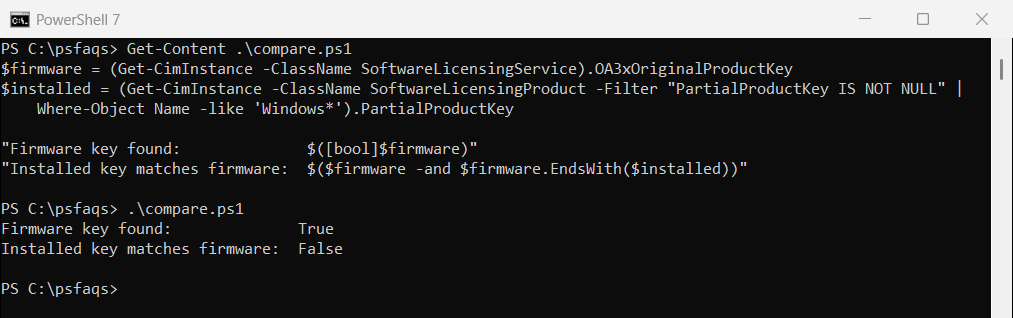
So the firmware key isn’t always the one to write down. If you upgraded Windows or your company activated it, the installed key is different.
The backup key in the registry
Windows also keeps a BackupProductKeyDefault value in the registry. PowerShell reads it without admin rights:
function Hide-Key { param([string]$Key) if ($Key) { $Key -replace '[A-Z0-9]', 'X' } else { '(none)' } }

$path = 'HKLM:\SOFTWARE\Microsoft\Windows NT\CurrentVersion\SoftwareProtectionPlatform'
$backup = (Get-ItemProperty -Path $path).BackupProductKeyDefault

"Backup key in the registry: $(Hide-Key $backup)"
Output:
Backup key in the registry: XXXXX-XXXXX-XXXXX-XXXXX-XXXXXOn many PCs this is a generic key for the installed edition, not your personal license. Treat it as a last resort, and don’t rely on it to reactivate another PC.
Reading values from the registry and the environment works in similar ways, as shown in getting environment variables.
Use slmgr for license details
The built-in slmgr tool shows the same license information in a pop-up window. It works from PowerShell or Command Prompt:
slmgr /dli
slmgr /xpr
/dli shows the edition, channel and last five characters of the key, and /xpr shows whether activation is permanent.
Keep your product key private
Anyone with your full key can try to activate Windows with it. Don’t paste it in forums, screenshots or support chats. If a support agent needs it, the last five characters are usually enough.
Frequently Asked Questions
How do I find my Windows product key with PowerShell?
Run (Get-CimInstance -ClassName SoftwareLicensingService).OA3xOriginalProductKey. It returns the key stored in your PC’s firmware.
Why does the command return nothing?
Your PC has no key in its firmware, which is common on custom-built and many business PCs. Check the installed license with SoftwareLicensingProduct instead.
Do I need to run PowerShell as administrator?
No. The SoftwareLicensingService and SoftwareLicensingProduct queries work in a normal PowerShell window.