
To create a desktop shortcut with a custom icon in PowerShell, use the WScript.Shell COM object. CreateShortcut makes a .lnk file, and you set its TargetPath, IconLocation and other properties before calling Save():
$shell = New-Object -ComObject WScript.Shell
$shortcut = $shell.CreateShortcut('C:\psfaqs\Shortcuts\Notepad.lnk')
$shortcut.TargetPath = 'C:\Windows\System32\notepad.exe'
$shortcut.Save()

Get-ChildItem -Path C:\psfaqs\Shortcuts | Select-Object -ExpandProperty Name
Output:
Notepad.lnkI created every shortcut in a test folder so the output is easy to check. The last section shows how to put them on the real desktop. All examples ran in PowerShell 7.6 and Windows PowerShell 5.1, with the same results.
Create a shortcut to a folder with a custom icon
A folder shortcut works the same way as a program shortcut. Point TargetPath at the folder, and set IconLocation to a file and icon number:
$shell = New-Object -ComObject WScript.Shell
$shortcut = $shell.CreateShortcut('C:\psfaqs\Shortcuts\Budget 2026.lnk')
$shortcut.TargetPath = 'C:\psfaqs\Projects\Budget-2026'
$shortcut.IconLocation = 'C:\Windows\System32\shell32.dll,43'
$shortcut.Description = 'Finance team budget files'
$shortcut.Save()

$check = $shell.CreateShortcut('C:\psfaqs\Shortcuts\Budget 2026.lnk')
"Target:      $($check.TargetPath)"
"Icon:        $($check.IconLocation)"
"Description: $($check.Description)"
Output:
Target:      C:\psfaqs\Projects\Budget-2026
Icon:        C:\Windows\System32\shell32.dll,43
Description: Finance team budget files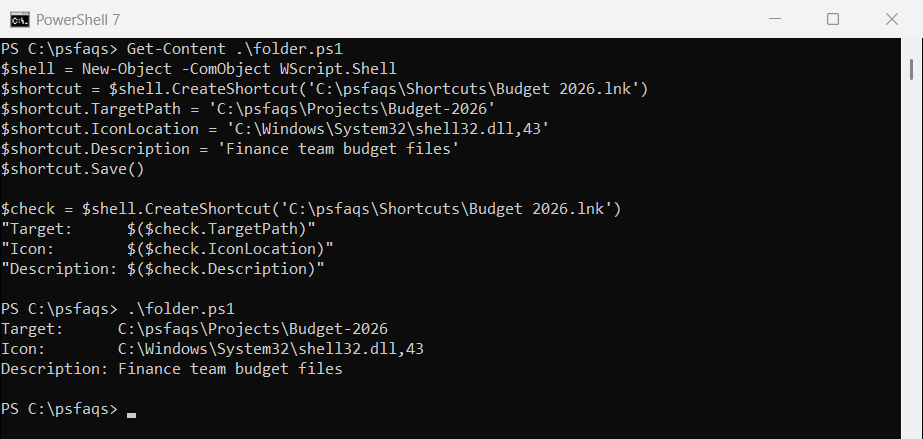
Description becomes the tooltip when you hover over the shortcut. Reading the shortcut back with CreateShortcut, as above, confirms what was saved.
A folder shortcut pairs well with opening PowerShell in a folder.
Choose an icon
IconLocation takes a file path and an index, separated by a comma. Windows’ shell32.dll and imageres.dll hold hundreds of built-in icons, and a .ico file works too:
$shell = New-Object -ComObject WScript.Shell
foreach ($icon in 'shell32.dll,3', 'shell32.dll,43', 'imageres.dll,109', 'C:\psfaqs\Icons\finance.ico') {
    $link = $shell.CreateShortcut('C:\psfaqs\Shortcuts\Test.lnk')
    $link.TargetPath = 'C:\psfaqs\Projects\Budget-2026'
    $link.IconLocation = $icon
    $link.Save()
    'Saved icon: {0}' -f $shell.CreateShortcut('C:\psfaqs\Shortcuts\Test.lnk').IconLocation
}
Output:
Saved icon: shell32.dll,3
Saved icon: shell32.dll,43
Saved icon: imageres.dll,109
Saved icon: C:\psfaqs\Icons\finance.ico,0
WScript.Shell doesn’t check that the icon exists. It saved finance.ico even though that file isn’t there, so Windows falls back to a generic icon. Check your .ico path with Test-Path first.
To browse the built-in icons, right-click any shortcut, open Properties, select Change Icon and type the DLL path. The icons are numbered from 0.
A reusable New-Shortcut function
For shortcuts that run a script, you also need Arguments, a working folder and often a minimized window. This function wraps all of it:
function New-Shortcut {
    param(
        [Parameter(Mandatory)] [string]$Path,
        [Parameter(Mandatory)] [string]$Target,
        [string]$Arguments,
        [string]$Icon,
        [string]$WorkingDirectory,
        [ValidateSet('Normal', 'Maximized', 'Minimized')] [string]$WindowStyle = 'Normal'
    )
    $styles = @{ Normal = 1; Maximized = 3; Minimized = 7 }
    $shell = New-Object -ComObject WScript.Shell
    $link = $shell.CreateShortcut($Path)
    $link.TargetPath = $Target
    if ($Arguments) { $link.Arguments = $Arguments }
    if ($Icon) { $link.IconLocation = $Icon }
    if ($WorkingDirectory) { $link.WorkingDirectory = $WorkingDirectory }
    $link.WindowStyle = $styles[$WindowStyle]
    $link.Save()
    Get-Item -Path $Path
}

$params = @{
    Path             = 'C:\psfaqs\Shortcuts\Daily Report.lnk'
    Target           = 'C:\Windows\System32\WindowsPowerShell\v1.0\powershell.exe'
    Arguments        = '-NoProfile -File C:\Scripts\daily-report.ps1'
    Icon             = 'C:\Windows\System32\imageres.dll,109'
    WorkingDirectory = 'C:\Scripts'
    WindowStyle      = 'Minimized'
}
$file = New-Shortcut @params
"Created $($file.Name) ($($file.Length) bytes)"
$link = (New-Object -ComObject WScript.Shell).CreateShortcut($params.Path)
"Runs: $($link.TargetPath) $($link.Arguments)"
"Window style: $($link.WindowStyle)"
Output:
Created Daily Report.lnk (2152 bytes)
Runs: C:\Windows\System32\WindowsPowerShell\v1.0\powershell.exe -NoProfile -File C:\Scripts\daily-report.ps1
Window style: 7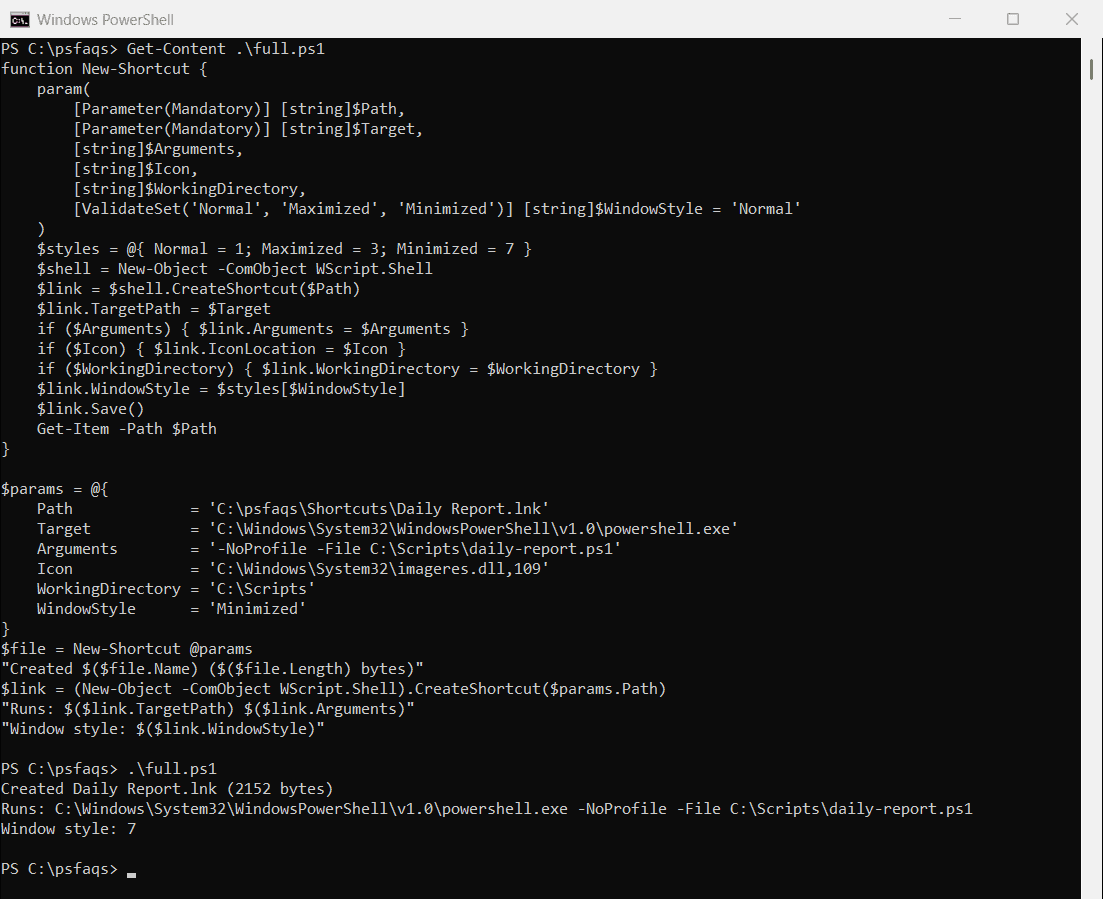
WindowStyle takes numbers: 1 for normal, 3 for maximized and 7 for minimized. The function turns the names into those numbers for you.
Create a website shortcut
Website shortcuts are .url files, which are plain text. Write the lines with Set-Content, including an icon if you want one:
$lines = @(
    '[InternetShortcut]'
    'URL=https://learn.microsoft.com/powershell/'
    'IconFile=C:\Windows\System32\shell32.dll'
    'IconIndex=13'
)
Set-Content -Path 'C:\psfaqs\Shortcuts\PowerShell Docs.url' -Value $lines

Get-Content -Path 'C:\psfaqs\Shortcuts\PowerShell Docs.url'
Output:
[InternetShortcut]
URL=https://learn.microsoft.com/powershell/
IconFile=C:\Windows\System32\shell32.dll
IconIndex=13
Double-clicking the file opens the address in the default browser. .lnk shortcuts can’t point to a web address directly.
Read and check existing shortcuts
CreateShortcut also opens an existing .lnk file. That makes it easy to list where every shortcut in a folder points, and to find broken ones:
$shell = New-Object -ComObject WScript.Shell
$link = $shell.CreateShortcut('C:\psfaqs\Shortcuts\Notepad.lnk')
$link.TargetPath = 'C:\Windows\System32\notepad.exe'
$link.Save()
$link = $shell.CreateShortcut('C:\psfaqs\Shortcuts\Budget.lnk')
$link.TargetPath = 'C:\psfaqs\Projects\Budget-2026'
$link.Save()

Get-ChildItem -Path C:\psfaqs\Shortcuts -Filter *.lnk | ForEach-Object {
    $target = $shell.CreateShortcut($_.FullName).TargetPath
    '{0,-12} -> {1} (target exists: {2})' -f $_.Name, $target, (Test-Path -Path $target)
}
Output:
Budget.lnk   -> C:\psfaqs\Projects\Budget-2026 (target exists: True)
Notepad.lnk  -> C:\Windows\System32\notepad.exe (target exists: True)