
To get the Windows version using PowerShell, combine Win32_OperatingSystem for the edition with the registry for the version name and build:
(Get-CimInstance Win32_OperatingSystem).Caption
(Get-ItemProperty 'HKLM:\SOFTWARE\Microsoft\Windows NT\CurrentVersion').DisplayVersion
On my PC that returns Microsoft Windows 11 Enterprise and 25H2. Below I show the full build number, a trap that makes Windows 11 look like Windows 10, and what changed between PowerShell 7 and Windows PowerShell 5.1.
Get the Windows edition, version and build
This reads everything the winver dialog shows. UBR is the update revision, the number after the dot that changes with each monthly update:
$os = Get-CimInstance -ClassName Win32_OperatingSystem
$cv = Get-ItemProperty -Path 'HKLM:\SOFTWARE\Microsoft\Windows NT\CurrentVersion'

"Edition:  $($os.Caption)"
"Version:  $($cv.DisplayVersion)"
"Build:    $($cv.CurrentBuild).$($cv.UBR)"
"Platform: $($os.OSArchitecture), version $($os.Version)"
Output:
Edition:  Microsoft Windows 11 Enterprise
Version:  25H2
Build:    26200.9278
Platform: 64-bit, version 10.0.26200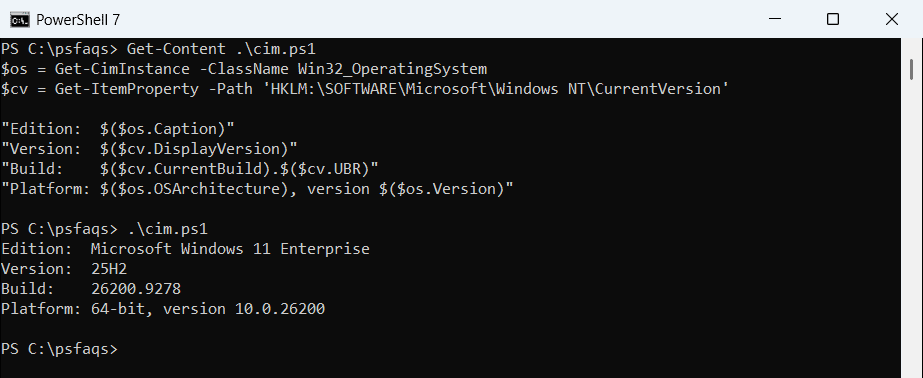
Both versions of PowerShell give the same result here. Getting computer information adds memory, CPU and model details to the same report.
Why does PowerShell say Windows 10 on Windows 11?
Many scripts read ProductName from the registry. On Windows 11 it still says Windows 10:
$cv = Get-ItemProperty -Path 'HKLM:\SOFTWARE\Microsoft\Windows NT\CurrentVersion'
$os = Get-CimInstance -ClassName Win32_OperatingSystem

"Registry ProductName: $($cv.ProductName)"
"WMI Caption:          $($os.Caption)"
"Build number:         $($cv.CurrentBuild)"
Output:
Registry ProductName: Windows 10 Enterprise
WMI Caption:          Microsoft Windows 11 Enterprise
Build number:         26200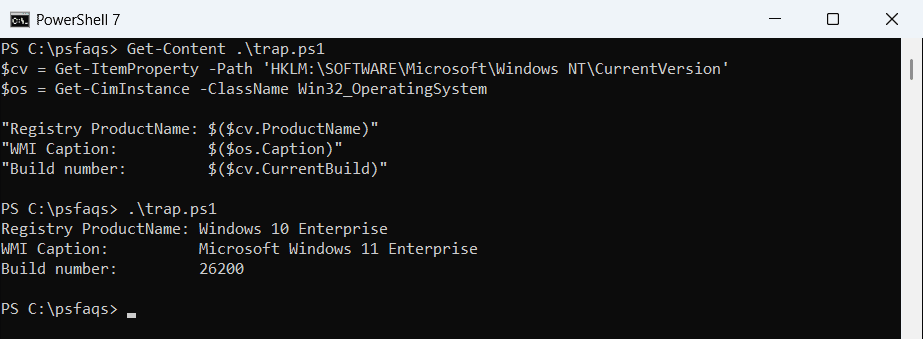
Use the WMI Caption or the build number instead. Version 10.0 is also the same for both, so it can’t tell them apart either.
CurrentBuild is stored as text, so cast it with [int] before comparing. Converting a string to an integer explains why text comparisons give wrong answers.
Is this PC running Windows 11?
Windows 11 builds start at 22000. Microsoft’s release table maps each build to its version name, so a small lookup turns the build into something readable:
$releases = @{ 26300 = '26H2'; 28000 = '26H1'; 26200 = '25H2'; 26100 = '24H2'
              22631 = '23H2'; 22621 = '22H2'; 22000 = '21H2' }
$build = [int](Get-ItemProperty 'HKLM:\SOFTWARE\Microsoft\Windows NT\CurrentVersion').CurrentBuild

if ($build -ge 22000) { $name = 'Windows 11' } else { $name = 'Windows 10 or older' }
$release = if ($releases.ContainsKey($build)) { $releases[$build] } else { 'not in my table' }
"Build $build = $name, version $release"
Output:
Build 26200 = Windows 11, version 25H2I used a plain hashtable on purpose. With [ordered], an integer key like 26200 is read as a position, not a key, and the lookup returns nothing.
Add new builds to the table as Microsoft releases them. Checking for Windows updates is a good next step once you know the version.
Get-ComputerInfo differs between PowerShell 7 and 5.1
Get-ComputerInfo looks like the easy answer, but it’s slow, around four seconds on my PC, and one property behaves differently by version:
$info = Get-ComputerInfo -Property OsName, OsVersion, OSDisplayVersion, WindowsVersion

"OsName:           $($info.OsName)"
"OsVersion:        $($info.OsVersion)"
"OSDisplayVersion: '$($info.OSDisplayVersion)'"
"WindowsVersion:   $($info.WindowsVersion)"
Output:
OsName:           Microsoft Windows 11 Enterprise
OsVersion:        10.0.26200
OSDisplayVersion: ''
WindowsVersion:   2009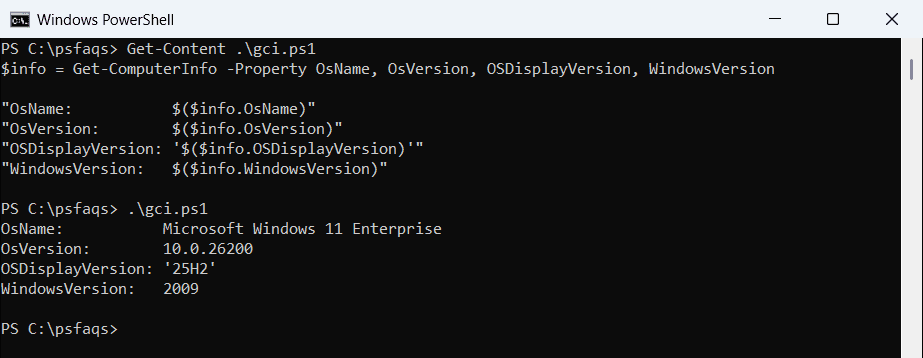
That’s PowerShell 7, where OSDisplayVersion came back empty. Windows PowerShell 5.1 returned 25H2. WindowsVersion says 2009 in both, an old release ID that stopped changing, so don’t use it.
-Property returns only the values you list, much like Select-Object trims an object.
$PSVersionTable.OS and [Environment]::OSVersion
Two quick one-liners show up in many answers. Only one works in both versions:
"PowerShell $($PSVersionTable.PSVersion.Major)"
"`$PSVersionTable.OS:    '$($PSVersionTable.OS)'"
"[Environment]::OSVersion: $([Environment]::OSVersion.Version)"
Output:
PowerShell 7
$PSVersionTable.OS:    'Microsoft Windows 10.0.26200'
[Environment]::OSVersion: 10.0.26200.0
$PSVersionTable.OS only exists in PowerShell 7. [Environment]::OSVersion works in both but stops at 10.0.26200.0, without the version name. Checking the PowerShell version covers the rest of $PSVersionTable.
Get the Windows version of a remote computer
Get-CimInstance takes -ComputerName, and the registry values come back through Invoke-Command. Both need WinRM on the target:
Get-CimInstance -ClassName Win32_OperatingSystem -ComputerName PC-AUSTIN-01, PC-DENVER-07 |
    Select-Object PSComputerName, Caption, BuildNumber

Invoke-Command -ComputerName PC-AUSTIN-01 -ScriptBlock {
    Get-ItemProperty 'HKLM:\SOFTWARE\Microsoft\Windows NT\CurrentVersion' |
        Select-Object DisplayVersion, CurrentBuild, UBR
}
I didn’t have a second PC for this one, so it’s shown as code. If it can’t connect, enable WinRM on the target.