
To check if a process is running in PowerShell, call Get-Process with the name and turn the result into True or False. -ErrorAction SilentlyContinue hides the error when nothing matches:
[bool](Get-Process -Name explorer -ErrorAction SilentlyContinue)Use the process name without .exe, like explorer or chrome. Below I check several names, start a program only when it isn’t running, wait for it to exit, and cover what changed between PowerShell 7 and Windows PowerShell 5.1.
Check if a process is running (True or False)
Wrapping the check in a small function makes scripts easier to read. Here explorer is running and ContosoSync, a made-up app, isn’t:
function Test-ProcessRunning ([string]$Name) {
    [bool](Get-Process -Name $Name -ErrorAction SilentlyContinue)
}

foreach ($name in 'explorer', 'ContosoSync') {
    '{0,-12} running: {1}' -f $name, (Test-ProcessRunning $name)
}
Output:
explorer     running: True
ContosoSync  running: False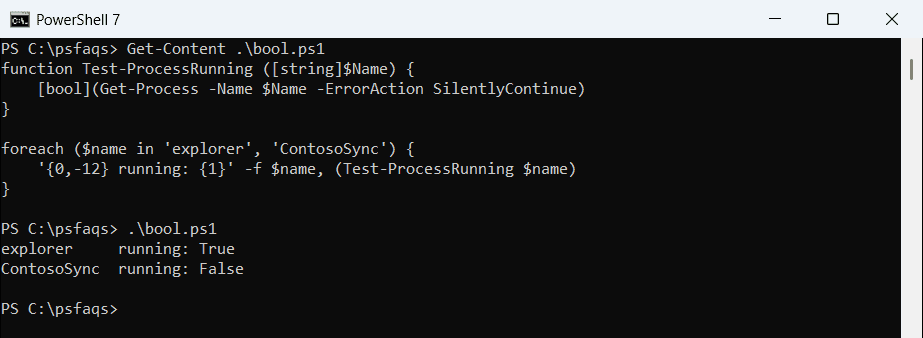
Get-Process returns one object per running copy, so [bool] is True when at least one exists. The Get-Process guide covers the other columns it returns.
What Get-Process says when the process isn’t running
Without -ErrorAction, a missing process writes an error. It’s the same message in both versions:
try {
    Get-Process -Name ContosoSync -ErrorAction Stop
}
catch {
    "Failed. $($_.Exception.Message)"
}
Output:
Failed. Cannot find a process with the name "ContosoSync". Verify the process name and call the cmdlet again.That’s useful in a console but noisy in scripts, which is why the function above silences it. -Name also accepts wildcards like ‘chrom*’ when you only know part of the name. More on handling errors is in try and catch in PowerShell.
Start a program only if it isn’t already running
A common job is starting an app once and never twice. I used ping with a hidden window as a harmless test program:
foreach ($try in 1, 2) {
    if (Get-Process -Name PING -ErrorAction SilentlyContinue) {
        "Try ${try}: PING is already running, not starting another"
    }
    else {
        Start-Process ping -ArgumentList '-n', '5', '127.0.0.1' -WindowStyle Hidden
        Start-Sleep -Milliseconds 500
        "Try ${try}: PING wasn't running, started it"
    }
}
"Instances now: $(@(Get-Process -Name PING).Count)"
Output:
Try 1: PING wasn't running, started it
Try 2: PING is already running, not starting another
Instances now: 1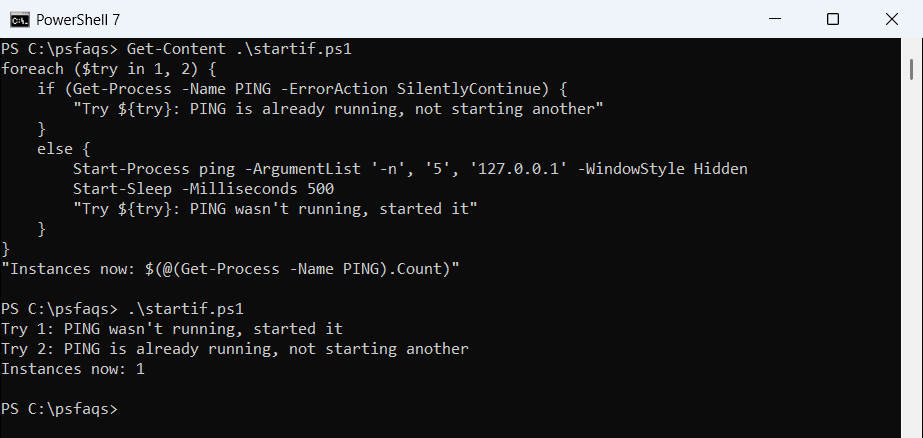
The short sleep gives Windows time to register the new process before the next check. Start-Process has the options for arguments, hidden windows and waiting.
Wait for a process to stop
Wait-Process pauses the script until the process exits. With -Timeout it gives up and throws an error instead of waiting forever:
try {
    Wait-Process -Name PING -Timeout 1 -ErrorAction Stop
}
catch {
    "After 1 second: Failed. $($_.Exception.Message)"
}
Wait-Process -Name PING
"PING has exited: $(-not (Get-Process -Name PING -ErrorAction SilentlyContinue))"
Output:
After 1 second: Failed. This command stopped operation because process "PING (72944)" is not stopped in the specified time-out.
PING has exited: True
The error includes the process ID, so it changes on every run. To end a process that’s hung instead of waiting, see killing a process by name.
Who is running the process?
-IncludeUserName adds the account that owns each process. PowerShell 7 shows it in a normal window, but Windows PowerShell 5.1 needs admin rights:
try {
    Get-Process -Name explorer -IncludeUserName -ErrorAction Stop |
        Select-Object -First 1 -Property Name, Id, UserName |
        ForEach-Object { "{0} is running as {1}" -f $_.Name, $_.UserName }
}
catch {
    "Failed. $($_.Exception.Message.Split('.')[0])."
}
Output:
explorer is running as DESKTOP-4T7K2QX\alice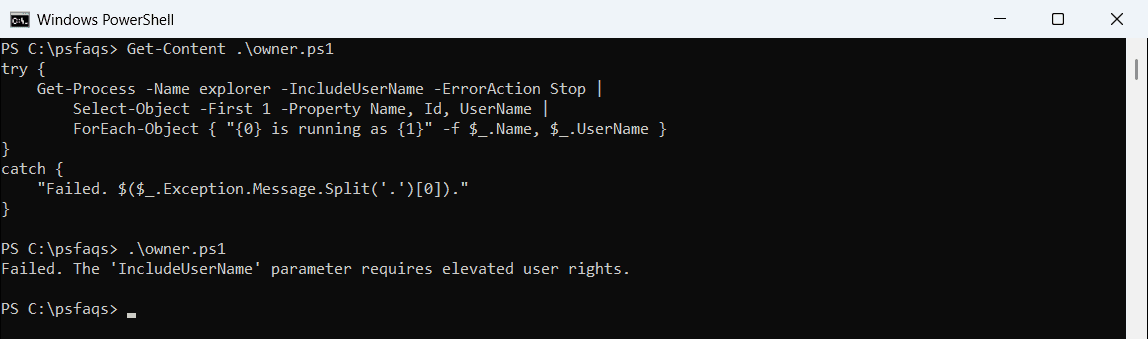
That’s the PowerShell 7 result, with my real names replaced. In 5.1, Microsoft’s Win32_Process GetOwner method is the documented way around it without elevation. Showing logged-in users is the next step if you need sessions, not processes.
Check if a process is running on a remote computer
Old scripts use Get-Process -ComputerName. PowerShell 7 removed that parameter, and on my PC 5.1 failed even against localhost:
try {
    Get-Process -Name explorer -ComputerName localhost -ErrorAction Stop | Select-Object -First 1 -ExpandProperty Name
}
catch {
    "Failed. $($_.Exception.Message)"
}
Output:
Failed. A parameter cannot be found that matches parameter name 'ComputerName'.That’s PowerShell 7. Windows PowerShell 5.1 says “Couldn’t connect to remote machine.” Microsoft now points to Invoke-Command, which works in both versions over WinRM:
Invoke-Command -ComputerName PC-AUSTIN-01, PC-DENVER-07 -ScriptBlock {
    [bool](Get-Process -Name ContosoSync -ErrorAction SilentlyContinue)
} | Select-Object PSComputerName, @{ n = 'Running'; e = { $_ } }
I didn’t have a second PC for this one, so it’s shown as code. If Invoke-Command can’t connect, enable WinRM on the target.
Frequently Asked Questions
How do I check if a process is running in PowerShell?
Use [bool](Get-Process -Name name -ErrorAction Sil