
To get a folder’s size in PowerShell, list every file under it with Get-ChildItem -Recurse and add up their Length values with Measure-Object. The result is in bytes, so divide by 1MB or 1GB:
$folder = 'C:\psfaqs\CompanyData'
$size   = (Get-ChildItem -Path $folder -File -Recurse -Force | Measure-Object -Property Length -Sum).Sum

"{0:N2} MB" -f ($size / 1MB)
Output:
91.50 MBA folder doesn’t store its own size, so PowerShell has to add up the files, just like the Properties window in File Explorer does. The number matches the Size value there, not Size on disk.
My test folder here is a small copy of a department share, with Finance, HR and Marketing subfolders. I ran each example in PowerShell 7.6 and Windows PowerShell 5.1, and both gave the same results.
Why -Recurse and -Force matter
Leave out -Recurse and you only count the files directly inside the folder. For my test folder, that’s a single readme file:
$size = (Get-ChildItem -Path C:\psfaqs\CompanyData -File | Measure-Object -Property Length -Sum).Sum
"{0:N2} KB" -f ($size / 1KB)
Output:
2.00 KB-Force is the one people forget. Without it, Get-ChildItem skips hidden and system files, so your total comes in lower than File Explorer’s:
$folder = 'C:\psfaqs\CompanyData'

$visible = (Get-ChildItem -Path $folder -File -Recurse | Measure-Object -Property Length -Sum).Sum
$all     = (Get-ChildItem -Path $folder -File -Recurse -Force | Measure-Object -Property Length -Sum).Sum

"Without -Force: {0:N2} MB" -f ($visible / 1MB)
"With -Force:    {0:N2} MB" -f ($all / 1MB)
Output:
Without -Force: 81.50 MB
With -Force:    91.50 MB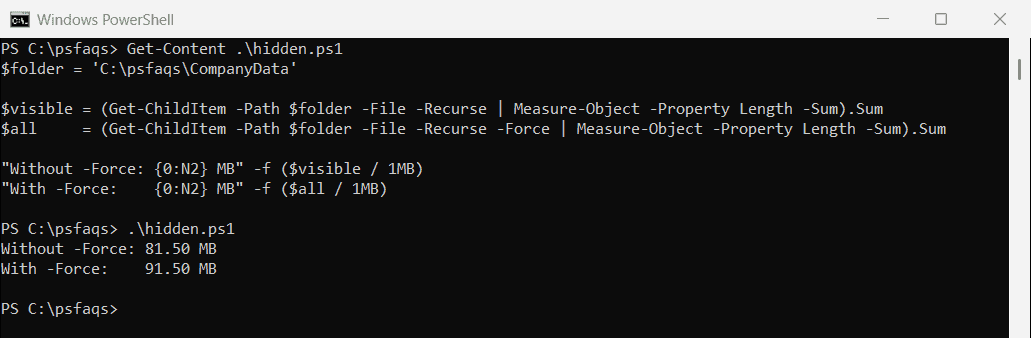
The missing 10 MB is a hidden cache file in the Marketing folder. On real servers, hidden files like caches and thumbnails can add up to gigabytes.
How do I get the size of each subfolder?
To see where the space goes, measure each subfolder on its own and sort the results. This is the report I run most often on a full file share:
Get-ChildItem -Path C:\psfaqs\CompanyData -Directory | ForEach-Object {
    $files = Get-ChildItem -Path $_.FullName -File -Recurse -Force
    [pscustomobject]@{
        Folder = $_.Name
        Bytes  = ($files | Measure-Object -Property Length -Sum).Sum
        Files  = @($files).Count
    }
} | Sort-Object -Property Bytes -Descending |
    Format-Table -Property Folder, Files,
        @{ Name = 'Size (MB)'; Expression = { '{0:N2}' -f ($_.Bytes / 1MB) }; Align = 'Right' }
Output:
Folder    Files Size (MB)
------    ----- ---------
Marketing     3     57.50
Finance       3     32.50
HR            2      1.50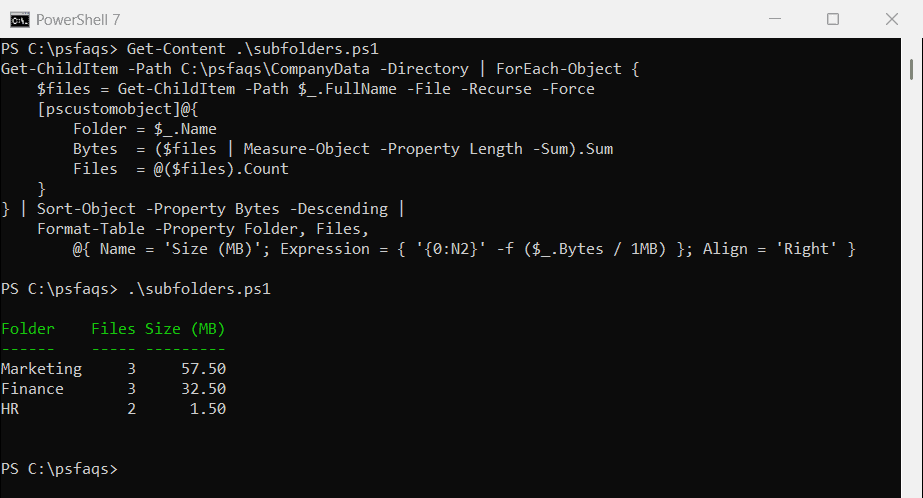
I format the size as text only in Format-Table at the end. Sorting uses the raw bytes, so 9.5 MB never sorts above 32.5 MB.
Find the largest files
Once you know the biggest folder, find the files taking up the space:
Get-ChildItem -Path C:\psfaqs\CompanyData -File -Recurse -Force |
    Sort-Object -Property Length -Descending |
    Select-Object -First 3 |
    Format-Table -Property Name,
        @{ Name = 'Size (MB)'; Expression = { '{0:N2}' -f ($_.Length / 1MB) }; Align = 'Right' }
Output:
Name                 Size (MB)
----                 ---------
campaign-video.mp4       45.00
prior-year-close.zip     20.00
video-cache.tmp          10.00
For more on sorting and filtering file lists, see how to use Get-ChildItem in PowerShell.
Convert bytes to MB, GB and TB
PowerShell has built-in size constants: 1KB, 1MB, 1GB, 1TB and 1PB. Divide by one of them, then round the result with -f or [math]::Round():
$bytes = 10737418240

$bytes / 1GB
"{0:N2} GB" -f (4850000000 / 1GB)
[math]::Round(4850000000 / 1GB, 2)
Output:
10
4.52 GB
4.52
"{0:N2}" -f returns text with thousands separators, which is best for display. [math]::Round() returns a number you can still sort or compare.
Why does a 500 GB drive show as 465 GB?
PowerShell’s constants are binary, so 1GB means 1,073,741,824 bytes. Drive makers use 1,000,000,000 bytes per GB. Same bytes, different unit:
$bytes = 500000000000    # what the box says: 500 GB

"1GB in PowerShell = {0:N0} bytes" -f 1GB
"A 500 GB drive in Windows = {0:N2} GB" -f ($bytes / 1GB)
Output:
1GB in PowerShell = 1,073,741,824 bytes
A 500 GB drive in Windows = 465.66 GB
Windows and PowerShell use the binary unit, so a “500 GB” drive always shows about 465 GB. Nothing is missing.
A function that picks the right unit
For reports, it’s nicer to show each size in the unit that fits. This small function does that:
function Format-FileSize {
    param([double]$Bytes)
    switch ($Bytes) {
        { $_ -ge 1TB } { return '{0:N2} TB' -f ($_ / 1TB) }
        { $_ -ge 1GB } { return '{0:N2} GB' -f ($_ / 1GB) }
        { $_ -ge 1MB } { return '{0:N2} MB' -f ($_ / 1MB) }
        { $_ -ge 1KB } { return '{0:N2} KB' -f ($_ / 1KB) }
        default        { return "$_ bytes" }
    }
}

Format-FileSize 512
Format-FileSize 1536
Format-FileSize 95682150
Format-FileSize 3221225472
Output:
512 bytes
1.50 KB
91.25 MB
3.00 GB
Paste it into your script or profile and call it with any byte count, such as a folder total or a file’s Length.
A faster option for big folders
On folders with hundreds of thousands of files, Get-ChildItem gets slow, because it builds a PowerShell object for every file. The Windows Scripting.FileSystemObject COM object can return a folder’s size in one call:
$fso    = New-Object -ComObject Scripting.FileSystemObject
$folder = $fso.GetFolder('C:\psfaqs\CompanyData')

"{0:N2} MB" -f ($folder.Size / 1MB)
Output:
91.50 MBIt includes hidden files, so it matches the -Force total. The catch shows up when any subfolder denies you access. Here’s the same call after I locked the Legal folder:
$folder = (New-Object -ComObject Scripting.FileSystemObject).GetFolder('C:\psfaqs\CompanyData')
"Size: [$($folder.Size)]"
Output:
Size: []No size and no error, just an empty value. A script that doesn’t check for that would report the folder as empty, so Get-ChildItem is still the safer default.
Skip folders you can’t access
On a real file server, some folders deny you access. By default, Get-ChildItem prints an error for each one. To keep the output clean but still know what was skipped, use -ErrorVariable:
$params = @{
    Path          = 'C:\psfaqs\CompanyData'
    File          = $true
    Recurse       = $true
    Force         = $true
    ErrorAction   = 'SilentlyContinue'
    ErrorVariable = 'problems'
}
$size = (Get-ChildItem @params | Measure-Object -Property Length -Sum).Sum

"Counted: {0:N2} MB" -f ($size / 1MB)
"Skipped: $($problems.TargetObject)"
Output:
Counted: 91.50 MB
Skipped: C:\psfaqs\CompanyData\Legal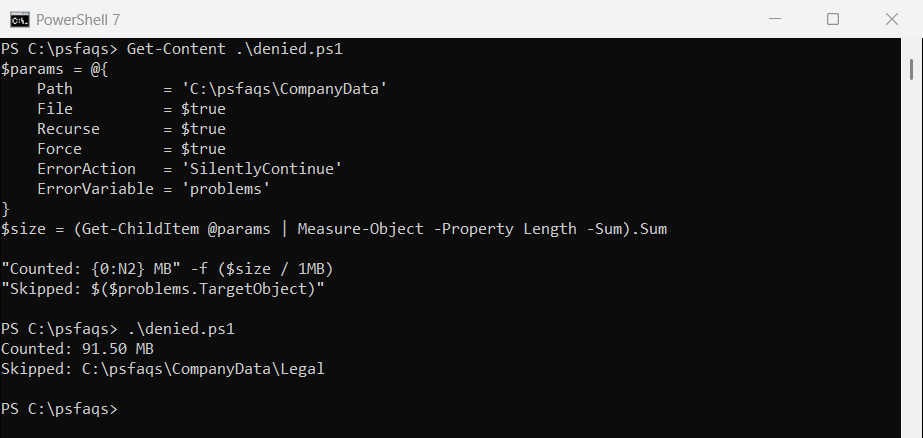
The total leaves out the Legal folder, which I locked for this test. Run the script as an administrator, or with an account that can read everything, to get the full number.
Export a folder size report to CSV
To share the results or track growth over time, send the subfolder sizes to a CSV file you can open in Excel:
Get-ChildItem -Path C:\psfaqs\CompanyData -Directory | ForEach-Object {
    $bytes = (Get-ChildItem -Path $_.FullName -File -Recurse -Force | Measure-Object -Property Length -Sum).Sum
    [pscustomobject]@{ Folder = $_.Name; SizeMB = [math]::Round($bytes / 1MB, 2) }
} | Export-Csv -Path C:\psfaqs\folder-sizes.csv -NoTypeInformation

Get-Content -Path C:\psfaqs\folder-sizes.csv
Output:
"Folder","SizeMB"
"Finance","32.5"
"HR","1.5"
"Marketing","57.5"
Keep the number as a plain value in the CSV, not formatted text, so Excel can sort and chart it. See PowerShell Export-Csv for more options.
Microsoft covers every Get-ChildItem parameter, including -Force and -Depth, in the Get-ChildItem documentation.
Frequently Asked Questions
How do I get the size of a folder in PowerShell?
Run (Get-ChildItem -Path C:\Folder -File -Recurse -Force | Measure-Object -Property Length -Sum).Sum / 1GB. It adds up every file, including subfolders and hidden files.
Why is my PowerShell folder size smaller than File Explorer’s?
Get-ChildItem skips hidden and system files unless you add -Force. Folders you can’t access are skipped too.
How do I convert bytes to GB in PowerShell?
Divide by the built-in constant: $bytes / 1GB. Format it with "{0:N2} GB" -f ($bytes / 1GB) or round it with [math]::Round($bytes / 1GB, 2).
Does PowerShell use 1,000 or 1,024 for GB?
1,024. 1GB equals 1,073,741,824 bytes, the same unit Windows uses. That’s why a 500 GB drive shows about 465 GB.
How do I list subfolders by size in PowerShell?
Loop over Get-ChildItem -Directory, measure each folder’s files with Measure-Object, and sort the results by size in descending order.
To keep an eye on storage, these are worth a look next:
- Find the largest folders using PowerShell
- Check hard drive space with PowerShell
- Count files in a folder
- Delete files older than X days

Bijay Kumar is an esteemed author and the mind behind PowerShellFAQs.com, where he shares his extensive knowledge and expertise in PowerShell, with a particular focus on SharePoint projects. Recognized for his contributions to the tech community, Bijay has been honored with the prestigious Microsoft MVP award. With over 15 years of experience in the software industry, he has a rich professional background, having worked with industry giants such as HP and TCS. His insights and guidance have made him a respected figure in the world of software development and administration. Read more.